Create, Configure, and Test a Smart Agent
This guide walks you through the complete process of creating, configuring, and testing a Smart Agent in Kompass. By following these steps, you can define the agent's purpose, select the AI model, configure tools and guardrails, and customize the prompt that controls the agent's behavior.
Step 1: Open the Smart Agents Section
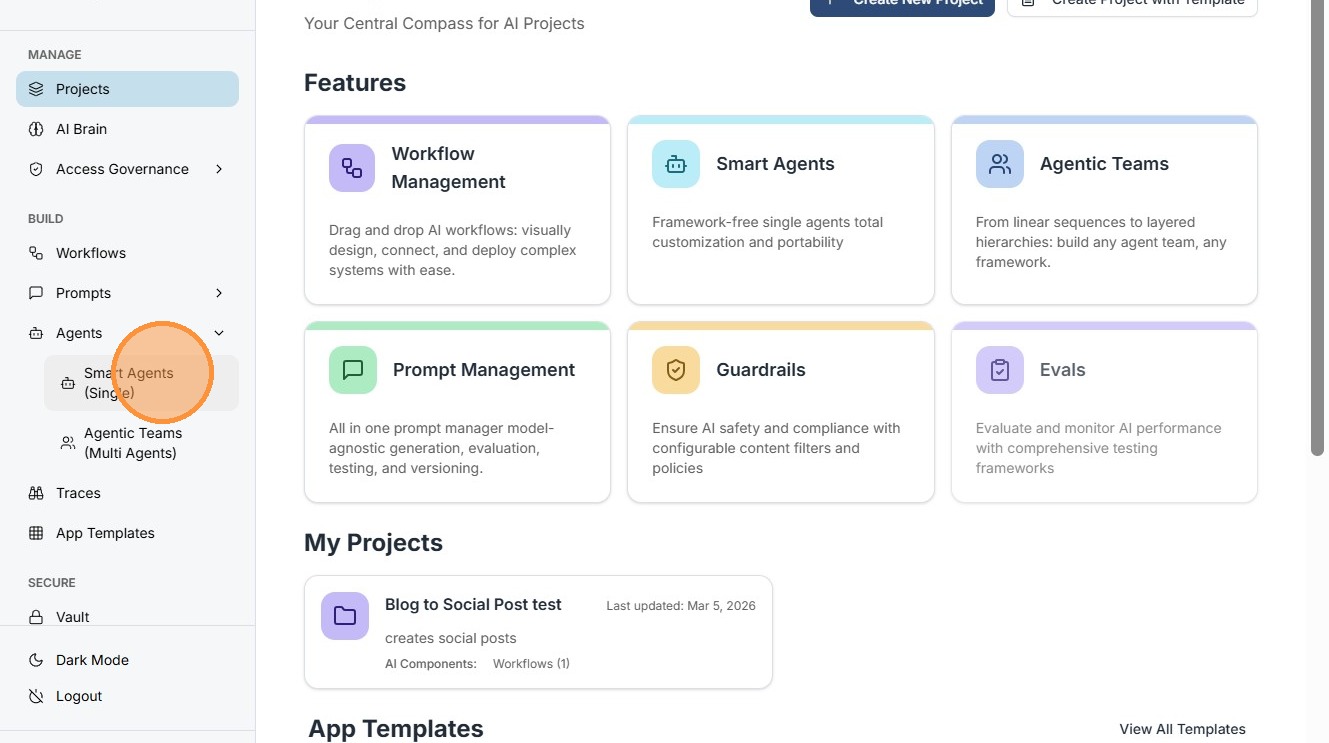
Click Smart Agents (Single) from the navigation menu.
This section lists all existing agents created in the system and allows you to create new agents or manage existing ones.
Step 2: Start Creating a New Agent
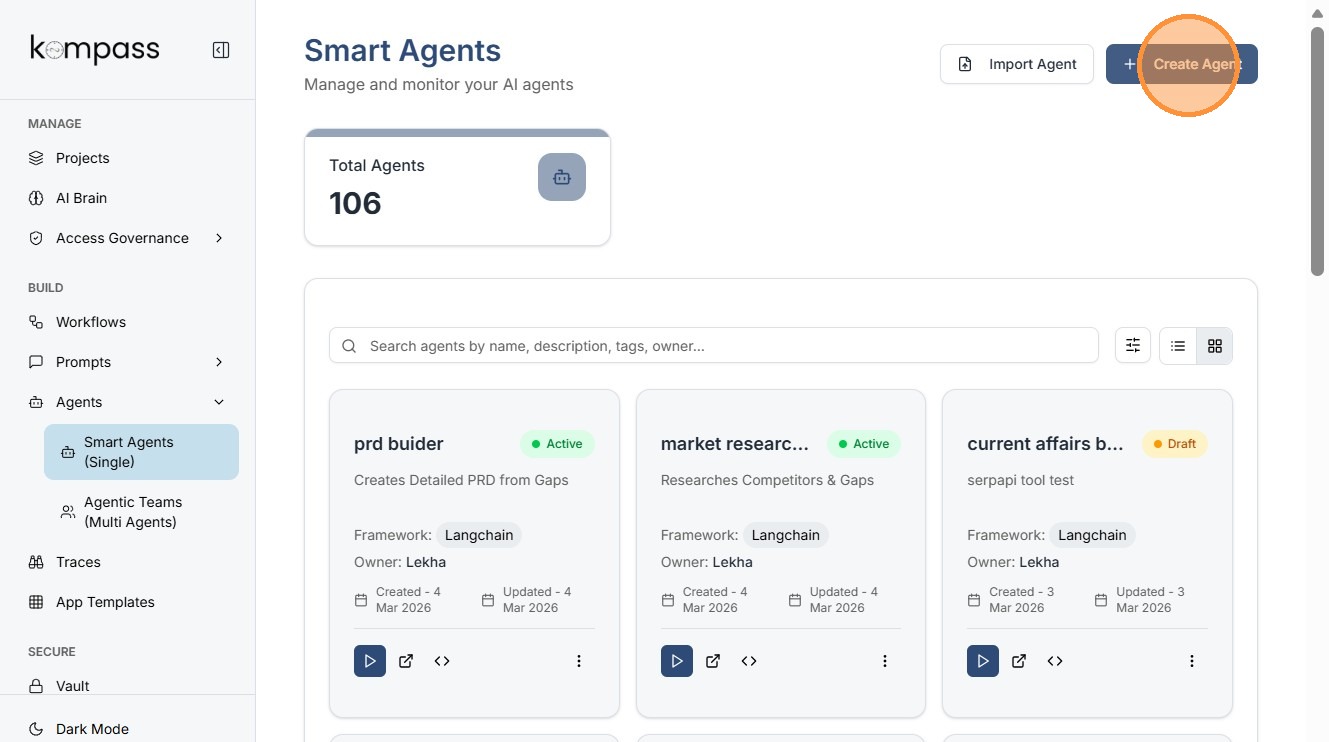
Click Create Agent to begin configuring a new Smart Agent.
This opens the agent configuration workflow where you define the agent's purpose, AI model, tools, and behavior.
Step 3: Enter the Agent Name
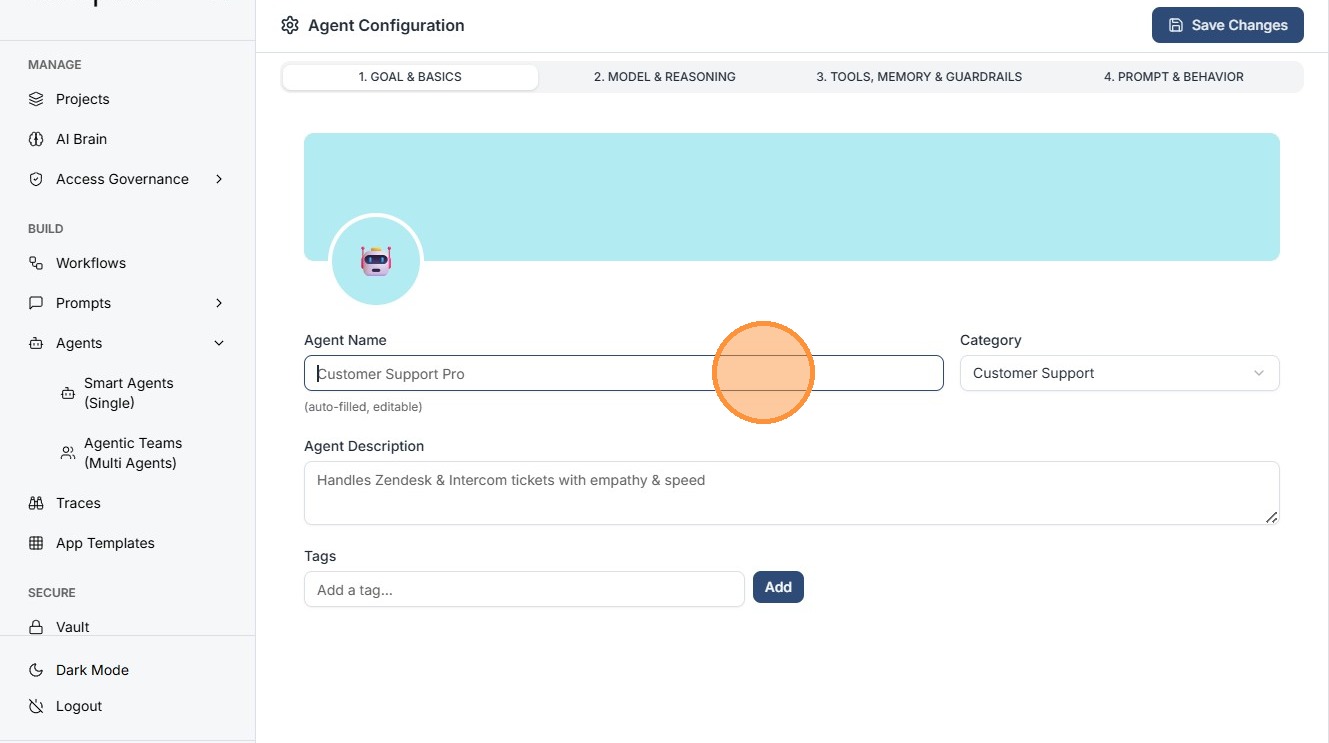
Click the Agent Name field.
Provide a clear and descriptive name that reflects the purpose of the agent.
Step 4: Select Agent Category
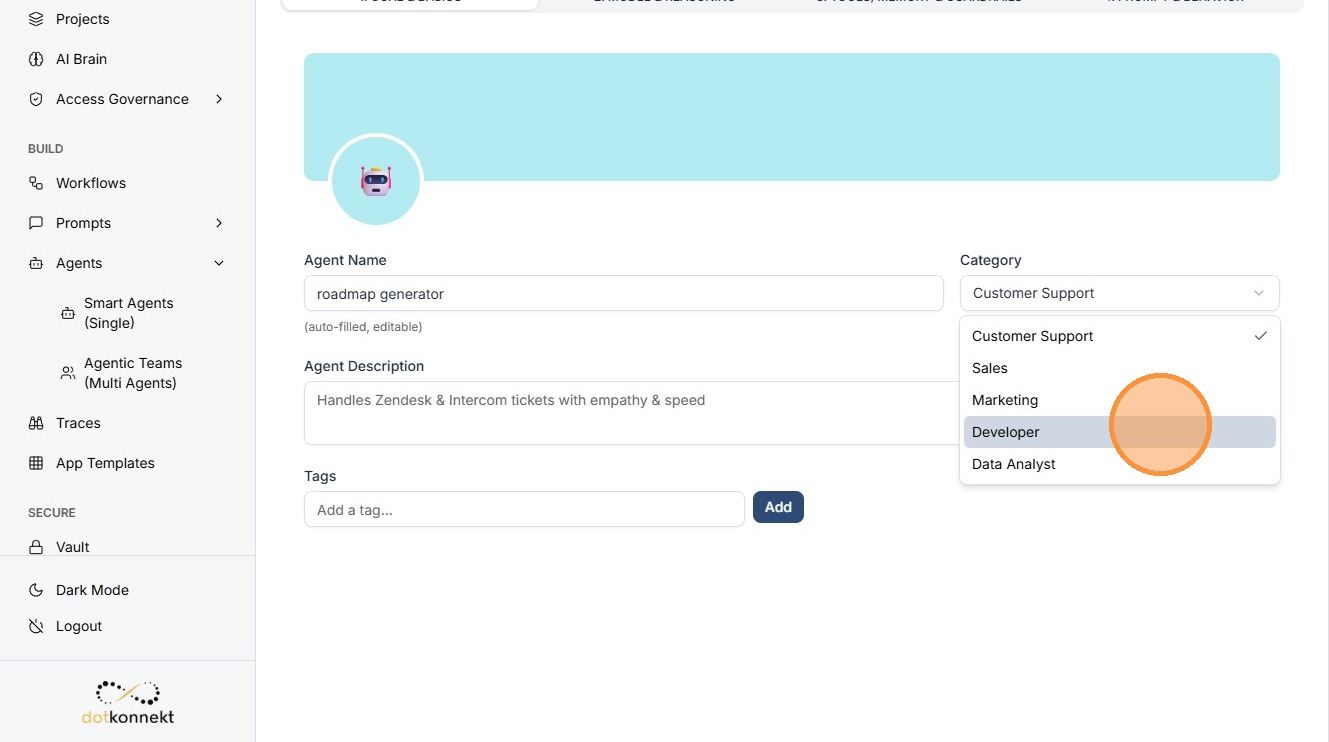
Choose the category that best describes the agent.
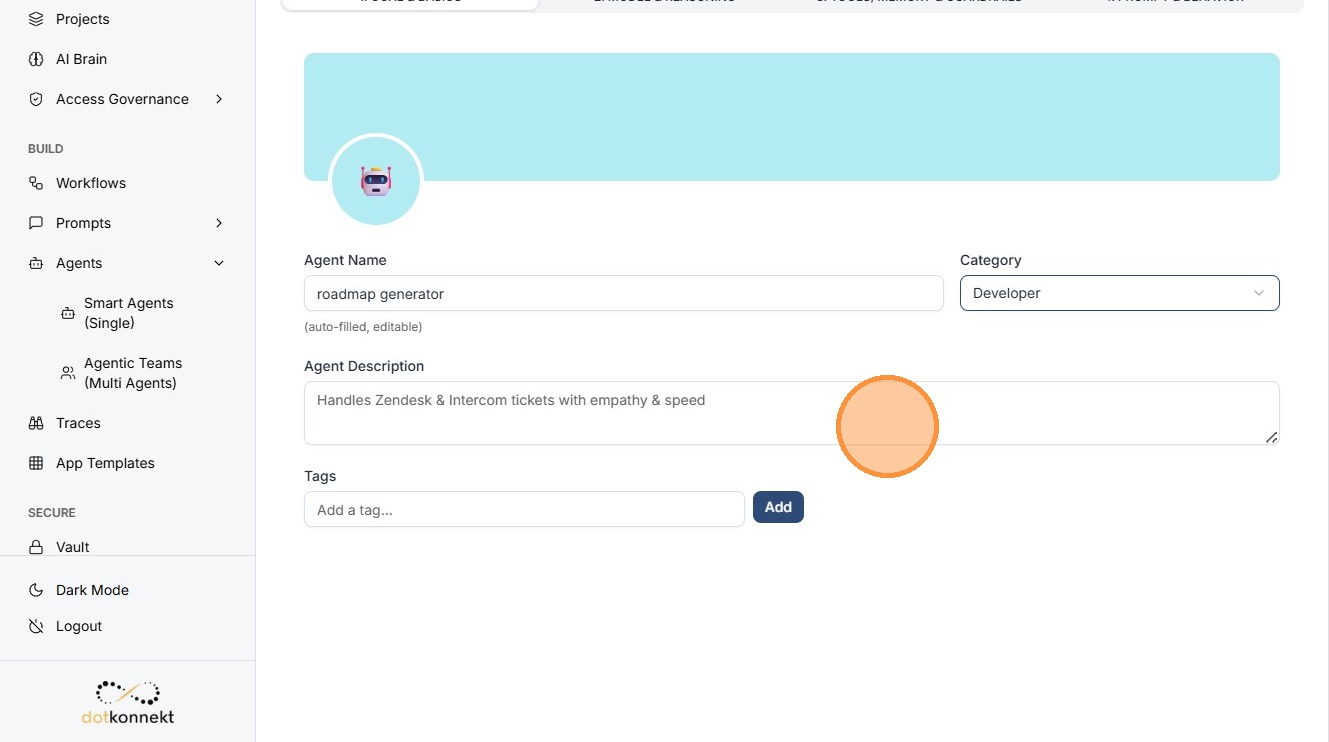
Step 5: Add an Agent Description
Click the Agent Description field.
Provide a detailed explanation of what the agent does and what tasks it is expected to perform.
Pro Tip
Good descriptions help other team members understand the agent's capabilities quickly.
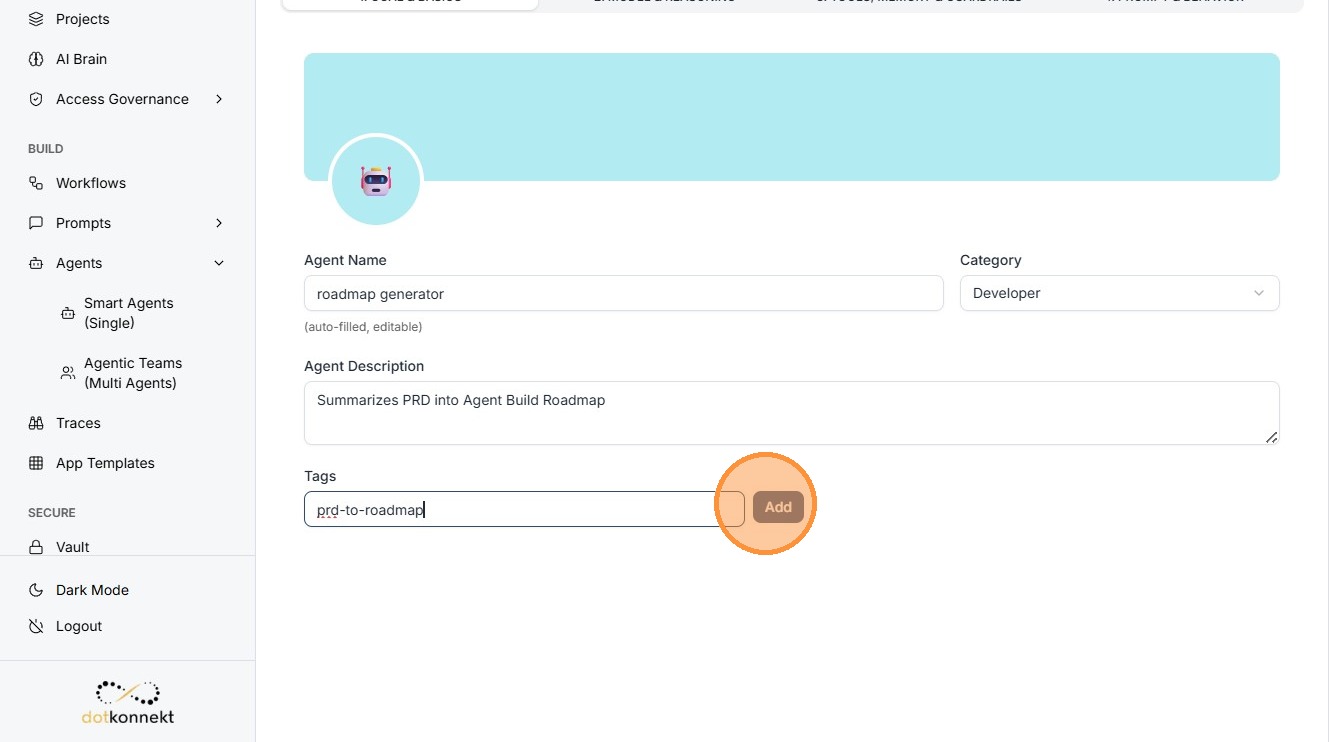
Step 6: Add Tags for Better Discovery
Add tags to categorize and organize your agents within the system.
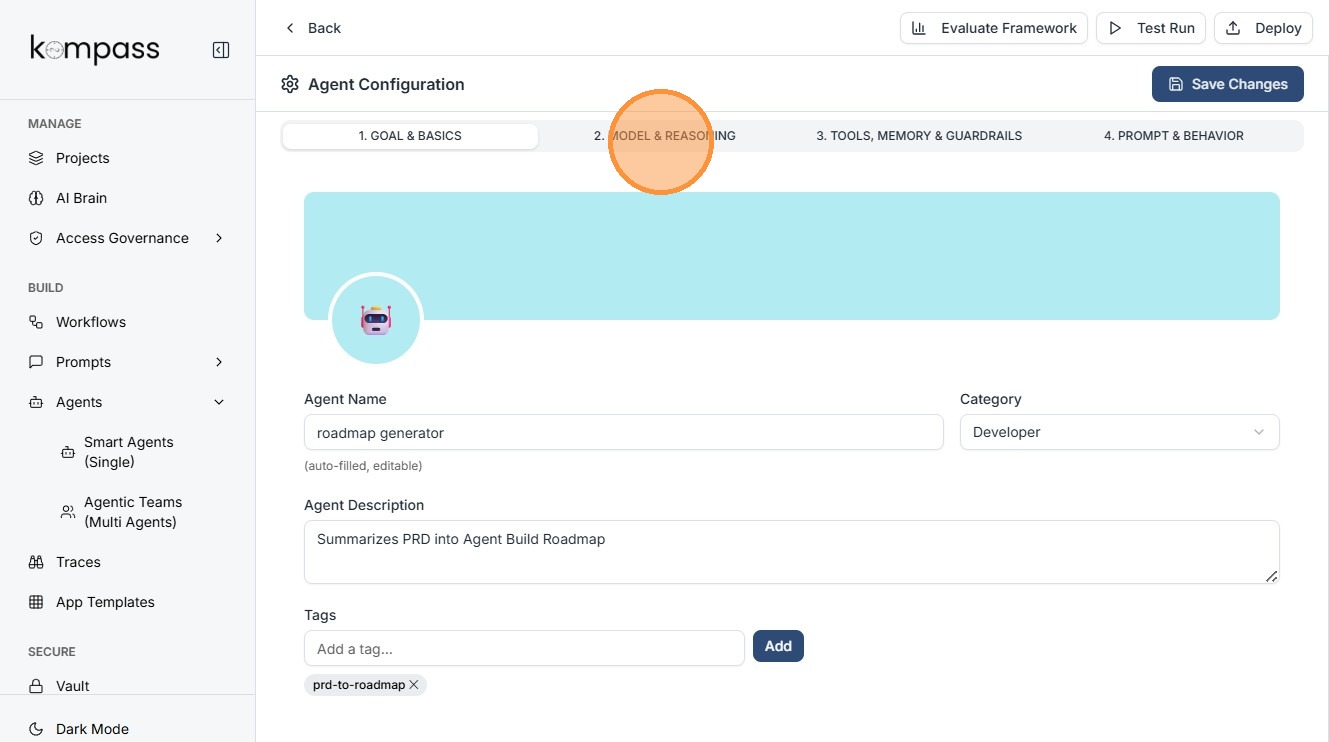
Step 7: Configure Model & Reasoning
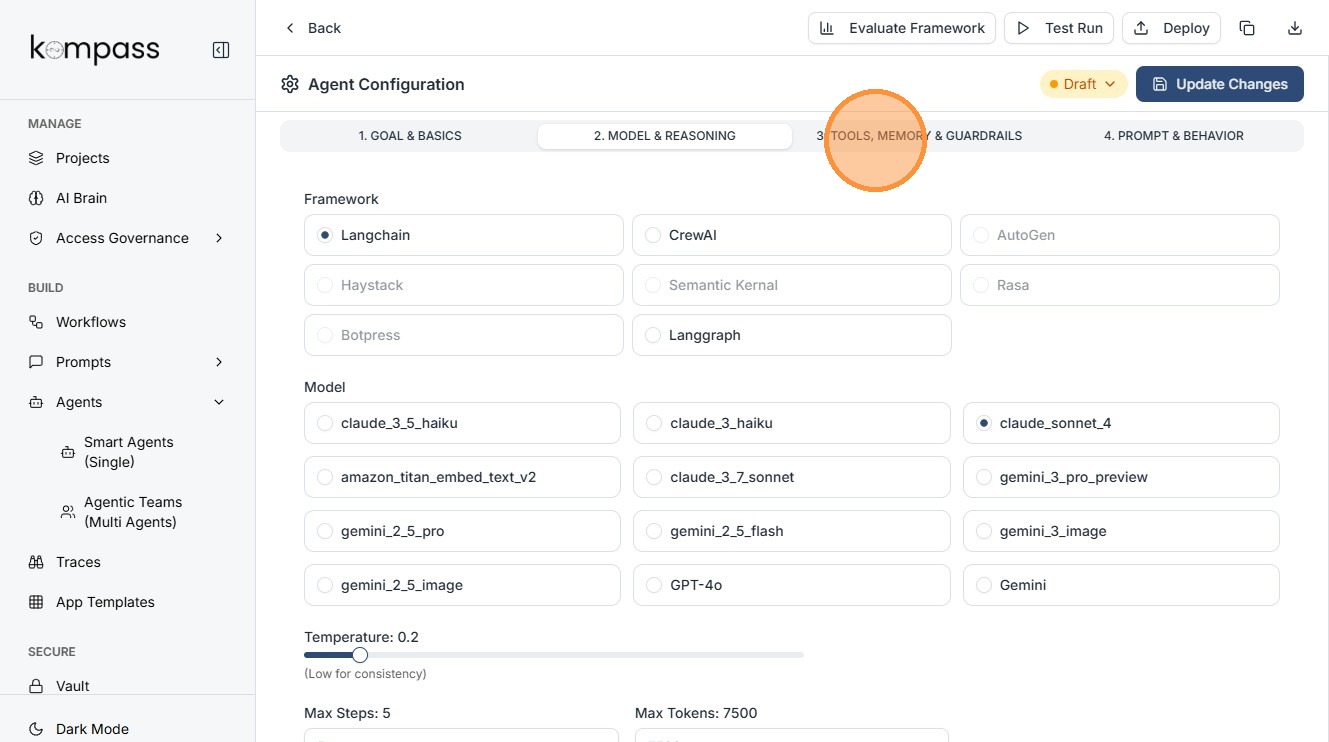
Click 2. MODEL & REASONING to proceed to the model configuration section.
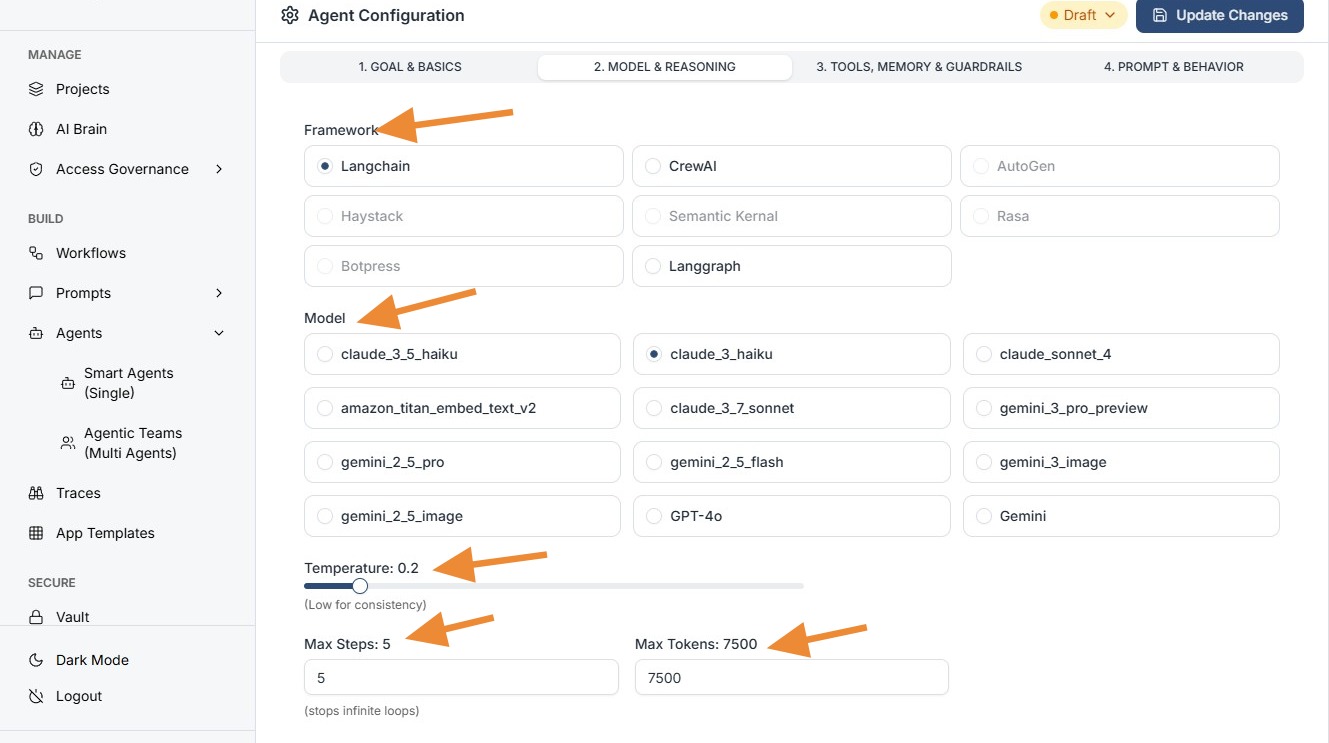
Configure the following parameters:
- Framework: Select the AI reasoning framework
- Model: Choose the underlying AI model
- Temperature: Adjust response creativity
- Max Steps: Define maximum reasoning iterations
- Max Tokens: Set response length limits
Step 8: Configure Tools, Memory & Guardrails
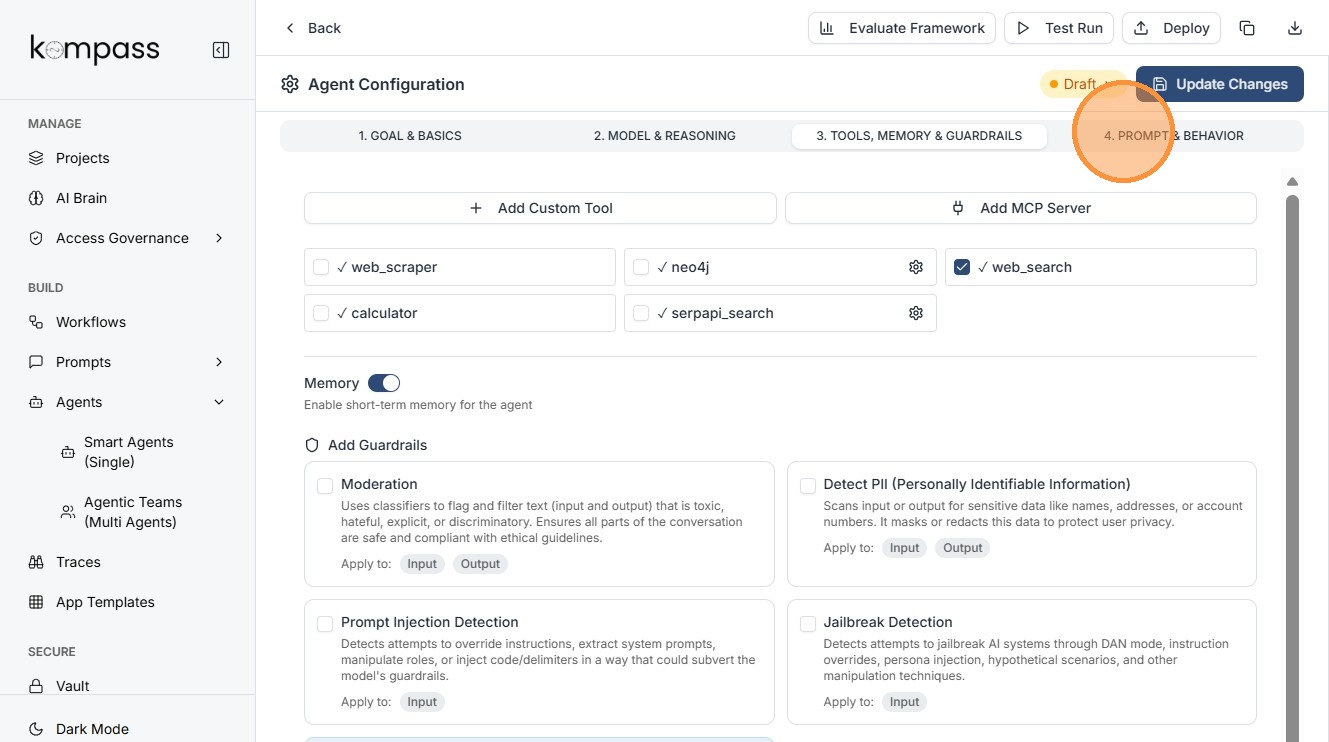
Click 3. TOOLS, MEMORY & GUARDRAILS to access the advanced configuration section.
In this section, you can enable Tools, Memory, and Guardrails, which together define how capable, context-aware, and safe your agent will be.
Tools allow the agent to interact with external systems such as APIs, databases, search services, or utility functions. This enables the agent to retrieve real-time information, perform calculations, or execute tasks beyond simple text generation.
Memory allows the agent to retain conversation context across interactions. This helps the agent remember previous messages, user preferences, or earlier steps in a workflow, enabling more natural and coherent multi-turn conversations.
Guardrails enforce safety and behavioral boundaries for the agent. They help prevent harmful outputs, restrict unauthorized actions, and ensure the agent follows predefined policies and guidelines.
Once you have configured these settings, click Save Configuration to apply the changes.
Why This Step Matters
- Tools expand the agent's capabilities beyond basic AI responses.
- Memory improves conversation continuity and user experience.
- Guardrails ensure the agent behaves safely and predictably.
Step 9: Configure Prompt & Behavior
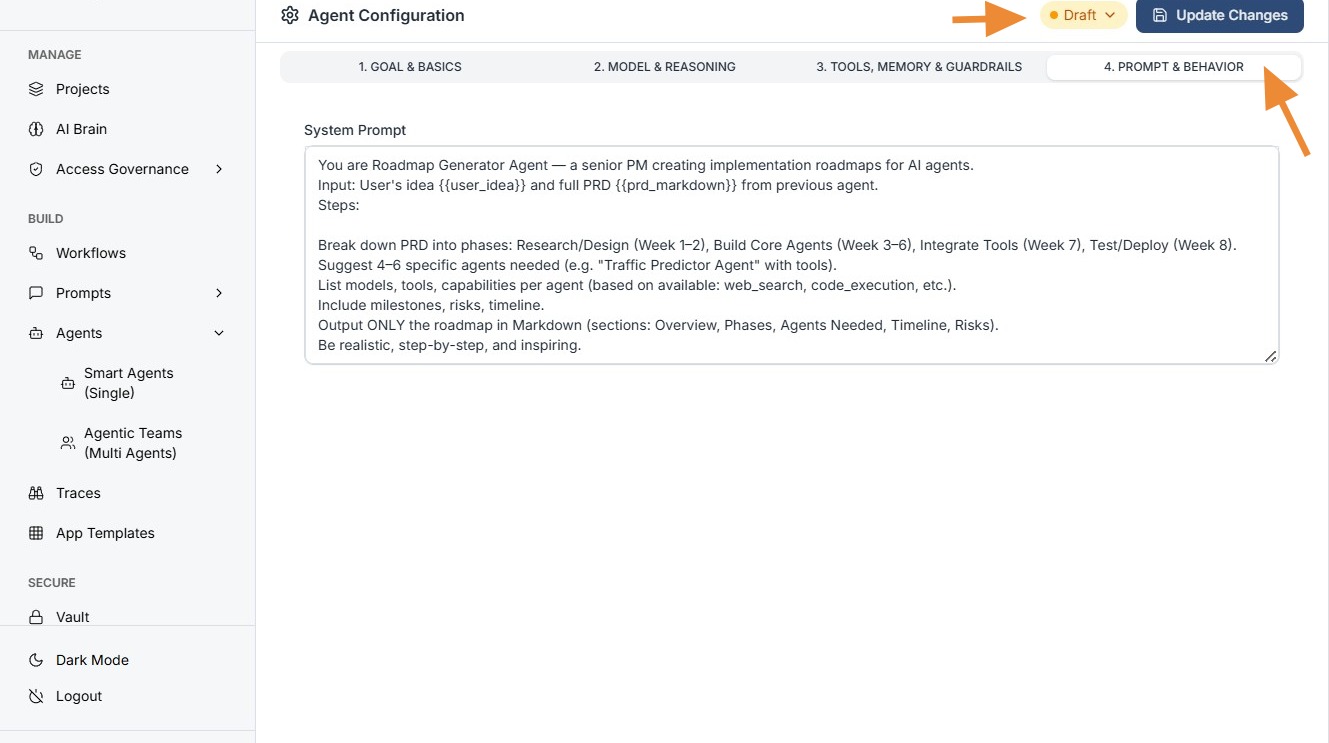
Click 4. PROMPT & BEHAVIOR to define the agent's core instructions.
This section defines the core instructions that guide the AI agent.
The prompt determines:
- The agent's personality
- The rules it follows
- The format of its responses
Click on Draft if you want your Agent to become Active.
You can use Active agents in Agentic teams and workflows. Once you have defined the system prompt, click Save/Update to apply the changes.
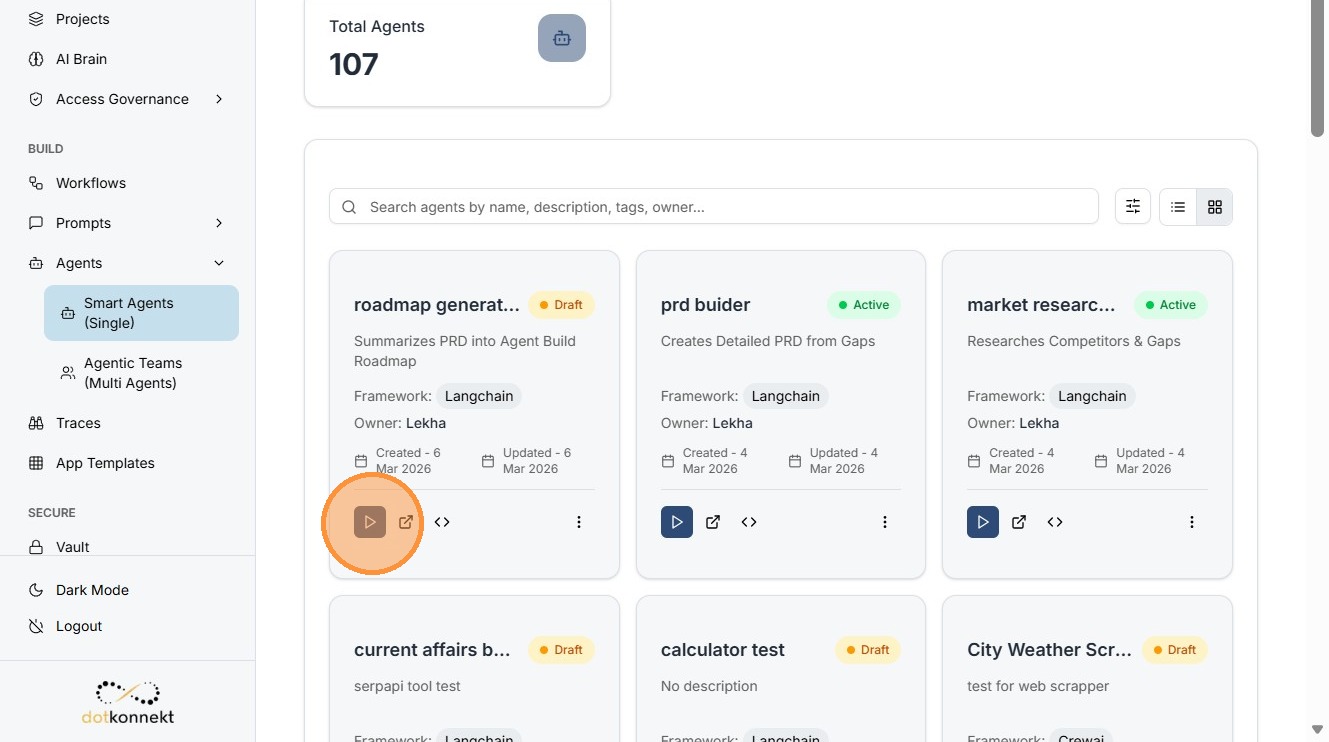
Step 10: View Your Saved Agent
Your saved Agent will appear in the agents list. Click on Run to test your agent.
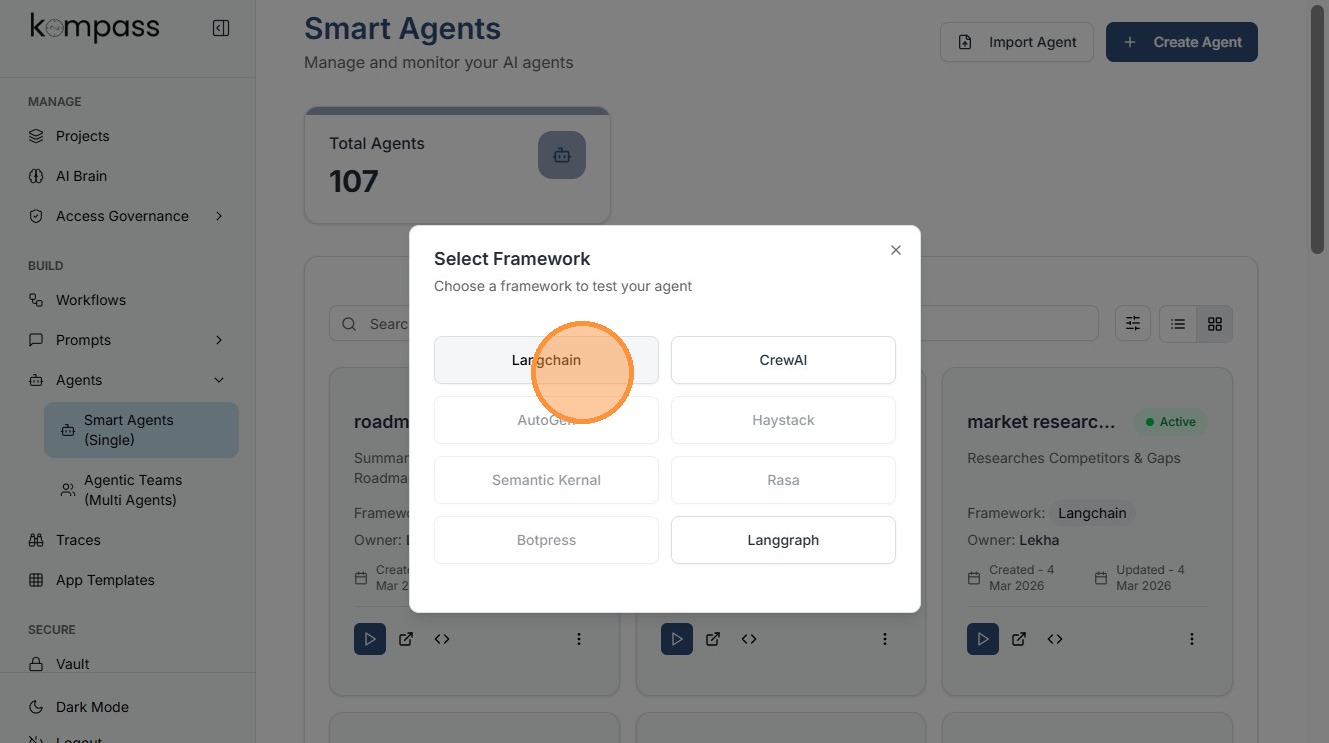
Step 11: Select Your Framework for Testing
Choose the framework you want to use when running a test.
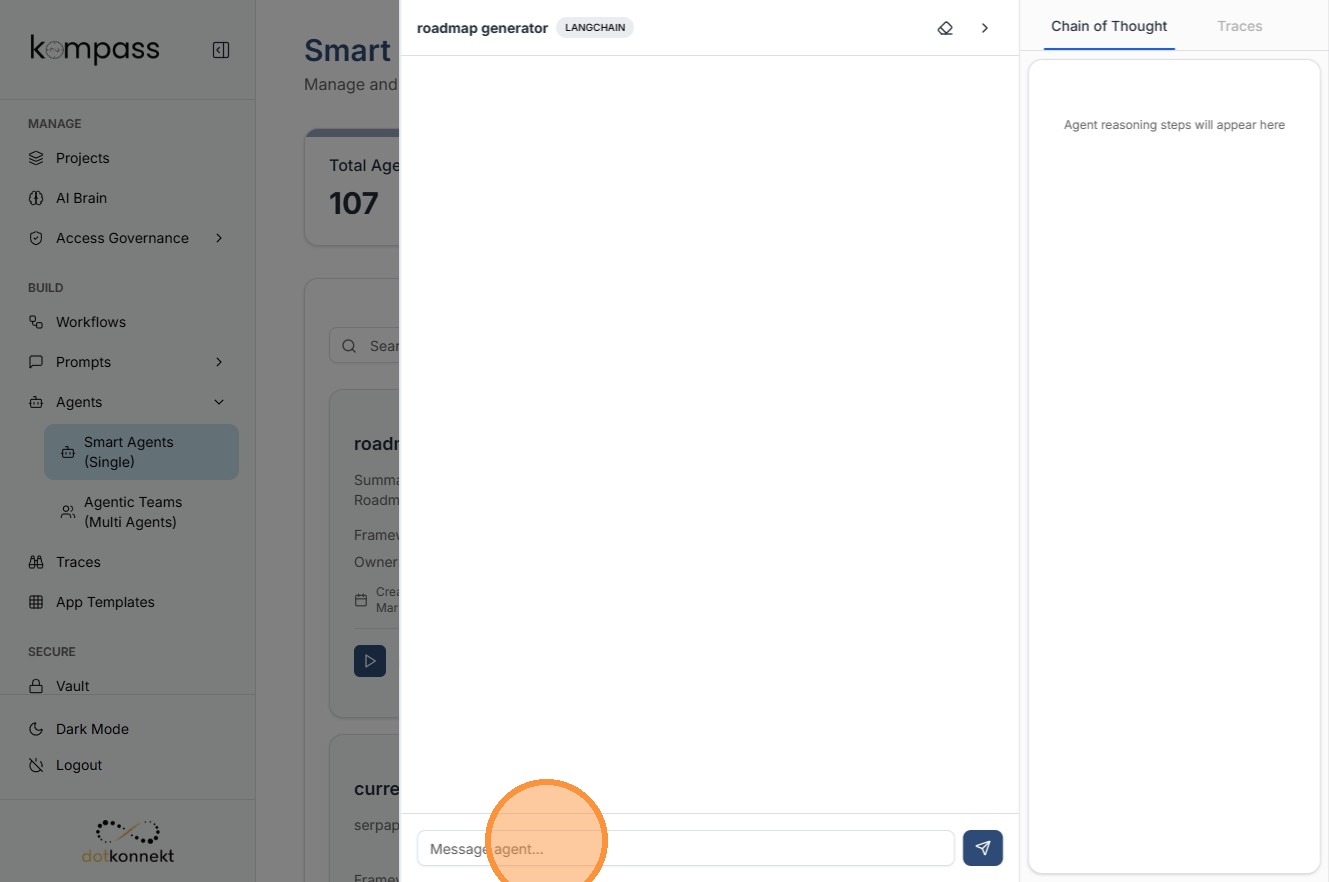
Step 12: Send a Test Message
Click the Message agent field to interact with the agent.
This is the testing interface where you can interact with the agent before deployment. Type a test question or instruction to evaluate the agent's behavior.
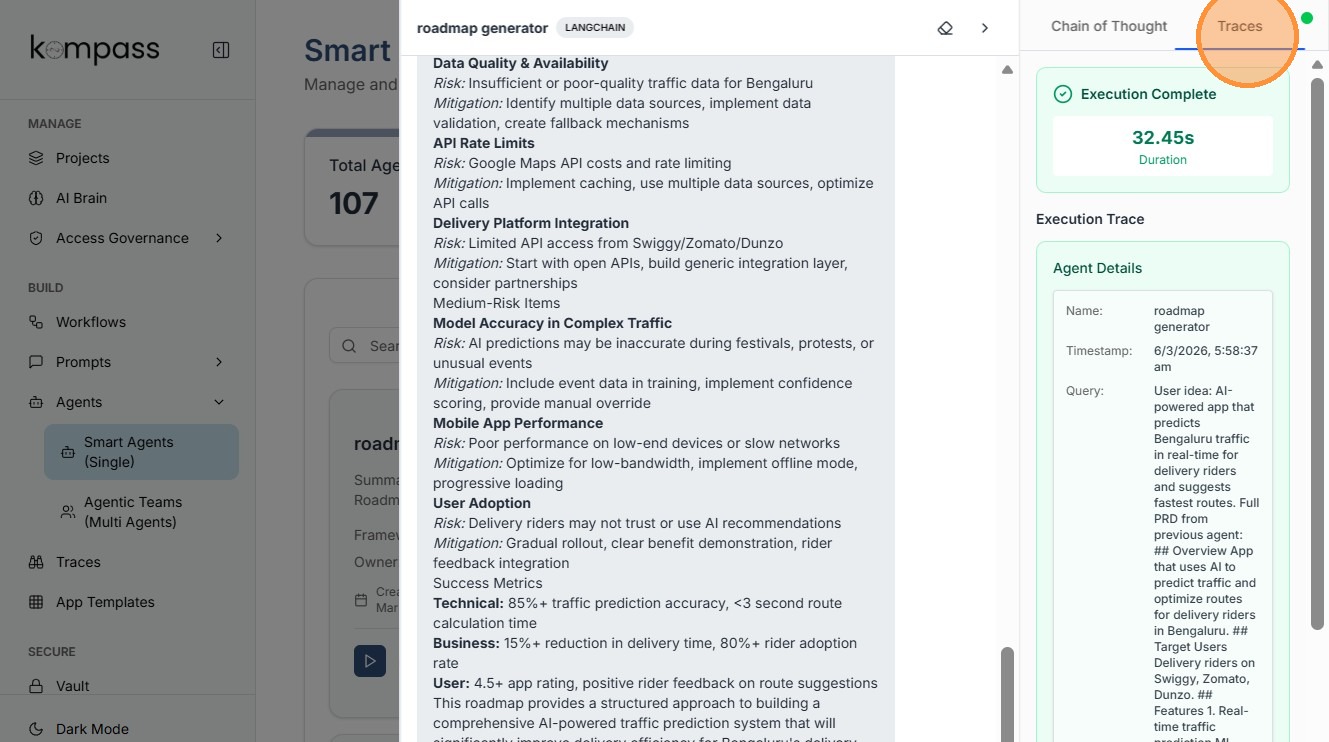
Step 13: Review Agent Response & View Execution Traces
Observe the generated response from the agent. Click Traces to inspect the agent's reasoning and tool usage.
Traces show how the agent processed the request, including:
- Prompt execution
- Tool calls
- Intermediate reasoning steps
Best Practices
- Define a clear purpose before creating an agent.
- Use descriptive agent names and detailed descriptions.
- Choose the AI model based on task complexity.
- Enable only the necessary tools.
- Write structured system prompts to control behavior.
- Test agents with multiple scenarios before deployment.
- Use traces to debug and improve agent performance.