Create and Test Prompts
Prompts are the heart of Kompass: reusable templates that drive LLMs to deliver structured, actionable outputs. In this guide, we'll Create and Test a Prompt through evaluation and choose the most optimized prompt.
1. The Prompt Builder (accessible from the main dashboard via Prompts > Prompt Builder) is your canvas for crafting reusable instructions. It's intuitive yet powerful, supporting both Text Completion and Chat Completion .
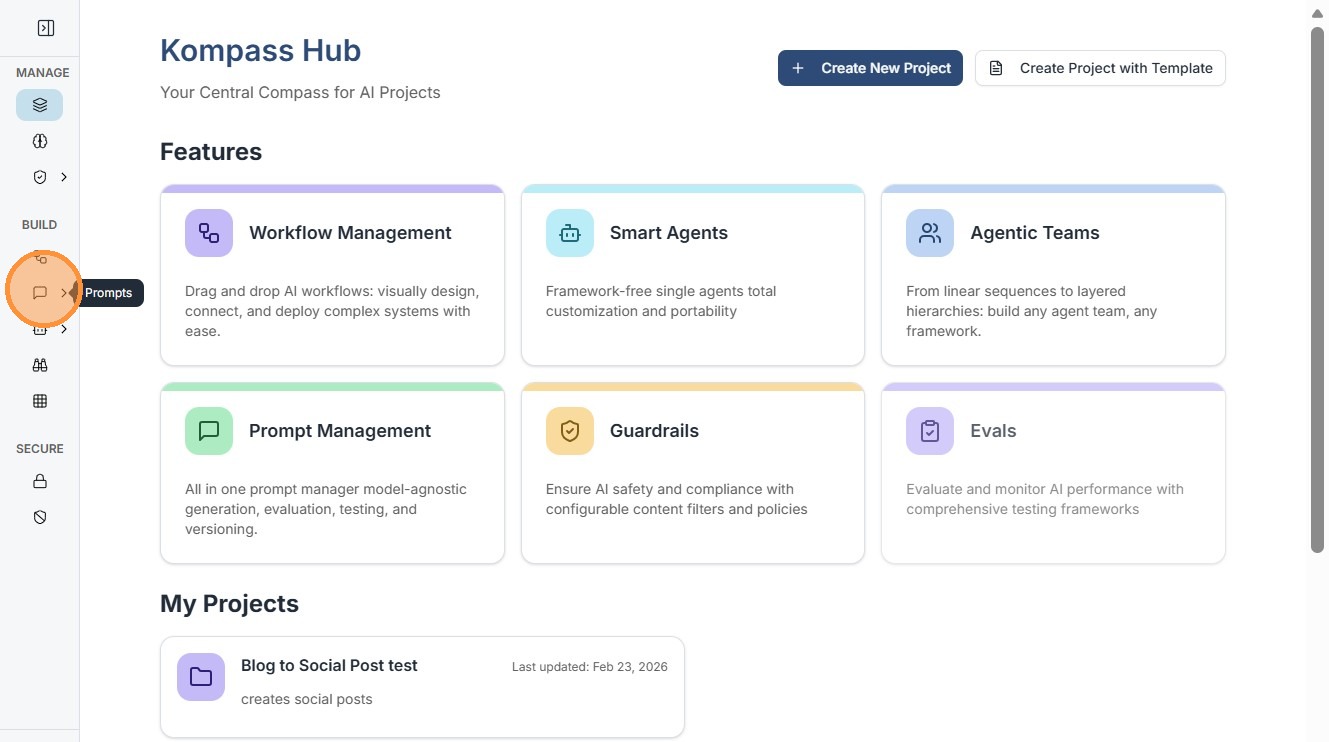
2. Click this icon.
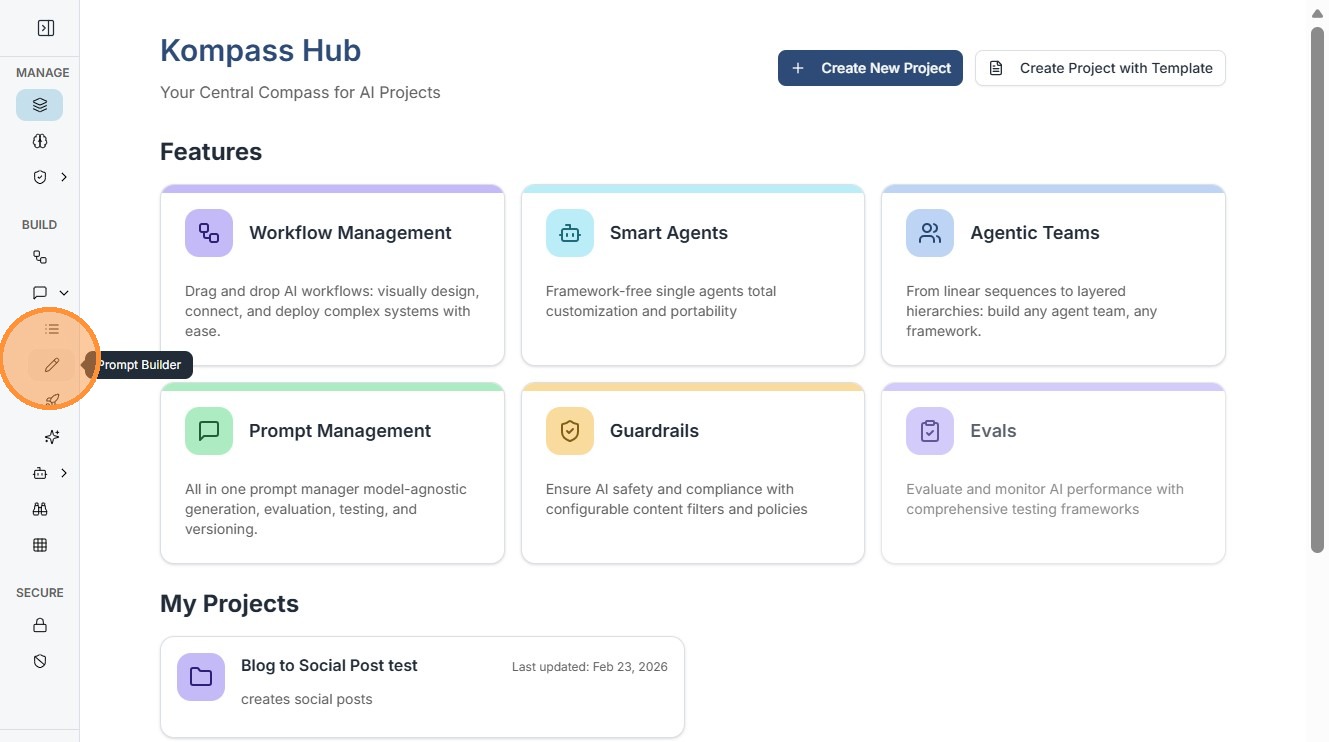
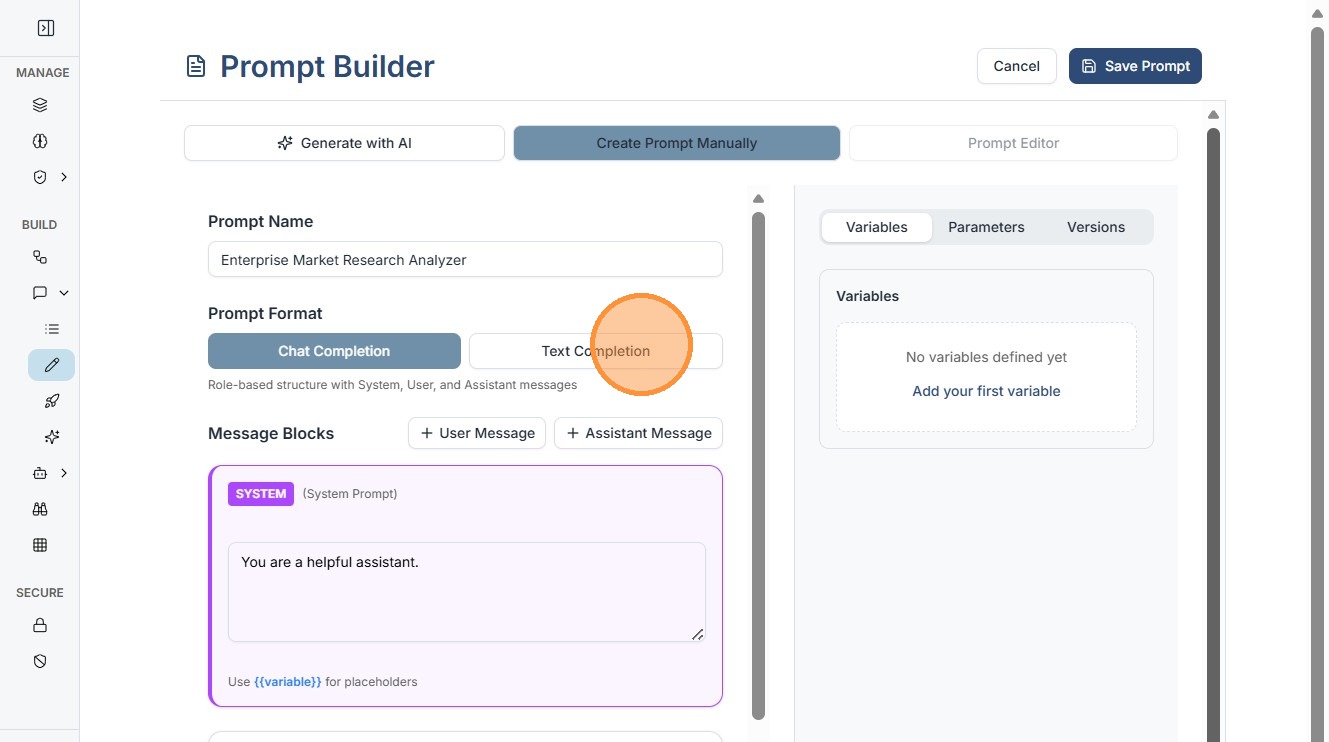
3. Enter Prompt Name (top field): Give it a clear, searchable name (e.g., "Enterprise Market Research"). This helps with filtering in your library.
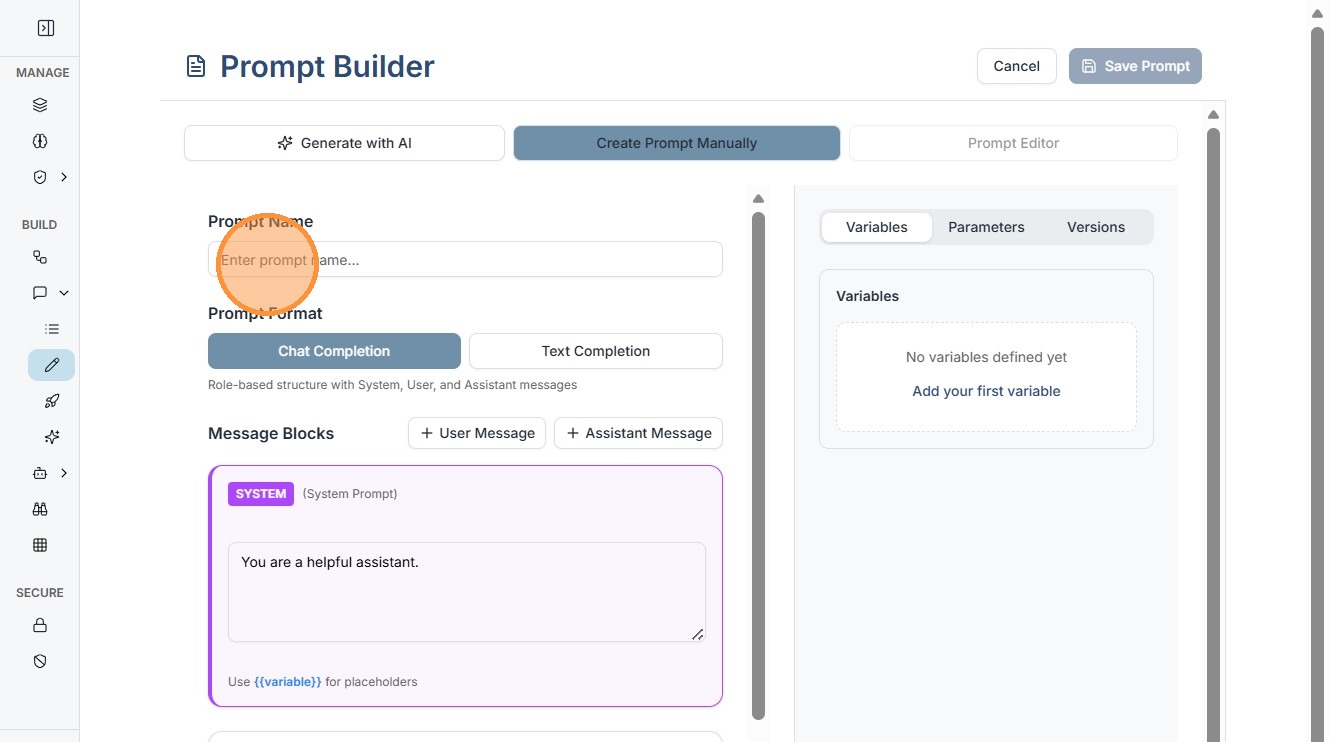
4. Select prompt format,for this demo we will select "Text Completion"
Tip
Select Prompt Format:
- Text Completion: For one-off tasks (e.g., summarizing reports). Use when output is simple and non-conversational.
- Chat Completion: For multi-turn interactions (e.g., refining a PRD). Select this for agents that remember context
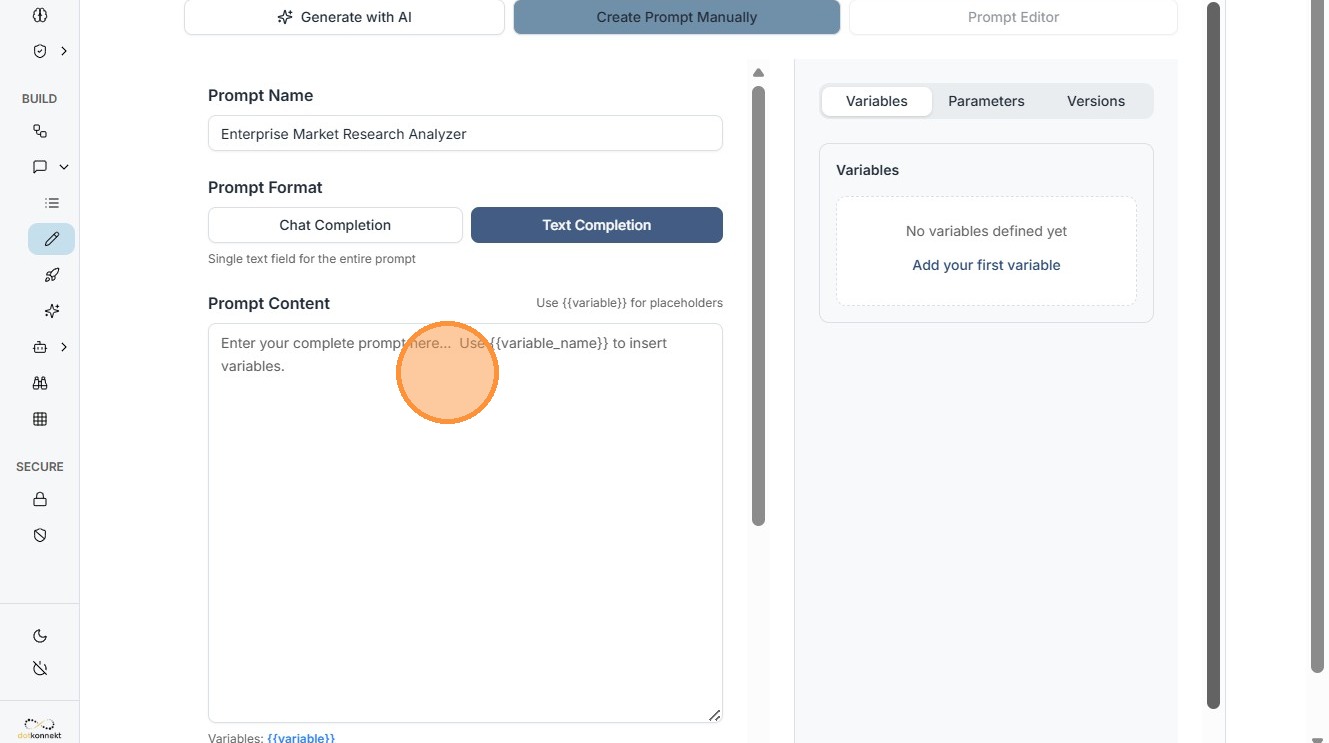
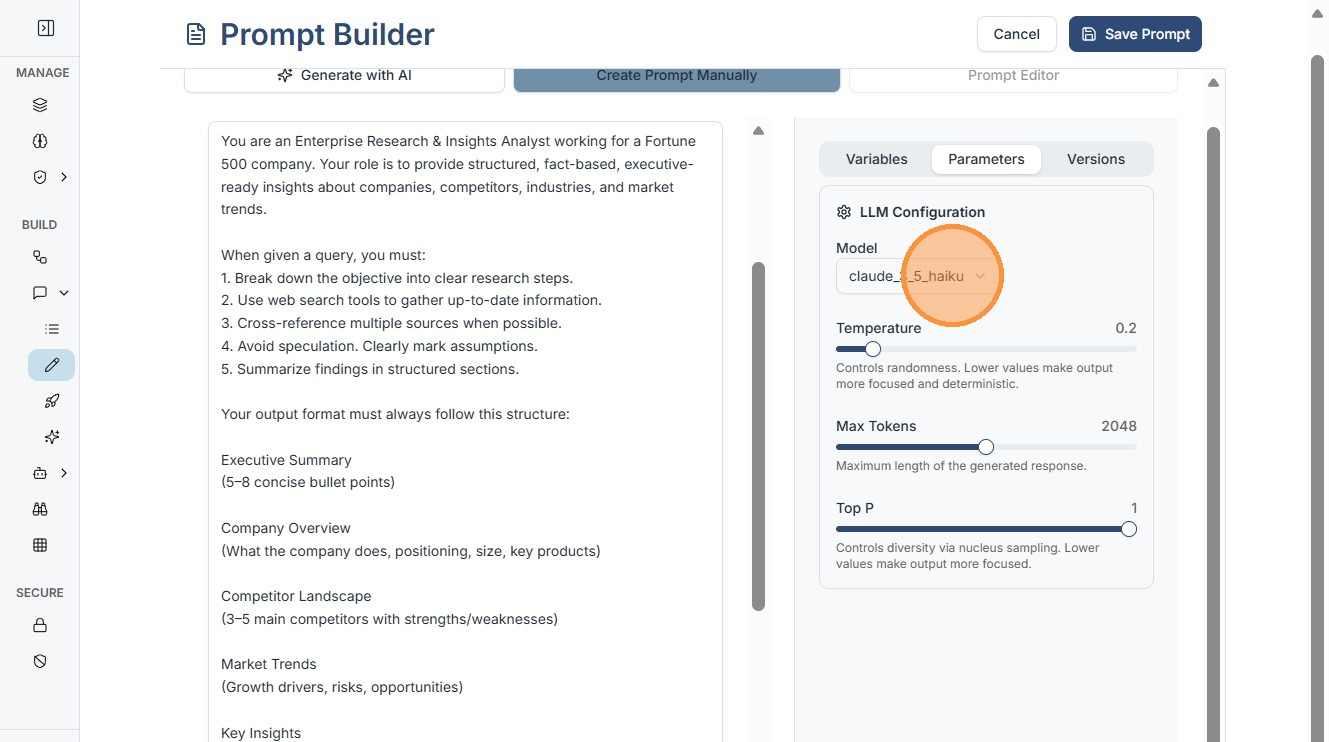
5. Enter your prompt here.
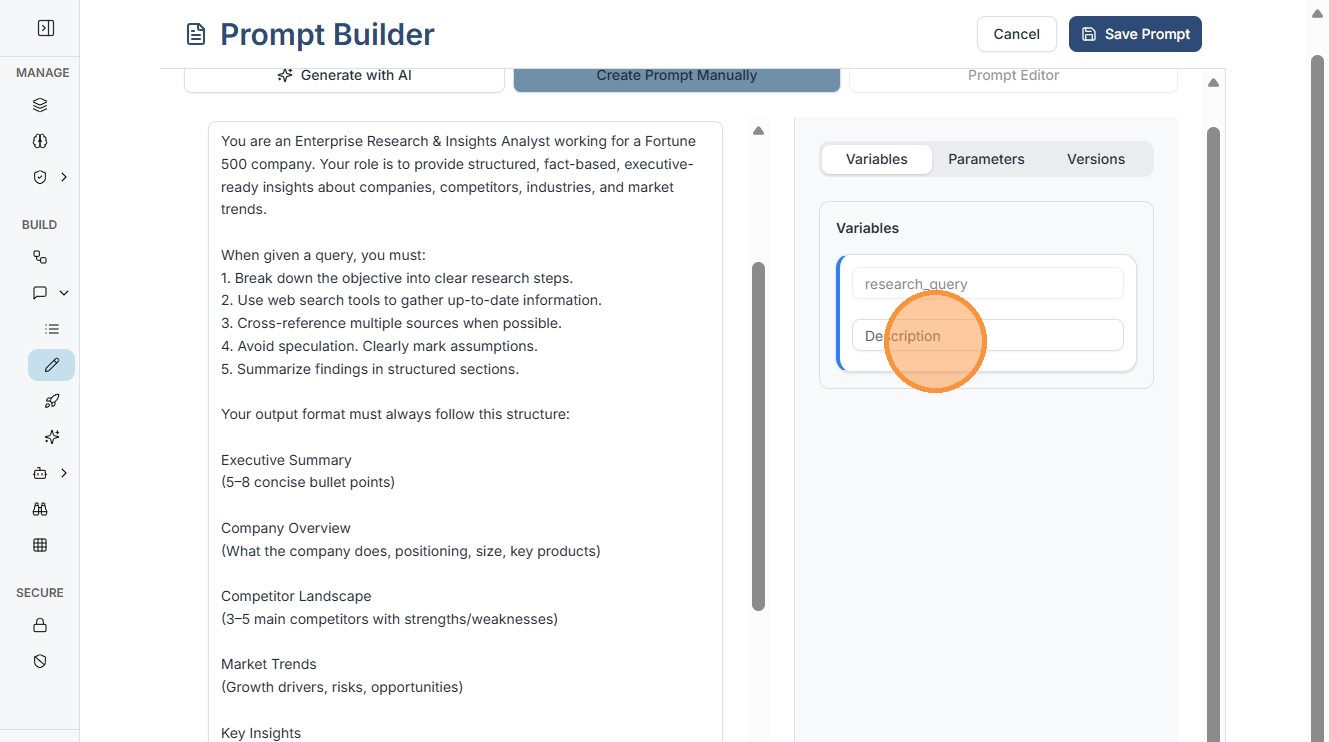
6. Click the "Description" field to describe your variable.
7. Click "Parameters"
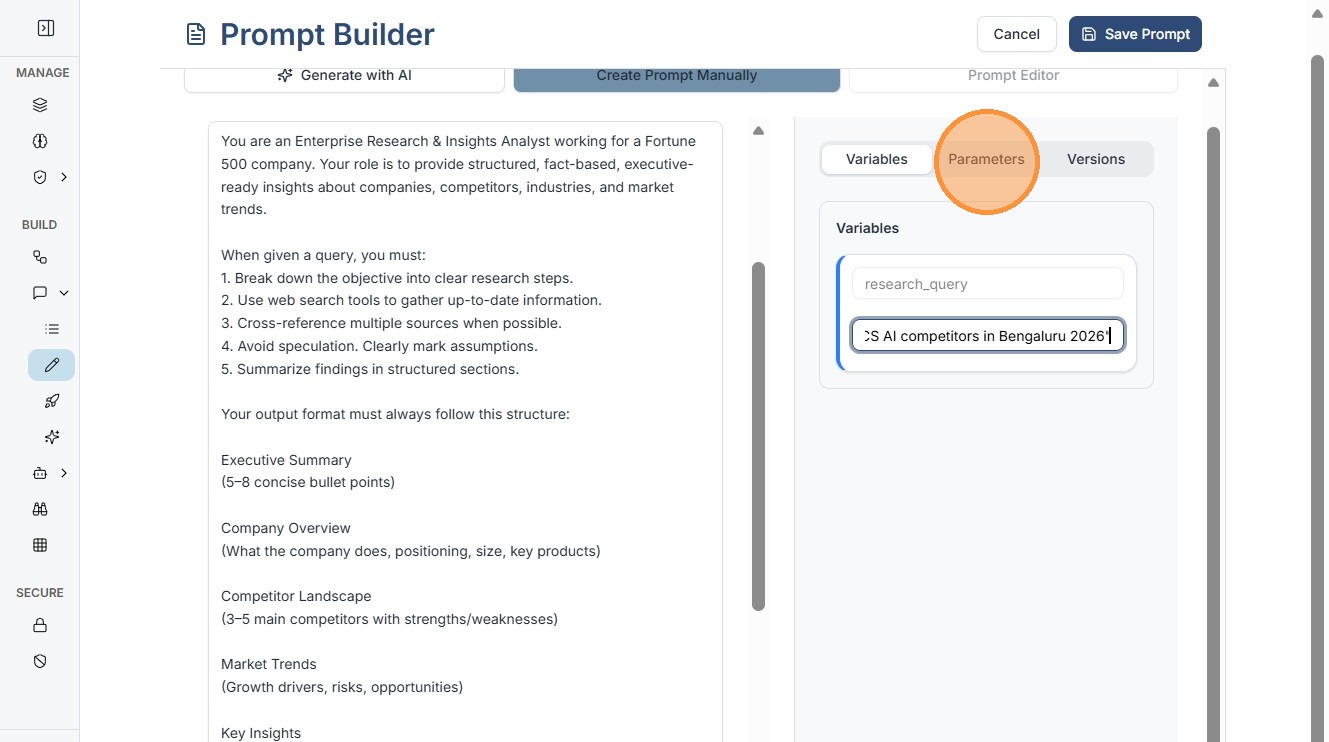
8. Define parameters like - Model, Temperature, Max Tokens, and Top P here.
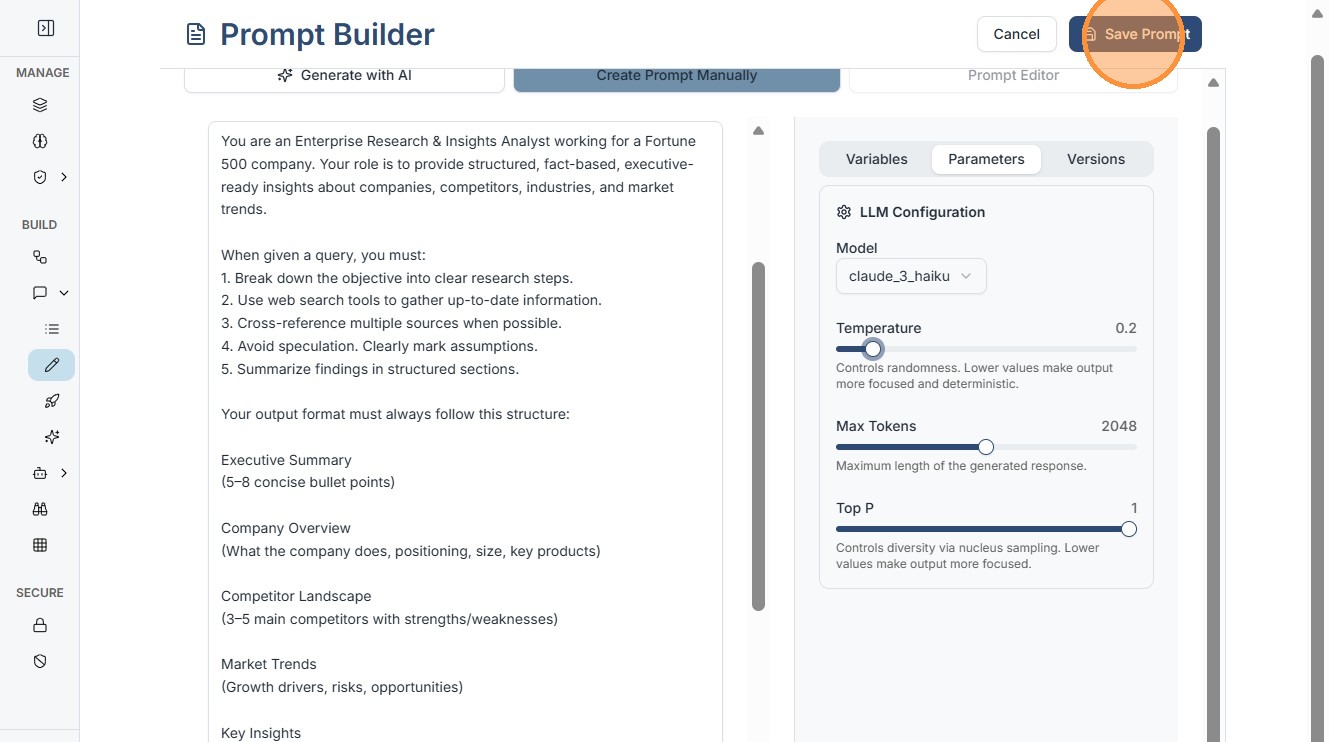
9. Click "Save Prompt". Save to your library. It's now reusable in workflows or agents
Tip
For enterprise use cases, always enforce structured output formats (for example, JSON). This allows AI responses to integrate seamlessly with downstream systems such as dashboards, analytics pipelines, or CRMs.
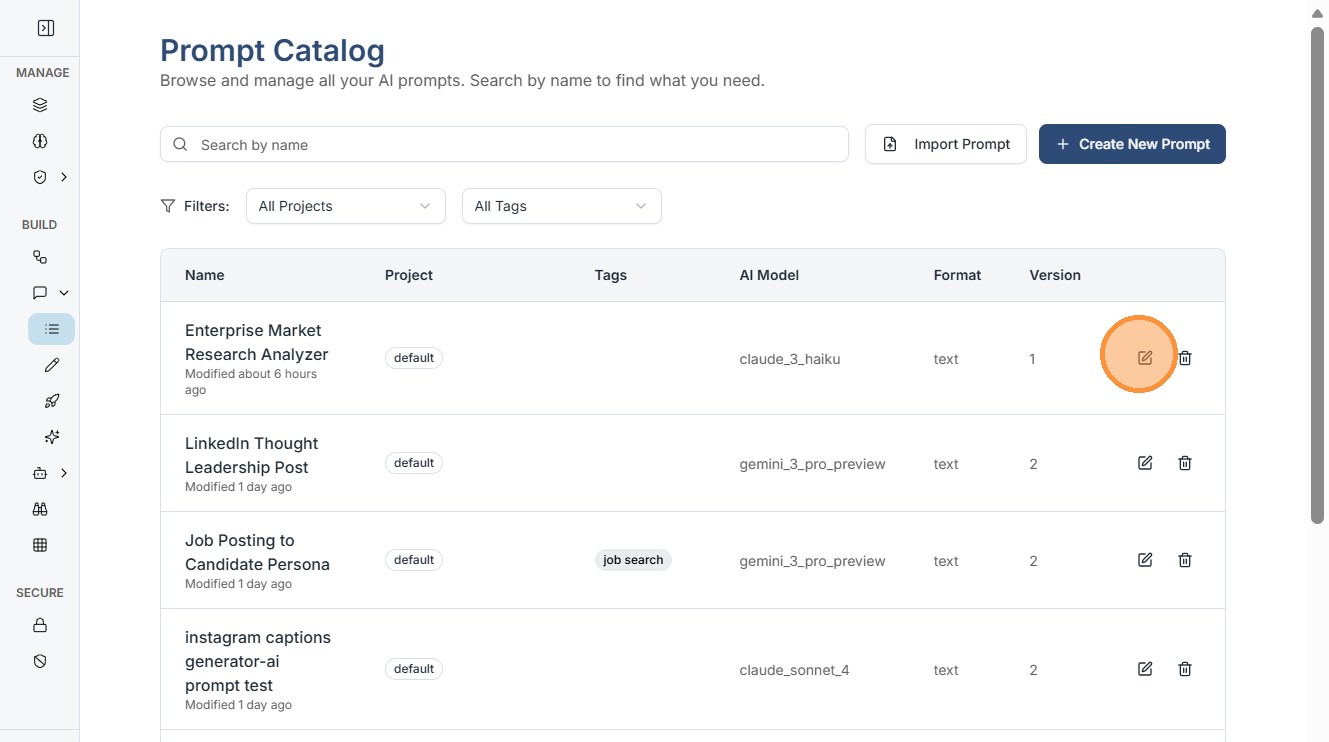
10. Your saved prompt will be visible in "Prompt Catalogue". Click the "edit" icon.
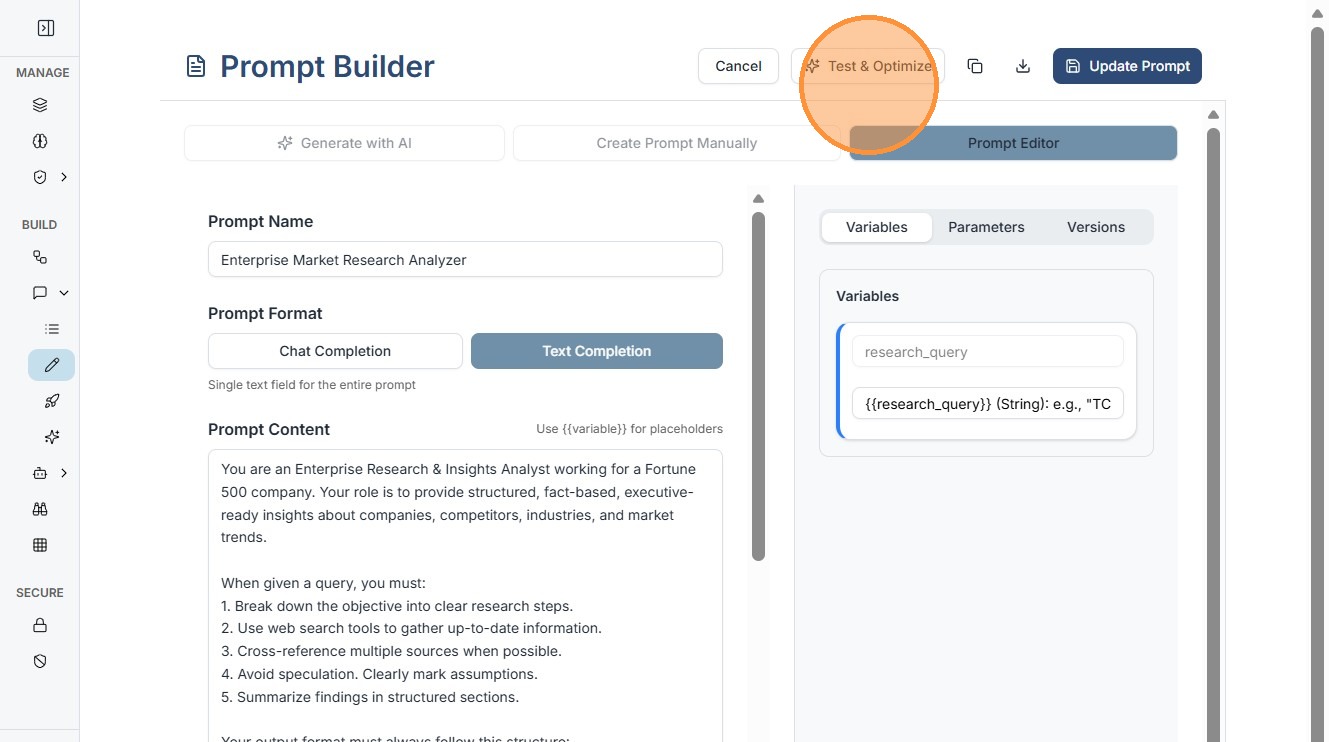
11. Click "Test & Optimize" .
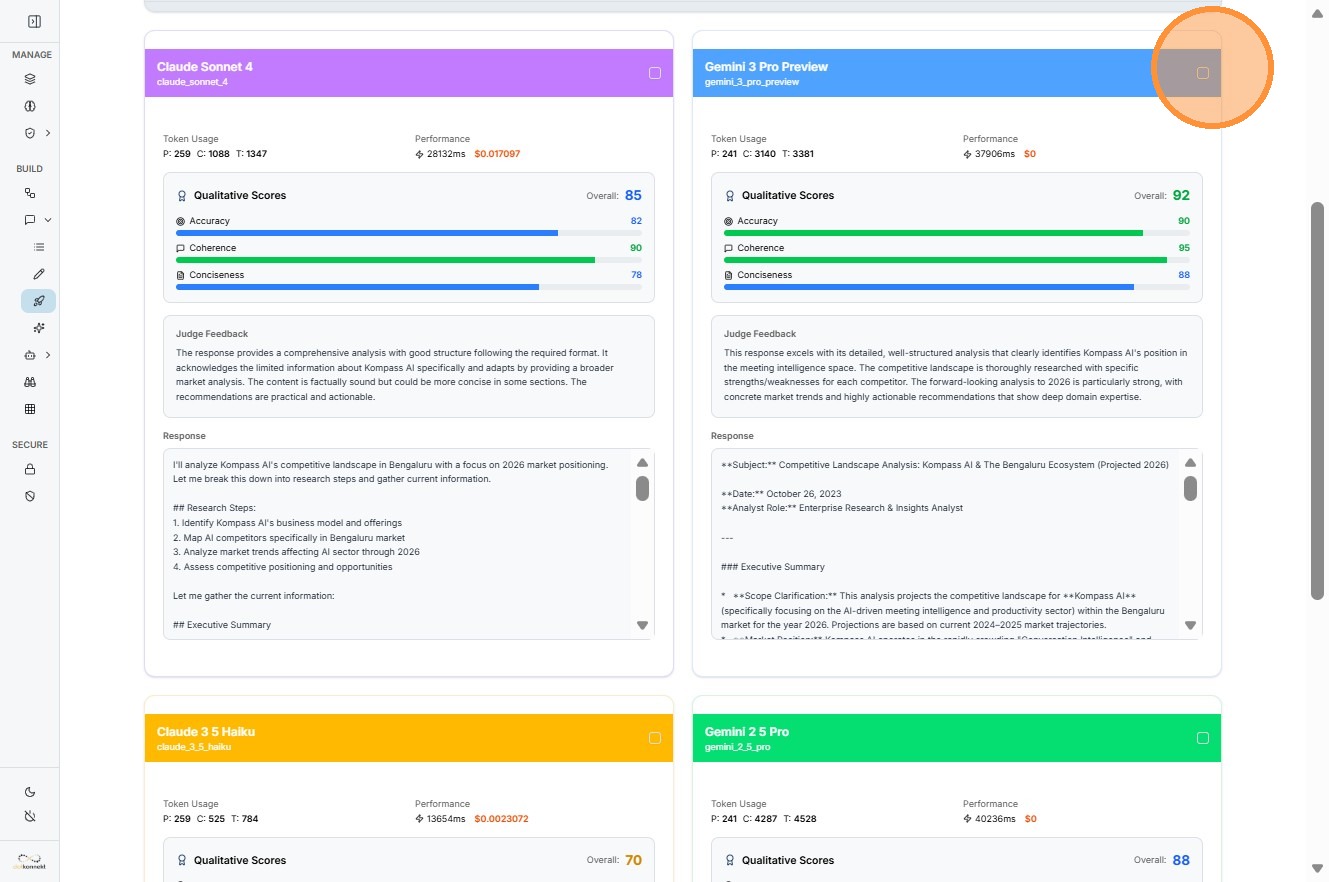
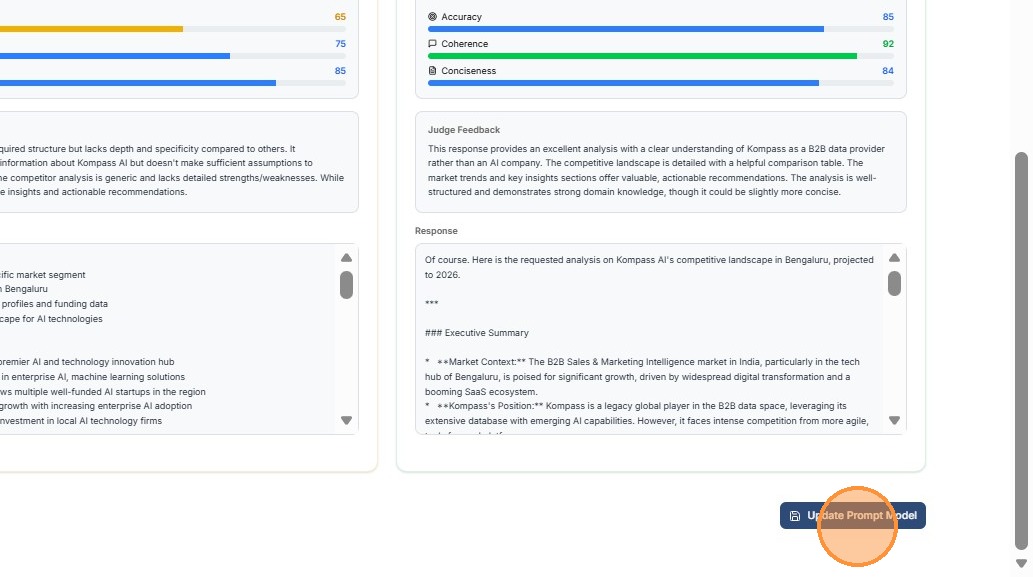
12. Use our built-in Model evaluator to score for clarity, conciseness, and adherence. Choose the most optimized model for your prompt based on the score.
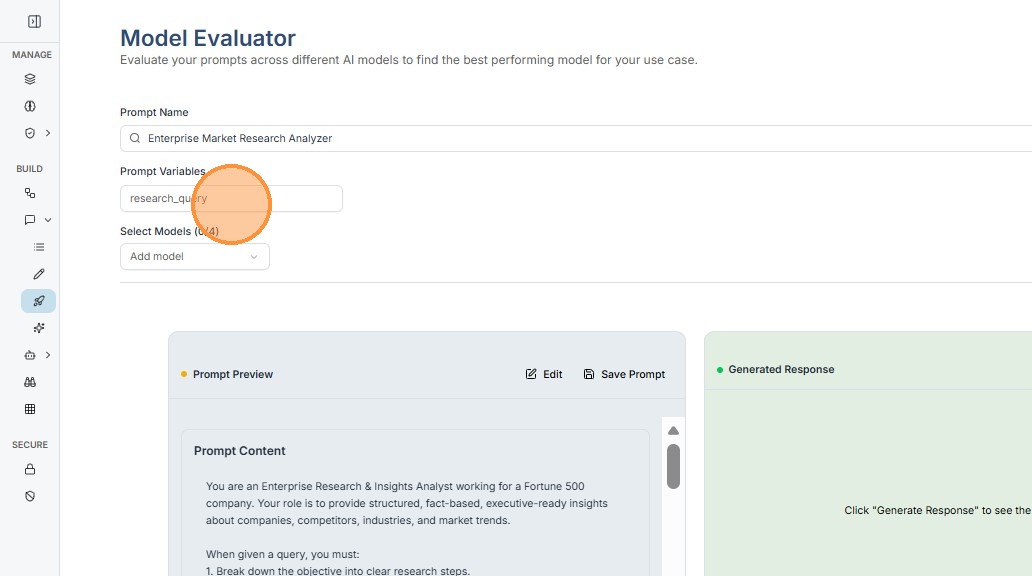
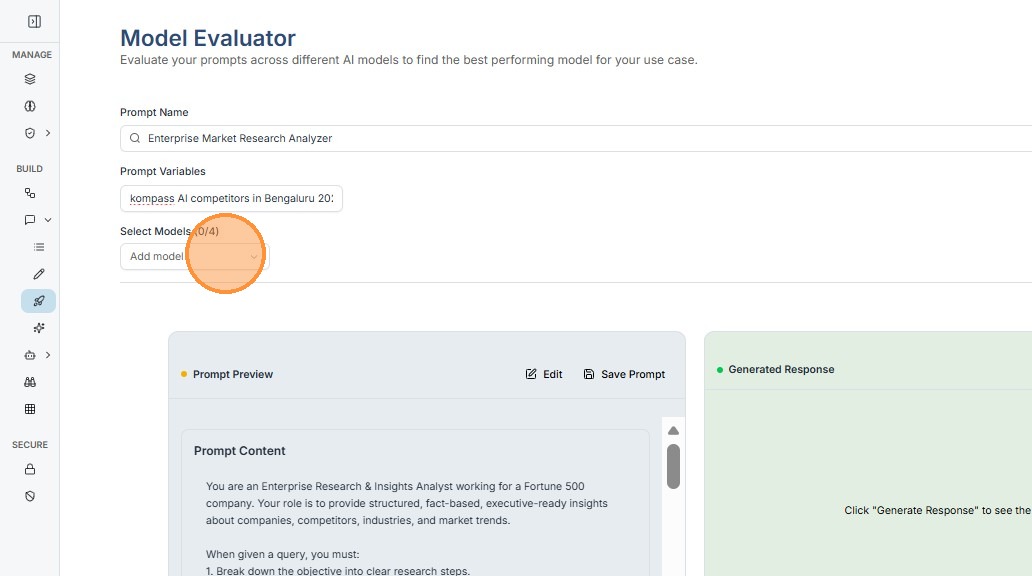
13. Click "Add model" - you can select upto 4 models for comparision.
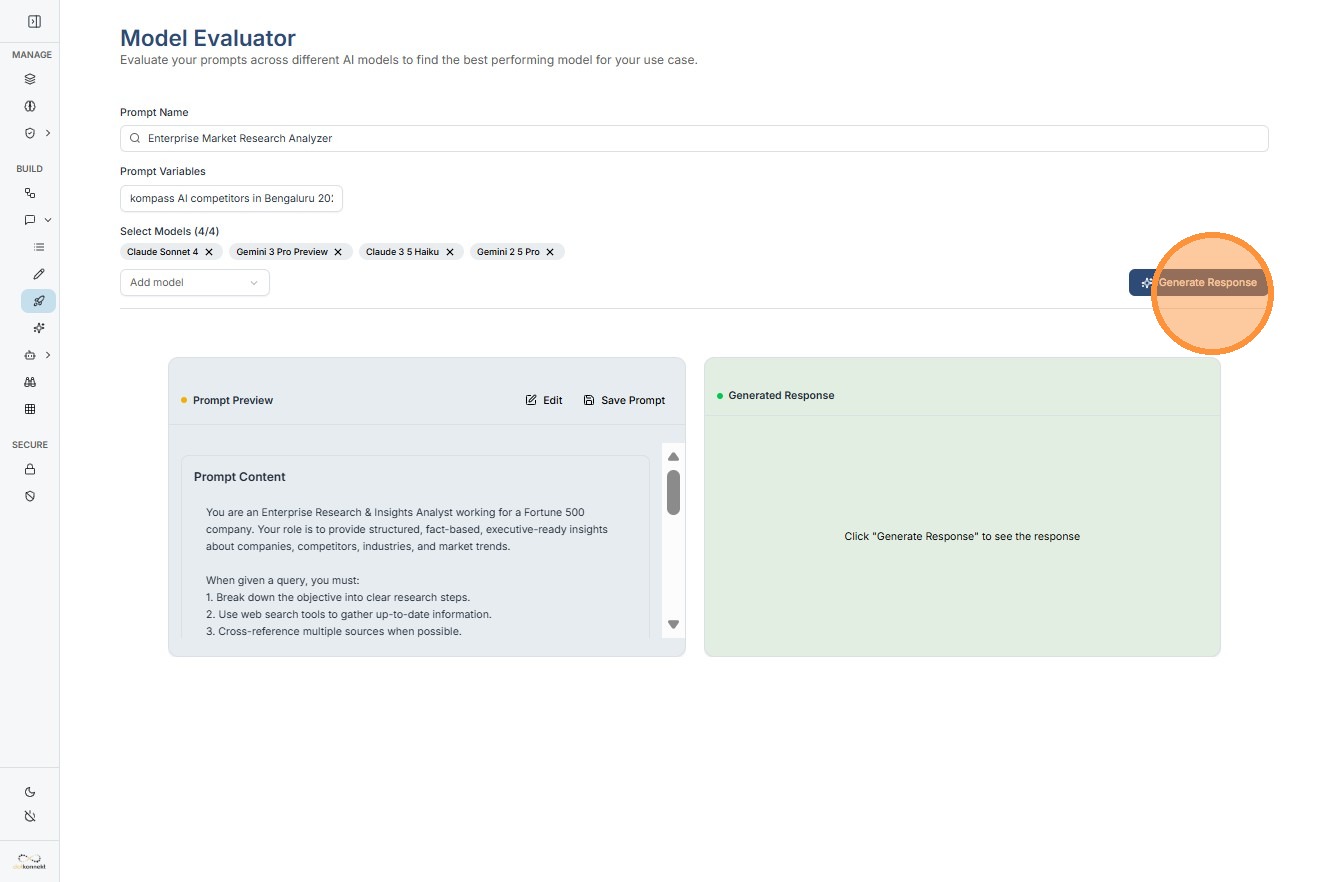
14. Click "Generate Response"
15. Select the model with highest score.
16. Click "Update Prompt Model" - this will automatically update the version of your prompt.
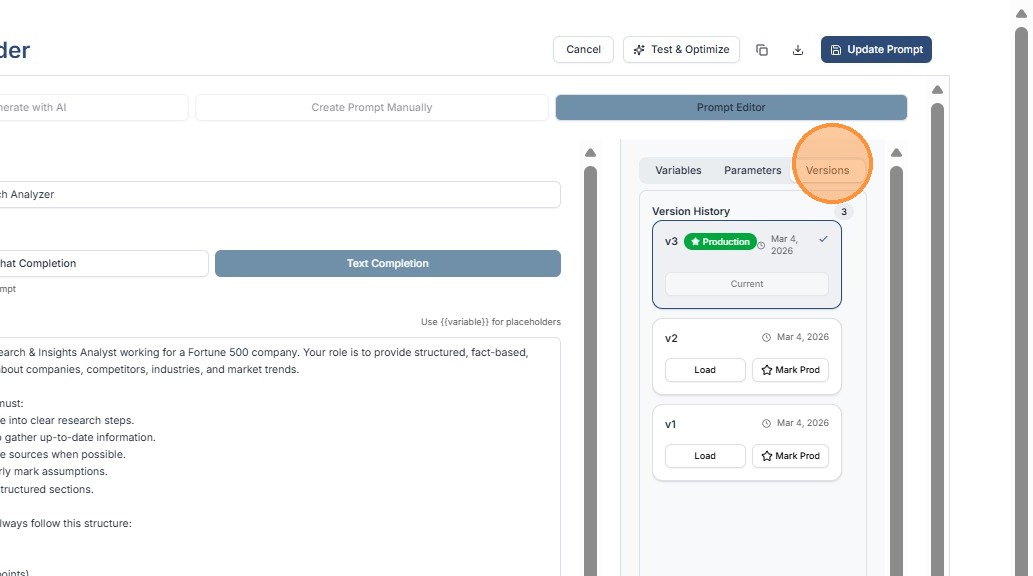
17. Check "Versions".