Agents & Agentic Teams Overview
What are Agents? While a standard LLM (Large Language Model) is a "brain" that processes text, an Agent is that brain equipped with "hands" (Tools) and "instructions" (Persona).
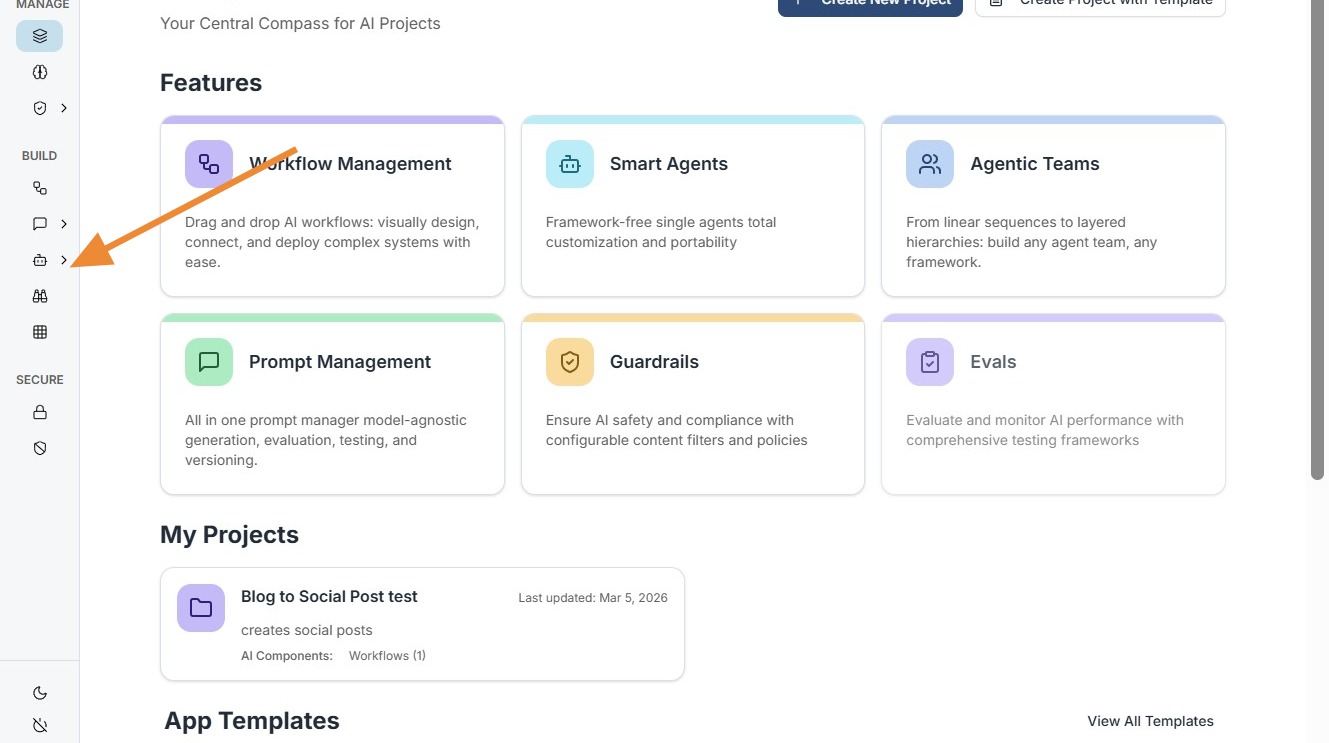
Visual Organization & Discovery
-
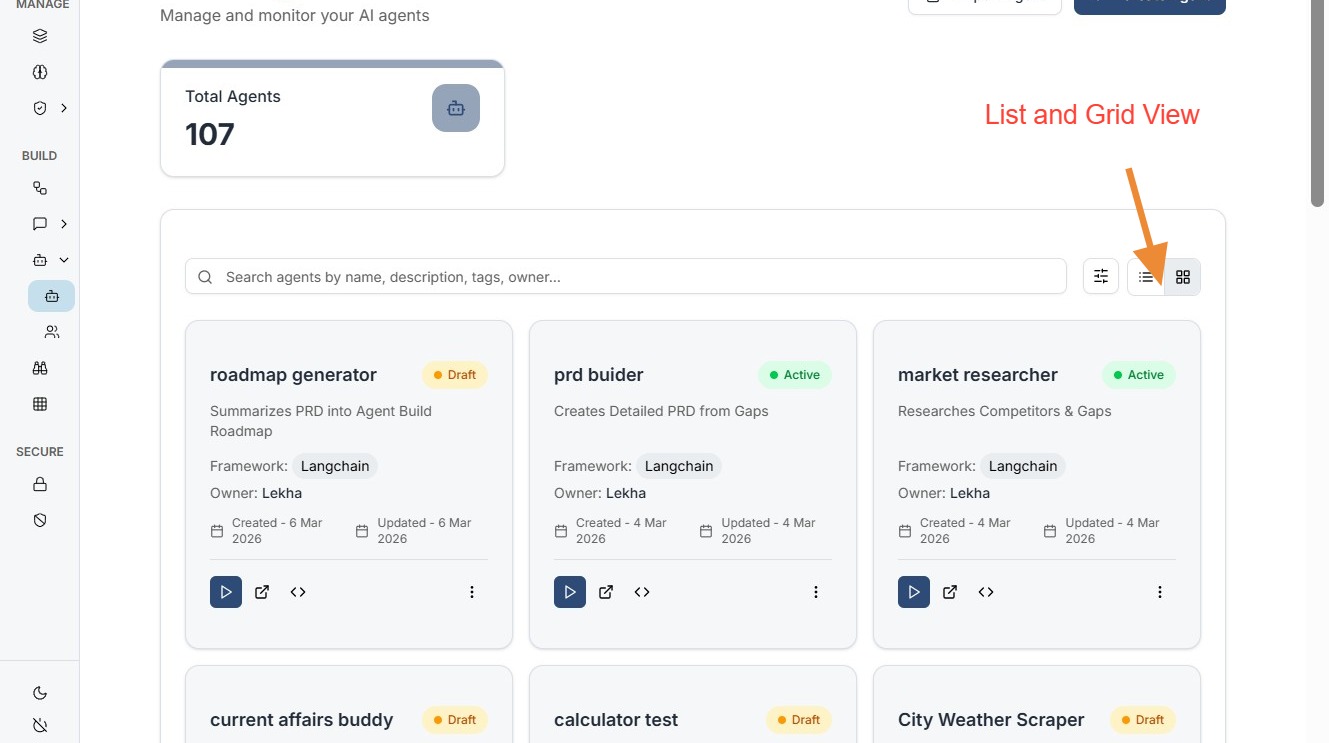
Grid vs. List View: Toggle between high-detail Grid View (cards with descriptions) and a streamlined List View for managing large-scale deployments.
-
Search Bar: Located at the top of the window, allowing you to filter teams by name, description, pattern, or creator.
-
Total Teams Counter: A live metric (e.g., "Total Teams: 57") that keeps track of your workspace capacity.
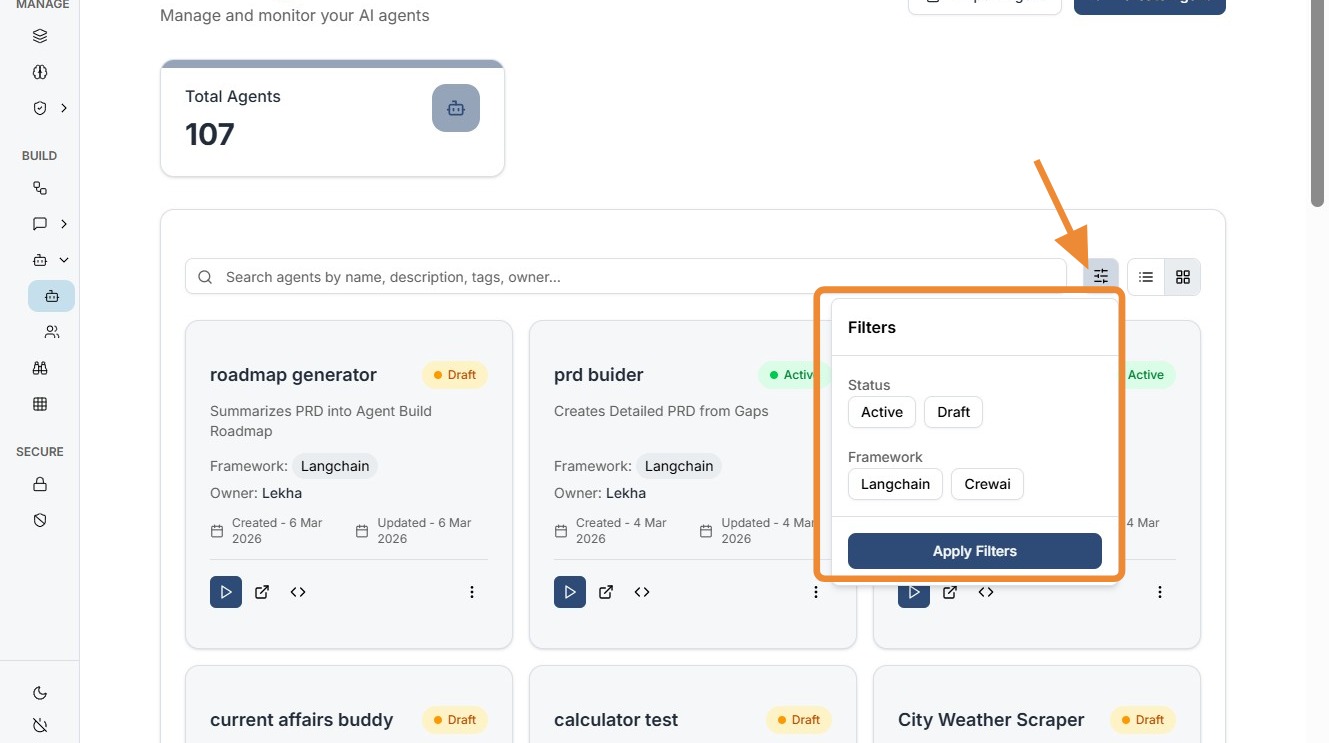
Advanced Filters: Use the filter icon next to the search bar to narrow down agents by their framework (e.g., CrewAI, Langchain) or their execution pattern.
Agent Status & Details
The dashboard provides a quick snapshot of the "Health" and "Type" of your agents:
-
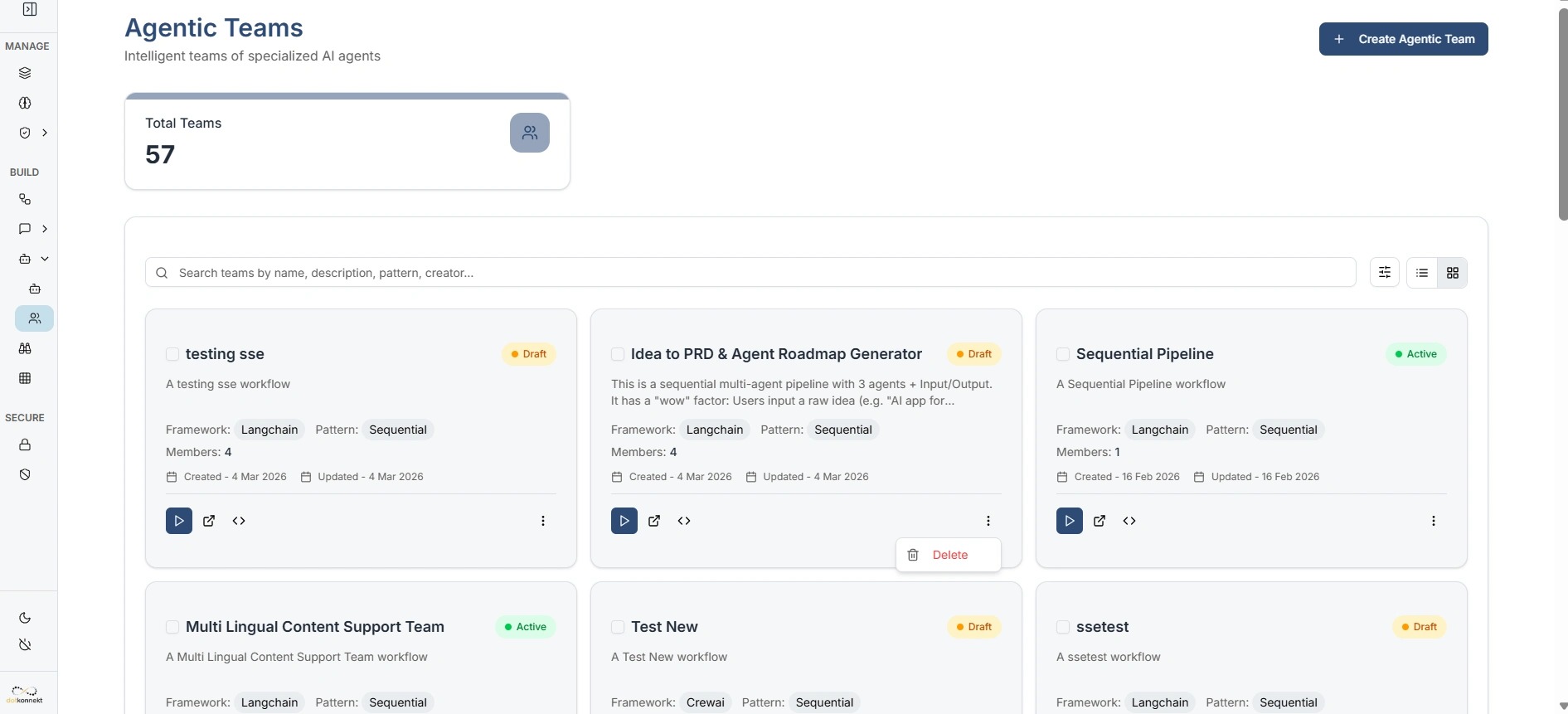
Active/Draft Badges: Instantly see if an agent is live (Active) or under development (Draft).
-
Pattern Info: Identifies if the team follows a Sequential (Step-by-step) or Parallel logic flow.
-
Member Count: Displays how many individual AI workers are included in that specific Agentic Team.
Core Actions
Every agent card provides a suite of tools for the development lifecycle:
-
Add / Import Agent: Click the "Create Agent" button to start from scratch, or use the Import function (similar to the Workflow import) to upload a pre-configured agent JSON.
-
Edit: Click on the agent's name or the card itself to open the configuration weaver, where you can modify the System Prompt, Tools, and Model settings.
-
Test (Play Button): Each card features a Play (▶️) button. This opens the Playground specifically for that agentic team, allowing you to run test queries without affecting your production workflows.
-
Delete: Found inside the Three-Dot Menu (⋮) on each card. This allows you to permanently remove an agent from the system.