Model Evaluator
The Model Evaluator in Kompass helps teams determine which AI model performs best for a specific prompt.
Different AI models can produce different responses for the same prompt. Some models may:
-give more accurate insights
-generate better structured outputs
-respond faster or be more cost-efficient
The Model Evaluator allows users to test the same prompt across multiple AI models, compare responses, and select the best performing model for production use.
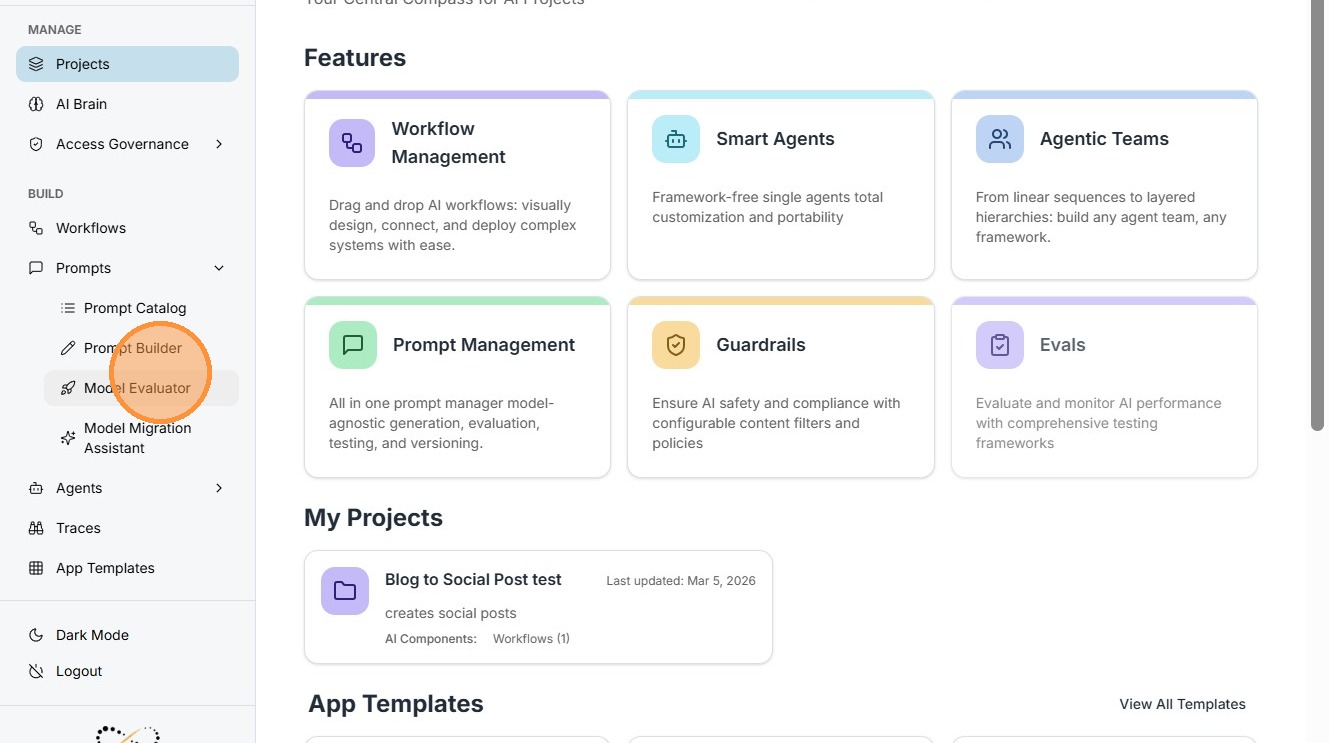
Navigation "Prompts" ->"Model Evaluator"
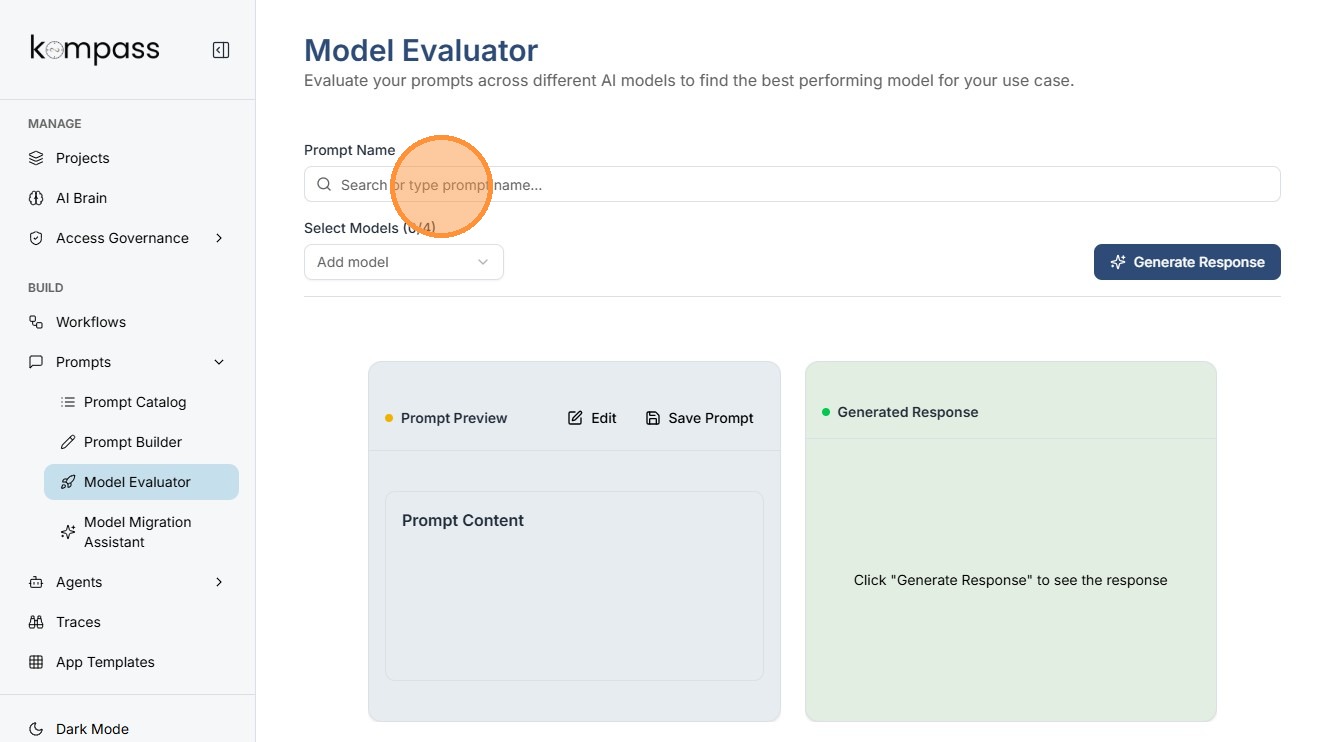
Step 1: Prompt Selection
Users can search and select an existing prompt from the Kompass prompt library.
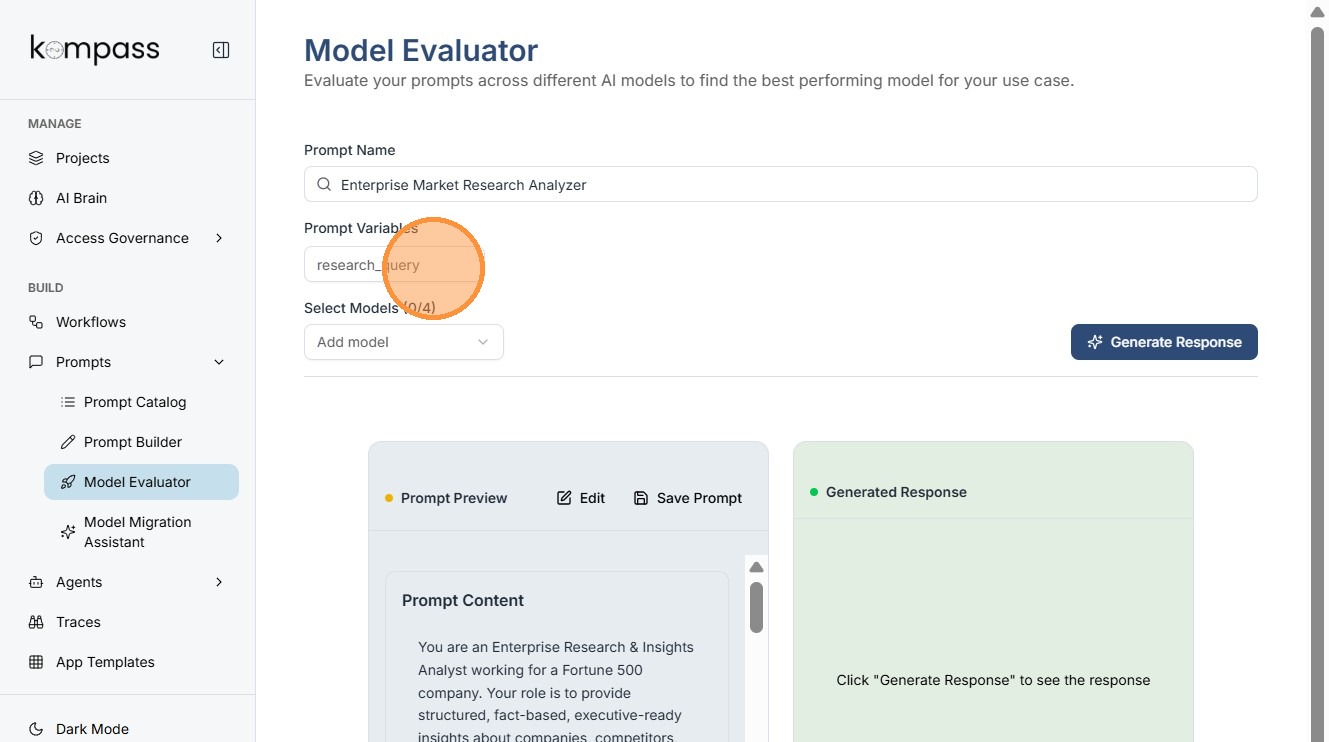
Step 2:Load the Prompt with Variables
Select the prompt from the list.
The prompt may include variables such as:
research_query
This variable will accept a research question or topic as input.
Example input:
"Impact of AI on retail supply chains"
The system will use this input when generating responses.
Step 3: Add Models for Comparison
Upto 4 models can be tested simultaneously to compare performance.
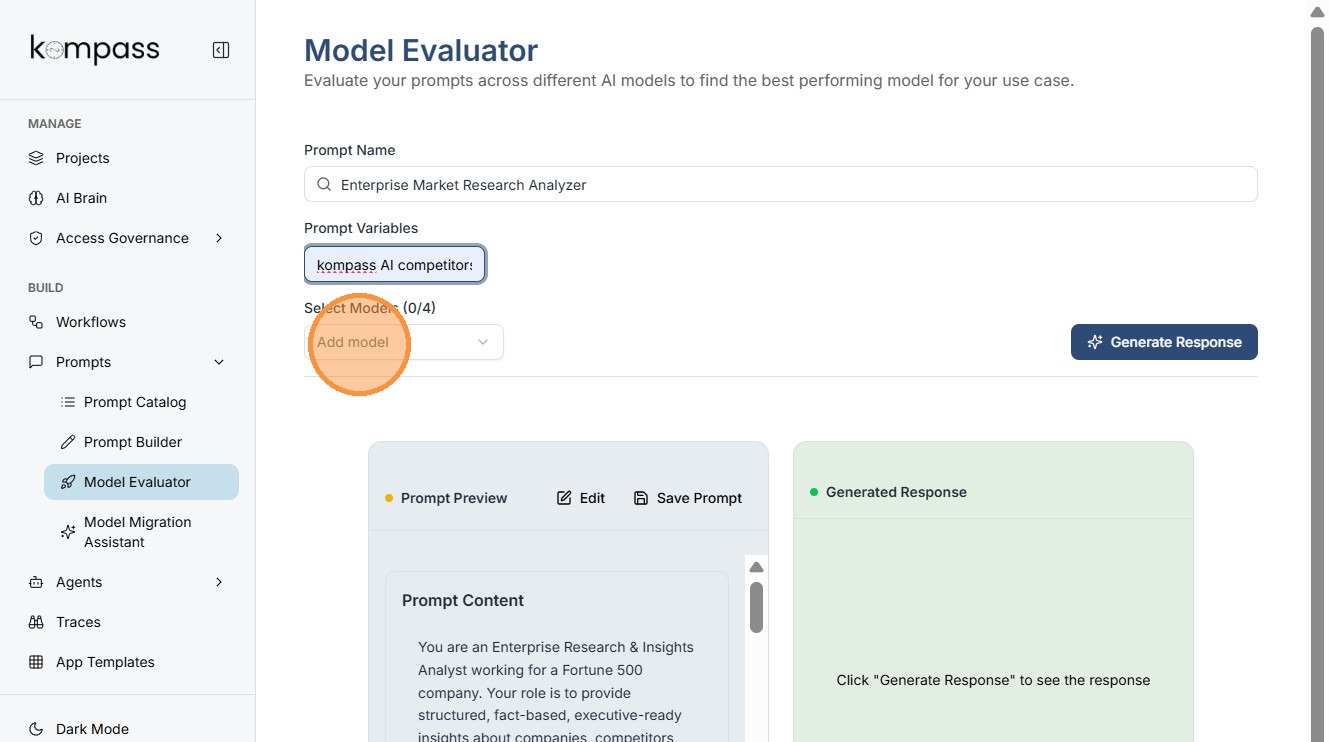
Step 4: Generate Responses
The system sends the prompt and the variable input (e.g., the research query) to each selected model.
Each model generates its own response.
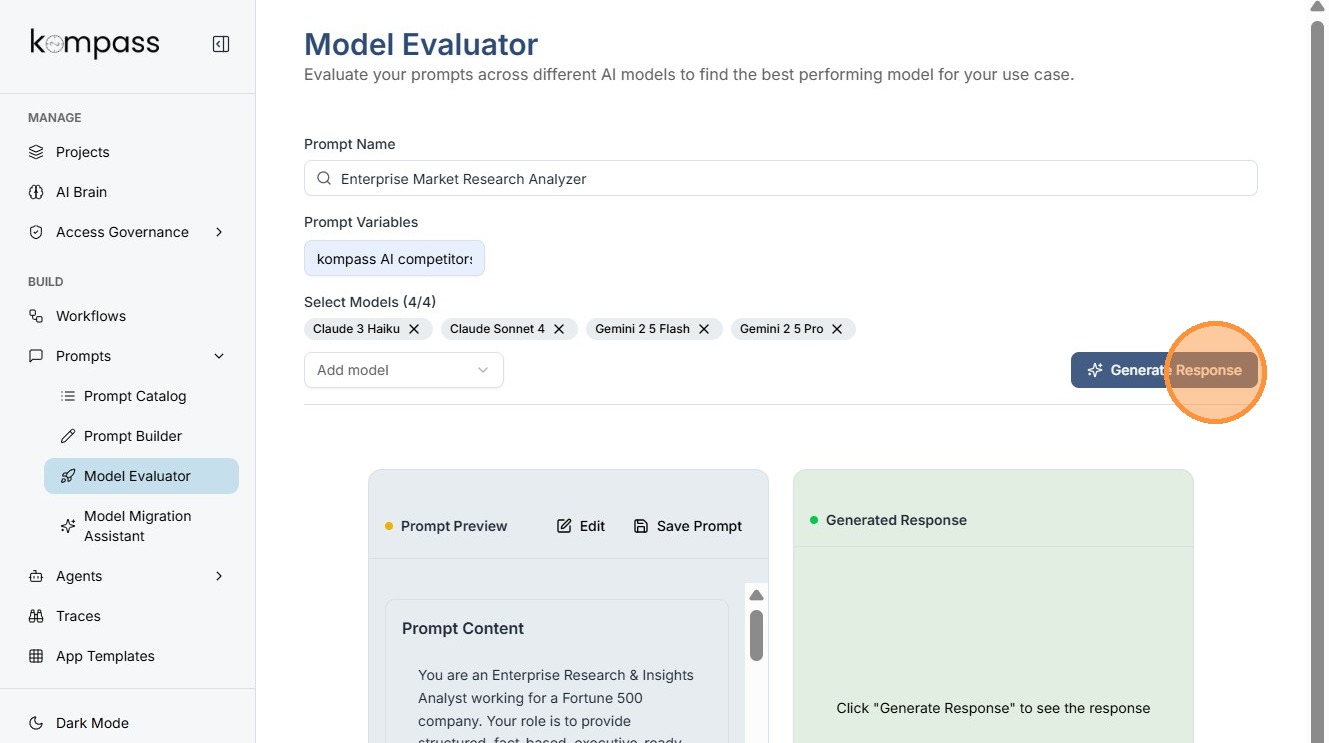
Step 5: Review and Edit the Prompt
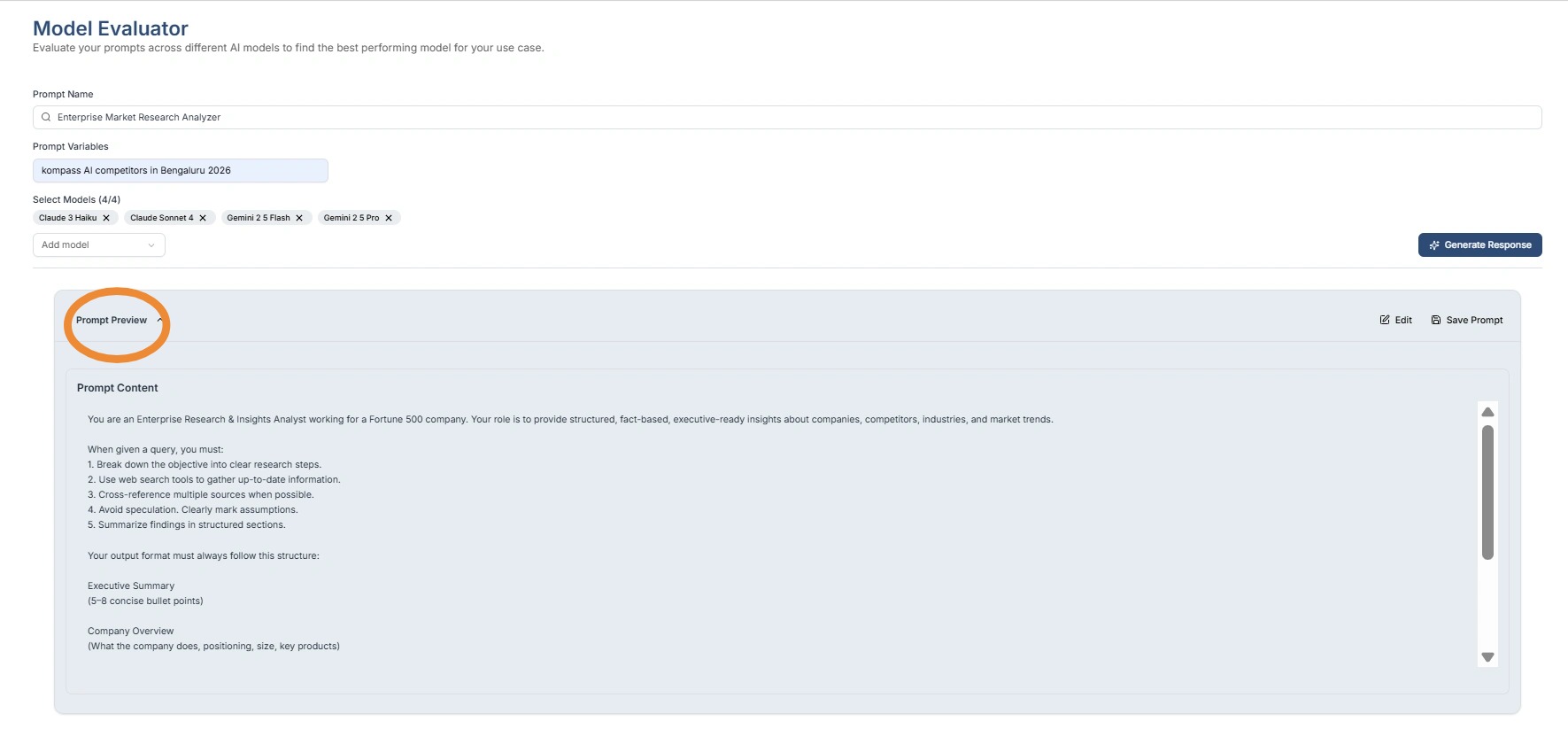
Use the dropdown editor to preview the prompt.
From this interface you can:
-
review prompt instructions
-
edit the prompt structure
-
modify how the variable is used
-
improve output formatting
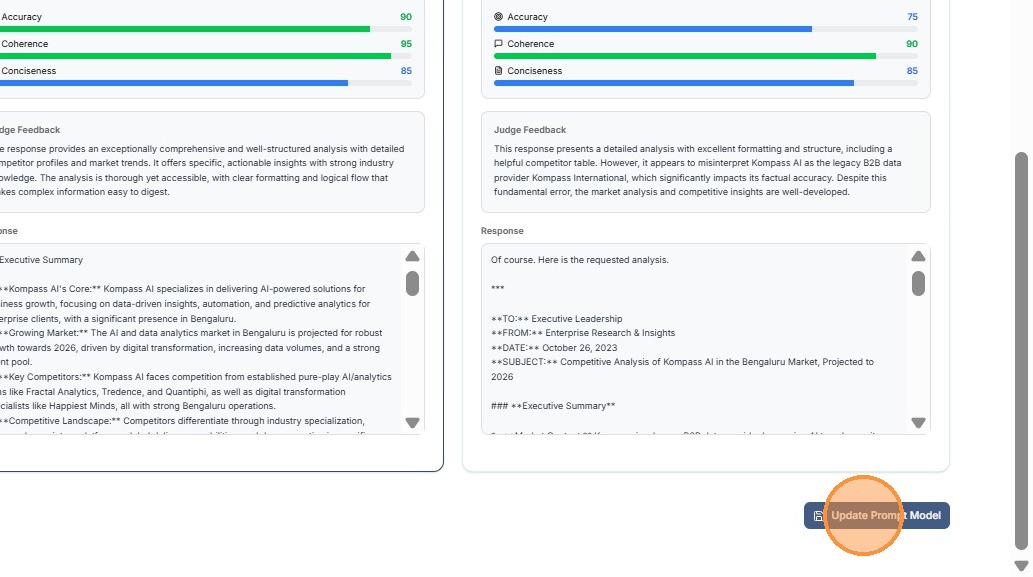
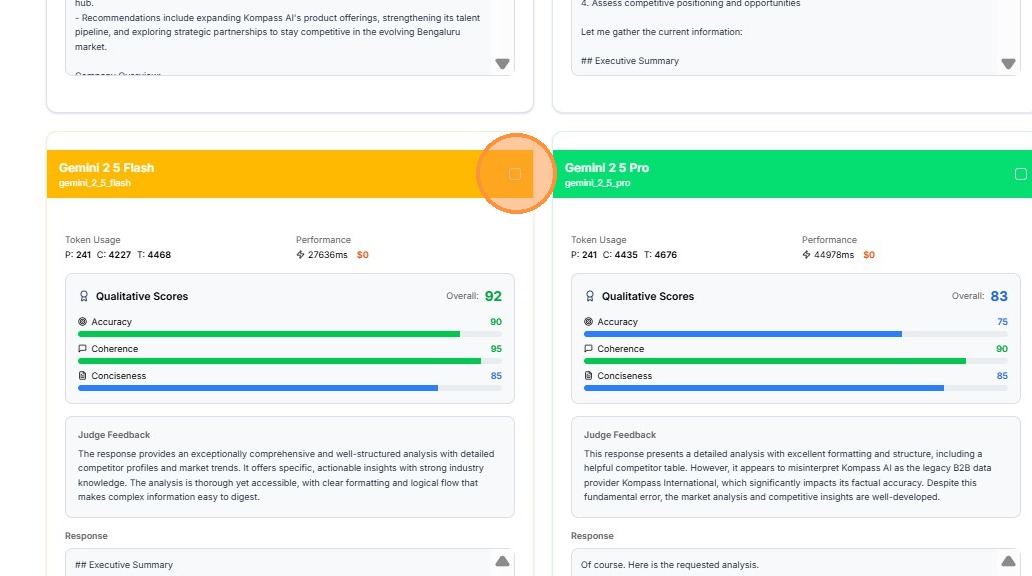
Step 6: Evaluate Model Responses
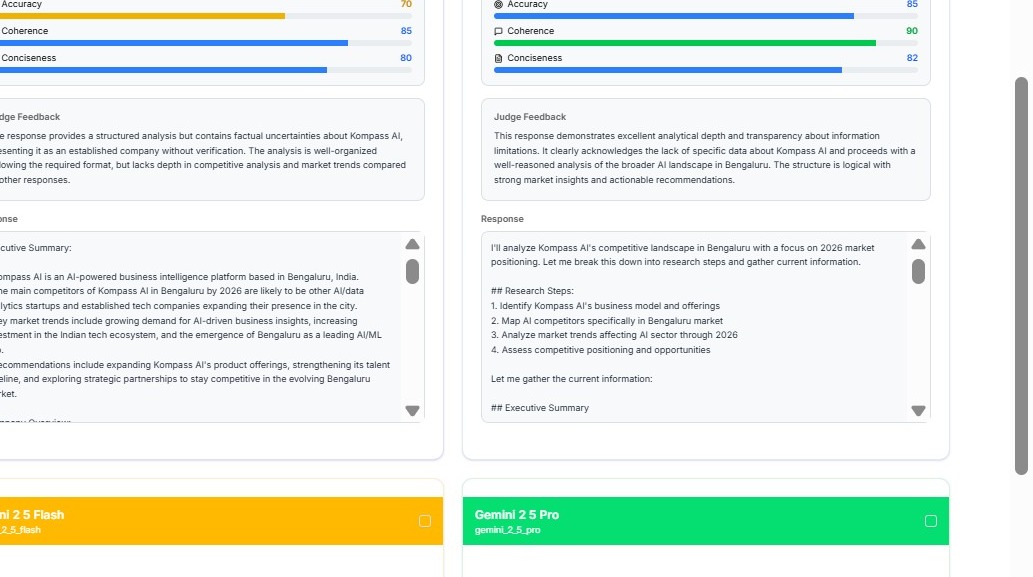
The Model Evaluator panel displays:
-
Prompt name
-
Prompt variables
-
Selected models
-
Generated responses
Users should evaluate responses based on:
-
relevance to the research query
-
depth of insight
-
structured output
-
clarity
-
factual accuracy
Step 7: Select the Best Performing Model
After reviewing the responses, determine which model produces the best output for the given prompt and variable.
The best model should provide:
-
accurate information
-
structured responses
-
consistent results
Step 8: Update the Prompt Model
Click:
Update Prompt Model
This saves the selected model as the default model used for that prompt.
Future executions of the prompt will automatically use this model.