Model Migration Assistant
The Model Migration Assistant in Kompass allows users to move an existing prompt from one AI model to another with minimal effort. Different AI models interpret prompts slightly differently, so this feature automatically adapts the prompt structure for the selected target model.
This is useful when you want to:
Improve performance using a different model Reduce cost by switching to a lighter model
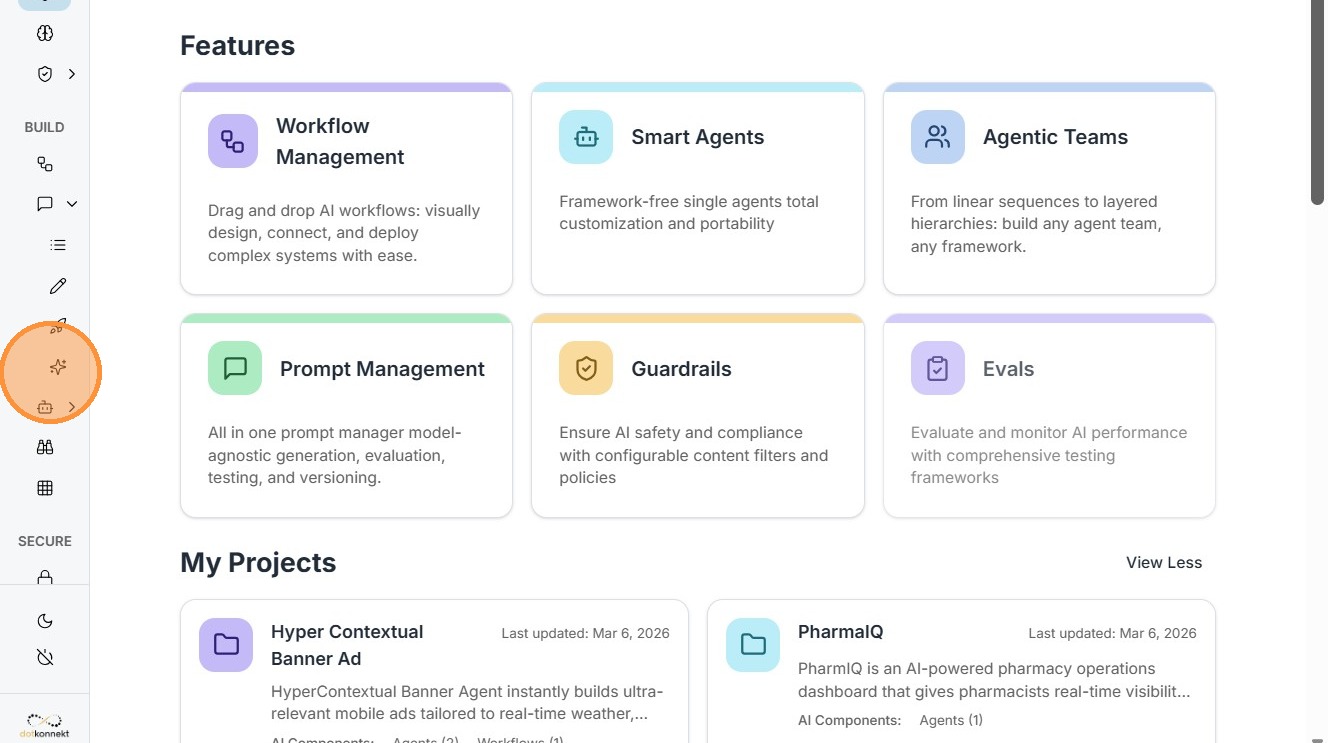
Navigation- Click Prompt ->Click Model Migration Assistant .
This component allows you to convert prompts between different AI models.
Why this is useful:
Different AI providers such as Gemini, Claude, or OpenAI models have slightly different prompt expectations. The migration assistant helps rewrite the prompt structure so it works effectively with the target model.
This saves time compared to rewriting prompts manually.
Step 1: Select the Prompt to Migrate
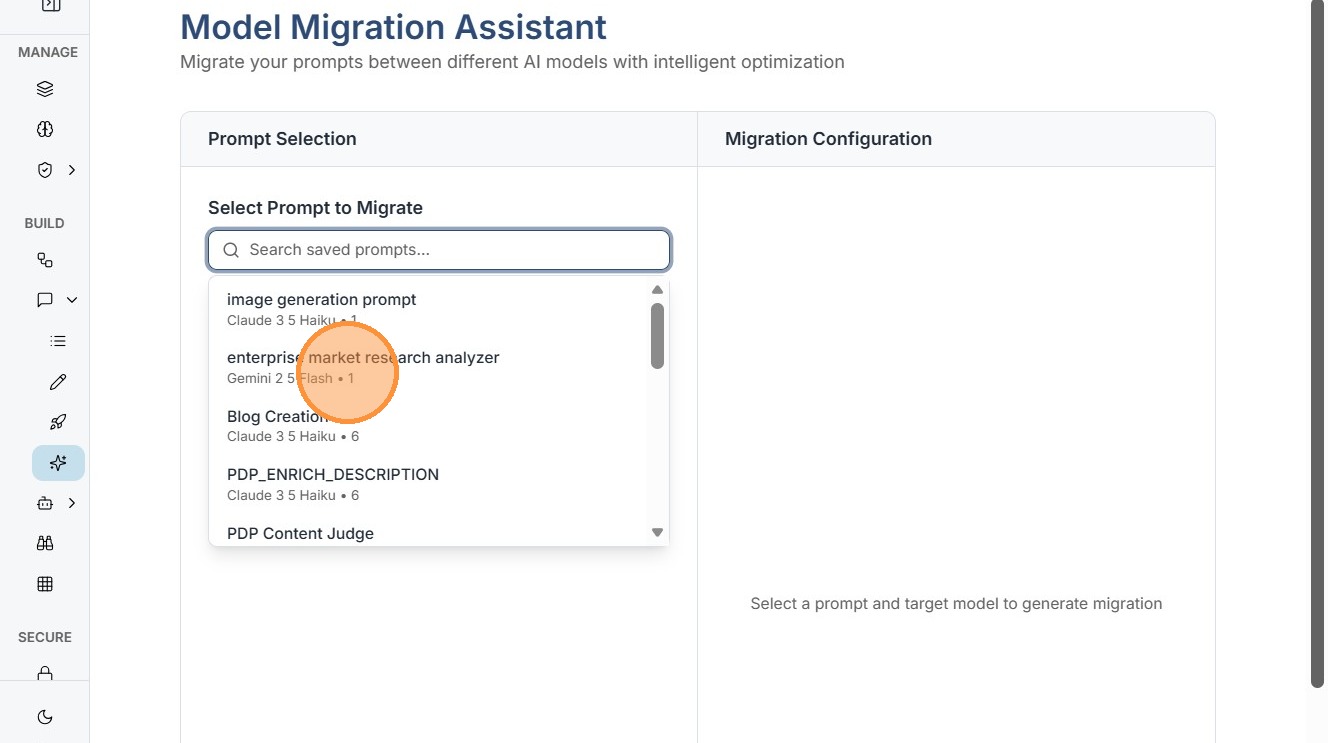
Click the Select Prompt to Migrate field.
This dropdown displays all prompts available in the Prompt Catalog.
Here you choose the prompt that you want to migrate to a different model.
Step 2: Select the Target Model
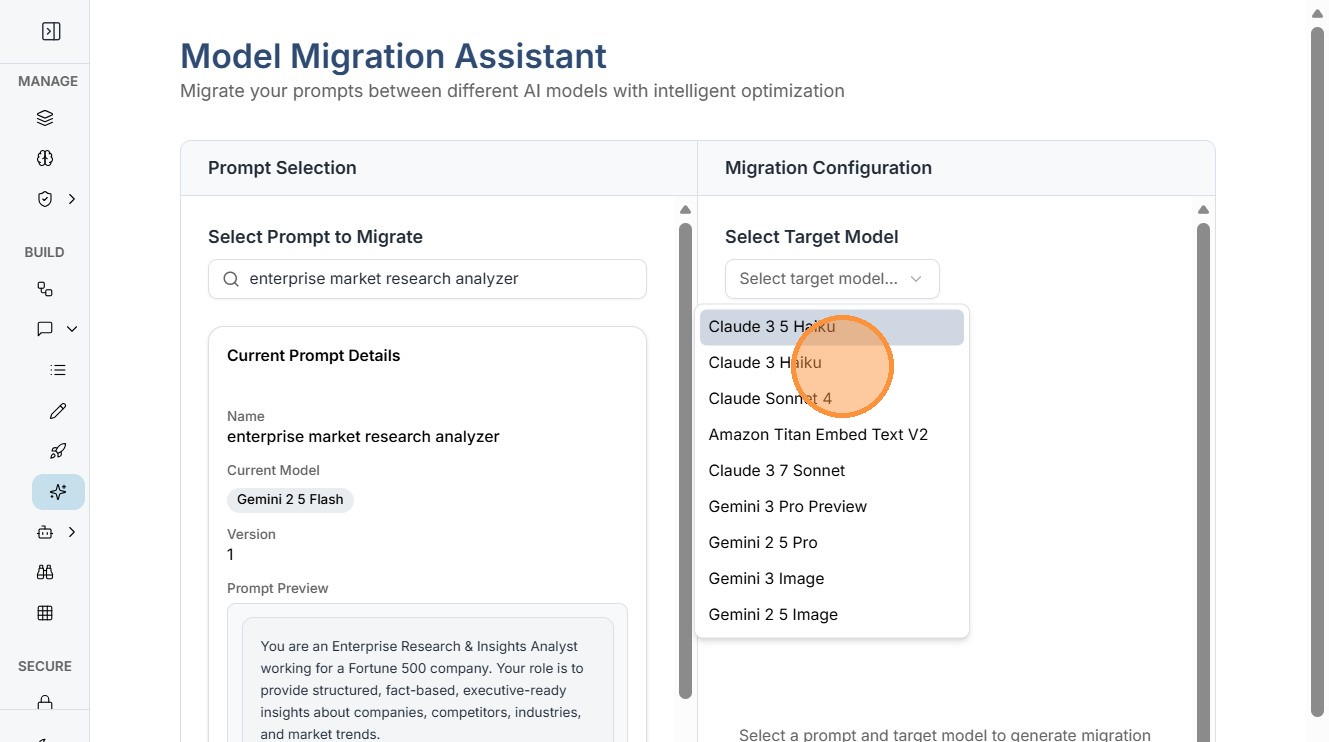
Click Select Target Model.
The target model is the new AI model you want the prompt to run on.
Kompass supports multiple models, and this feature allows you to test or migrate between them without rebuilding the prompt.
Step 3: Generate the Migrated Prompt
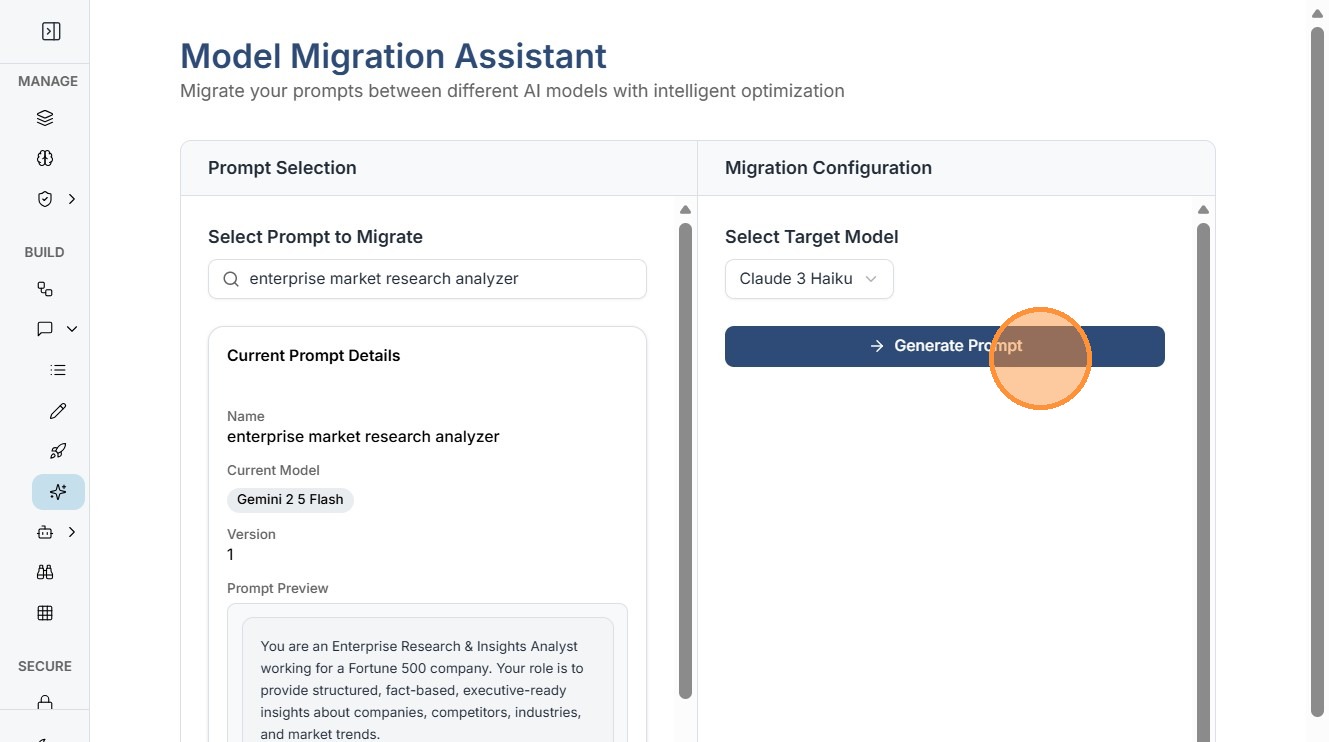
Click Generate Prompt.
Kompass now performs the migration process automatically.
During this step, the system:
-
Analyzes the original prompt structure
-
Adjusts instructions for the new model
-
Optimizes formatting for Target Model's response style
E.g. Here the result is a new prompt version compatible with Claude Haiku.
This eliminates the need for manual rewriting.
Step 4: Add or Edit the Description
Click the Description field.
Here you can document details about the migrated prompt.
Examples of useful descriptions:
-
"Migrated from Gemini to Claude Haiku for faster response time."
-
"Claude version optimized for cost-efficient inference."
Descriptions help teams understand:
-
Why the migration was performed
-
What the new prompt version is intended for
This improves collaboration and documentation.
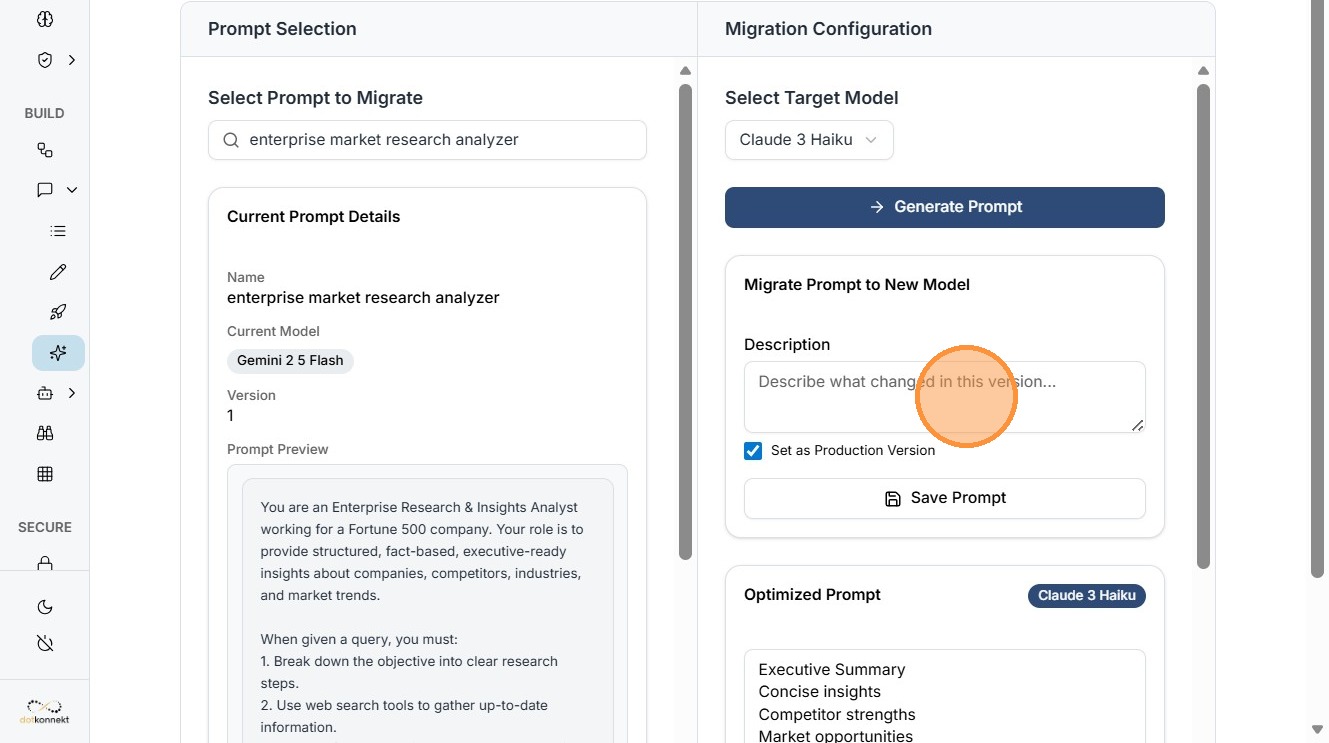
Step 5: Save the Migrated Prompt
Click Save Prompt.
This stores the newly generated prompt in the Prompt Catalog.
Saving ensures that the migrated prompt becomes available for:
-
Agents
-
Workflows
-
Testing environments
-
Production deployments
The original prompt remains unchanged.
This allows teams to maintain multiple model versions safely.
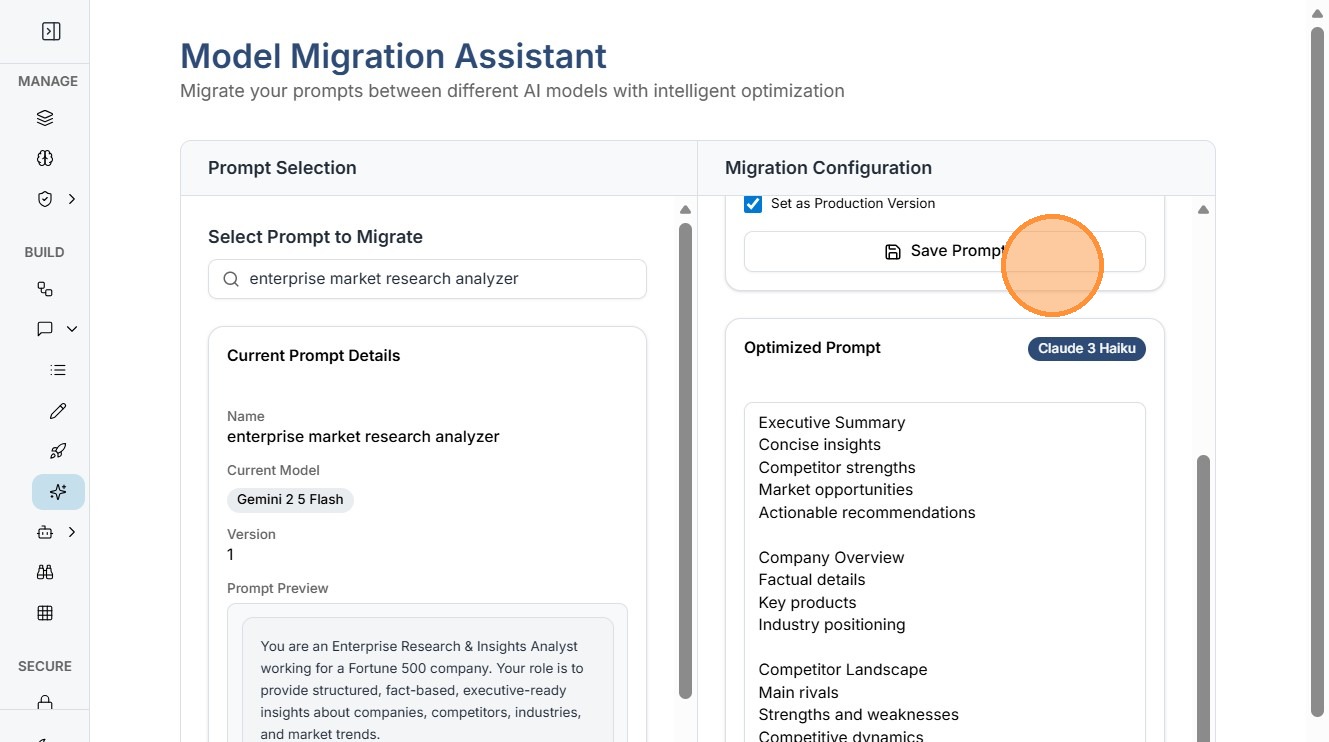
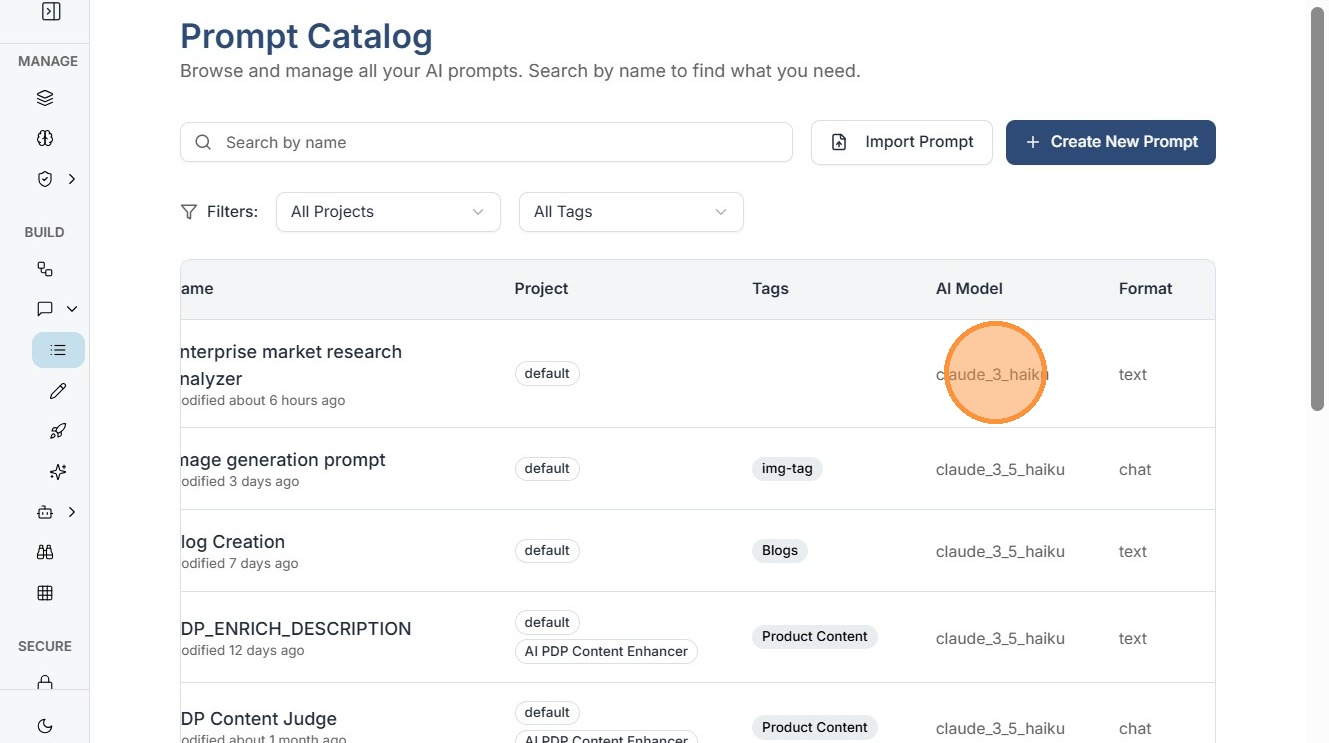
Step 6: Open Prompt Catalog (Optional Verification)
This allows you to verify which model the new prompt is configured to use.
Best Practices
Test the migrated prompt before production
Different models may produce slightly different outputs. Always test the new prompt with sample inputs.
Document the reason for migration
Clear descriptions help teams track why a prompt was migrated.
Compare outputs
Run both versions of the prompt to evaluate quality differences between models.
Use migration for optimization
Model migration is a powerful way to improve performance or reduce cost without redesigning the entire AI workflow.