Prompt Catalog
The Prompt Catalog is the central hub in Kompass where all AI prompts are stored, managed, and organized. It allows administrators and developers to browse, search, filter, import, export, edit, and create prompts that power AI workflows.
The catalog helps teams maintain a structured library of reusable prompts that can be used across agents, workflows, and applications.
Getting Started
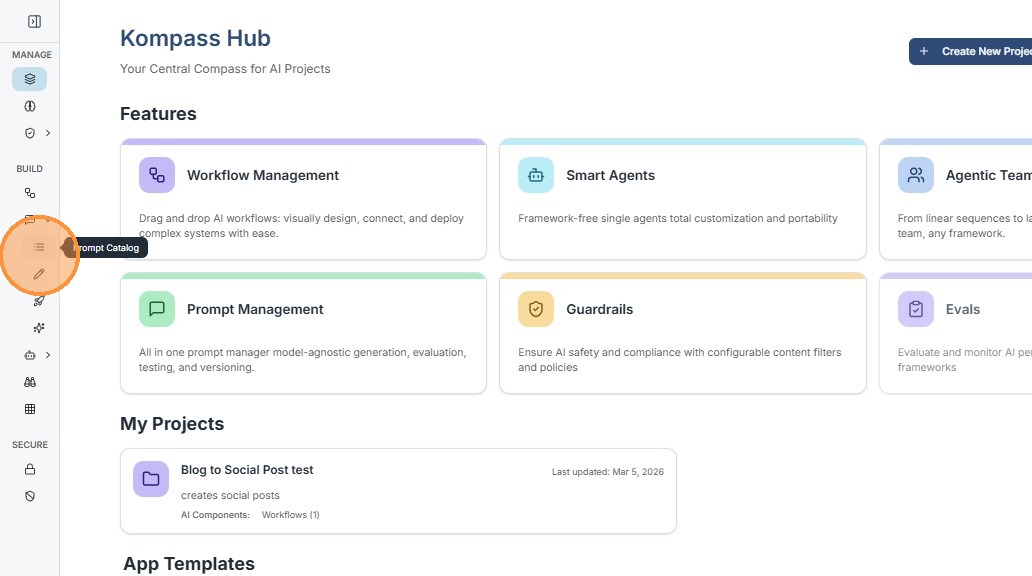
Navigation: Click on the dropdown of "Prompts" in the main menu, then click on "Prompt Catalog".
Key Features of Prompt Catalog
1. Browse Prompts
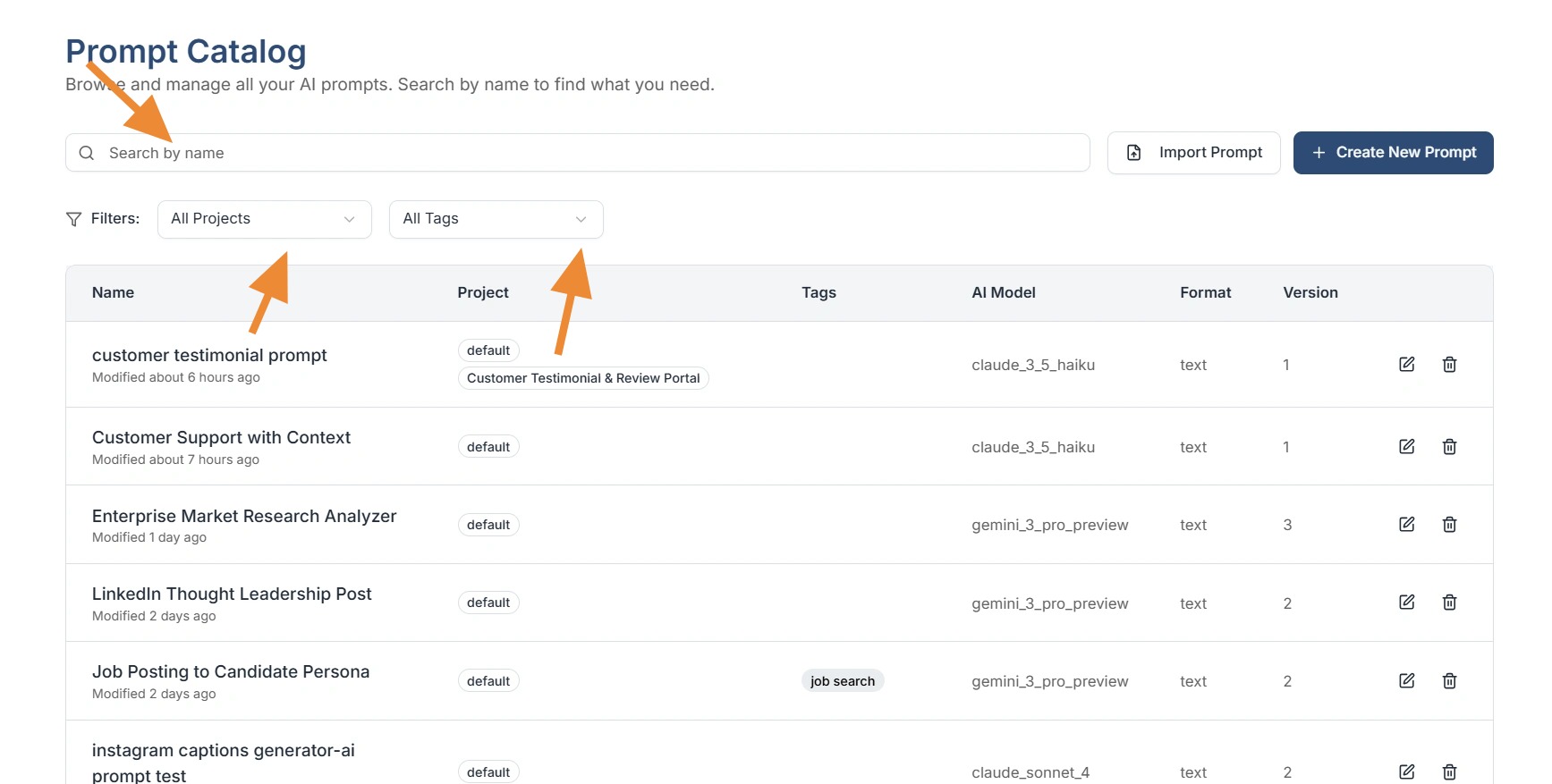
The Prompt Catalog displays a list of all prompts available in the system.
Each prompt entry typically includes:
- Prompt Name
- Last Modified Time
- Actions Menu
- Prompt Configuration Access
This view helps users quickly understand which prompts exist and when they were last updated.
2. Search Prompts
The Search bar allows users to quickly locate prompts by name.
How it works:
- Type a keyword or prompt name in the search field.
- The catalog dynamically filters prompts that match the search query.
Use Cases:
- Finding a specific prompt quickly
- Navigating large prompt libraries
- Locating prompts by naming conventions
3. Filter Prompts
The Filter option helps users refine the prompt list based on different criteria.
Filters can be used to:
- Organize prompts by category
- View recently modified prompts
- Narrow down large prompt catalogs
This is especially useful in enterprise environments with many prompts.
4. Import Prompts
The Import Prompt feature allows users to upload prompts from external sources using a JSON file.
This enables teams to:
- Reuse prompts across environments
- Share prompts between teams
- Import prompts from version-controlled repositories
Steps to Import Prompts:
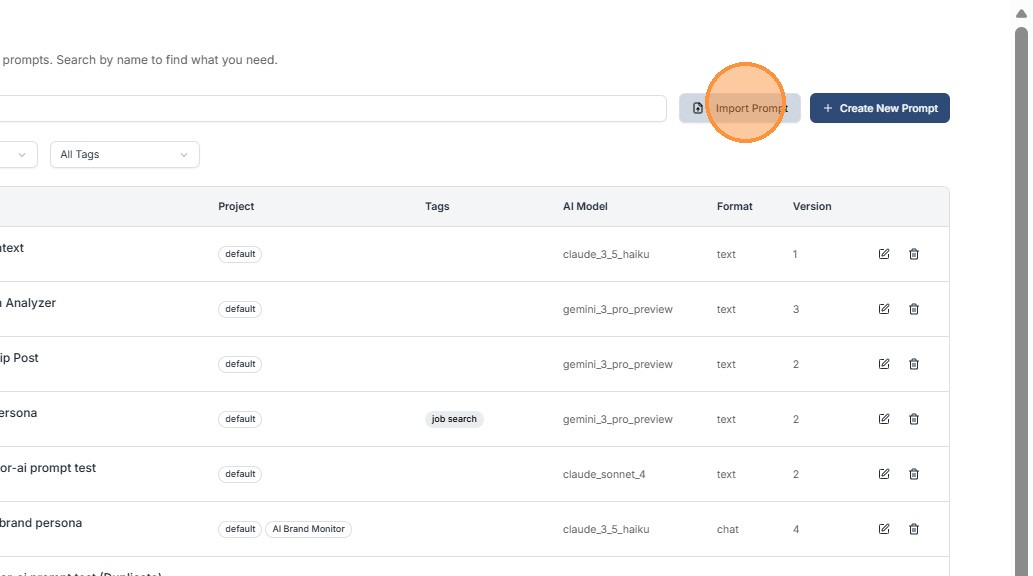
Step 1: Click Import Prompt
Step 2: Enter a prompt name
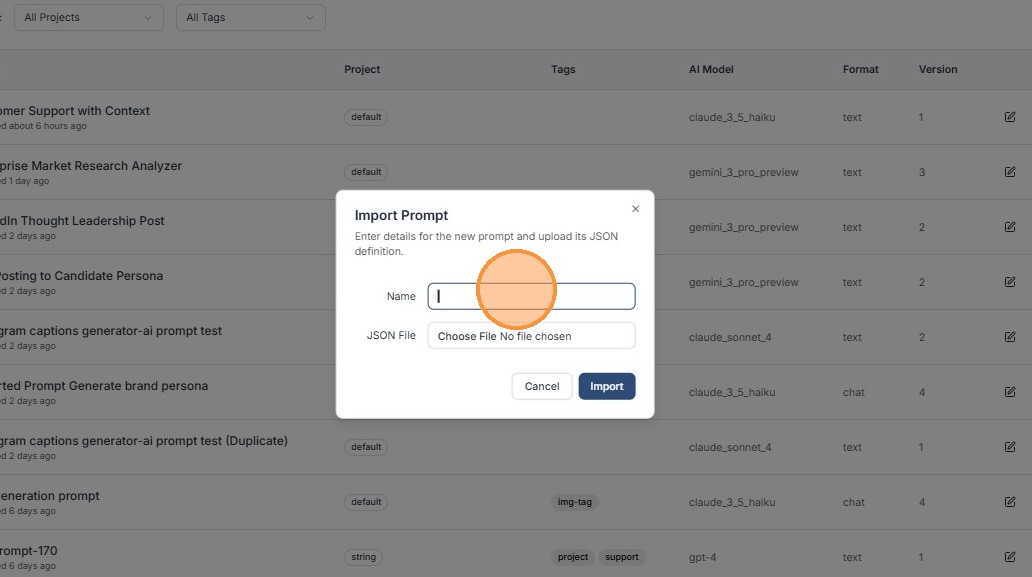
Step 3: Click the "JSON File" field and upload the prompt file from your computer.
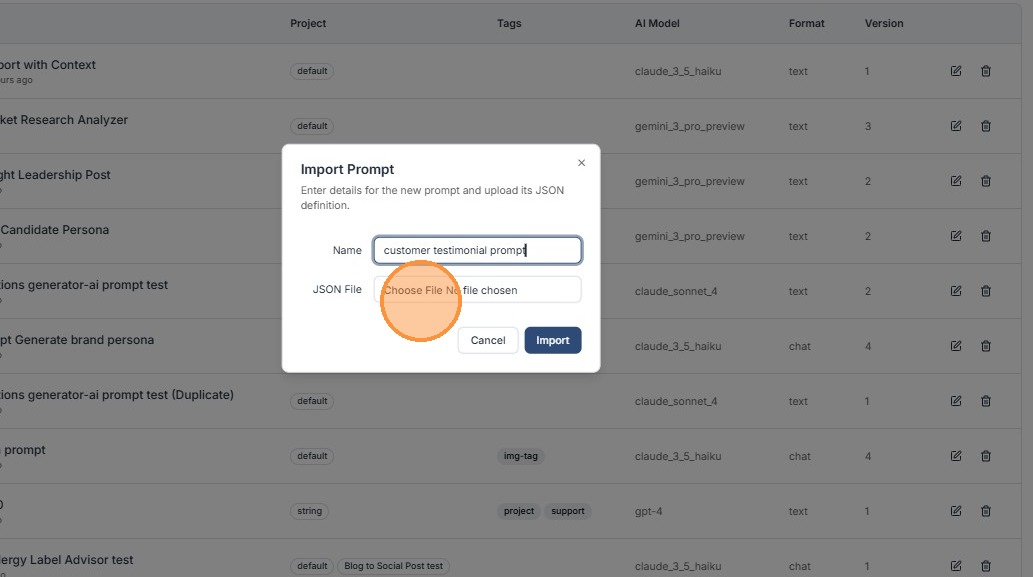
Step 4: Click "Import"
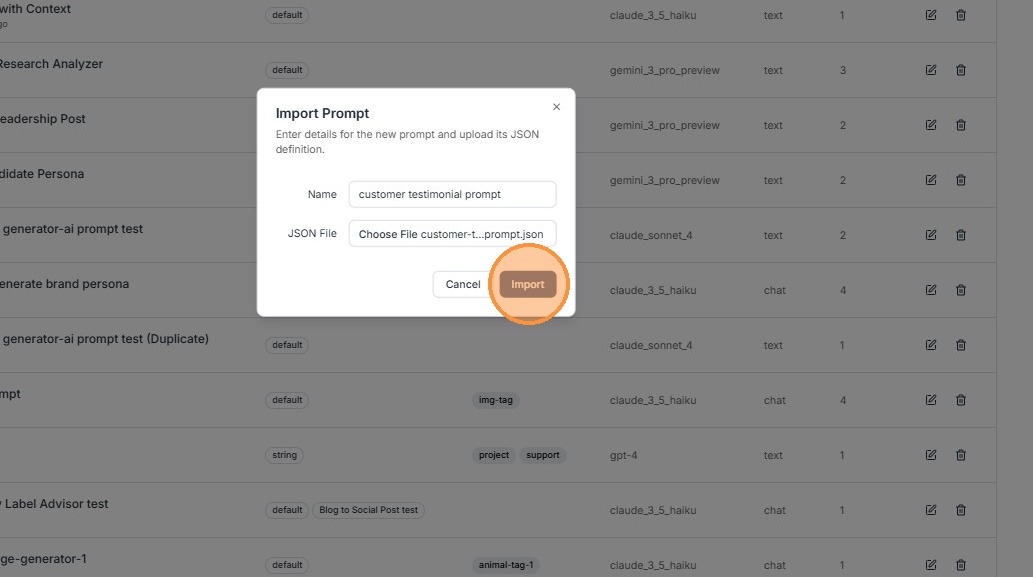
Note: Imported prompt files must be in JSON format only (.json extension) — other formats like TXT or YAML are not supported.
5. Edit Existing Prompts
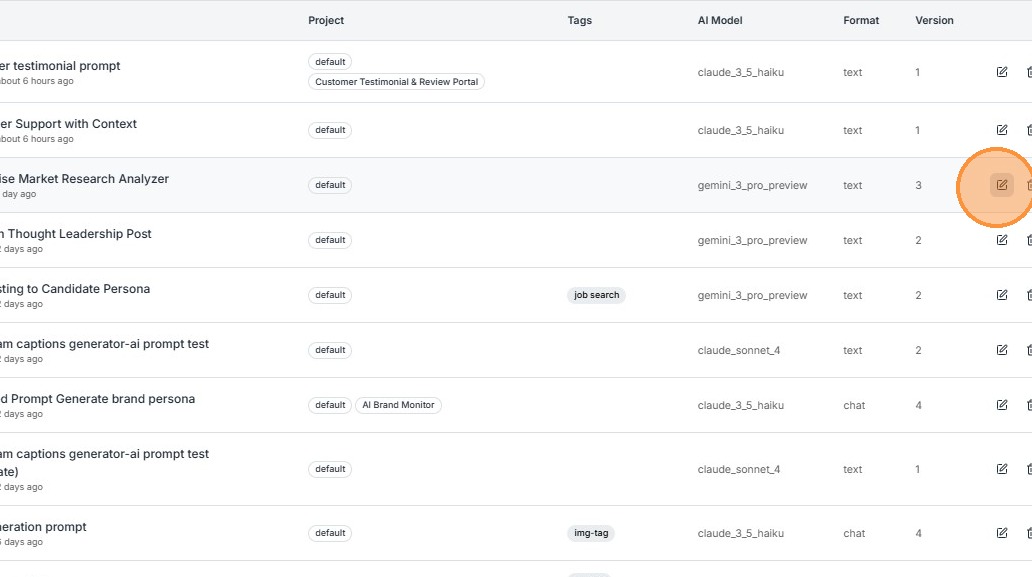
Users can modify an existing prompt directly from the Prompt Catalog.
How to Edit:
- Locate the prompt in the catalog
- Click the Edit icon
- The system opens the Prompt Builder
- Update the prompt configuration
- Save changes
Editing allows users to refine prompts as requirements evolve. Kompass maintains version history of your prompts as well!
6. Export Prompts
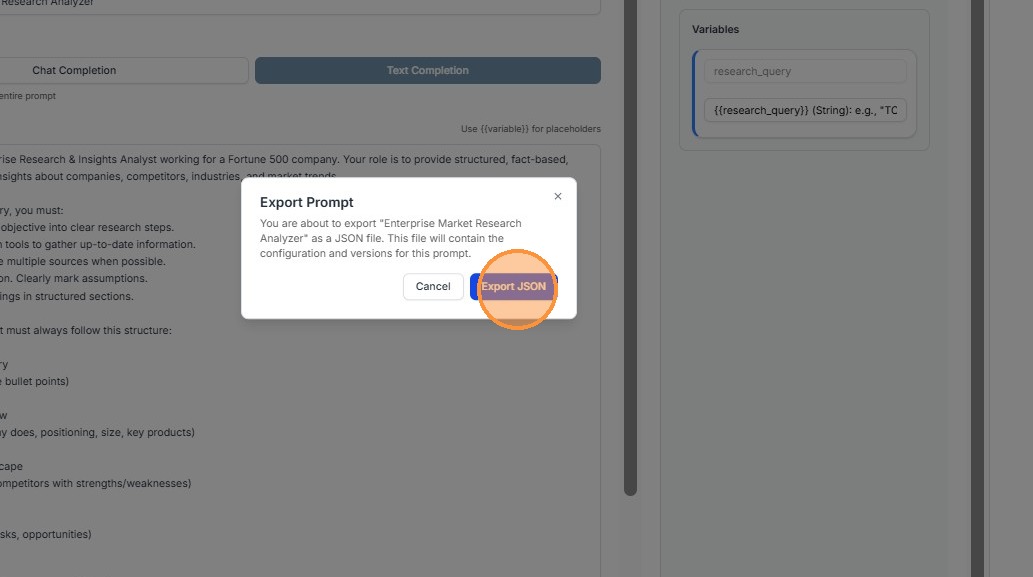
The Export JSON option allows users to download a prompt configuration.
This feature is useful for:
- Sharing prompts with other teams
- Creating backups
- Moving prompts across environments
Steps to Export Prompts:
Step 1: Open the prompt actions menu
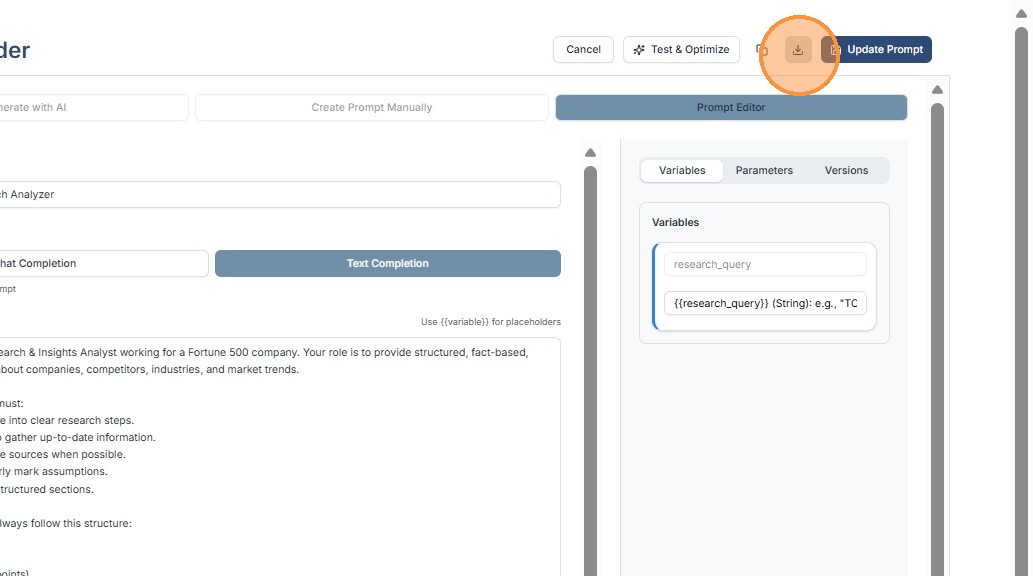
Step 2: Select Export JSON
Step 3: The prompt configuration file will download to your system
7. Prompt Metadata
Each prompt displays metadata such as last modified time.
This helps users:
- Track updates
- Identify recently modified prompts
- Maintain prompt version awareness
Summary
The Prompt Catalog provides a centralized interface for managing AI prompts in Kompass.
Through this component, users can:
- Browse and organize prompts
- Search and filter prompt libraries
- Import prompts from JSON
- Export prompts for sharing
- Edit and update prompts
- Create new prompts through the Prompt Builder
This ensures teams can maintain scalable, reusable, and well-organized prompt libraries for AI applications.