Input Node
Input Component
1. Component Introduction
The Input Component is the starting point of a workflow where the initial data or user query enters the system. It defines the input parameters that trigger the workflow execution.
This component allows users to specify the information that will be passed to downstream components such as APIs, agents, LLMs, or other processing nodes.
In most workflows, the Input Component represents the user request, application data, or query that initiates the process. Once the input is defined, the workflow passes this information through the connected components to perform the required operations.
Technically, the Input Component generates the first output variable that other nodes consume during workflow execution.
Technical Specification
JSON Structure
{
 "name": "Input Component",
 "type": "init",
 "description": "In this component, we need to add the city name",
 "output_type": "string",
 "inputs": {
   "type": "string",
   "values": "Bangalore"
 }
}
Explanation
-
name – Defines the name of the component.
-
type – Specifies the component type as
init, indicating it starts the workflow. -
description – Explains the purpose of the input being provided.
-
output_type – Defines the data type produced by this component.
-
inputs.values – Contains the initial input data that will be passed to the workflow.
Since this is the first component in the workflow, it does not require a componentID or input connection.
2. Where to Use It
The Input Component should be used at the beginning of every workflow to capture the data required for execution.
Typical use cases include:
-
Accepting user queries from a chatbot or application interface.
-
Providing search terms or keywords for AI processing
-
Supplying product details or IDs for content generation workflows
-
Initializing workflow variables used by other components
Example
In a weather information workflow, the Input Component might capture:
City Name: Bangalore
This input would then be passed to an API component to fetch weather data for the specified city.
3. How to Initialize
To configure the Input Component in a workflow:
-
Drag the Input component from the Component Library onto the workflow canvas.
-
Place it at the beginning of the workflow.
-
Open the component configuration panel.
-
Define the input parameter name and type.
-
Provide the initial value or query that will trigger the workflow.
Once initialized, the output generated by the Input Component becomes the input for downstream components.
4. Dos and Don'ts
Do
-
Use the Input Component only at the start of the workflow.
-
Define input parameters clearly so downstream components can use them correctly.
-
Ensure the output type matches the expected format required by connected components.
-
Use descriptive input names for better workflow readability.
Don't
-
Do not connect any component before the Input Component.
-
Do not leave the input value undefined if the workflow requires a parameter.
Component Restrictions
-
Must not have an input node.
-
Must have an output node.
-
Provides output only and does not accept input from other components.
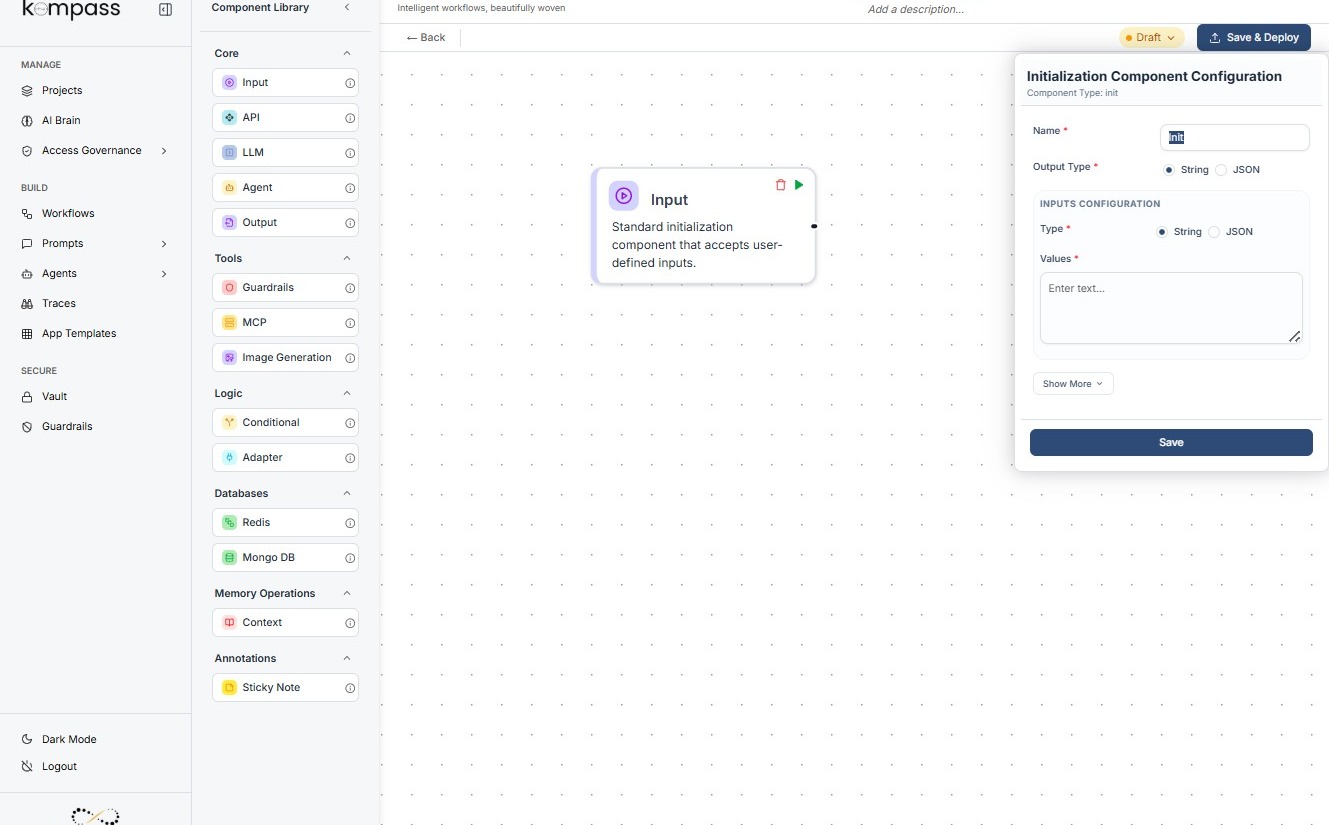
Tip: Choosing Between string and JSON Input Types
When configuring the Input Component, it is important to choose the correct data type for the input. The two most commonly used types are string and JSON.
String
A string represents a single piece of text or value.
Use the string type when the workflow only needs one simple input value.
Examples
"Bangalore"
"Generate product description for running shoes"
"Order ID 12345"
When to Use String
-
When passing a single value
-
When sending simple user queries
-
When providing one parameter to an API
-
When the downstream component expects plain text
For example, if a workflow needs only a city name to fetch weather data, using a string is sufficient.
JSON
JSON (JavaScript Object Notation) is used when the workflow needs multiple structured inputs or key-value data.
JSON allows you to pass several related parameters together in an organized format.
Example
{
 "city": "Bangalore",
 "date": "2026-03-12",
 "unit": "celsius"
}
When to Use JSON
-
When passing multiple parameters
-
When the workflow requires structured data
-
When sending complex input to APIs or LLMs
-
When the workflow requires nested information
For example, if a workflow generates travel recommendations, JSON can include multiple details such as city, travel dates, and budget.