LLM Node
1.Component Intro: LLM
The LLM (Large Language Model) Component is the "brain" of your workflow. It uses advanced generative AI models to process text, answer questions, summarize data, or reason through complex instructions. It transforms structured or unstructured input into natural language responses based on a specific prompt template and model configuration.
Core JSON Structure
[[JSON]]
{
 "name": "LLM_Node",
 "type": "llm",
 "description": "Generates responses based on the provided prompt and model configuration.",
 "output_type": "string",
 "inputs": {
  "model_name": "gemini_2_5_image",
  "prompt": {
    "prompt_name": "custom_assistant",
    "variables": {
      "user_query": "{{input_node.output}}"
    }
  },
  "temperature": 0.7,
  "use_mcp": false
 }
}
2. Where to Use It
-
Conversational AI: Building chatbots that can interact naturally with users.
-
Data Extraction: Pulling specific entities (like names or dates) out of a wall of text.
-
Content Transformation: Summarizing long documents, translating languages, or rewriting text to change its tone.
-
Reasoning: Analyzing multiple inputs (from APIs or Databases) to make a logical decision or recommendation.
3. How to Initialize
-
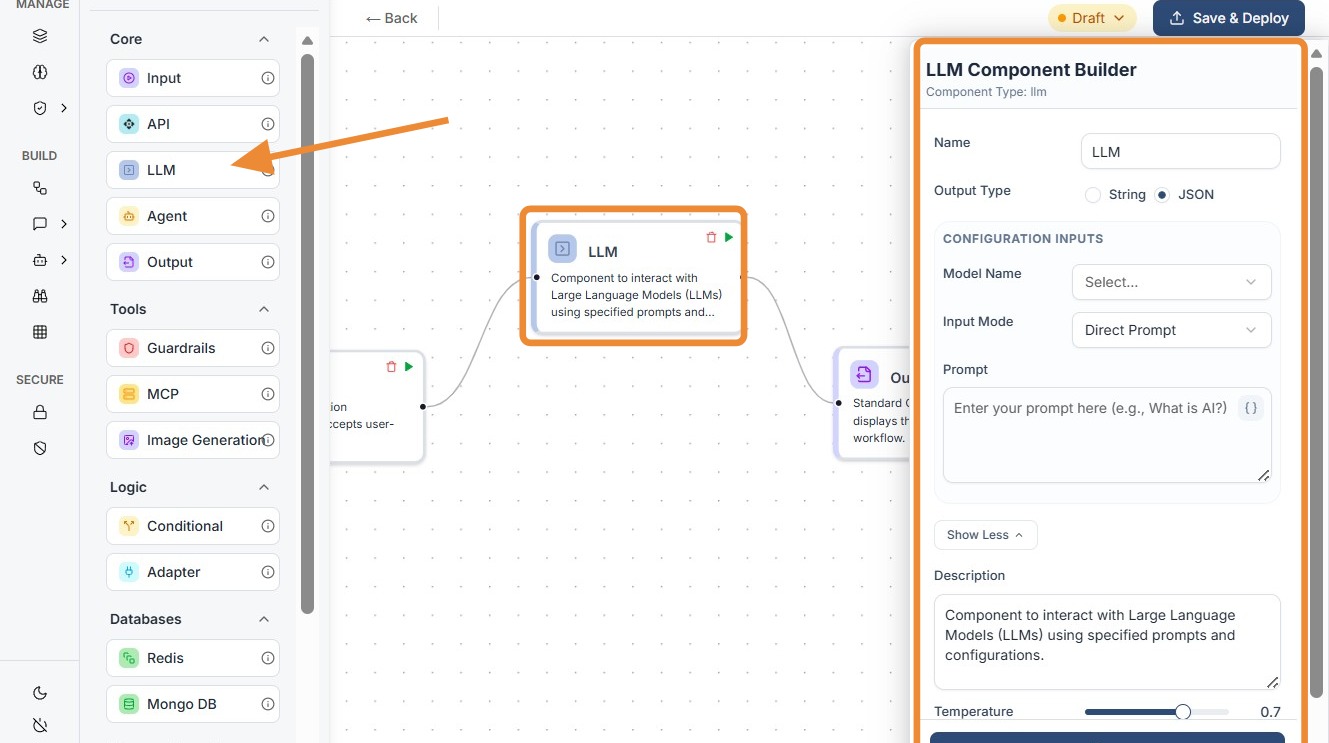
Add Node: Drag the
LLMcomponent from the Core section of the library onto the canvas. -
Select Model: Choose your desired model (e.g., Gemini, GPT-4) from the Model Name dropdown.
-
Configure Prompt: * Prompt Name: Select a predefined template or name your current instruction set.
-
Variables: Map your input data. Use the
{{node_id.output}}syntax to feed data from the Input or API nodes into the model's instructions. -
Set Temperature: Use the slider to set the "creativity" level. 0.0 is focused and deterministic, while 1.0 is more creative and varied.
-
MCP Toggle: Enable
use_mcpif the model needs to use external tools or "Model Context Protocol" to perform actions. -
Connect Ports: Link the input dot to your trigger/input data and the output dot to a Guardrail or Output node.
Do's and Don'ts
### Do's
-
Match Model to Task: Use smaller models (Haiku/Mini) for simple data extraction to save money and reduce latency.
-
Monitor Token Usage: Keep your
max_tokenssetting within the specific model's allowed range to prevent execution crashes. -
Use System Prompts: Use the
prompt_namevariable to set a "System Role" (e.g., "You are a helpful accountant") to ground the model's behavior. -
Explicitly Request JSON: If you need a structured response, always end your prompt with: "Provide the result in valid JSON format."
-
Test with Edge Cases: Check how the model handles empty inputs or gibberish to ensure your workflow is robust.
Don'ts
-
Over-allocate Max Tokens: Don't set
max_tokensto an arbitrarily high number (like 10,000) for small models; it can lead to API errors or unnecessary costs. -
Ignore Model Updates: Don't stick to older models (like GPT-3.5) if newer "Mini" models are available; newer models are usually cheaper and smarter.
-
Feed Sensitive Raw Data: Don't send unmasked PII (Personal Information) to the LLM; always use a PII Guardrail before the LLM node.
-
Expect Perfect Math: Don't rely on LLMs for complex calculations; instead, use an API Component to call a calculator or a Python script.
-
Forget Prompt Variables: Don't hardcode user data; always map inputs via
{{variables}}to keep the node dynamic.
Tip: ## LLM Selection & Performance Tips
Selecting the right model is a balance between "intelligence," speed, and cost. Not every task requires the most powerful model.
-
Task-Specific Strengths:
-
Reasoning & Complex Logic: Use "Frontier" models like GPT-4o or Gemini 1.5 Pro. They are best for coding, complex math, or multi-step reasoning.
-
Speed & High Volume: Use smaller models like Claude 3 Haiku or GPT-4o-mini. They are incredibly fast for simple classification, formatting JSON, or basic chat.
-
Large Context (Long Docs): Gemini 1.5 Pro is the king of context, capable of "reading" entire books or long codebases (up to 2 million tokens).
-
The "Creativity" Example:
-
If you want an LLM to write a poem, use a high Temperature (0.8).
-
If you want it to extract data into a table, use a low Temperature (0.1).
Understanding Token Limits & Constraints
Tokens are the "currency" of LLMs (roughly 0.75 words per token). Every model has a hard limit on how many tokens it can process at once.
-
Max Tokens vs. Context Window:
-
Context Window: The total amount of text the model can "see" (Input + Output).
-
Max Output Tokens: The maximum length of the response the model can generate.
-
Specific Model Constraints (Examples):
-
Claude 3 Haiku: While it is fast, it typically has a lower output limit (e.g., 4096 tokens). If you set
max_tokens = 10000in your JSON, the API will throw an error because the model physically cannot generate a response that long. -
GPT-4o-mini: Great for small tasks, but if you feed it a 100,000-word document, it may "forget" the beginning of the instructions due to context window limits.
Model Selection & Constraints
| Model Family | Best Use Case | Max Context | Max Output |
|---|---|---|---|
| Gemini 1.5 Pro | Long documents, complex reasoning | 2,000,000 | 8,192 |
| GPT-4o | Balanced logic and high-quality chat | 128,000 | 4,096 |
| Claude 3.5 Sonnet | Nuanced writing and complex instructions | 200,000 | 8,192 |
| Claude 3 Haiku | Instant responses and classification tasks | 200,000 | 4,096 |
| GPT-4o-mini | Low-cost generation and basic reasoning | 128,000 | 16,384 |