Adapter
1. Component Intro
The Adapter Component is the essential data-handling bridge of your workflow. It is designed to transform, map, and reformat data between components that have mismatched output and input requirements. Whether you need to extract a specific field from a large JSON object or convert a data type (e.g., from JSON to String), the Adapter ensures a seamless "handshake" between nodes.
Core JSON Structure
[[JSON]]
{
 "name": "Adapter_Component",
 "type": "adapter",
 "description": "Adapt outputs between nodes by transforming data structures.",
 "output_type": "json",
 "inputs": {
  "transform": [
    {
      "key": "user_name",
      "values": "{{user_profile.output.name}}",
      "convert_to": "string"
    }
  ]
 }
}
2. Where to Use It
-
Data Flattening: Extracting a single nested value from a complex API response to pass it to an LLM.
-
Type Conversion: Converting JSON data into a plain String format (critical for nodes like the Agent Component).
-
Schema Mapping: Renaming keys from one service to match the expected input keys of another service.
-
Payload Simplification: Cleaning up data by removing unnecessary fields before sending them to a database.
3. How to Initialize
-
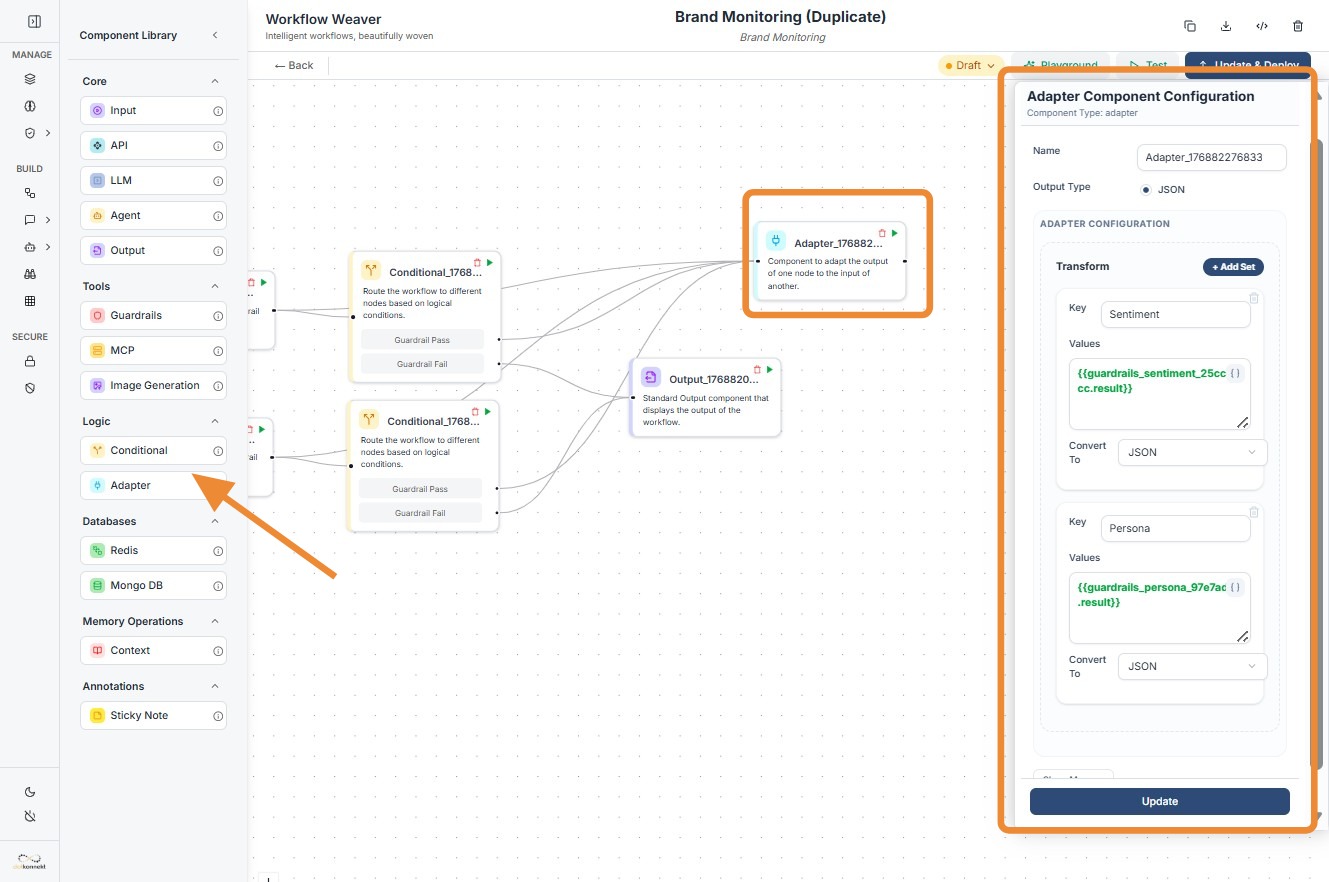
Add Node: Drag the
Adaptercomponent from the Logic section of the library onto the canvas. -
Define Key: In the configuration panel, enter the
keyname you want for the output (e.g.,Sentiment). -
Map Values: Enter the source variable path in the
valuesfield using{{componentID.output.path}}. -
Select Data Type: Choose the target format in the
Convert Todropdown (e.g., JSON, String, Number). -
Connect Ports: Link the input port (left) to your data source and the output port (right) to the downstream component.
Adapter
Do's and Don'ts
✅ Do's
-
Pre-process for Agents: Always use an Adapter to convert JSON outputs to Strings before feeding them into an Agent Node.
-
Use Descriptive Keys: Name your keys clearly (e.g.,
user_idinstead ofkey1) to keep downstream mapping simple. -
Verify JSON Paths: Double-check your
{{variable}}paths. If the source node structure changes, the Adapter must be updated. -
Combine Mappings: You can add multiple transformation sets within one Adapter node to keep your workflow clean.
❌ Don'ts
-
Hardcode Static Data: Avoid typing raw values into the
valuesfield; use the{{}}syntax to keep the node dynamic. -
Skip Type Selection: Don't leave
Convert Toon the default setting if your next node requires a specific type (like a Number for math). -
Bypass Output Checks: Don't assume the transformation worked; use an Output Node during testing to verify the resulting JSON structure.
-
Overuse Nodes: Don't use three Adapters in a row if you can perform all transformations within a single node using multiple "Transform" sets.
Tip: Token Optimization
The Adapter is your best friend for Token Optimization. By stripping out useless metadata from an API response before sending it to an LLM, you reduce context usage and significantly save on costs.
Troubleshooting: Path Errors
If your Adapter returns null or an empty object:
- Check the Dot Notation: Ensure you are using the correct path (e.g.,
{{node.output.data.user}}vs{{node.output.user}}). - Case Sensitivity: Ensure your keys match the exact casing of the source data (e.g.,
userNameis not the same asusername). - Upstream Logs: Verify in the execution logs that the preceding node actually produced the data you are trying to map.