Context Memory
1. Component Intro
The Memory Component acts as a semantic cache for your workflow, enabling conversation continuity. It functions as a long-term retrieval system that searches through previous interaction history to find context relevant to the current user query. By injecting this historical data into an LLM, the component allows the AI to "remember" past preferences, issues, or details, providing a much more personalized and context-aware experience.
Core JSON Structure
[[JSON]]
{
 "name": "Memory_Component",
 "type": "memory",
 "description": "Semantic cache for conversation context retrieval.",
 "output_type": "json",
 "inputs": {
  "session_id": "session-123",
  "name": "Sangria Support",
  "user_message": "{{input_component.output}}",
  "top_k": 1
 }
}
2. Where to Use It
-
Customer Support Bots: Retrieving past ticket details or account history when a user asks a follow-up question.
-
Personalized Assistants: Recalling user preferences (e.g., "Use a professional tone" or "Remember I live in London") across different sessions.
-
Long-form Reasoning: Providing an LLM with relevant snippets from a massive conversation history that would otherwise exceed the token limit.
-
Context Injection: Enhancing RAG (Retrieval-Augmented Generation) workflows by specifically focusing on conversational history rather than external documents.
3. How to Initialize
-
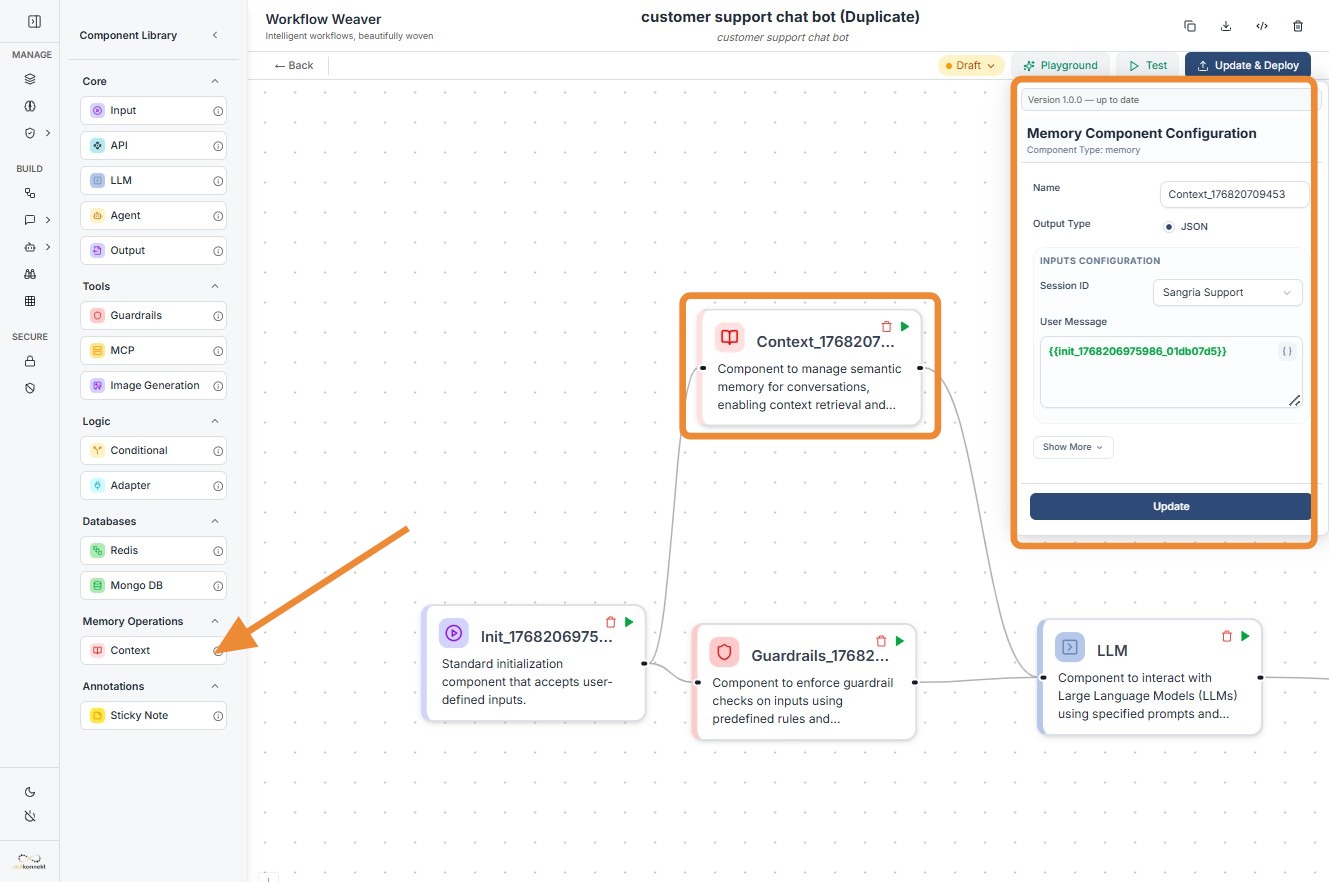
Add Node: Drag the
Context(Memory) component from the Memory Operations section of the library onto the canvas. -
Assign Session ID: Enter a unique
Session ID. This is the key used to group and retrieve messages belonging to a specific user or conversation. -
Map User Message: In the
User Messagefield, use the variable picker or type the reference to your input node (e.g.,{{input_node_id.value}}). -
Set Retrieval Depth (Top K): Define how many relevant past interactions the component should retrieve (typically set to 1 or 2 to keep context focused).
-
Connect to LLM: Link the output dot of the Memory component to the input dot of an LLM component. This ensures the retrieved context is available for the model to use during generation.
Context
Do's and Don'ts
✅ Do's
-
Unique Session IDs: Ensure your
session_idis truly unique per user/conversation to prevent "memory leakage" where one user sees another's history. -
Use for Contextual LLMs: Always connect this to an LLM that has been prompted to "use the provided context" to answer the user message.
-
Clean Your Input: Ensure the
user_messagepassed to this node is clean and descriptive to improve the semantic search accuracy. -
Monitor Top_K: Keep your
top_kvalue low. Retrieving too many past messages can clutter the LLM's context and lead to hallucinations.
❌ Don'ts
-
Bypass the Input: Never leave the
user_messageempty; the component needs this text to perform a semantic search for relevant history. -
Overload Tokens: Don't use the Memory component to retrieve huge chunks of data if you are already using a large RAG knowledge base, as you may hit model token limits.
-
Confuse with Databases: Don't use Memory for structured data storage (like price lists). Use the MongoDB or Redis components for that.
-
Forget Connection Dots: The component must have an input connection to trigger the search and an output connection to pass the results downstream.
Made with Scribe
Tip: Semantic Accuracy
The Memory component uses vector similarity. If the retrieved context isn't relevant, try rephrasing the initial user prompt or ensuring the Session ID is consistent across the conversation.
Troubleshooting: Empty Context
If the LLM isn't receiving any memory: 1. Verify Session ID: Check if the ID matches the one used in previous successful interactions. 2. Check Workflow Order: Ensure the Memory node is placed after the user input but before the LLM in the logic flow.