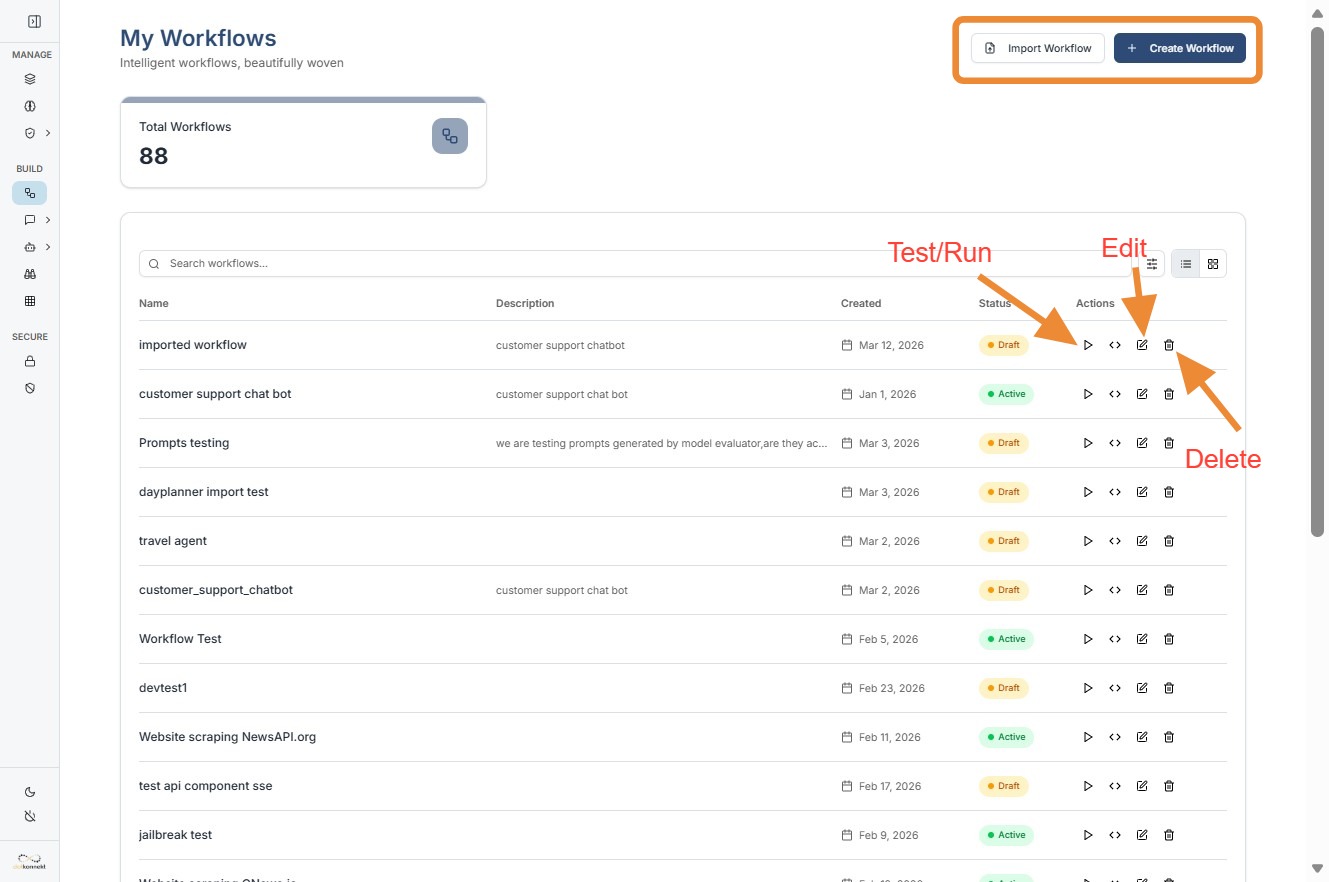
Workflow Overview
Made by Team DotKonnekt with Scribe
this is workflow feature overview
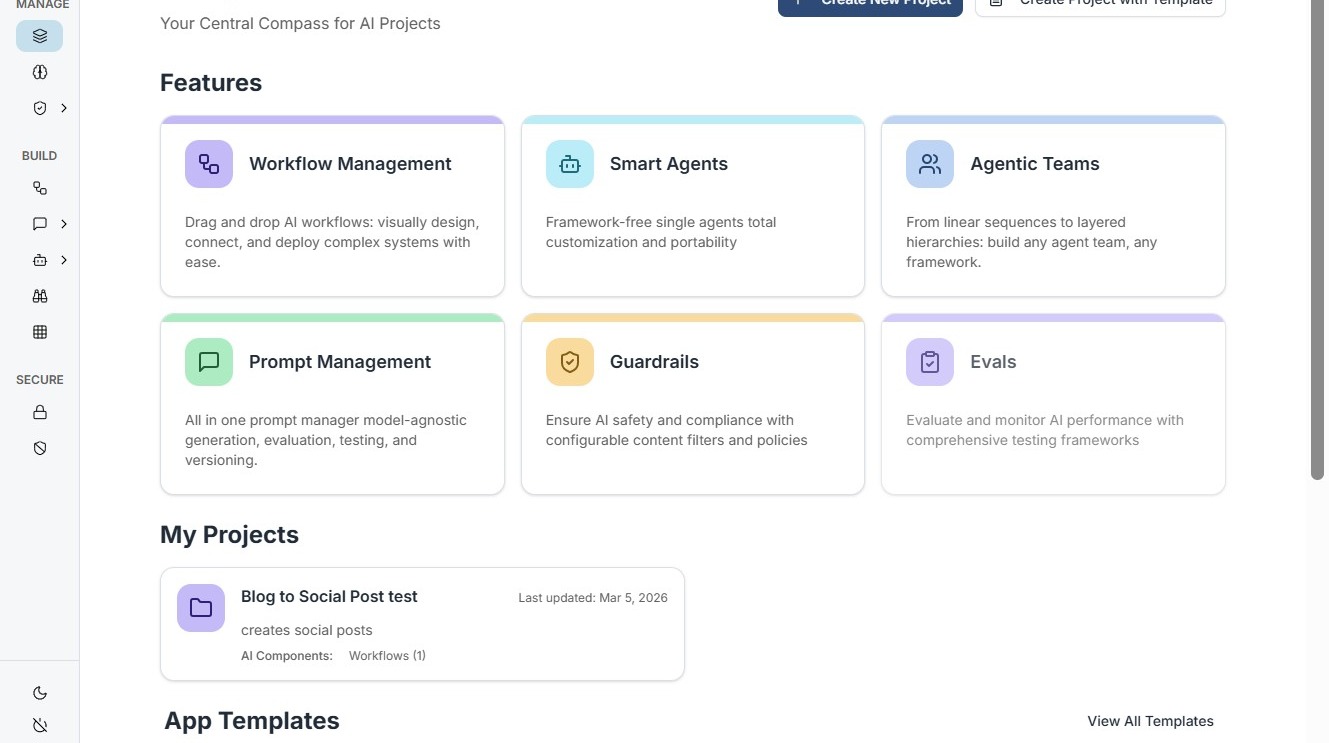
Dashboard Layout & Navigation
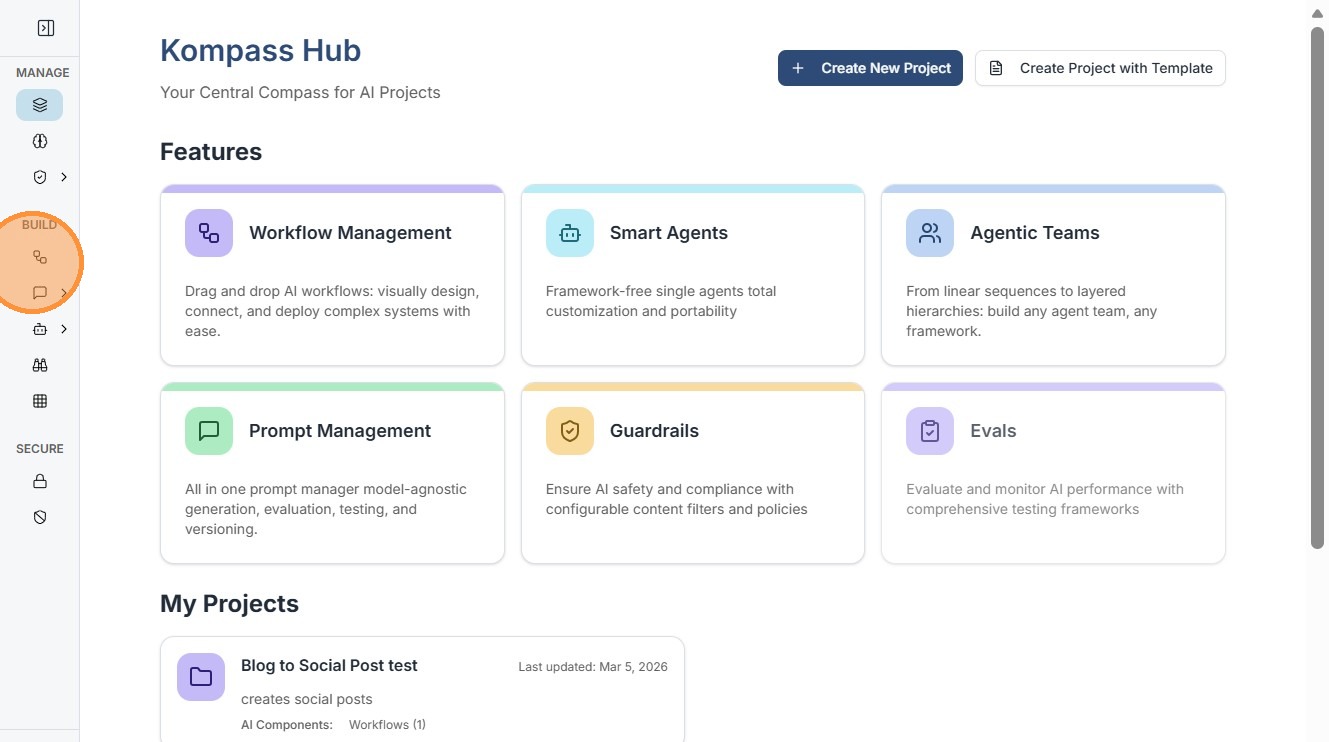
The dashboard serves as your central hub for all automation logic. You can access it by navigating to the main admin URL and selecting the Workflow icon from the primary sidebar.
View Customization
-
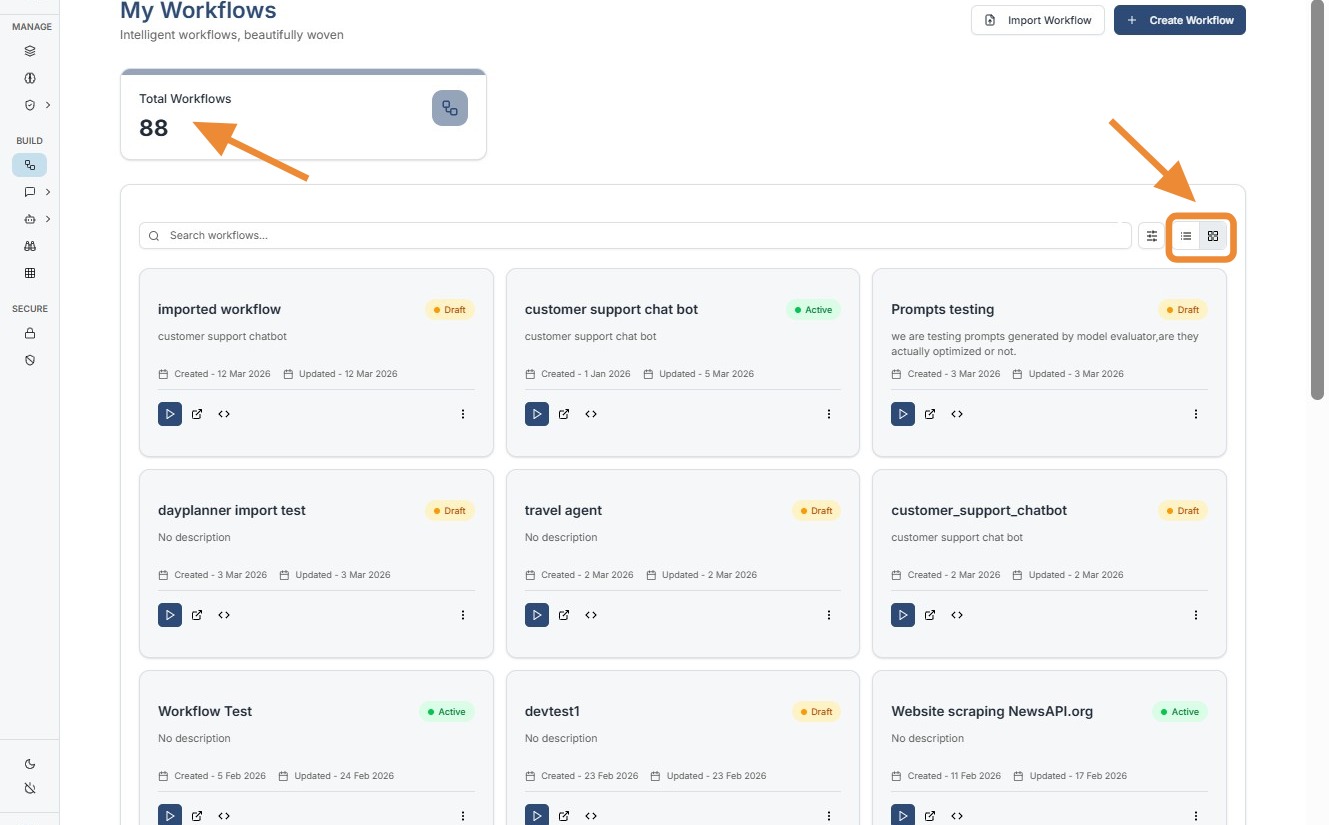
List and Grid Toggle: You can switch between a visual Grid View (ideal for seeing card-based summaries) and a compact List View (optimized for managing high volumes of workflows).
-
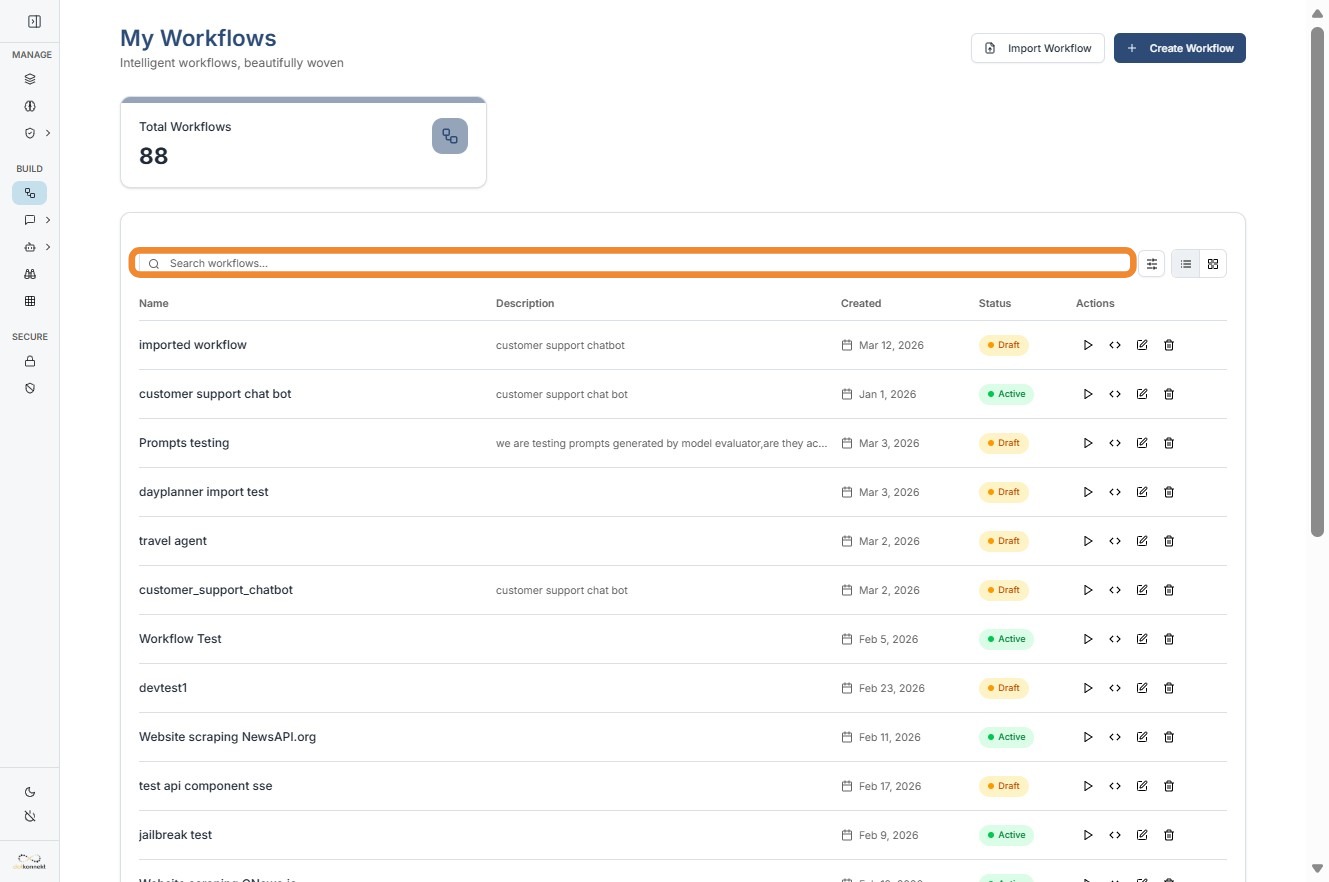
Total Workflow Count: A dedicated counter displays the "Total Workflows" currently in your system, providing an instant metric of your workspace scale.
Searching and Filtering
As your library grows, the platform offers tools to find specific logic quickly:
- Global Search Bar: Use the "Search workflows..." field at the top of the dashboard to filter your list by workflow name or specific keywords in real-time.
Workflow Status and Info
Every workflow tile or list entry provides critical metadata to help you manage operations:
-
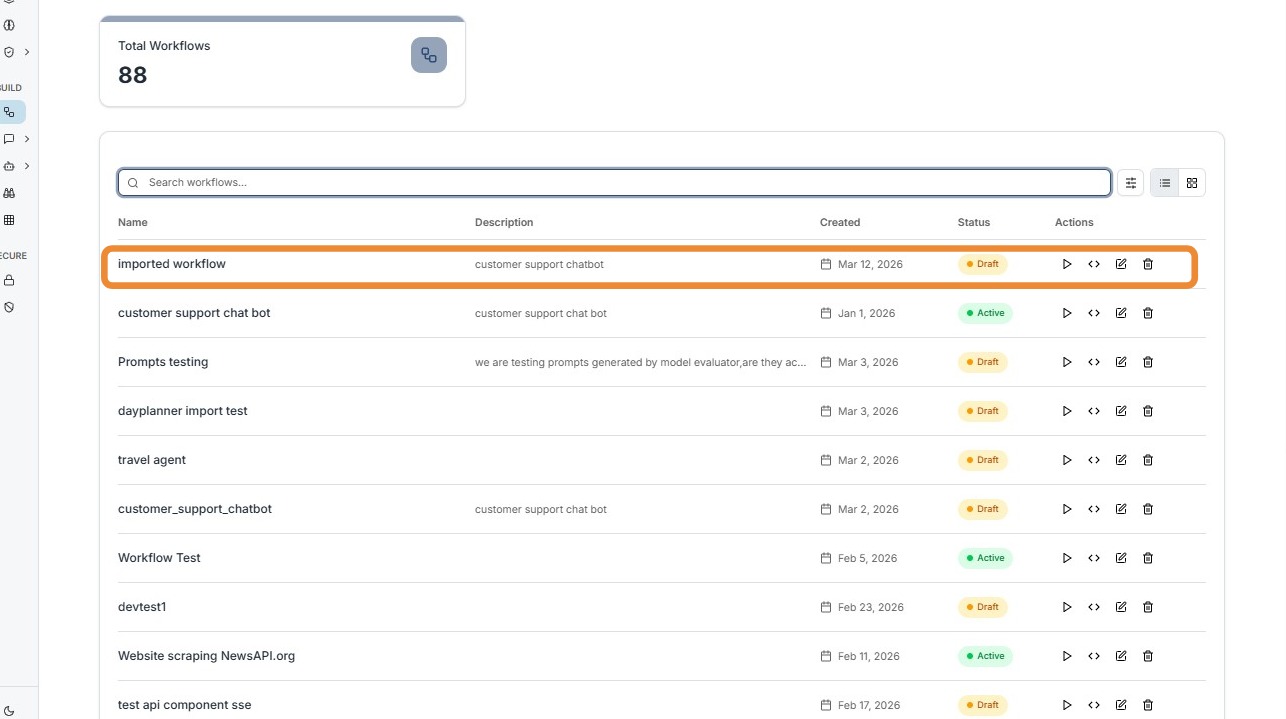
Status Indicators: Each workflow displays its current state, such as Draft, Active, or Inactive, so you know which logic is currently live.
-
Visual Badges: Color-coded badges are used to make these statuses scannable at a glance.
Create Workflow
Starting a new project is straightforward. There are two primary ways to initiate a workflow from the dashboard:
-
Create from Scratch: Click the primary "Create Workflow" button in the top right.
-
Import Existing: As detailed in the Import/Export Guide, you can use the action menu to upload a
.jsonfile to bypass manual setup.