Roles and Permissions
Create and Update Roles in Kompass Admin UI
The Roles and Permissions component in Kompass allows administrators to define what actions different users can perform within the platform. This is a core part of Access Governance, which ensures that system access is structured, secure, and aligned with team responsibilities.
Instead of granting permissions individually to every user, Kompass uses a role-based access control (RBAC) approach.
Accessing the Roles & Permissions Interface.
Only users with administrative privileges can manage roles and permissions.
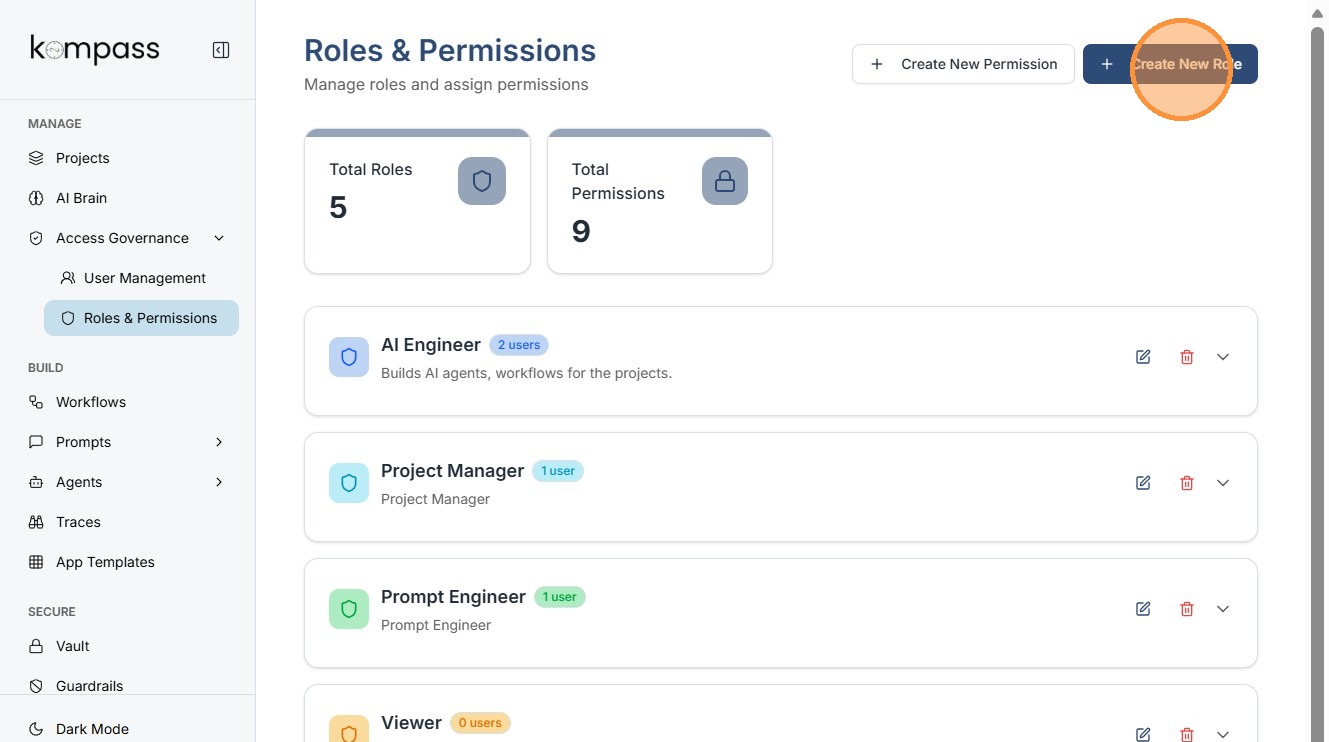
This section displays all roles currently defined in the system. Each role represents a predefined set of permissions that determines what users assigned to that role can do.
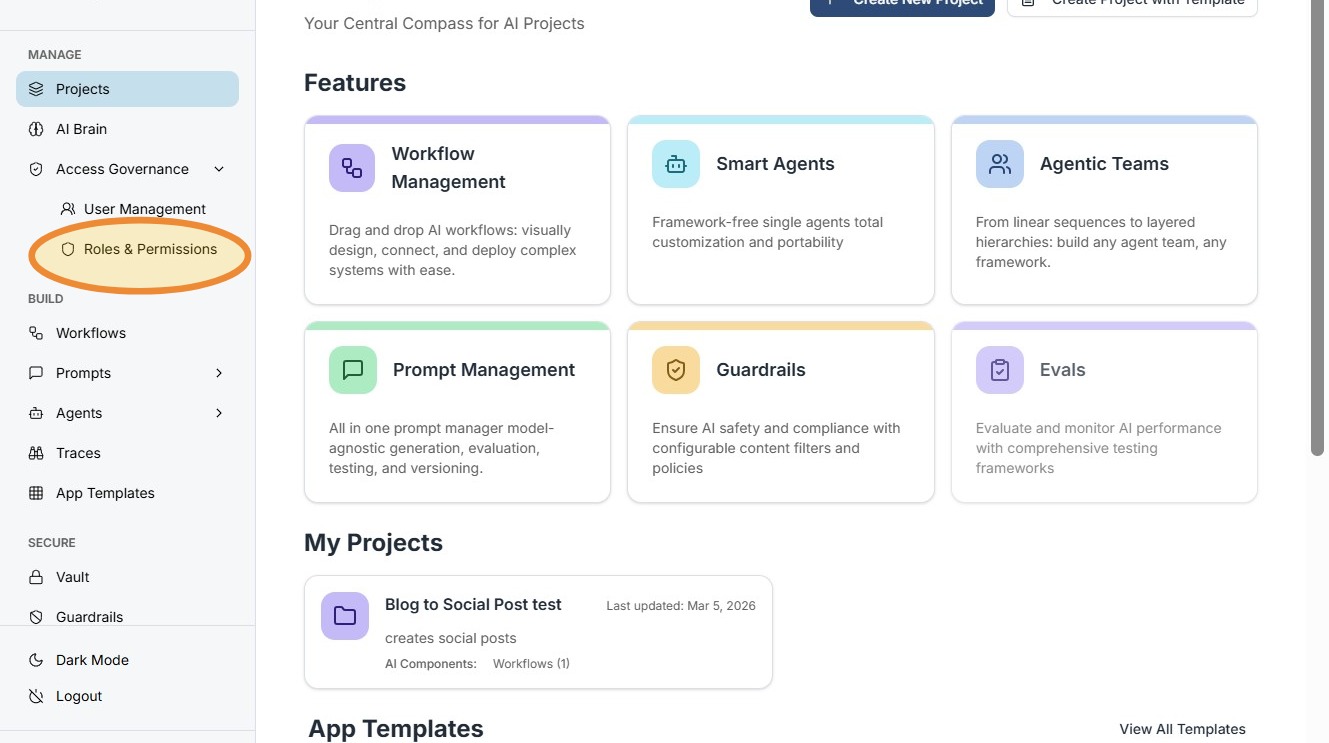
Create a New Role
Click Create New Role to define a new role.
Organizations sometimes need custom roles to match their internal structure. For example, a company might create roles such as:
-
AI Analyst
-
Workflow Manager
-
Project Owner
Creating roles allows teams to tailor access permissions to their operational needs.
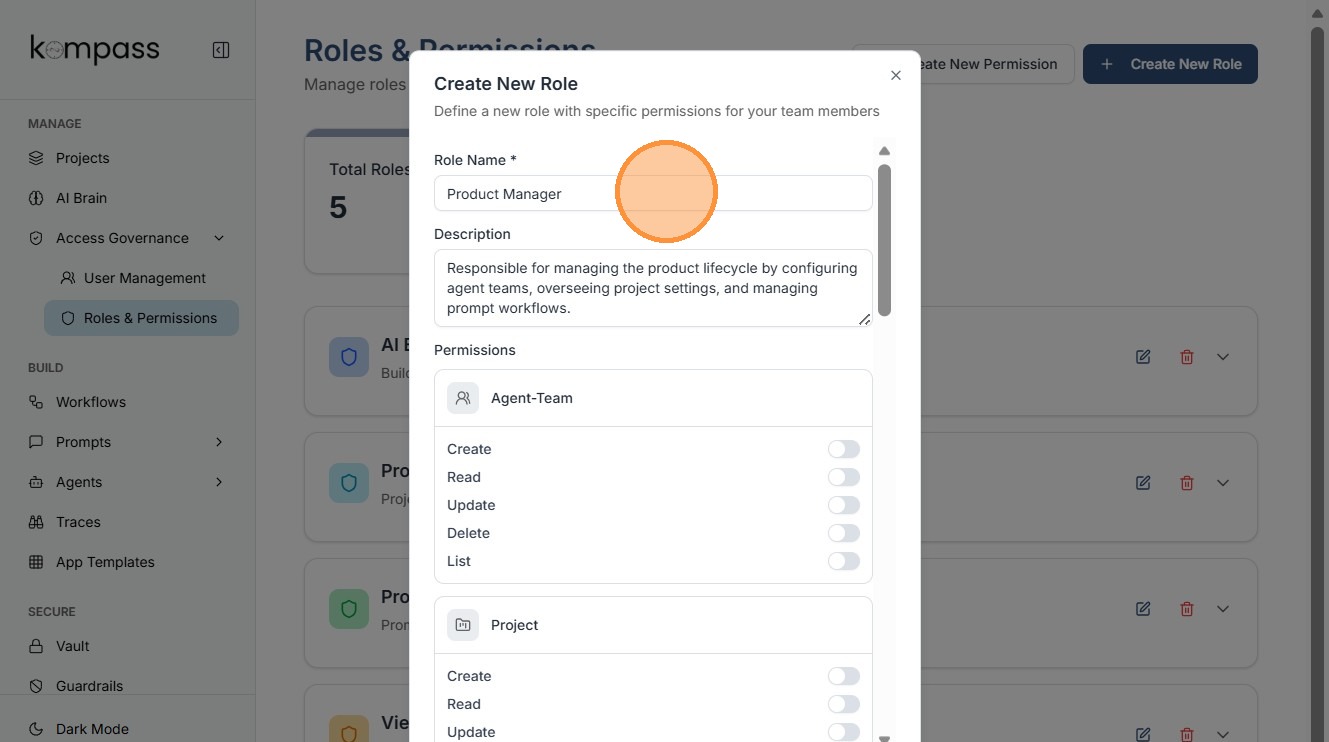
Define the Role Name
Enter the Role Name in the role name field and describe the role.
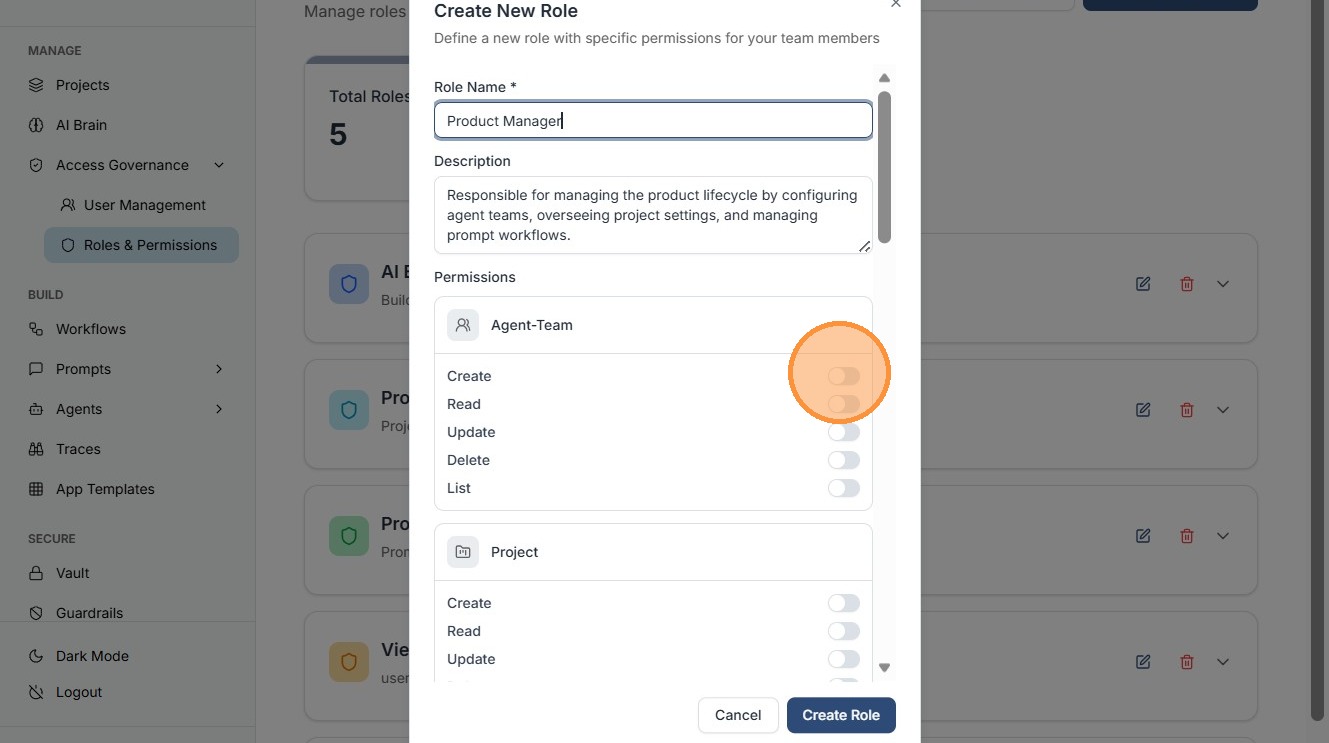
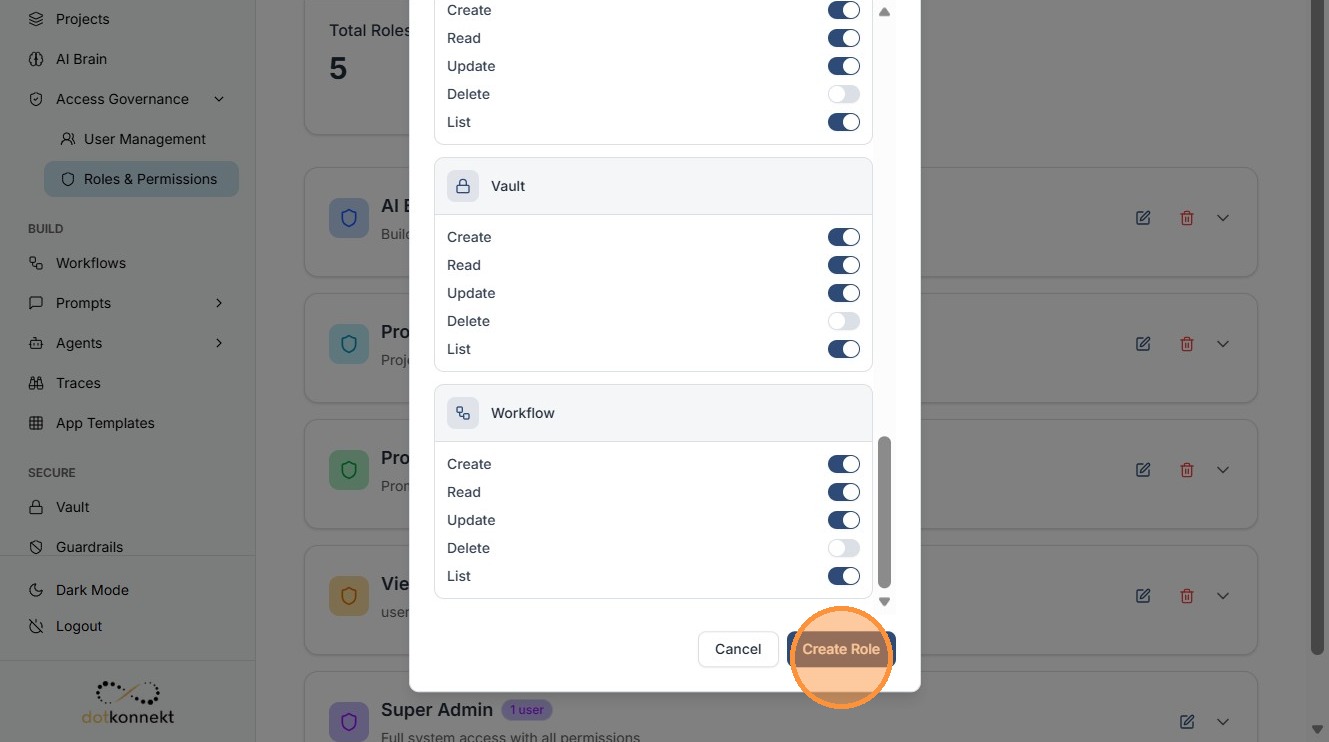
Configure Role Permissions
After naming the role, administrators can configure the permissions associated with it. Permissions determine what actions users assigned to the role can perform within the system.
Save the New Role
Click Create Role to save the role configuration.
Once created, the role becomes available in the User Management section and can be assigned to users.
Users assigned to this role will automatically receive the permissions defined during role creation.
Updating an Existing Role
Roles can be modified when responsibilities change or when additional permissions are required.
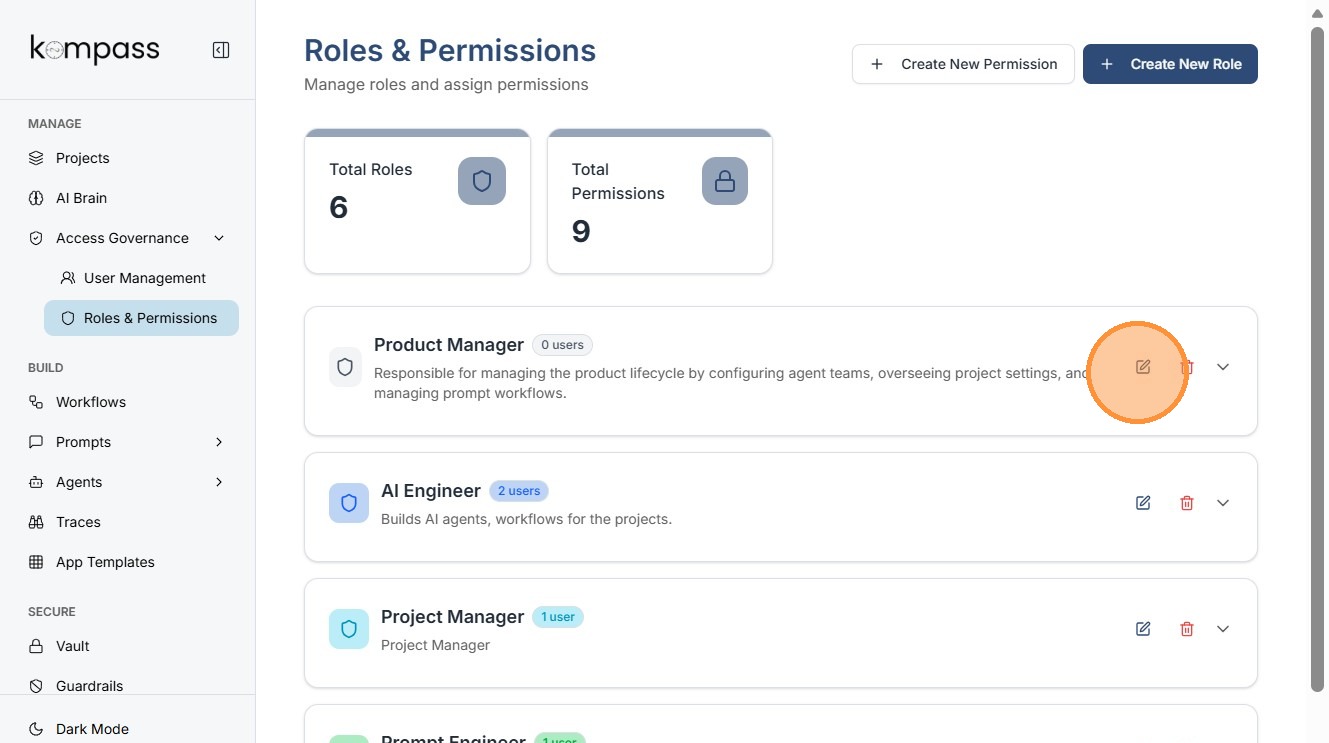
Open the Role Configuration
Select a role from the roles list to view its details.
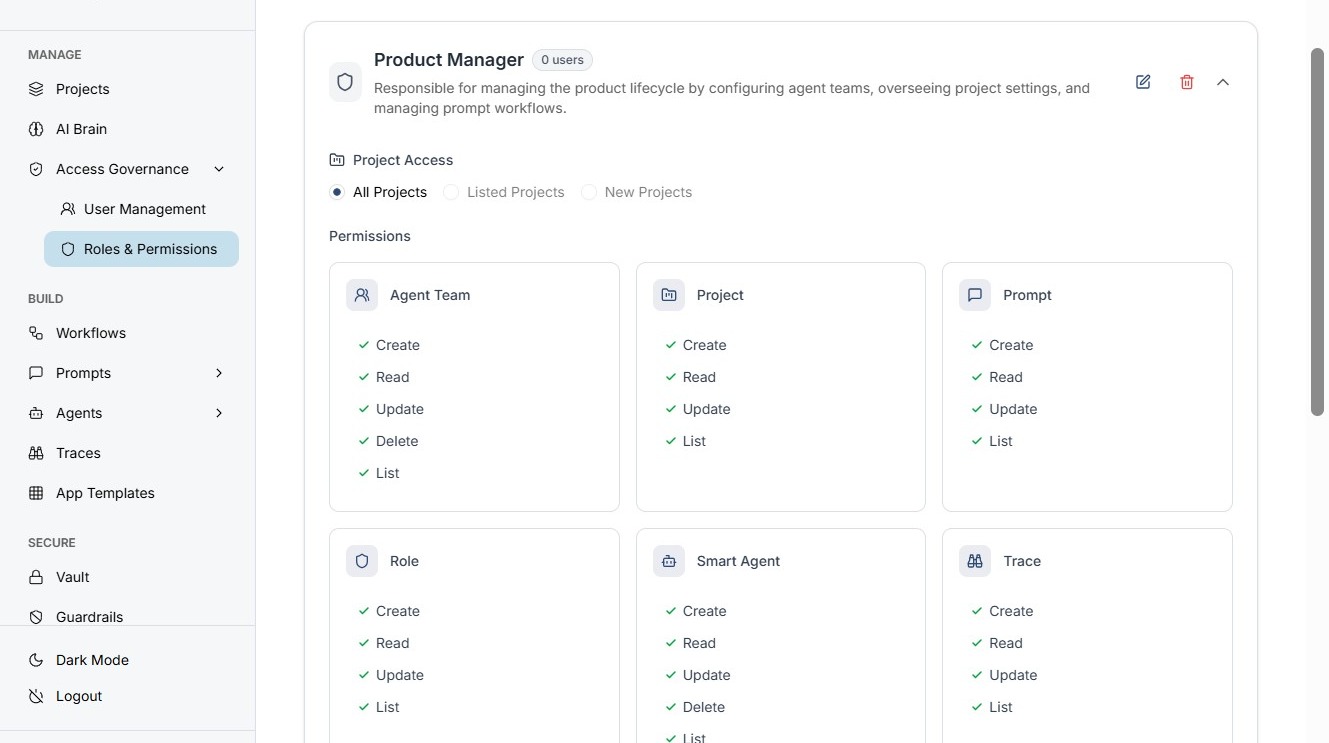
For example, you may open a role such as Product Manager, which is typically responsible for managing product configurations and overseeing projects.
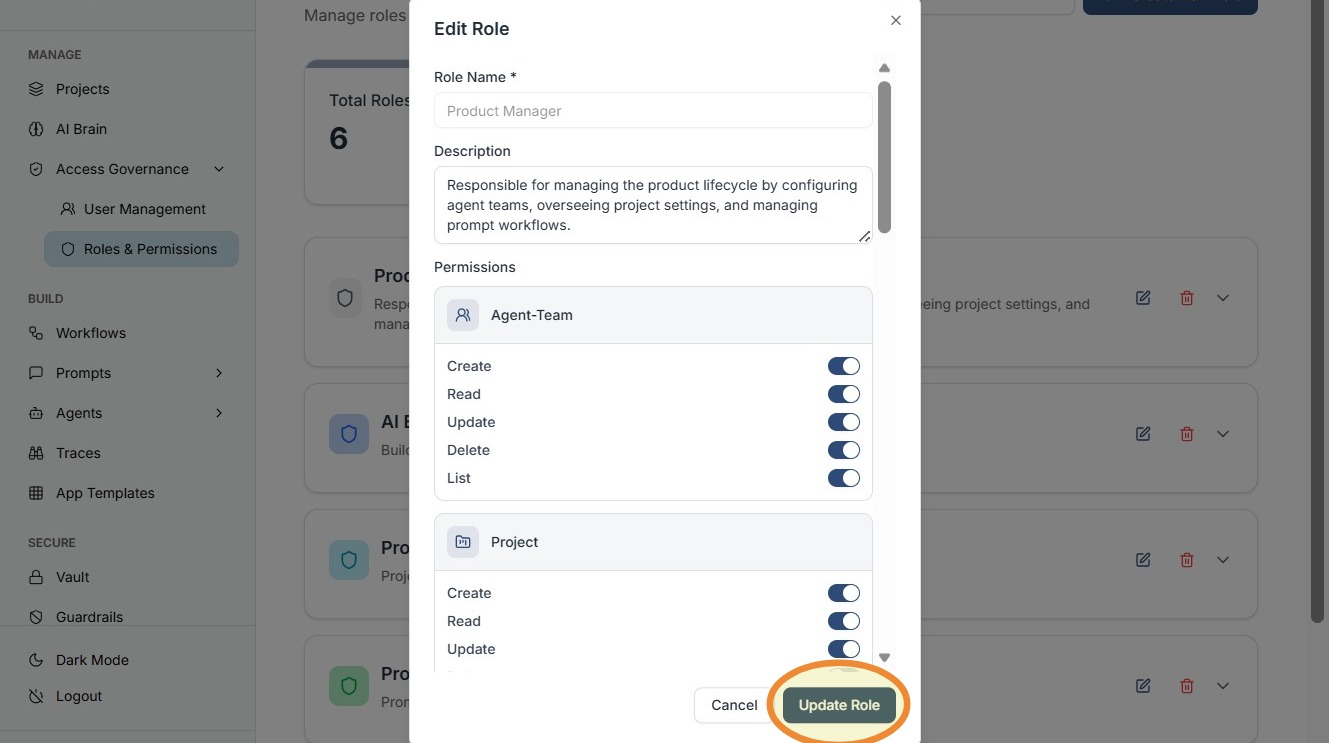
The role details page displays:
-
Role description
-
Assigned users
-
Current permissions
This allows administrators to review how the role is currently configured.
Click "Update Role"
To view Current permissions a hole has ,just click the showed button.
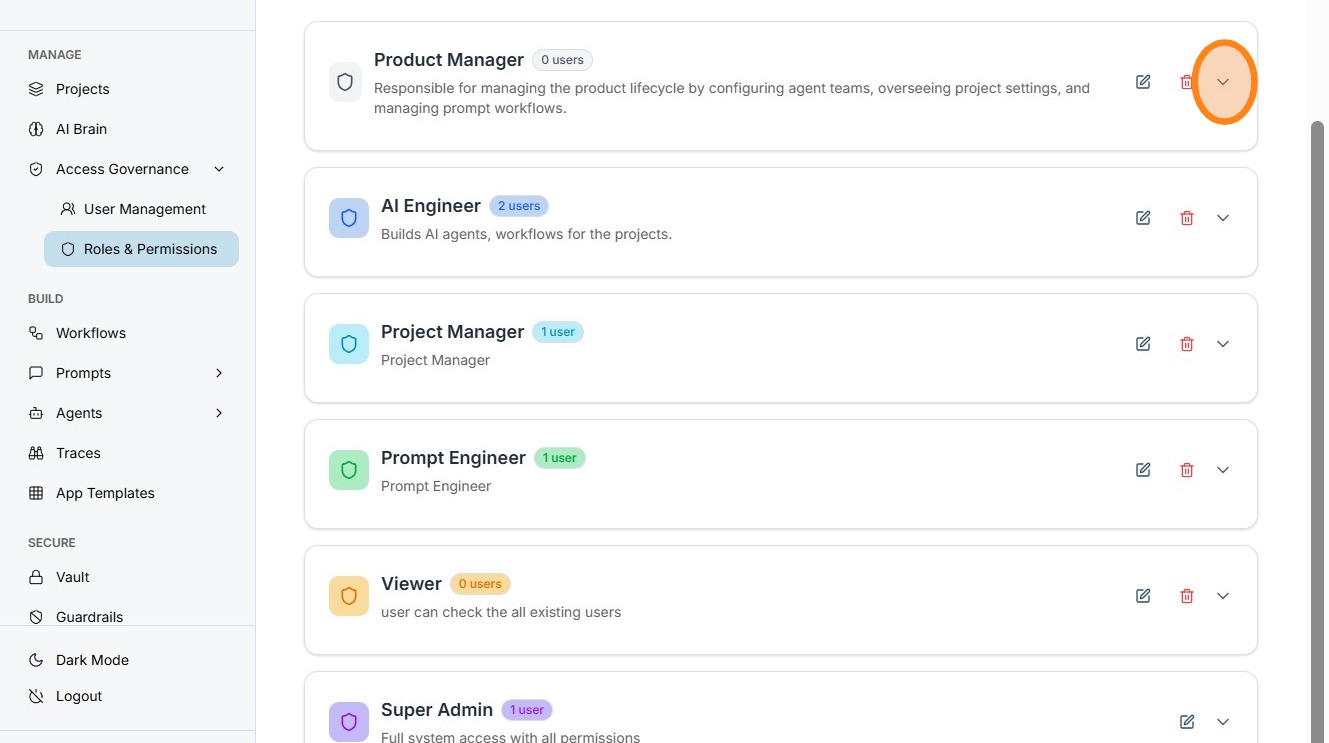
you will be able to see all the Permissions this role has like this-
Deleting a Role
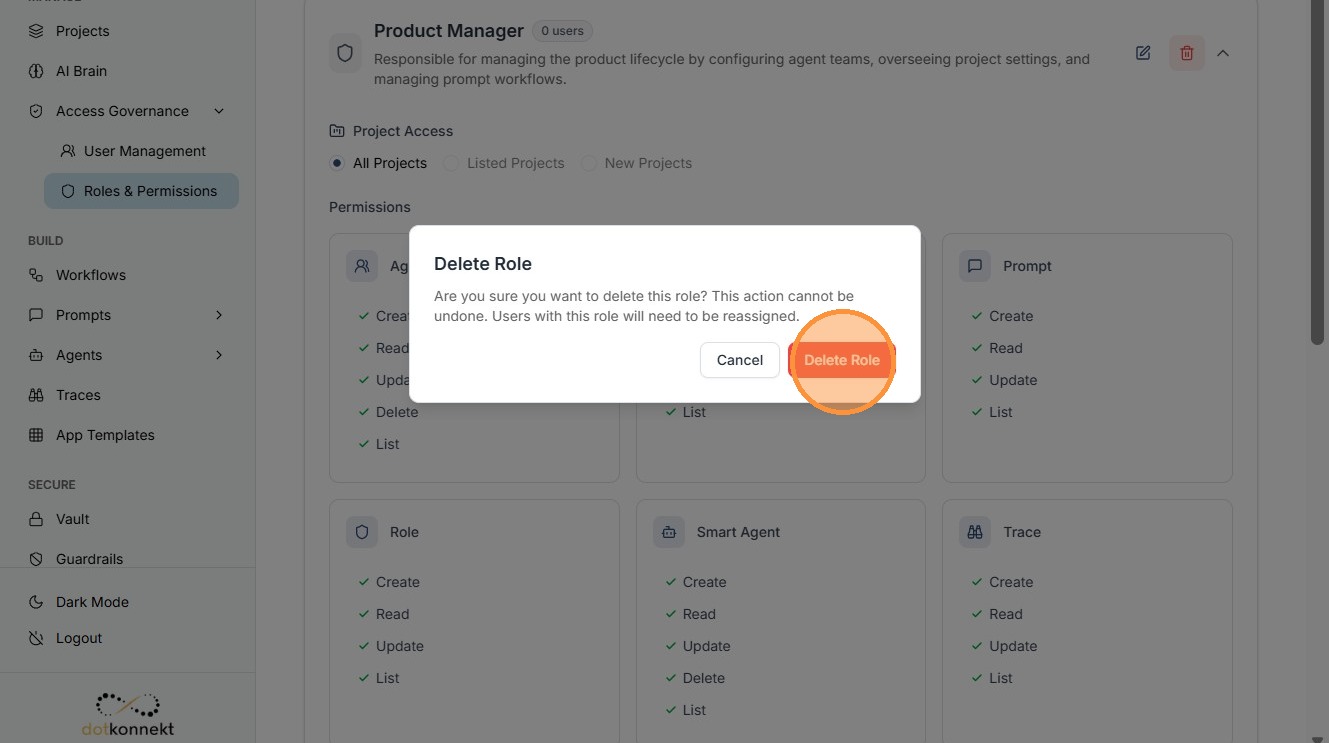
If a role is no longer needed, administrators can remove it from the system.
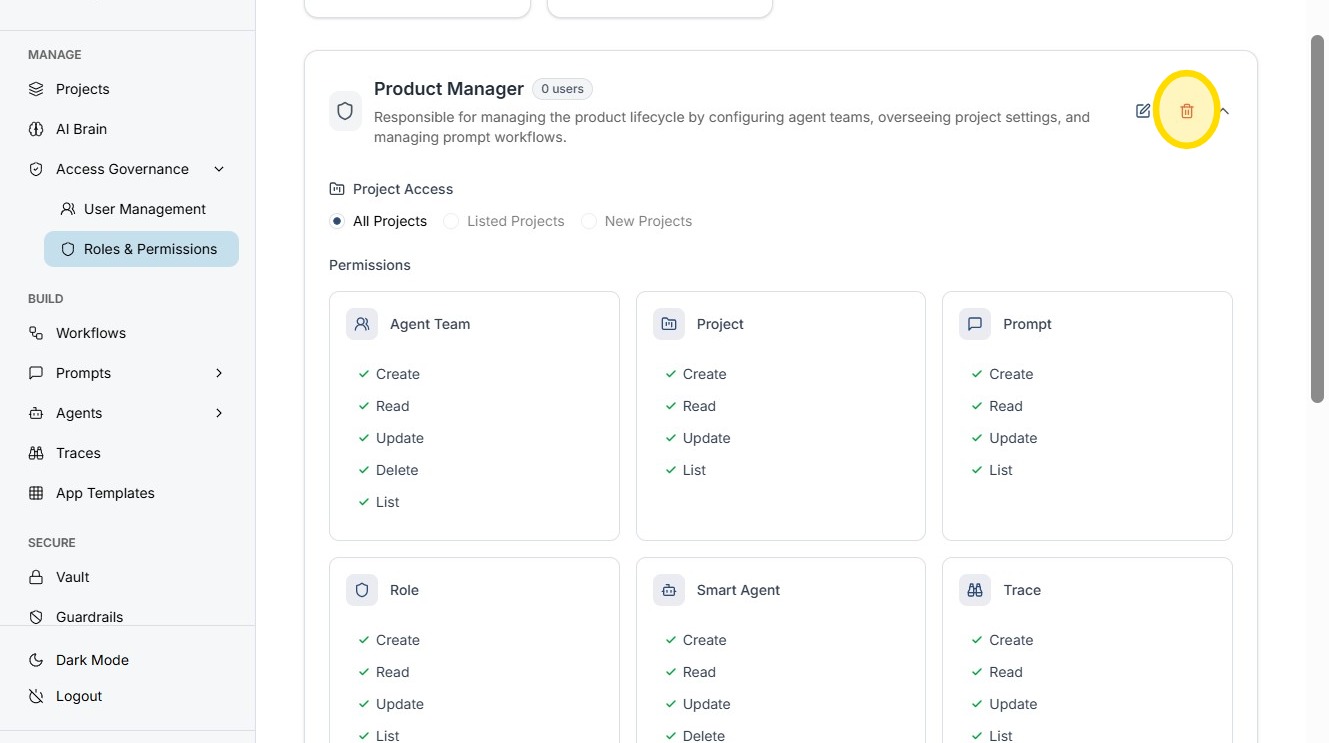
Open Role Options
Locate the role in the Roles & Permissions list and open the action menu.
This menu contains administrative actions related to the selected role.
Click "Delete Role"
Best Practices for Role Management
Use clear role names
Descriptive role names help administrators understand the purpose of each role.
Follow the principle of least privilege
Users should only receive the permissions necessary to perform their tasks.
Review roles regularly
Periodic reviews ensure that roles still reflect current team responsibilities.
Avoid creating too many similar roles
Keeping the role structure simple improves maintainability and reduces confusion.