User Management
Add and Remove Users in Kompass Admin UI
The User Management component in Kompass allows administrators to control who can access the platform and what actions they are allowed to perform.
This feature is part of Access Governance, which ensures that the right people have the right level of access to the system. Proper user management helps maintain security, accountability, and organized collaboration within teams.
1. Through this interface, administrators can:
-
Add new users to the platform
-
Assign roles and permissions
-
Update user access levels
-
Remove users when access is no longer required
This guide explains how to use the User Management interface to add and remove users.
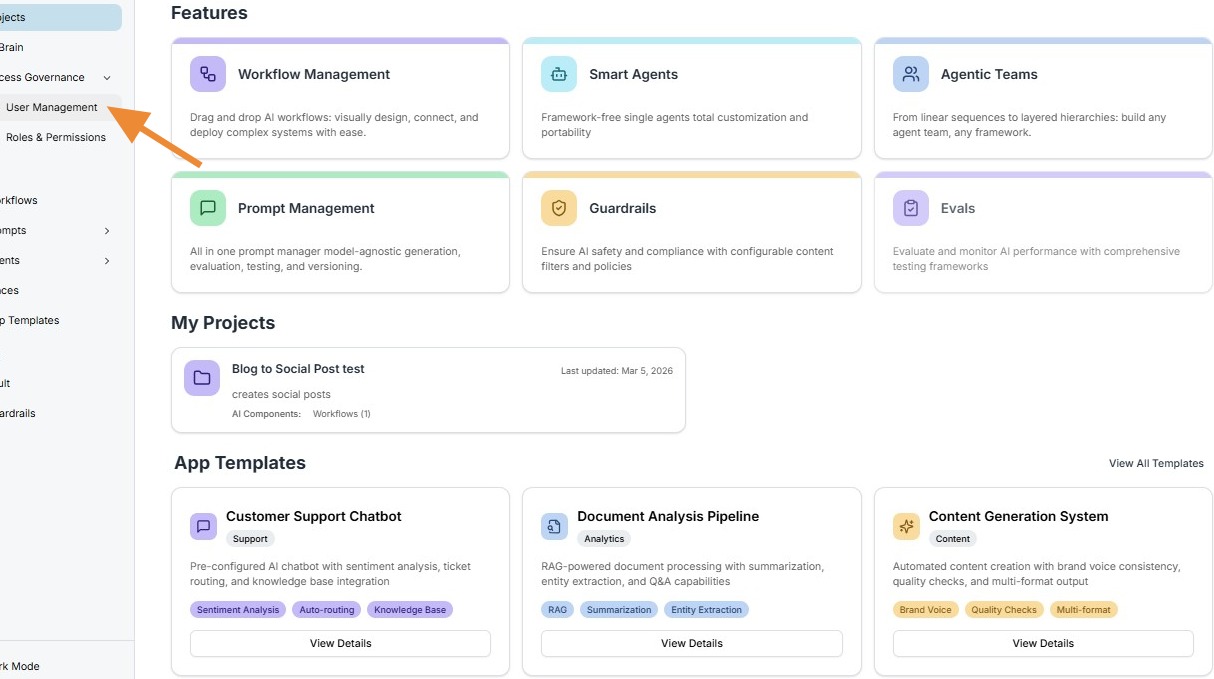
2. ### Open the User Management Section
Click User Management from the main navigation menu.
This section displays a list of all users who currently have access to the Kompass platform.
The user list typically includes information such as:
-
User name
-
Email address
-
Assigned role
-
Access status
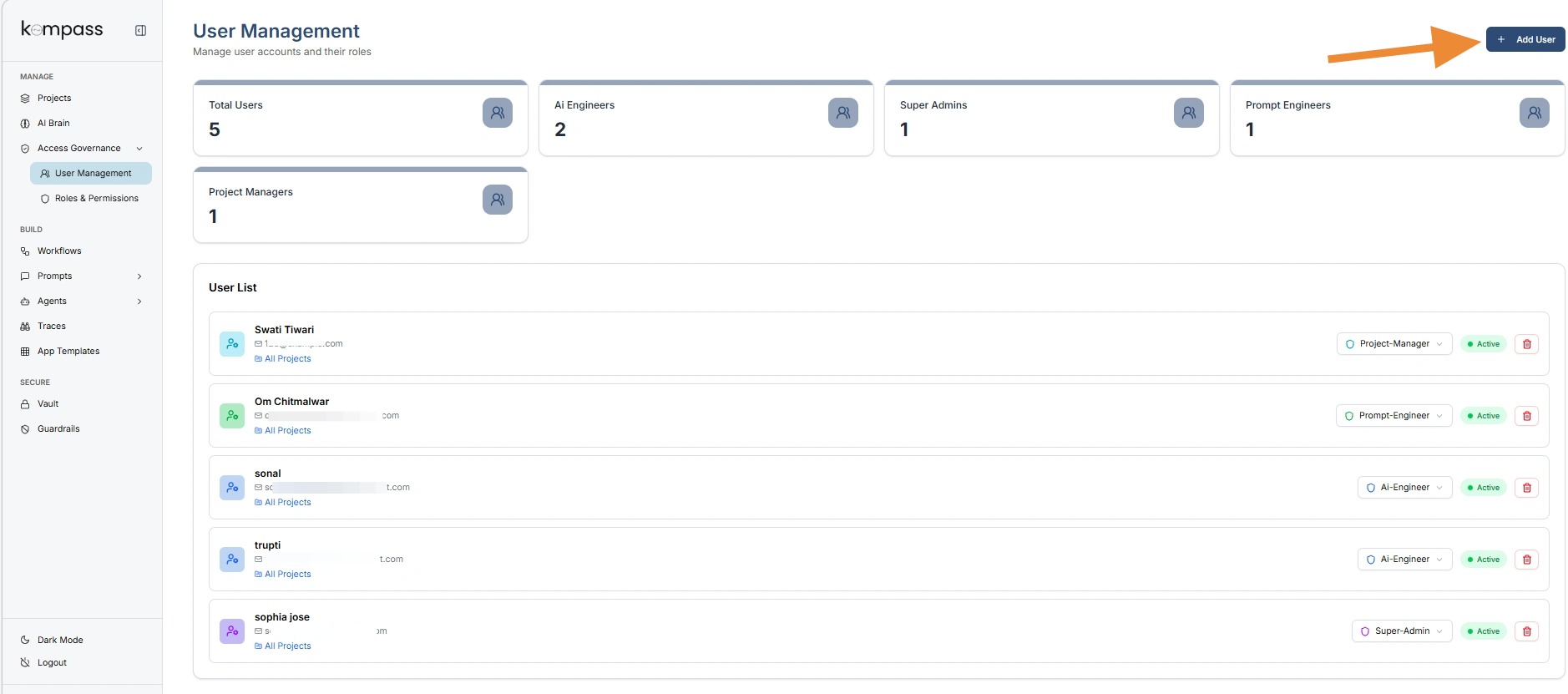
3. # Adding a New User
Open the Add User Form
Click Add User to create a new user account.
This opens a form where you can enter the details required to grant someone access to the platform.
4. # Creating a New User
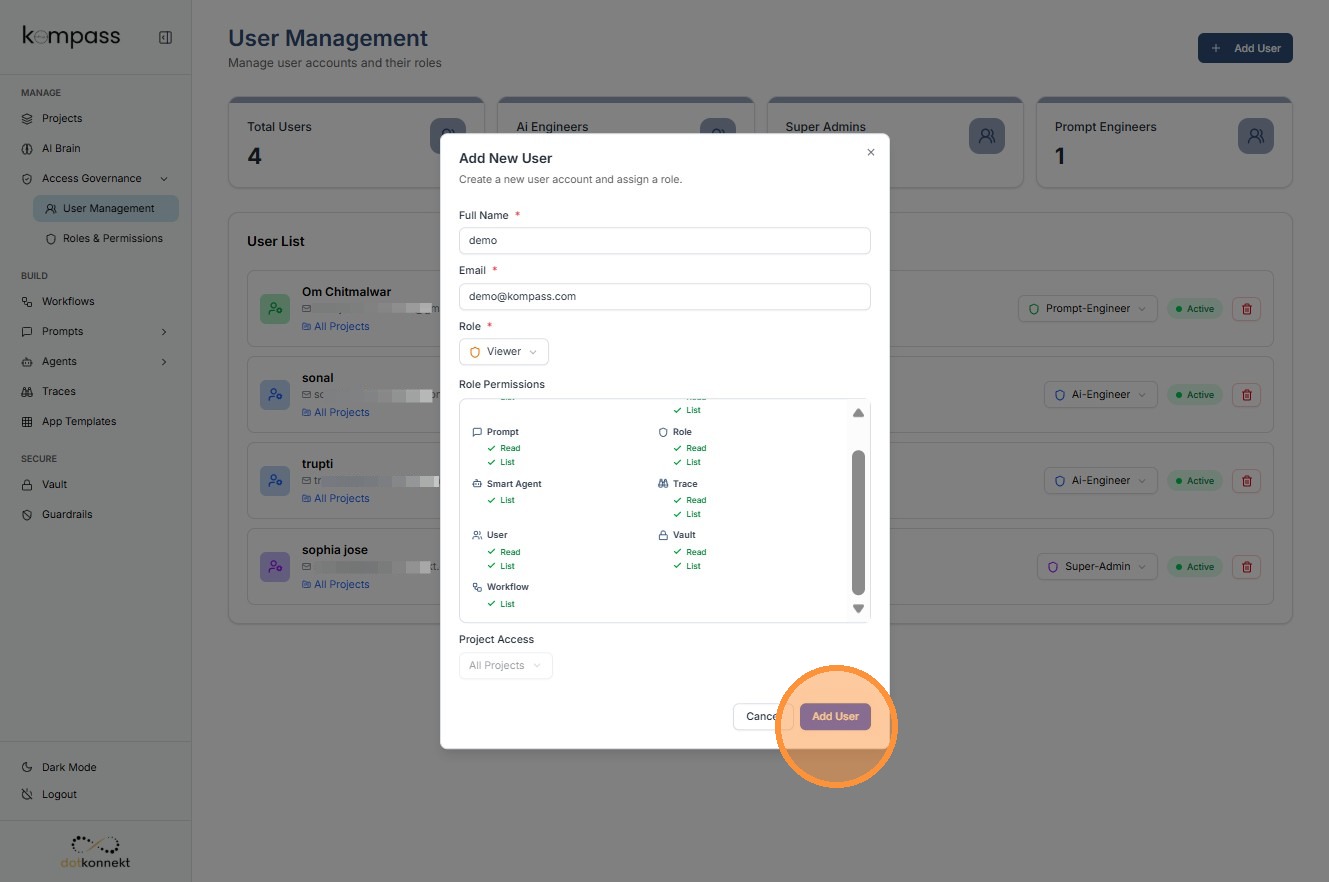
Step 1: Enter User Details
Click Add User to open the user creation form.
In this step, you provide the basic information required to create a user account.
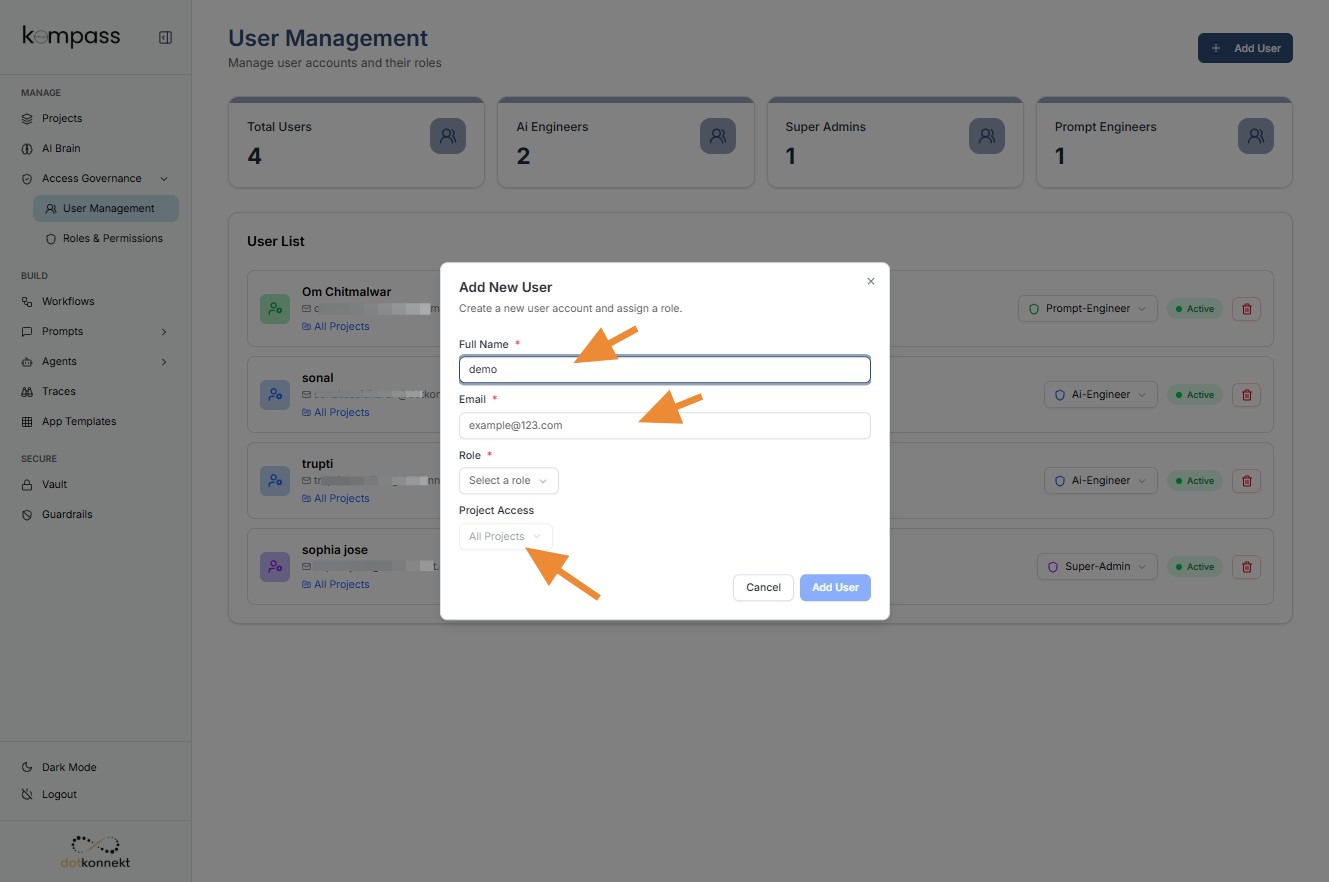
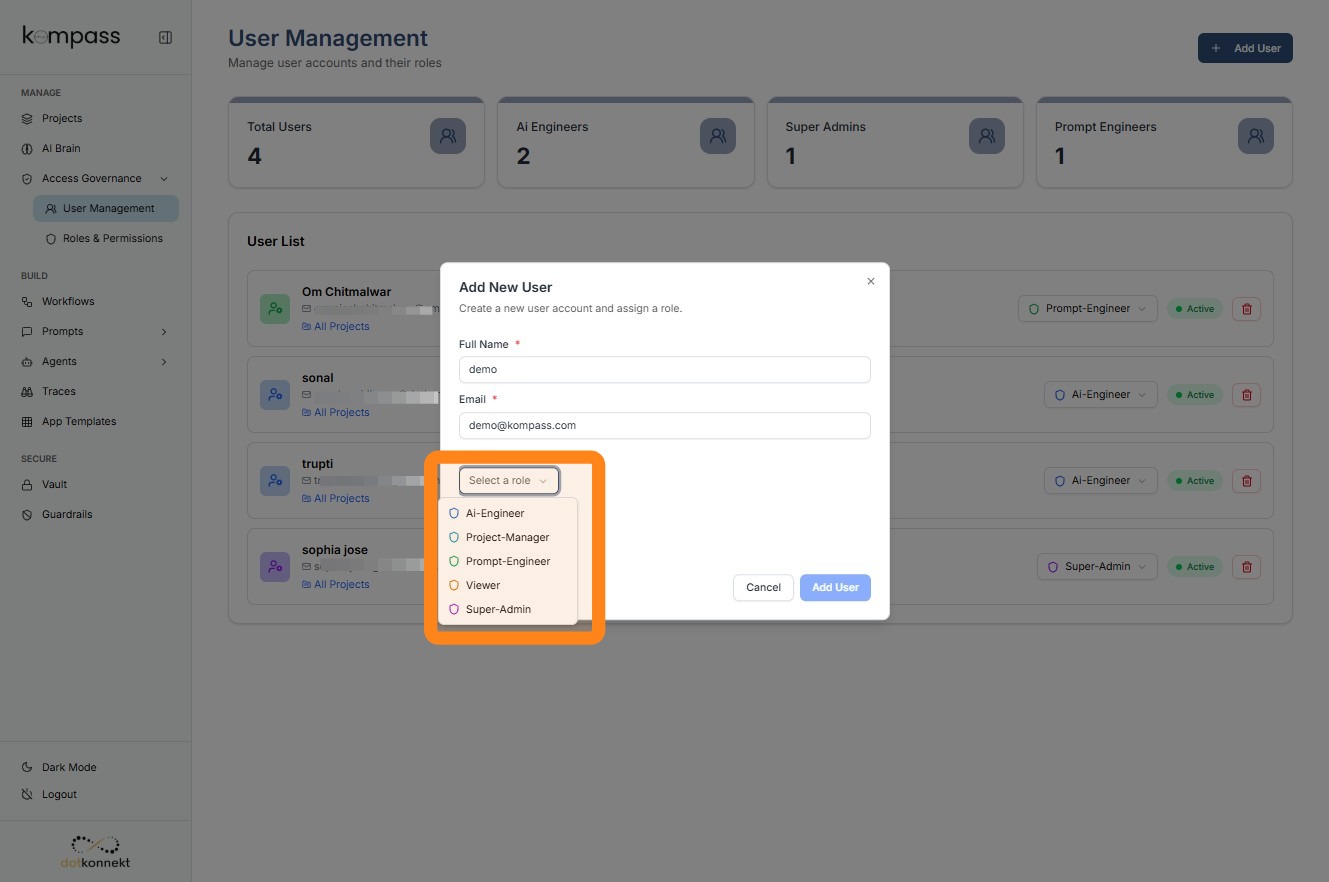
5. ### Step 2: Choose a User Role
Click Select a Role to assign the appropriate access level to the user.
Roles define what actions a user can perform within the platform. Assigning the correct role ensures that users only have access to the tools and resources necessary for their responsibilities.
6. Click "Add User"
7. # Updating a User Role
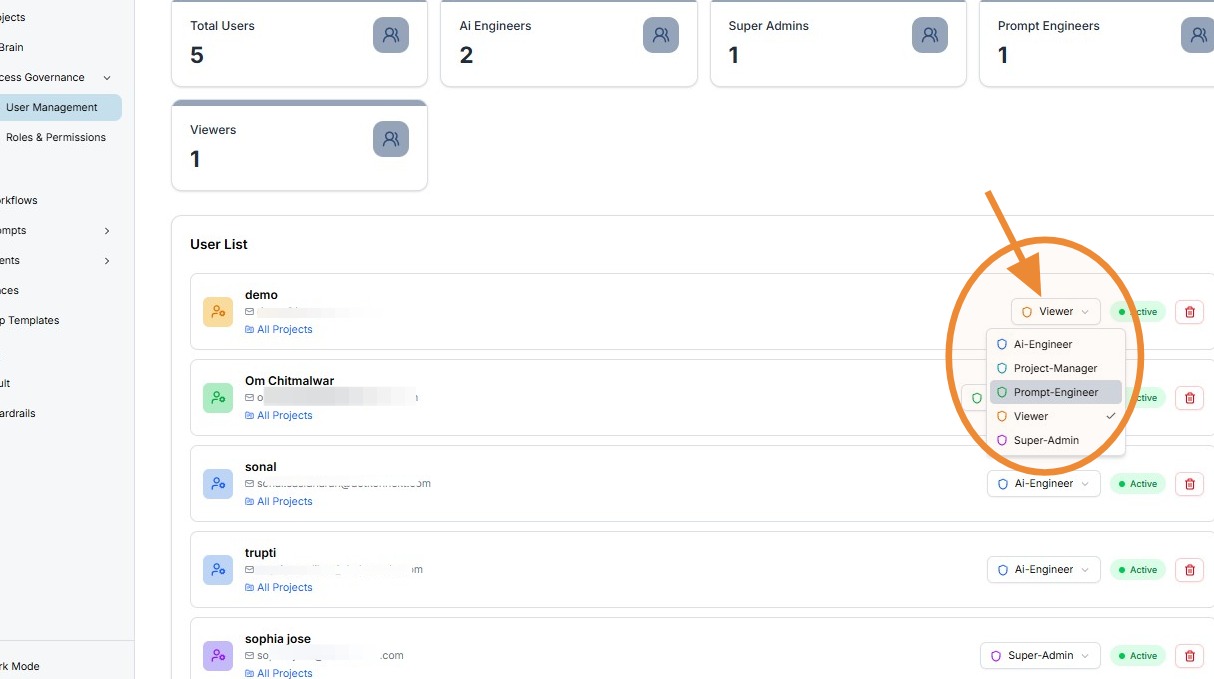
The User Management table also allows administrators to change a user's role.
For example, a user initially assigned as a Viewer can later be upgraded to a Prompt Engineer if their responsibilities expand.
To change the role:
-
Click the role field next to the user
-
Select the new role from the dropdown menu
Updating roles helps organizations adapt permissions as team responsibilities evolve.
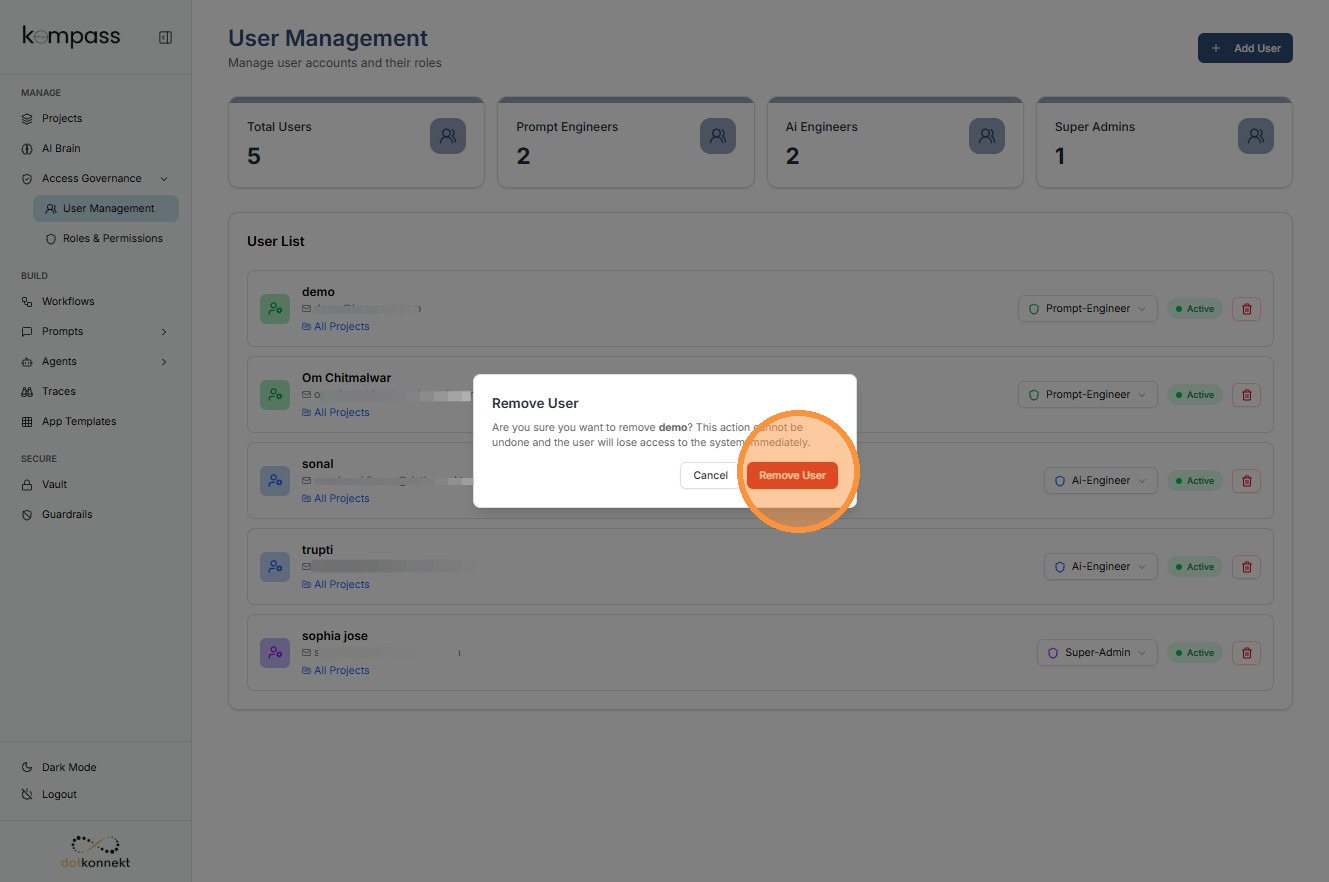
8. # Removing a User
Open User Options
Locate the user you want to remove from the User Management list.
Click the action button next to the user.
This opens a menu containing additional administrative actions.
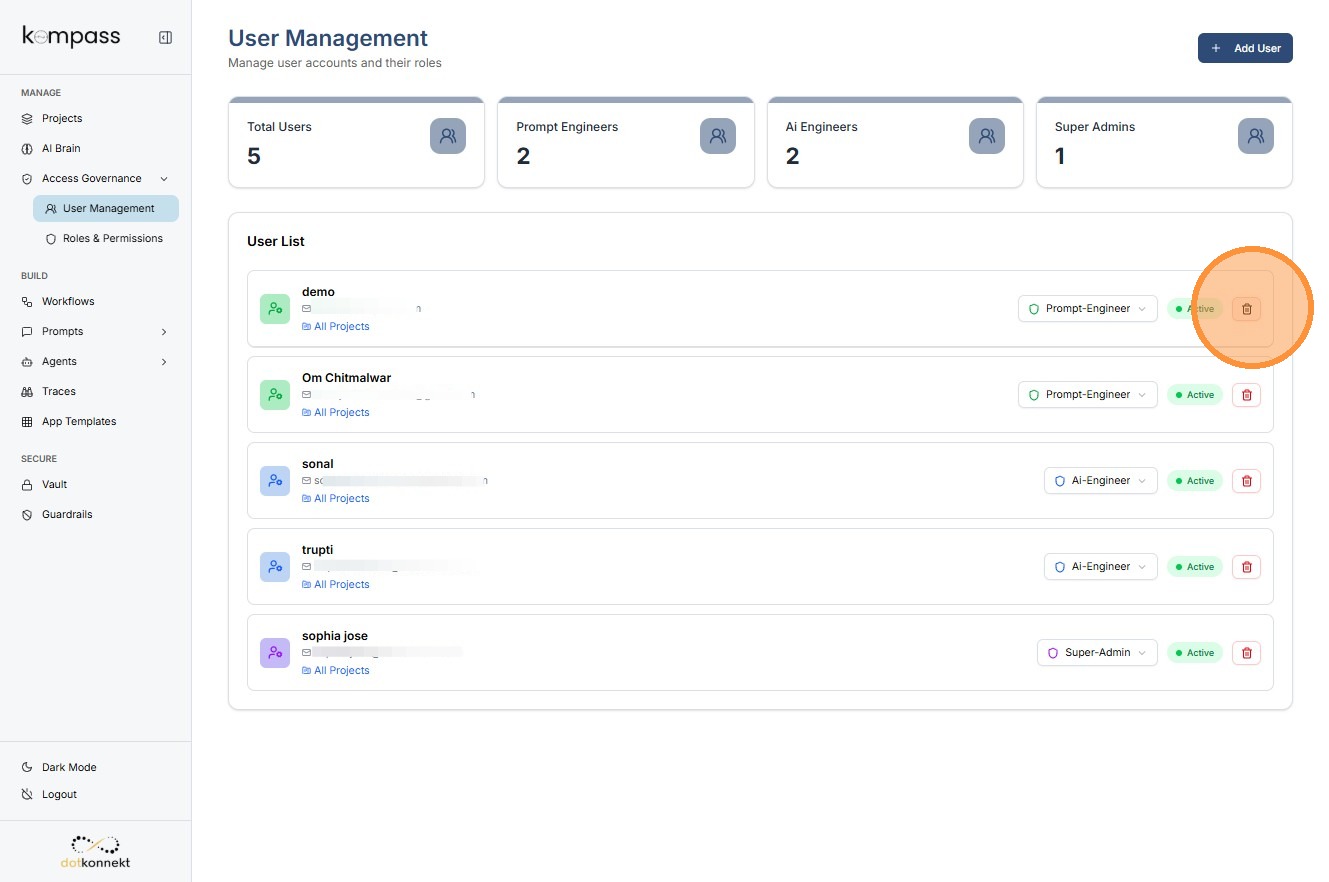
9. Click "Remove User"