Projects
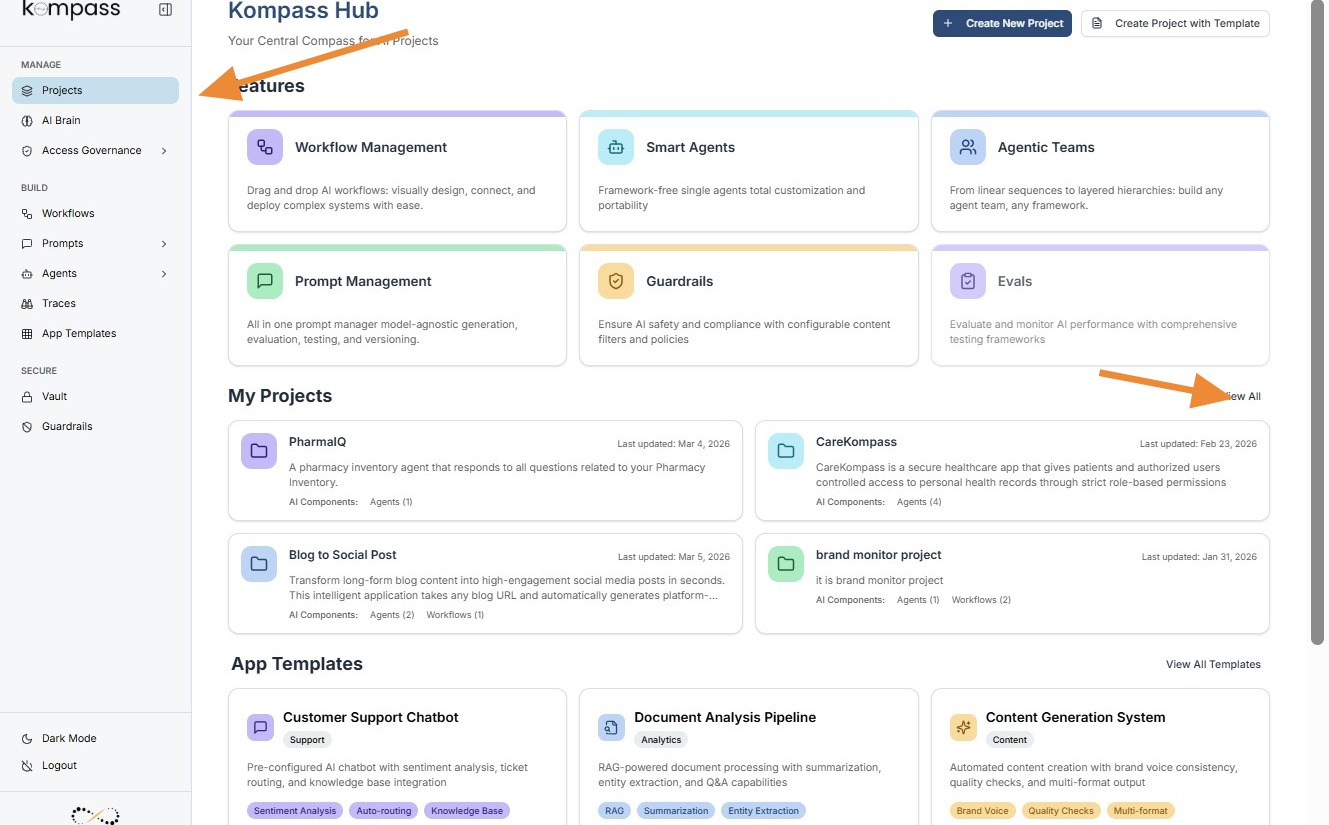
The Projects section in Kompass acts as the central hub for managing all AI initiatives within an organization.
Projects help organizations organize, manage, and scale AI systems in a structured way. Instead of managing individual components separately, Kompass groups everything related to a specific AI solution under a single project.
This makes it easier for teams to collaborate, maintain governance, and deploy AI solutions efficiently.
Opening a Project
Selecting a project opens its project workspace, where users can manage all the AI components associated with that project.
The project workspace acts as the operational control center for the AI solution.
This structure helps keep all resources related to a specific AI application organized in one place.
Project Details
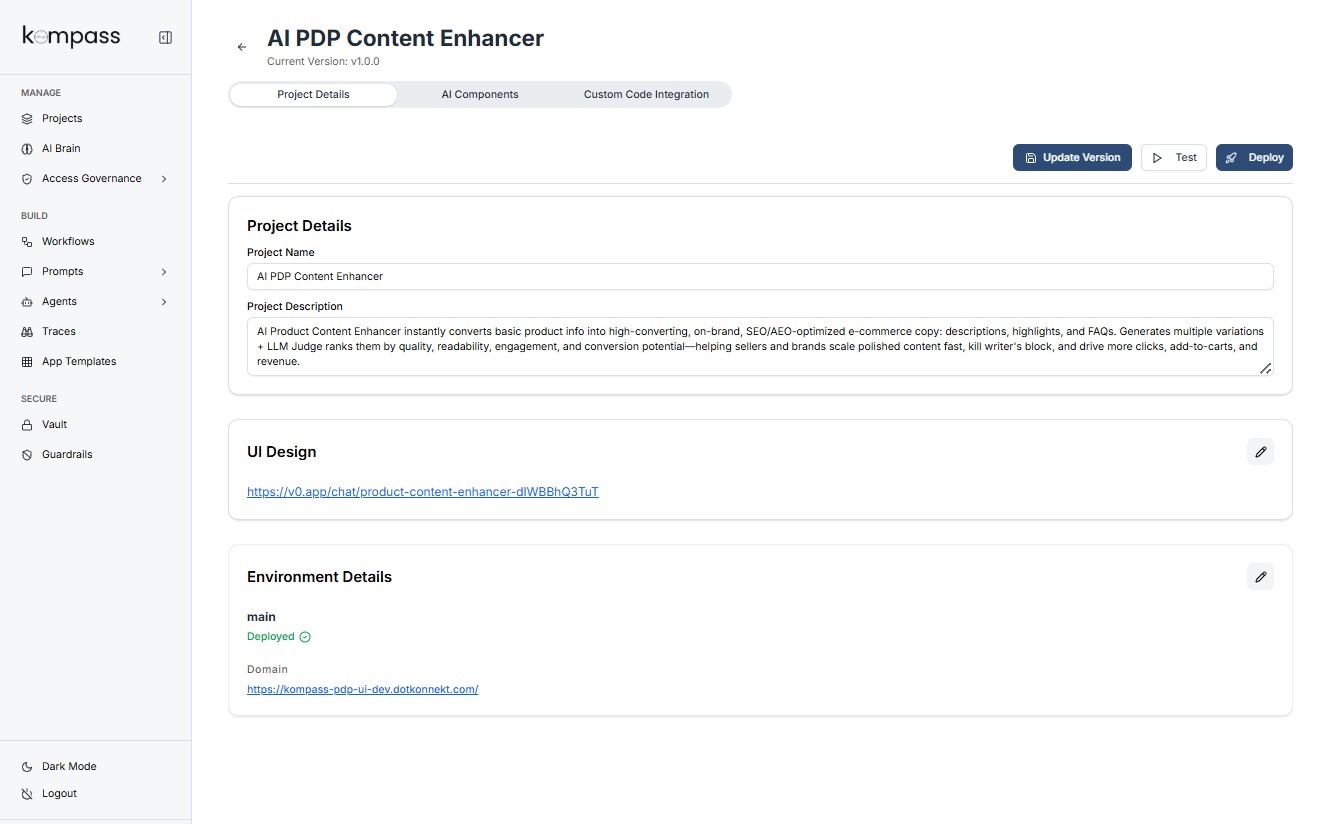
The Project Details page provides a centralized view of the configuration, deployment status, and interface associated with a specific AI project.
This page acts as the control center for managing a project, allowing teams to update project information, monitor deployment environments, access the UI interface, and manage version updates.
For enterprise teams, this screen ensures that all key information about an AI application is accessible from one place.
UI Design
The UI Design section contains a link to the interface used to interact with the AI application.
Example:
https://v0.app/chat/product-content-enhancer
This link represents the front-end interface for the AI solution.
Through this interface, users can:
-
submit inputs to the AI system
-
interact with the workflow
-
view generated outputs
For example, business users could open this UI to generate optimized product descriptions from raw product data.
This separation between backend AI logic (Kompass) and user-facing UI allows teams to build and test AI applications more efficiently.
Environment Details
The Environment Details section displays the current deployment environment of the project.
Example from the screen:
Environment: main
Status: Deployed
Domain: https://kompass-pdp-ui-staging.dotkonnekt.com
This section helps teams understand where the AI application is currently running.
Environment Name
The environment label (such as main) identifies the deployment branch or environment associated with the project.
Organizations may maintain multiple environments such as:
-
development
-
staging
-
production
Each environment can host different versions of the AI workflow for testing or live usage.
Deployment Status
The Deployed indicator confirms that the project is currently active and accessible.
This helps teams quickly verify whether the AI application is running successfully.
Domain
The Domain field shows the URL where the AI application is accessible.
This is typically the endpoint where the AI solution is integrated into a website or application.
For example, the domain shown may host the interface where users generate product content using the AI workflow.
Project Management Actions
At the top right of the screen, several actions are available for managing the project.
Update Version
The Update Version option allows teams to create a new version of the AI project after making updates to workflows, prompts, or agents.
Versioning ensures that changes are tracked and deployments remain stable.
Test
The Test option allows users to test the AI workflow before deploying updates.
This helps teams verify that prompts, agents, and workflows are functioning correctly.
Testing reduces the risk of errors in production environments.
Deploy
The Deploy option publishes the latest version of the project to the configured environment.
Once deployed, the updated AI solution becomes available to users through the associated domain or UI interface.
AI Components
The AI Components section is where all the core building blocks of an AI project are managed.
Within a project, users can create, configure, and manage the components that power the AI solution. These components include:
-
Workflows
-
Agents
-
Prompts
-
Knowledge Graph Visualizer
Each component plays a specific role in how the AI system processes inputs and generates outputs.
This section allows teams to build modular AI applications, where workflows orchestrate agents, agents execute tasks using prompts, and prompts communicate instructions to LLM models.
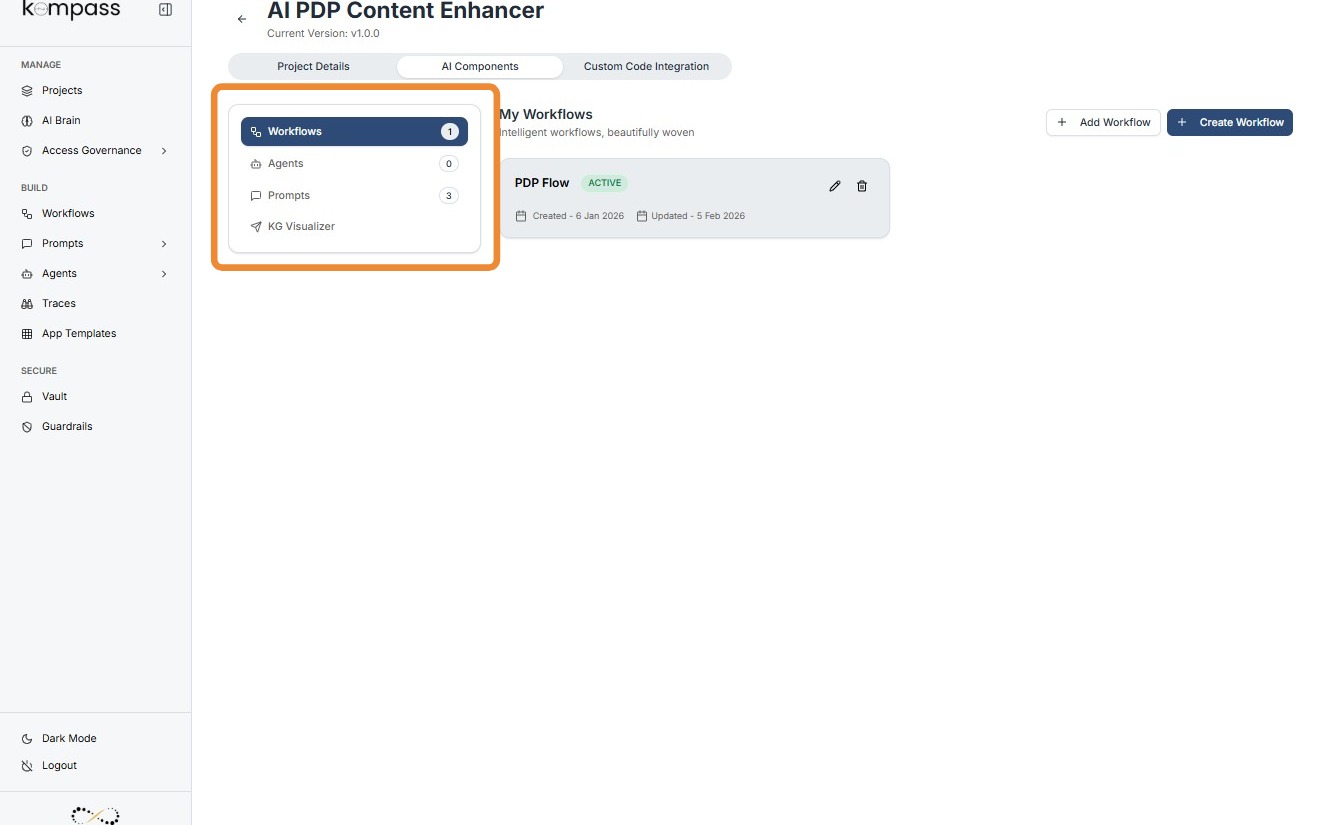
The left panel provides quick navigation between these components.
Workflows Screen
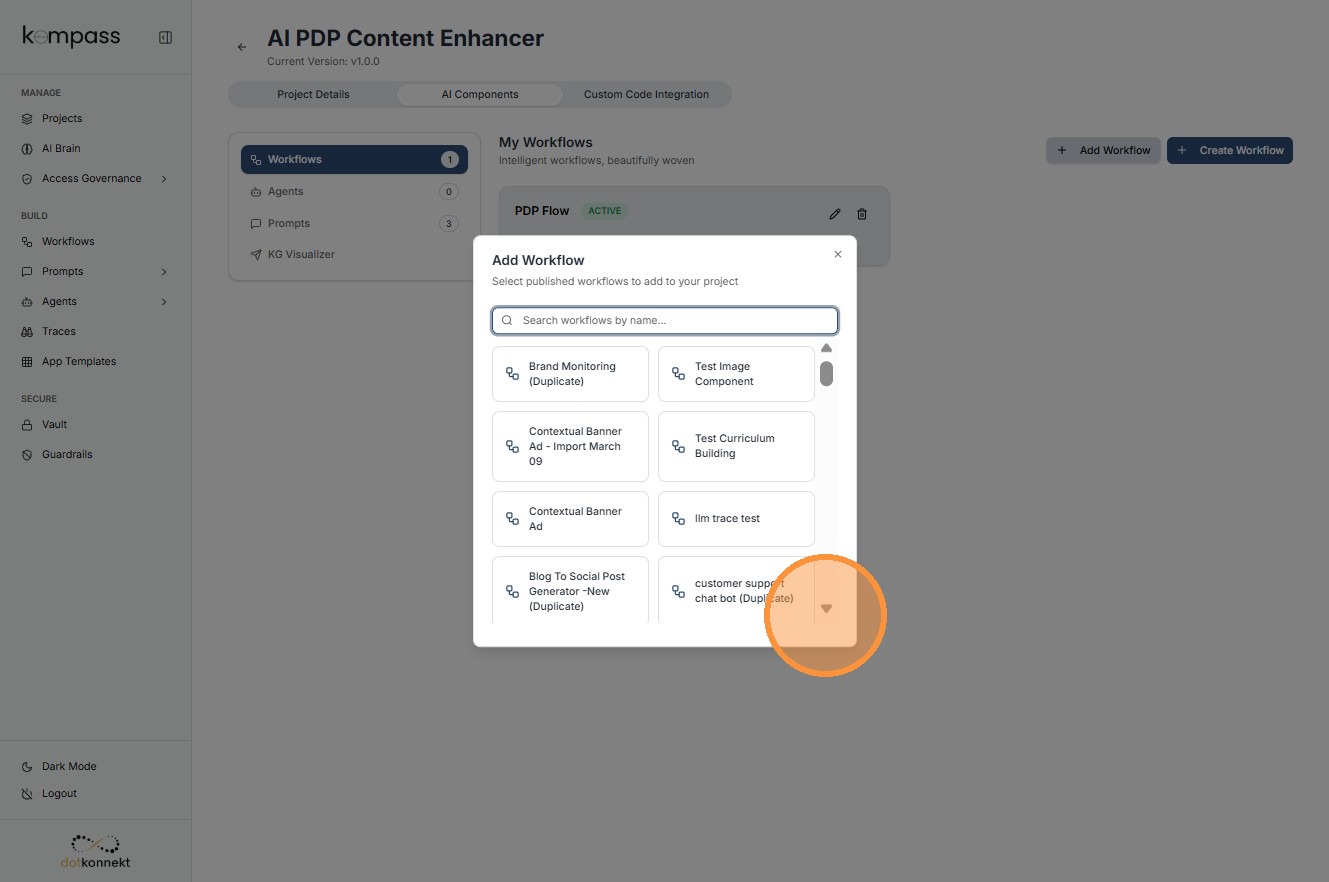
The Workflows page shows all workflows configured within the project.
A workflow represents the end-to-end AI process that defines how tasks are executed and how different agents interact.
You can add a workflow (only with Active Status) here or create a new one by clicking "Create Workflow" button.
Agents Screen
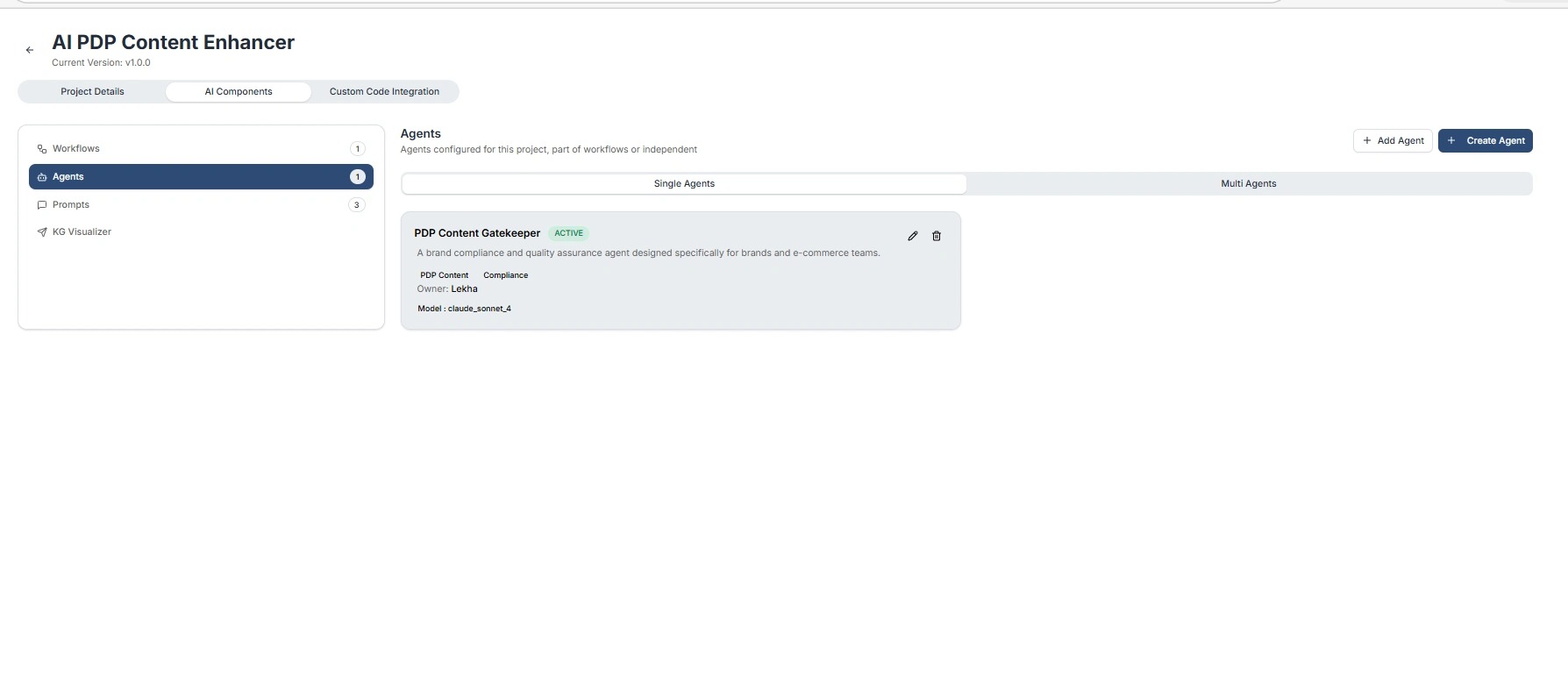
The Agents page shows all AI agents configured within the project.
An AI Agent is an intelligent unit that performs a specific task using an LLM model and defined prompts.
Agents can operate:
-
Independently, or
-
As part of a workflow
You can add an active agent or agentic team from here or build a new one, "Create Agent" button will navigate you to Agent Configuration window.
Prompts Screen
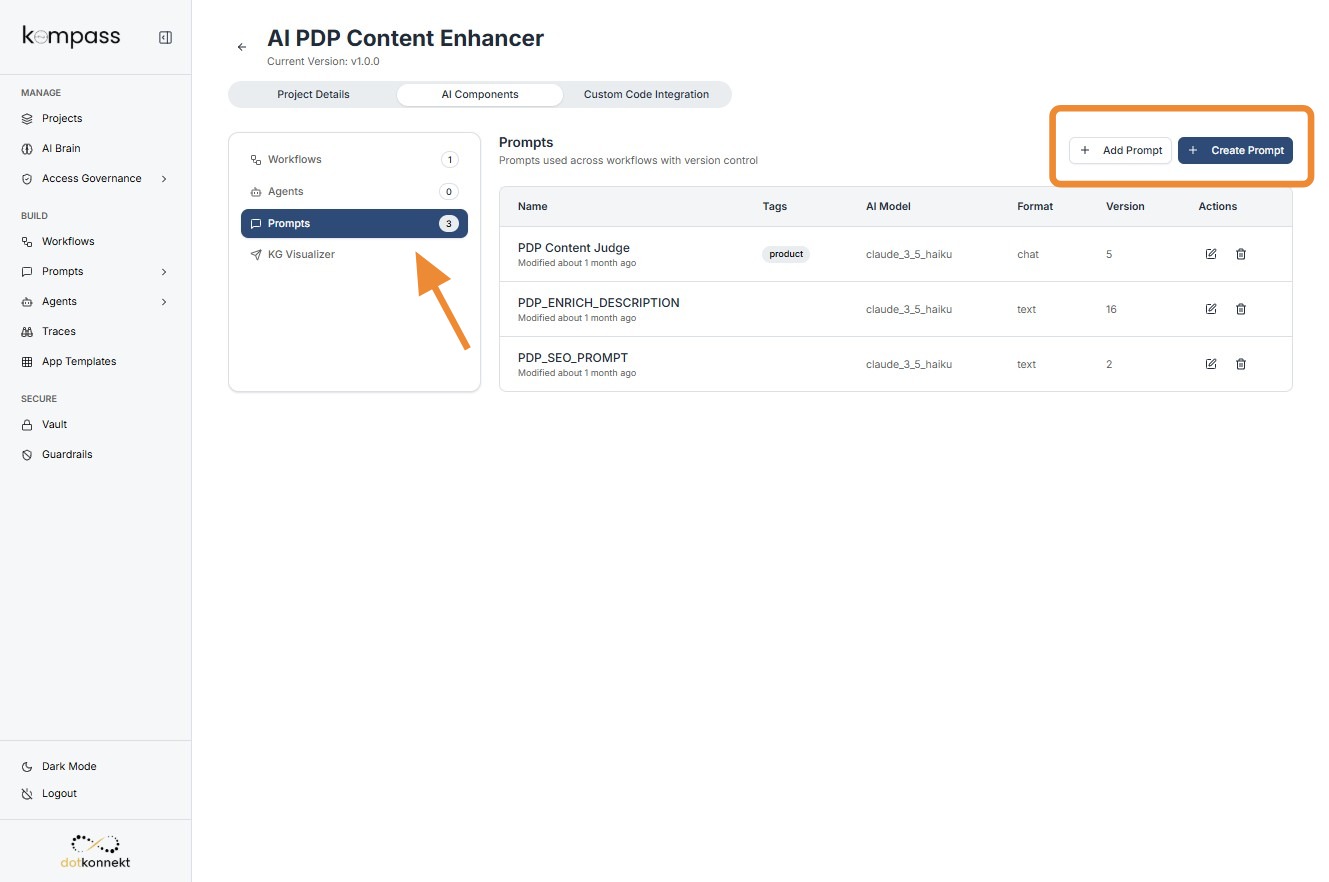
The Prompts page displays all prompts configured within the project.
A prompt defines the instructions given to the language model to generate a response.
Prompts are the core instruction layer that guides AI behavior.
You can add active prompts or create new prompt from here(it will navigate you to Prompt Builder)