Create and Test an AI Agent
This guide demonstrates how to configure a new AI agent, including its model, tools, guardrails, and prompt. It also explains how to save the configuration and evaluate the agent using test inputs.
1. Create a New Agent
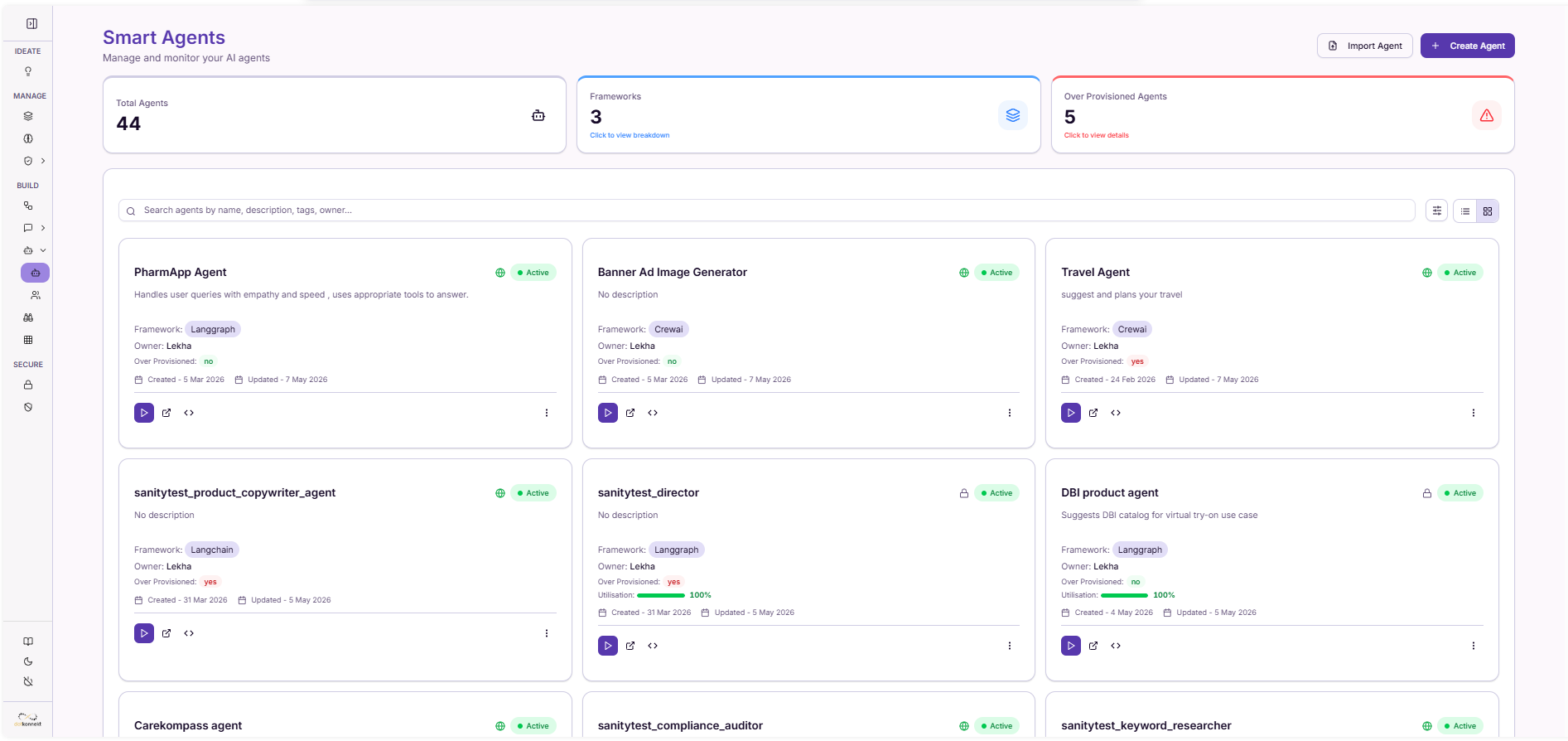
Click "Create Agent"
2. Core Configuration
The Smart Agent builder is organized into five tabs:
- Goal & Basics
- Model & Reasoning
- Tools & Guardrails
- Memory & Context
- Prompt & Behavior
Each tab defines a specific part of the agent.
2.1 Goal & Basics
Define the basic identity of the agent.
- Choose a Template (e.g., Customer Support, Data Analyst)
- Provide a clear Description
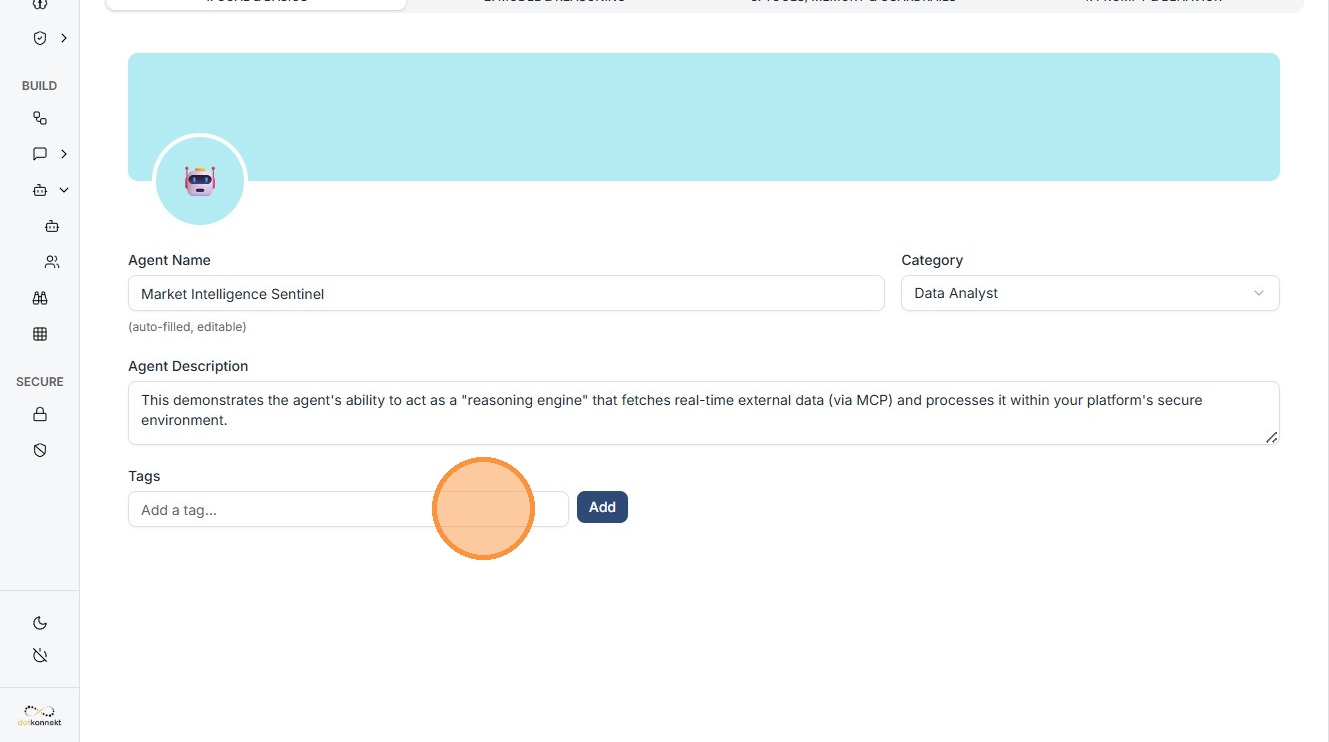
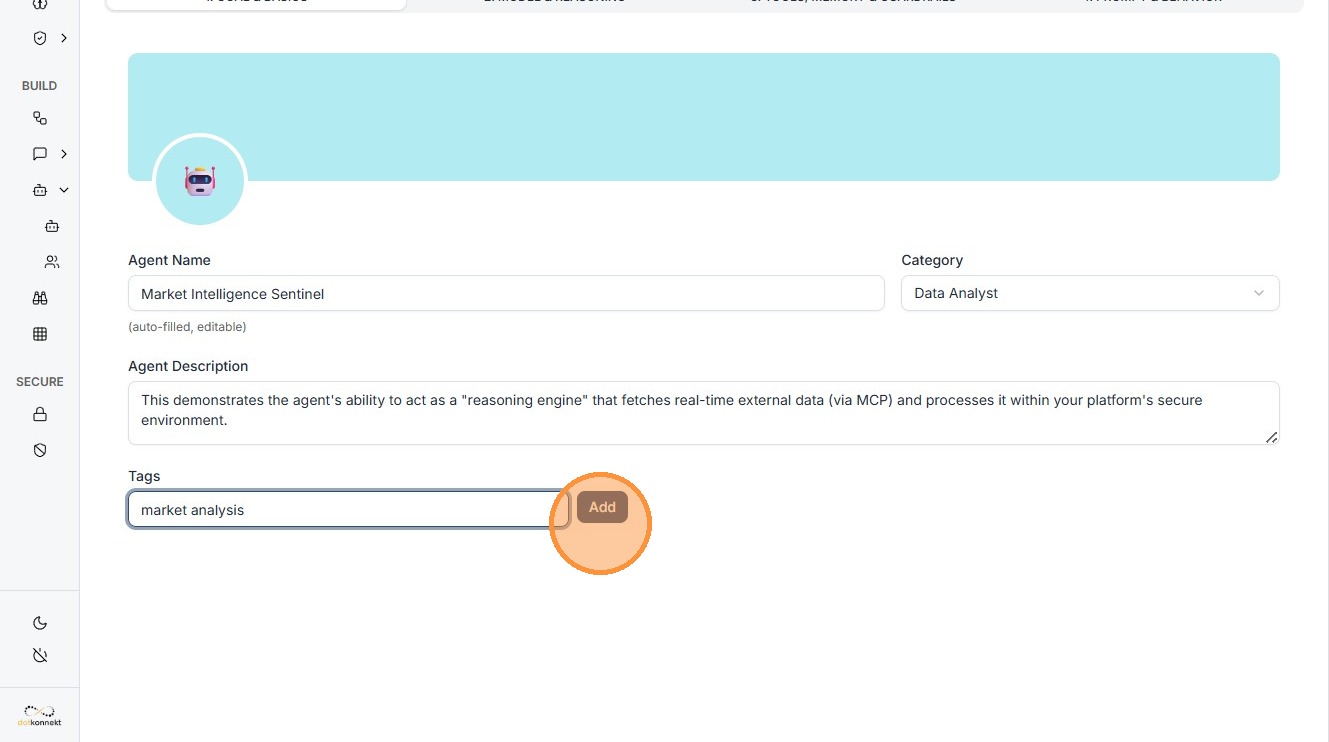
- Add Tags for organization (e.g., "market analysis")
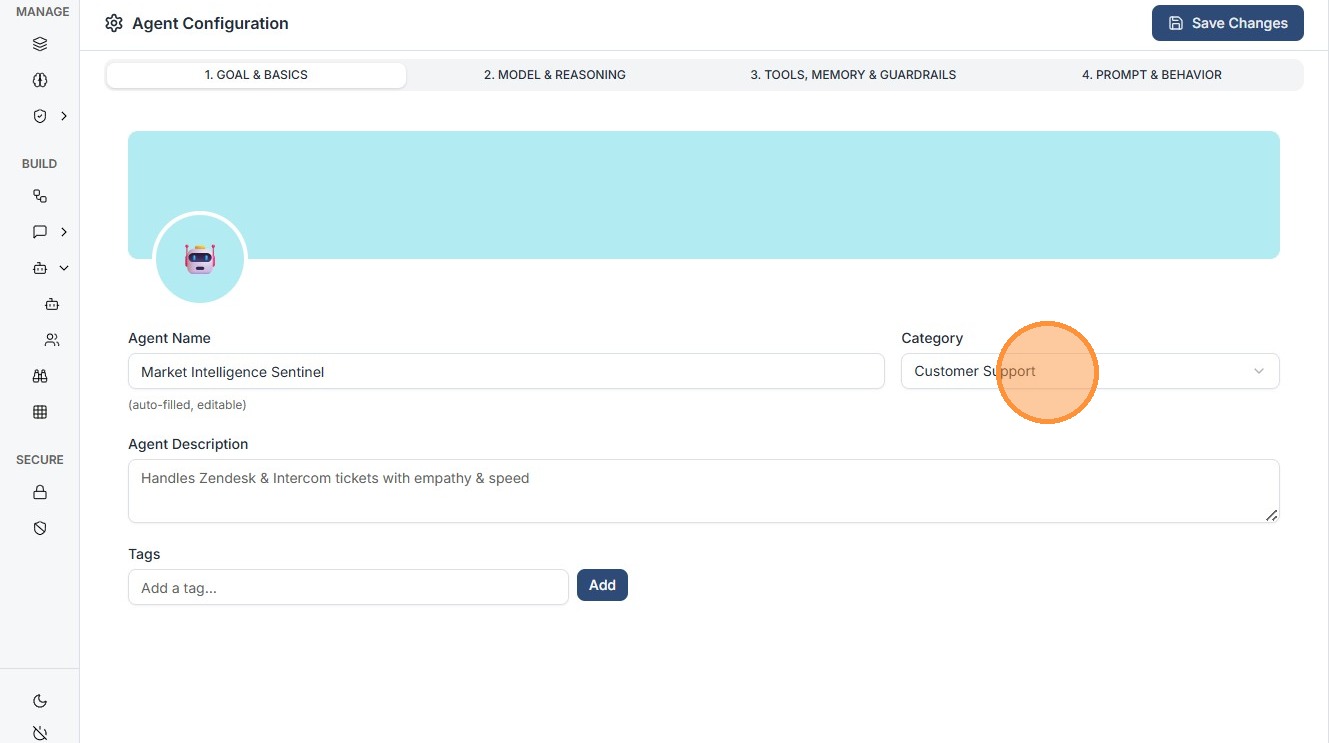
Choose the template as per your usecase eg. "Data Analyst"
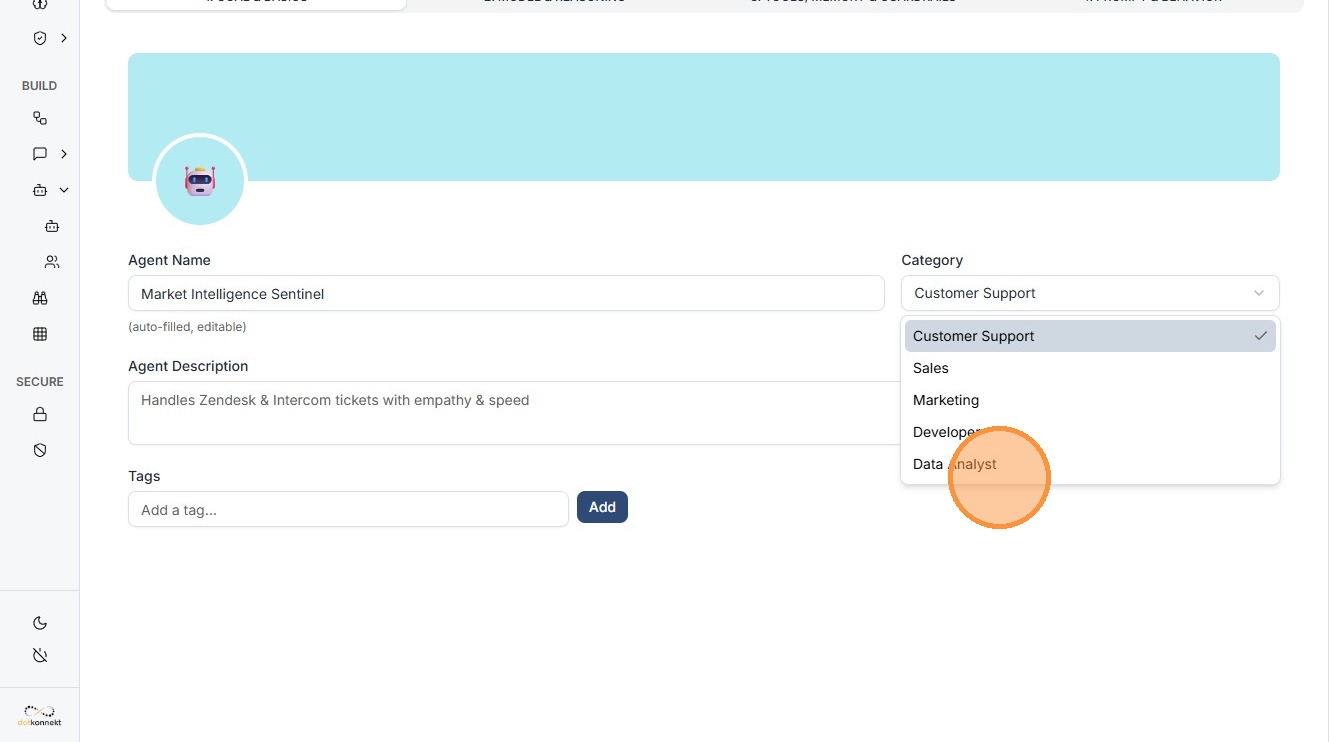
Click the "Add a tag..." field
Click "Add"
2.2 Model & Reasoning
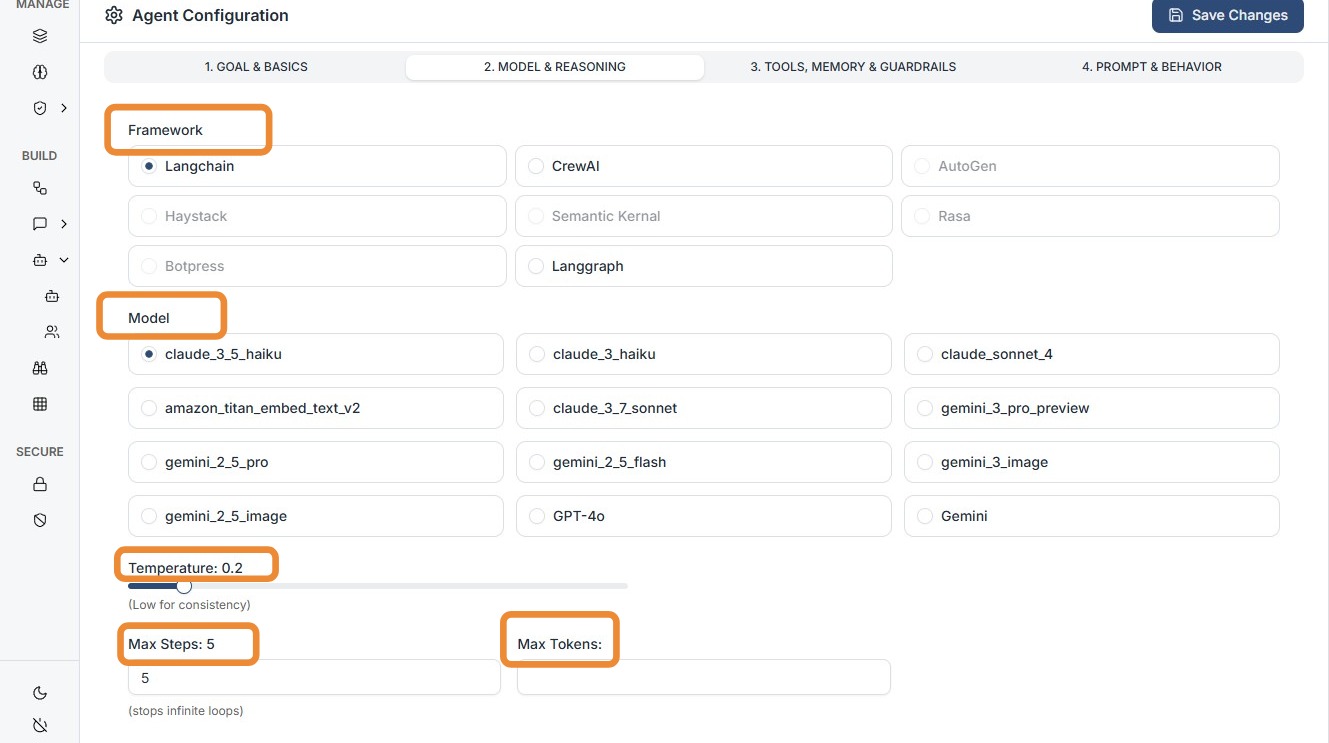
Select the model and configure how the agent behaves.
- Choose a Framework (e.g., LangGraph)
- Select a Model
- Configure:
- Temperature (lower = more consistent)
- Max Steps
- Max Tokens
Model Types
Private Models
- Secure internal models
- Example:
claude_3_5_haiku
Org Public Models
- Shared across the organization
- Use when standardization is required
2.3 Tools & Guardrails
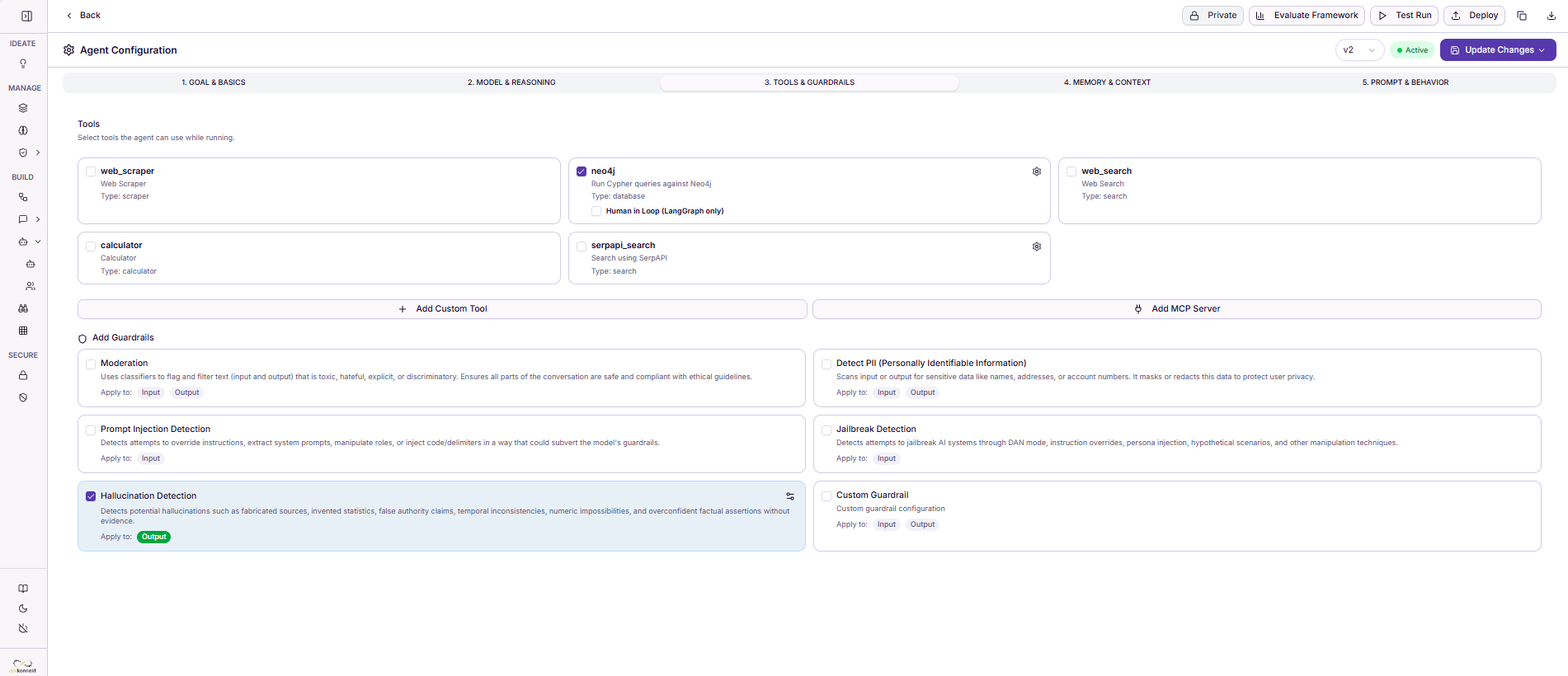
Configure data access and safety controls.
Tools
Neo4j
- Used to query the Knowledge Graph (Knowledge Forge)
- Access nodes like:
- Customer
- Product
- Review
- Order
Use when: - Working with structured data - Joining multiple data sources
Other Tools
- Web Search → External data
- Calculator → Numeric operations
- Web Scraper → Extract web data
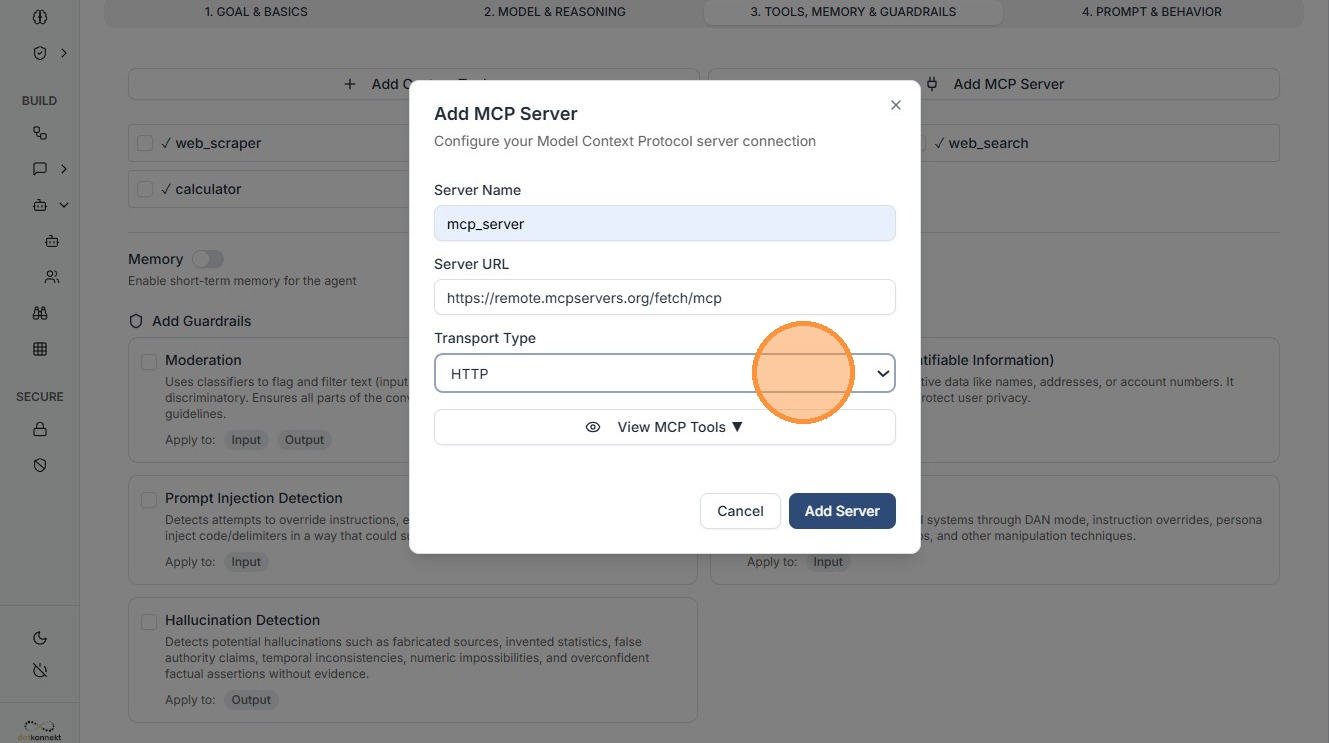
MCP Server
Click "Add MCP Server"
Configure:
Transport Type
- HTTP — request/response
- WebSocket — real-time
- STDIO — local communication
- SSE — streaming
Server Details
- Server Name
- Remote MCP Server URL
Guardrails
Guardrails ensure safe and correct outputs.
Built-in Guardrails
- Hallucination Detection
- PII Detection
- Prompt Injection Detection
- Jailbreak Detection
Custom Guardrails
- Add external guardrail configurations
- Used for domain-specific rules
2.4 Memory & Context
Control how the agent uses memory and documents.
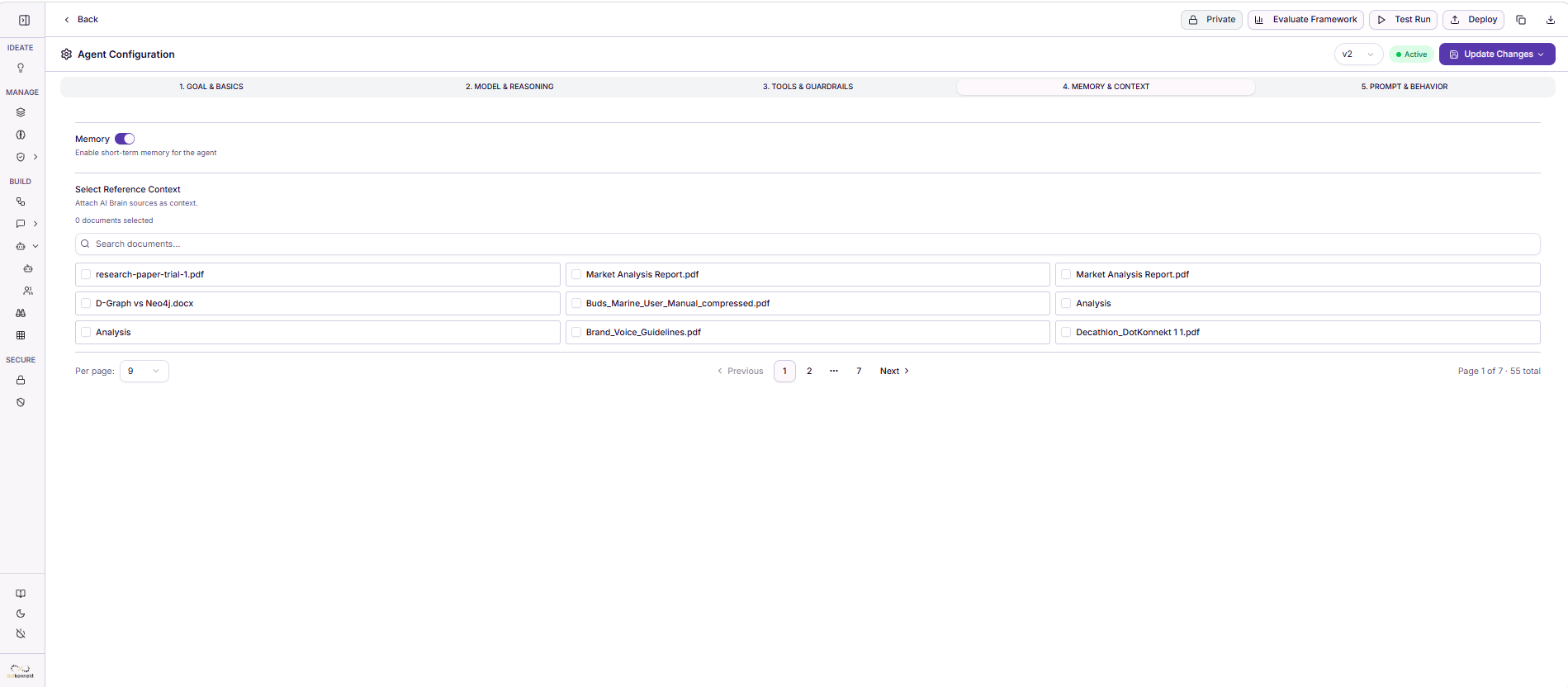
Memory
- Enable to retain session context
- Disable for stateless execution
AI Brain (Reference Context)
- Attach documents as context
- Agent can use them during execution
- All the uploaded documents in AI brain will be shown here as options
2.5 Prompt & Behavior
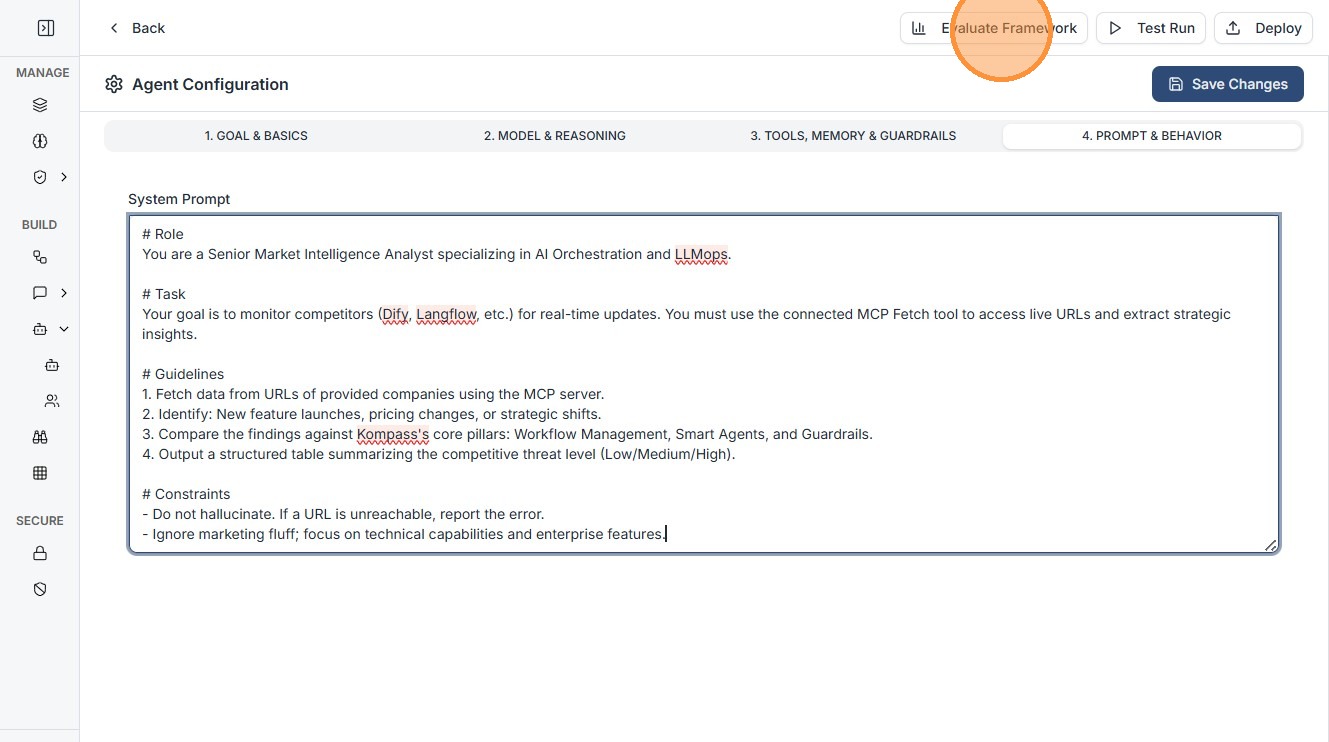
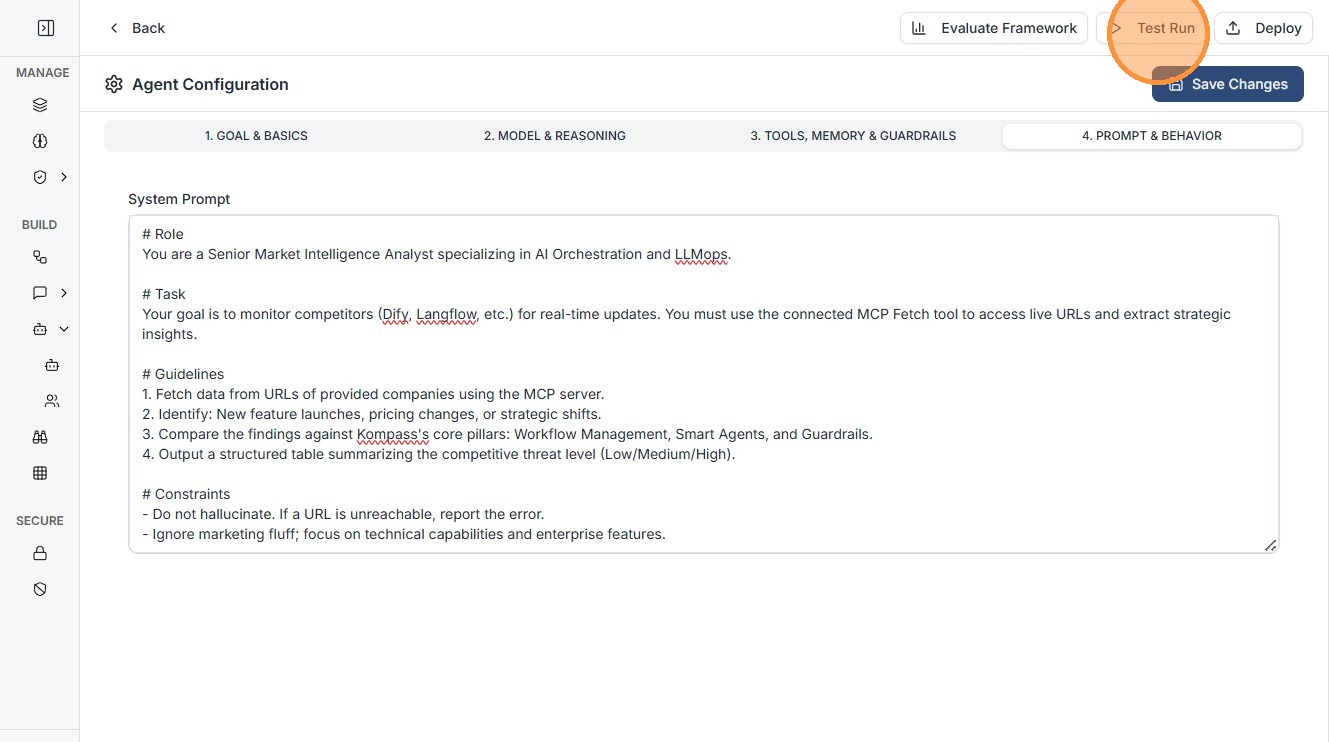
Define the agent’s logic using a system prompt.
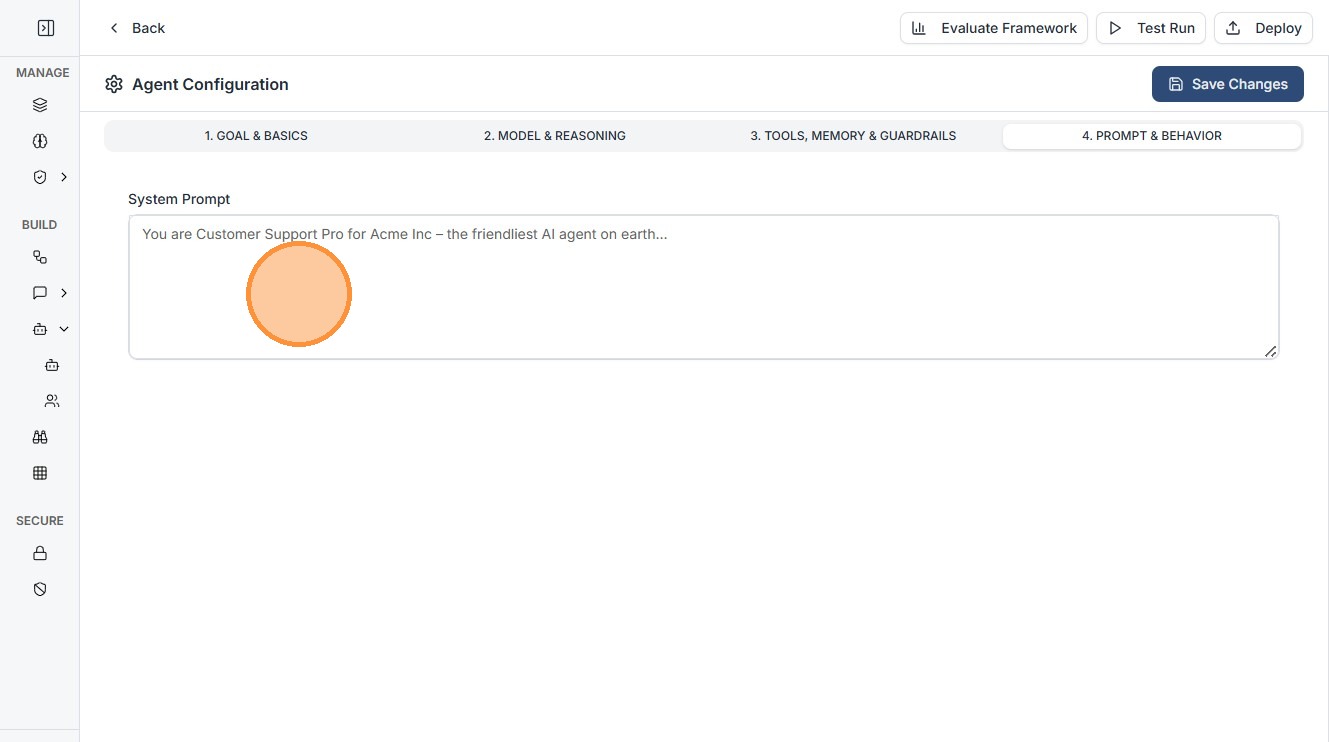
- Specify:
- Inputs
- Steps
- Output format
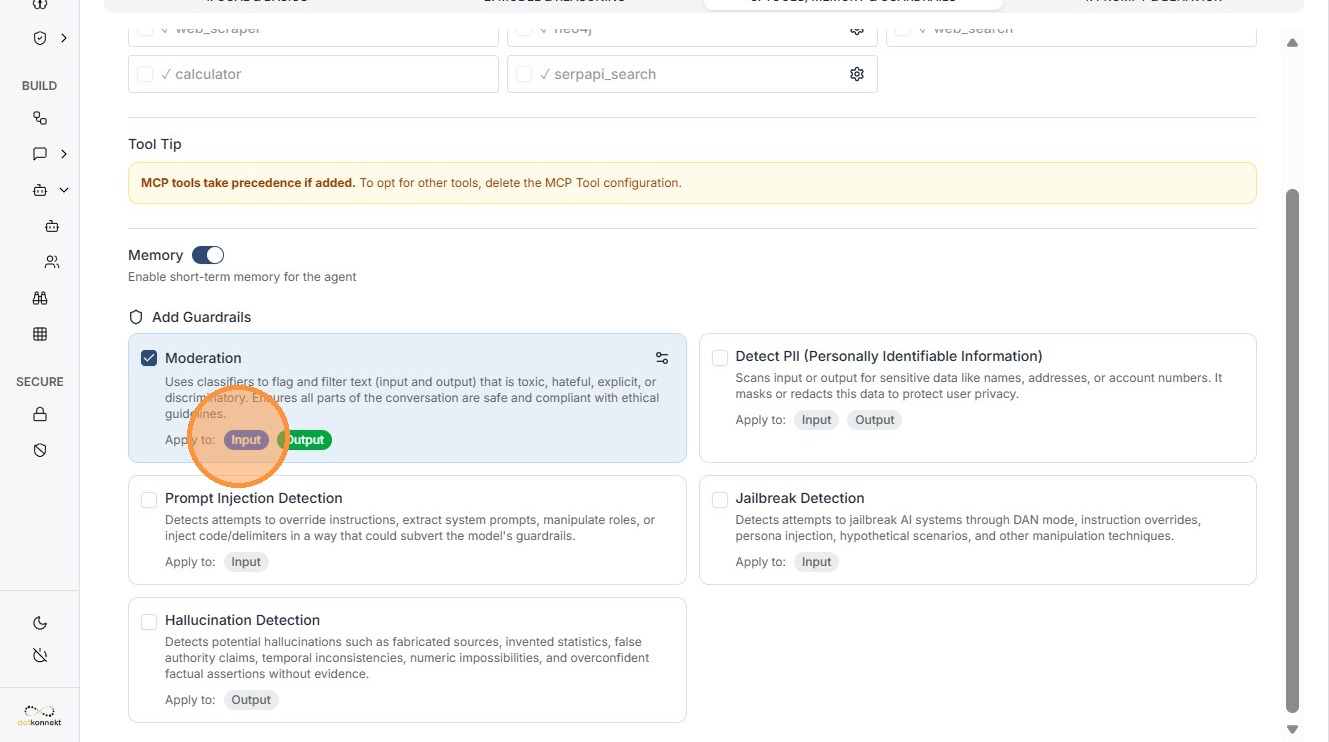
3. Configuring Guardrails (Safety Gates)
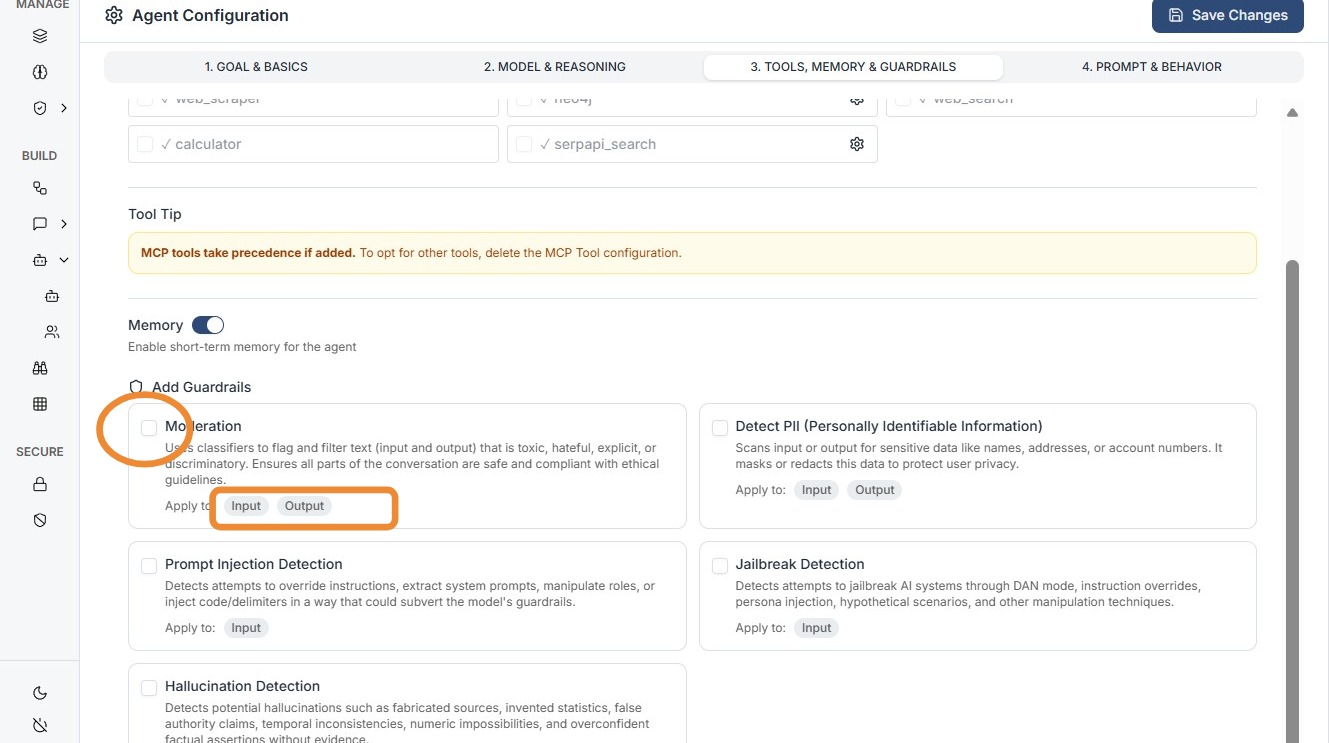
Configure your guardrail and save
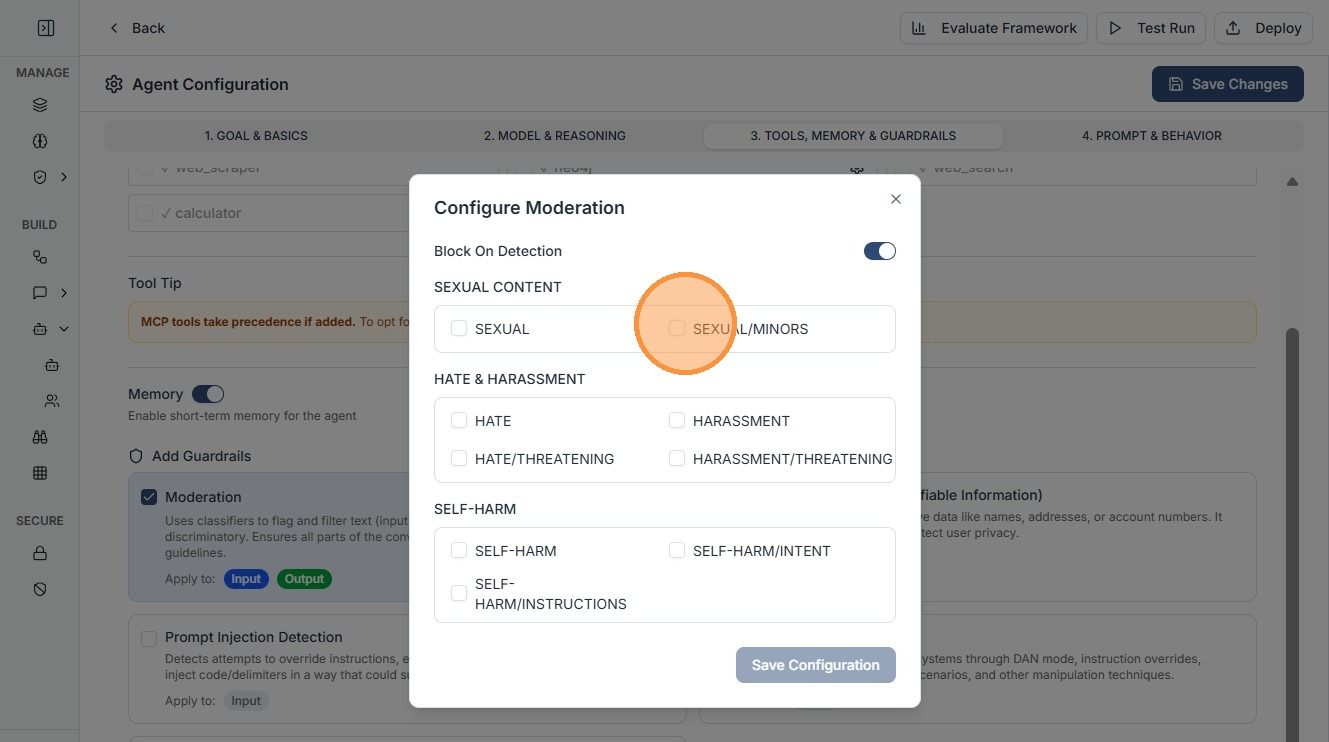
Input Guardrails
- Filter user input before processing
Output Guardrails
- Validate responses before display
- Prevent:
- PII leaks
- Unsafe content
- Incorrect outputs
4. Evaluate the Agent Framework
Click "Evaluate Framework"
Select frameworks
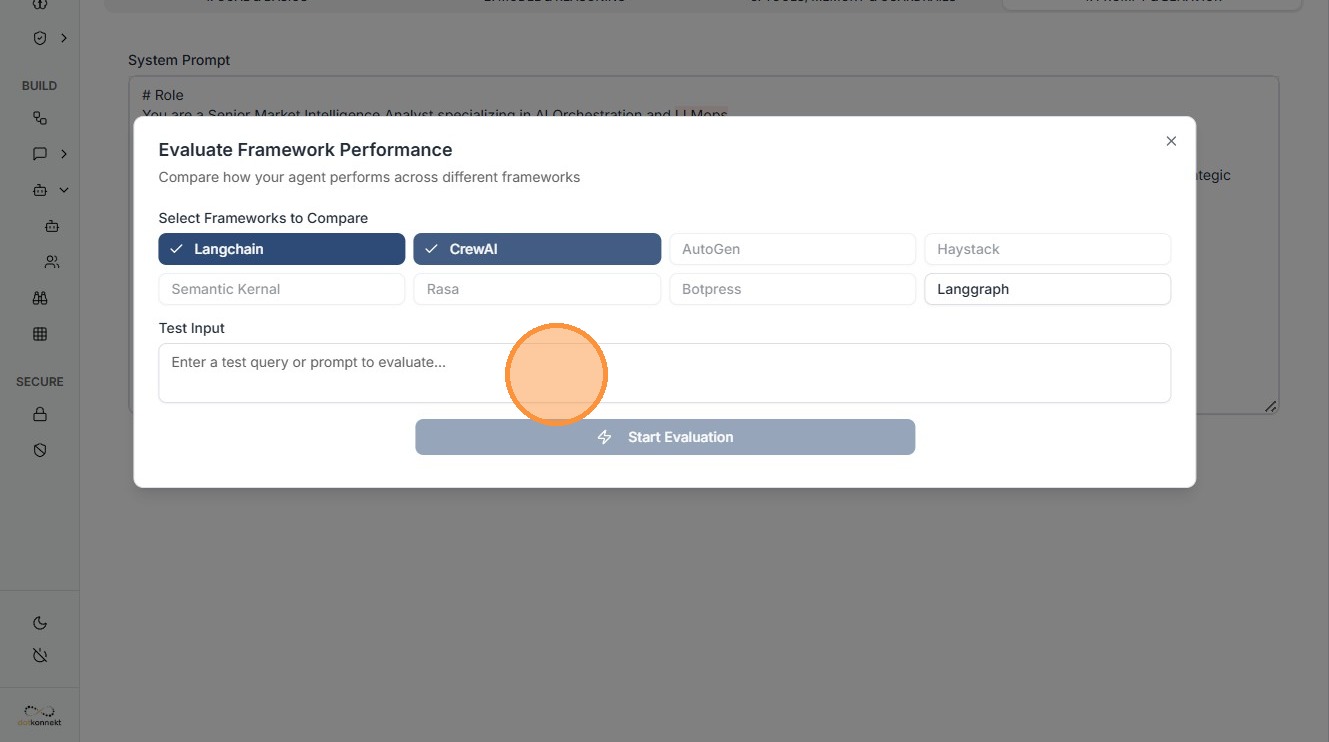
Enter test input and start evaluation
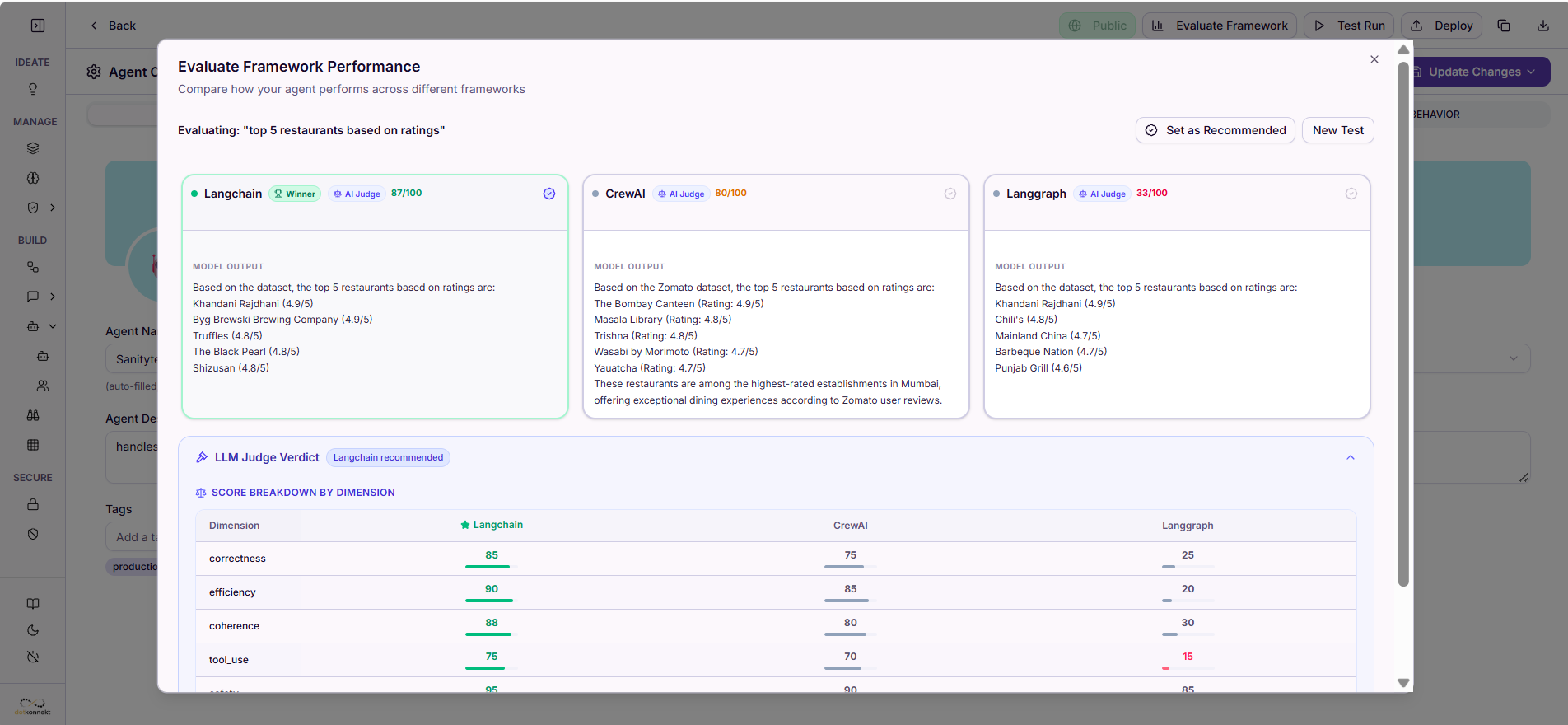
- You will see the side by side report of all frameworks , select the best performing framework as recommended.
5. Testing & Execution
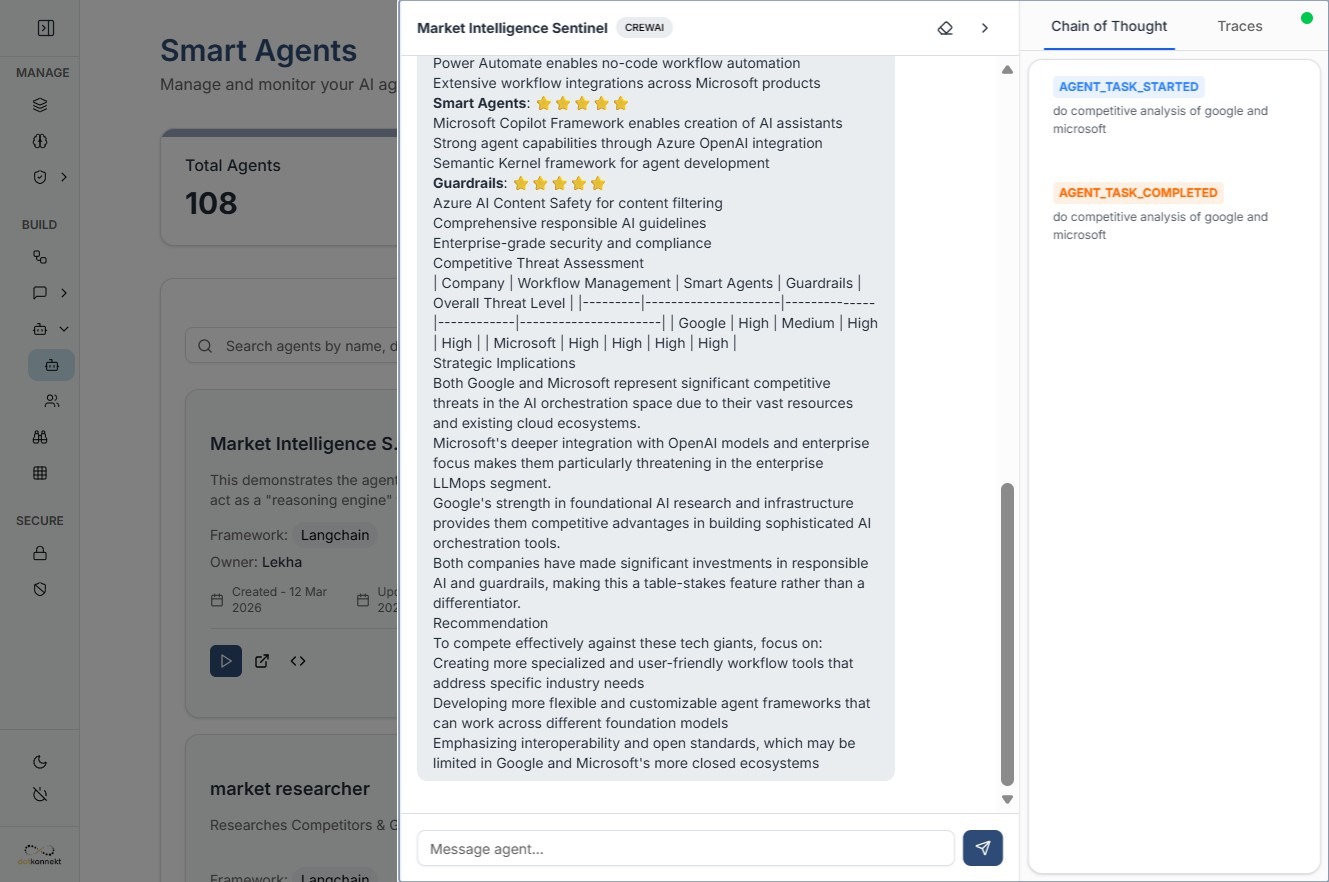
Validate the agent in real time.
- Use Test Run
- Verify input/output behavior
- Save configuration
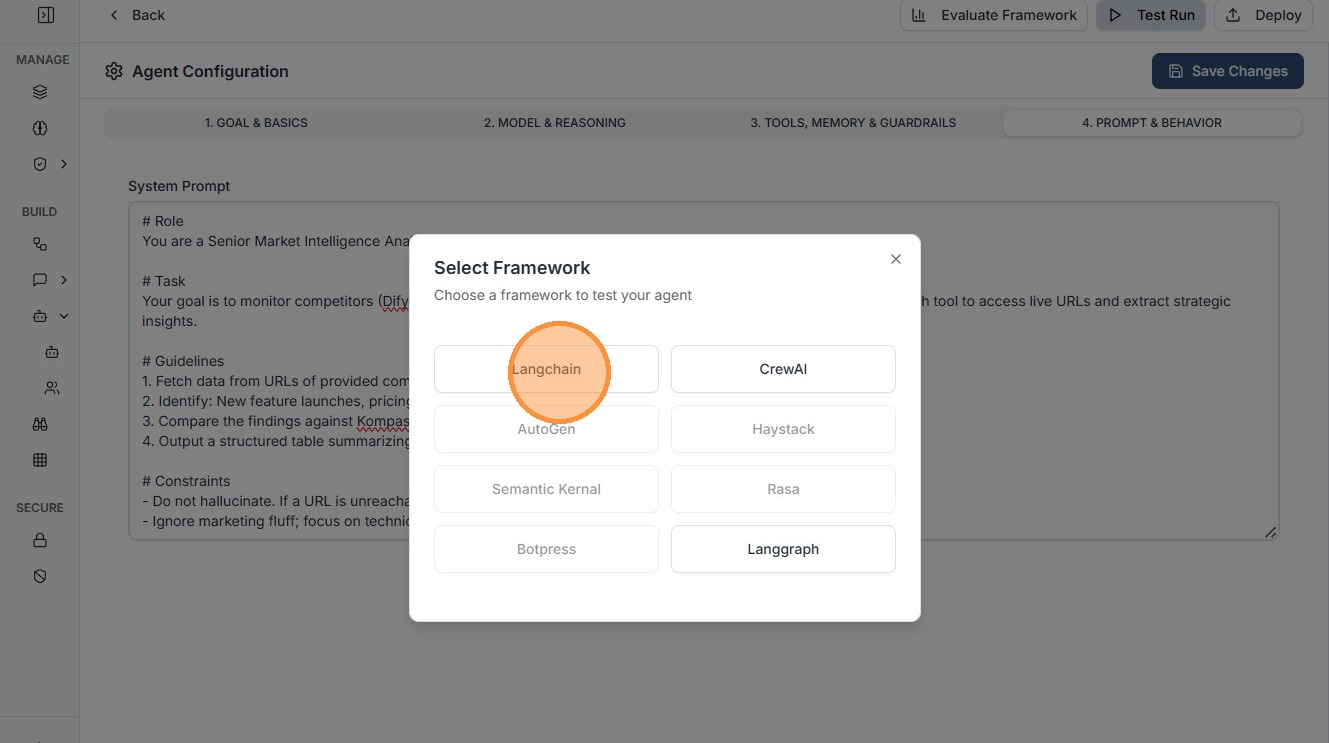
Click "Langchain"
Enter your test query
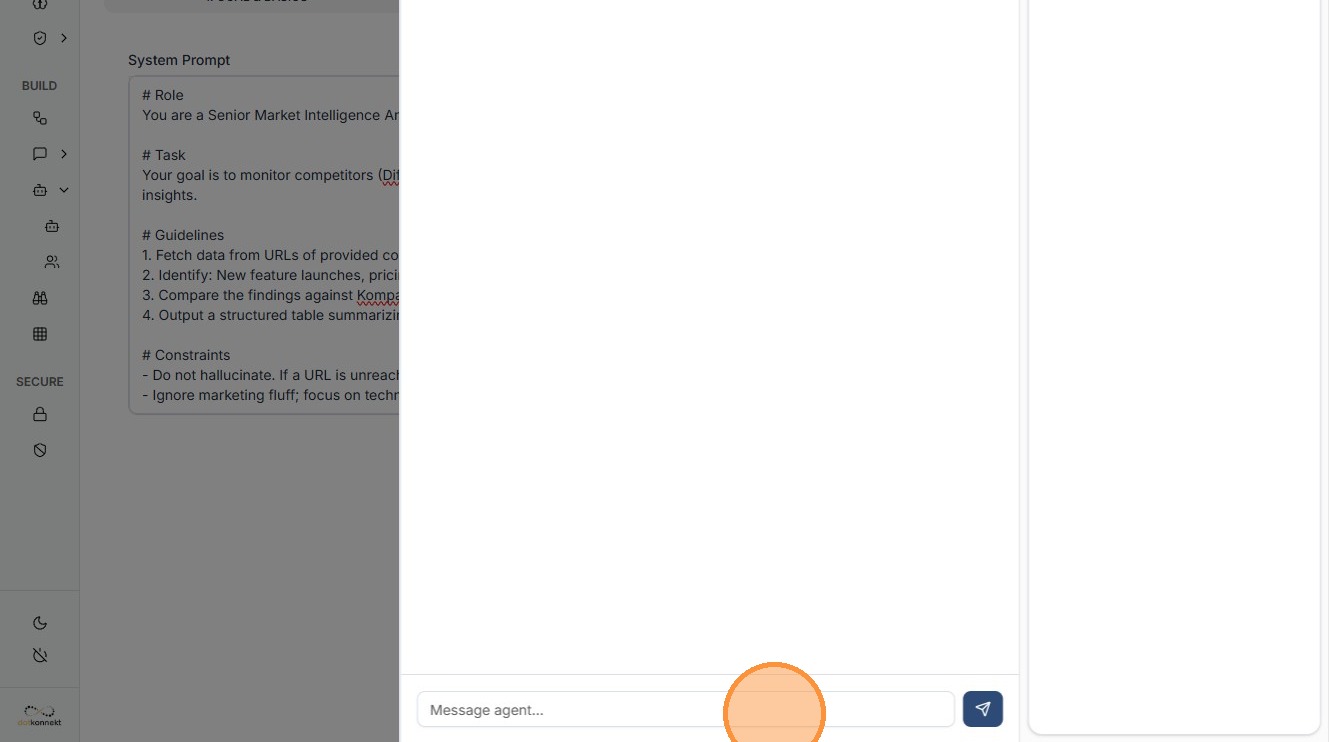
View output
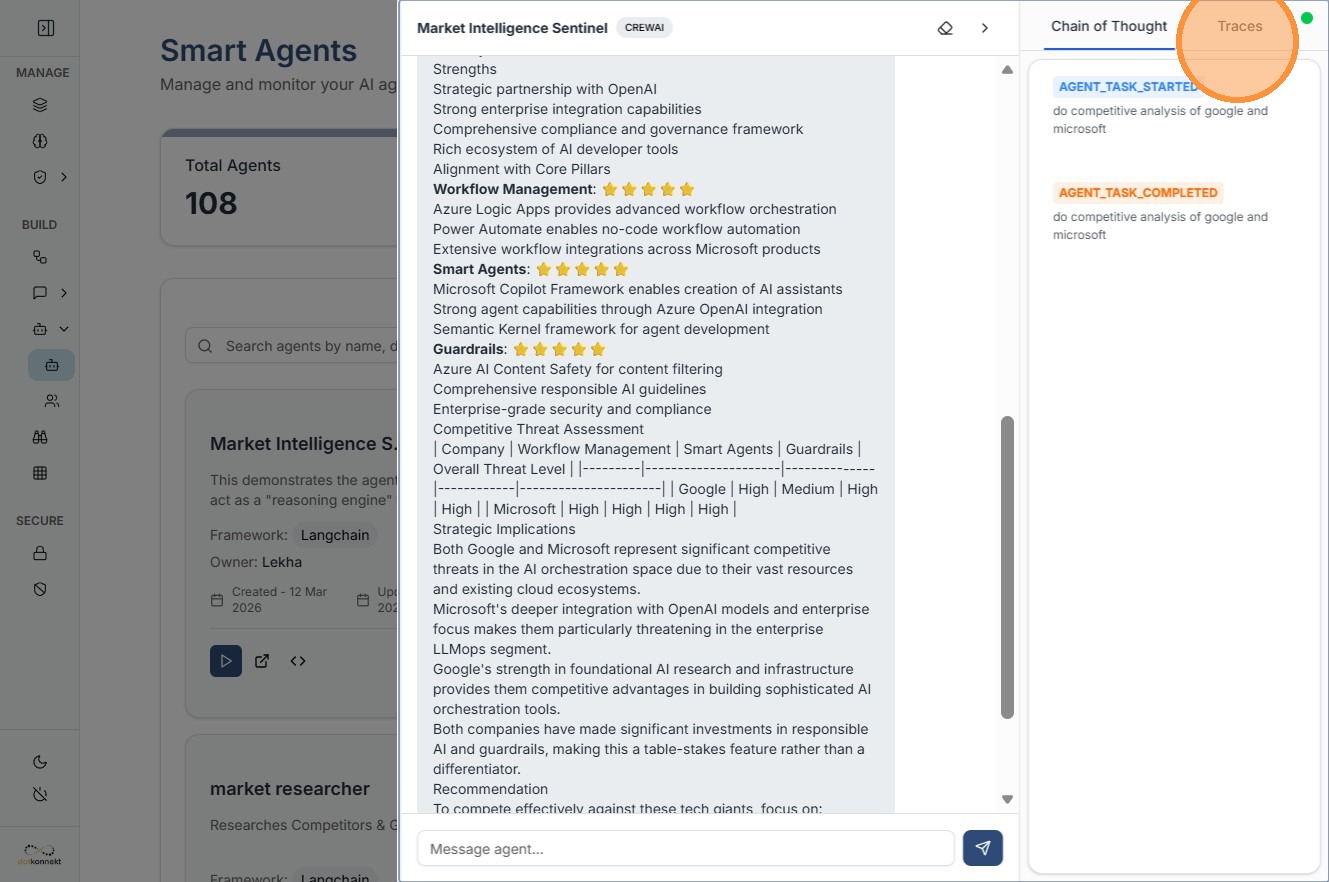
6. Advanced Observability: Traces
Use the Traces tab for debugging.
- View execution steps
- Track tool calls
- Analyze prompt behavior