Projects
The Projects section in Kompass acts as the central hub for managing all AI initiatives within an organization.
Projects help organizations organize, manage, and scale AI systems in a structured way. Instead of managing individual components separately, Kompass groups everything related to a specific AI solution under a single project.
This makes it easier for teams to collaborate, maintain governance, and deploy AI solutions efficiently.
Opening a Project
Selecting a project opens its project workspace, where users can manage all the AI components associated with that project.
The project workspace acts as the operational control center for the AI solution.
This structure helps keep all resources related to a specific AI application organized in one place.
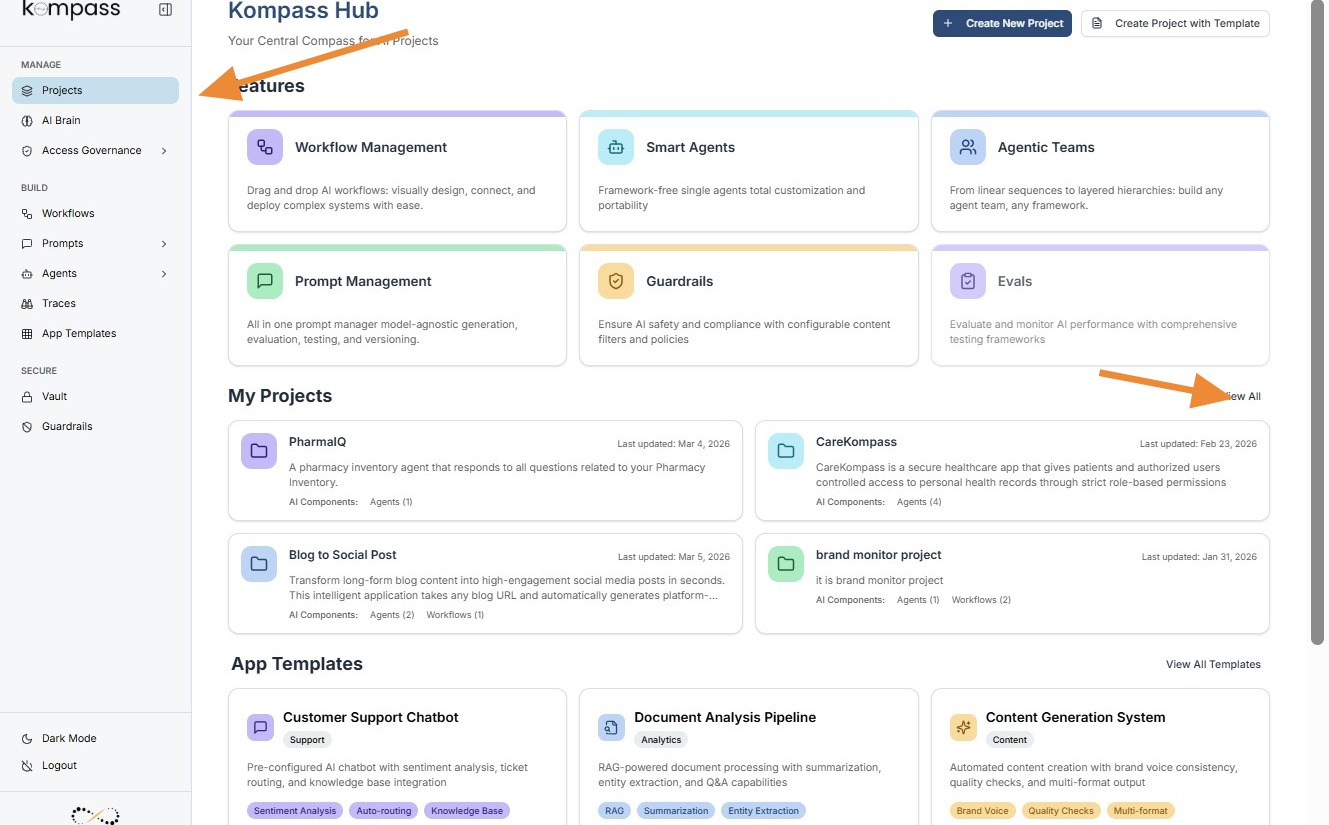
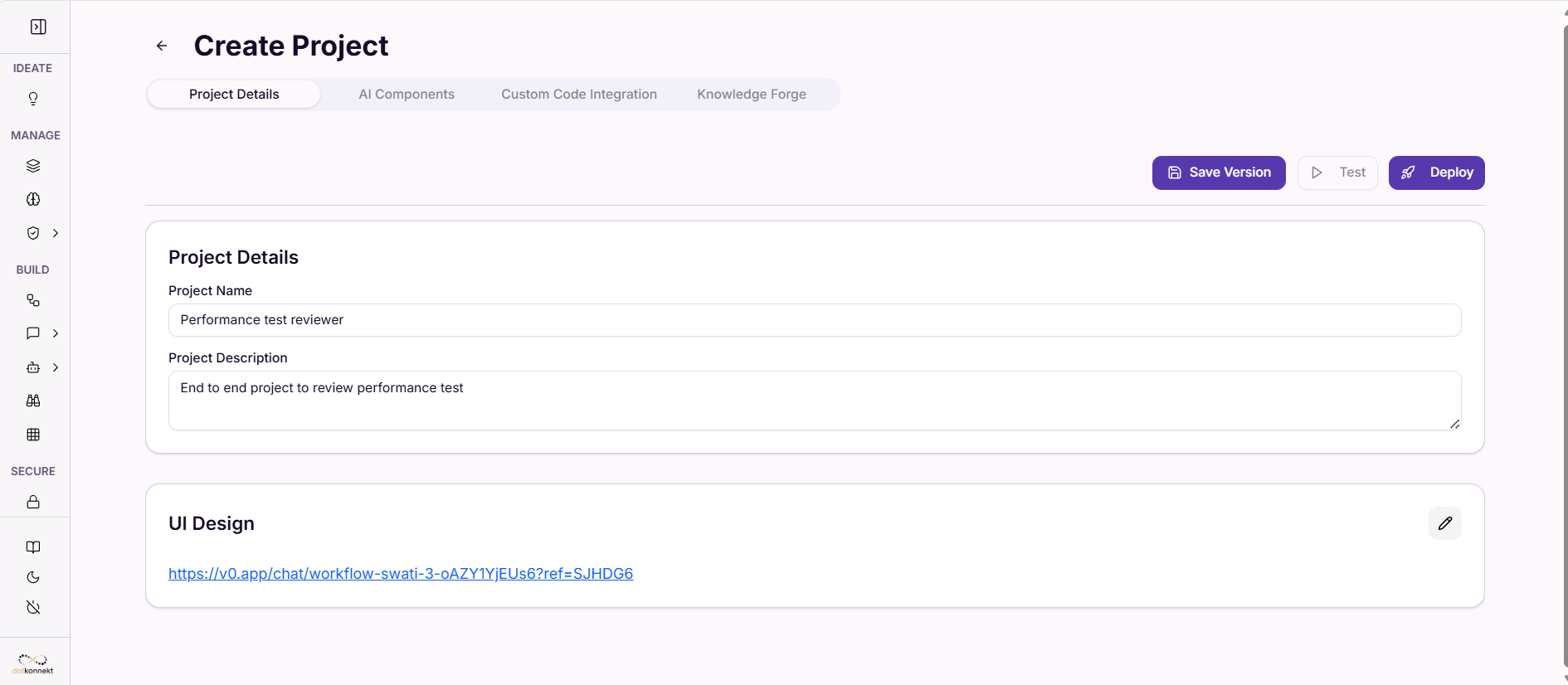
Project Details
The Project Details page provides a centralized view of the configuration, deployment status, and interface associated with a specific AI project.
This page acts as the control center for managing a project, allowing teams to update project information, monitor deployment environments, access the UI interface, and manage version updates.
For enterprise teams, this screen ensures that all key information about an AI application is accessible from one place.
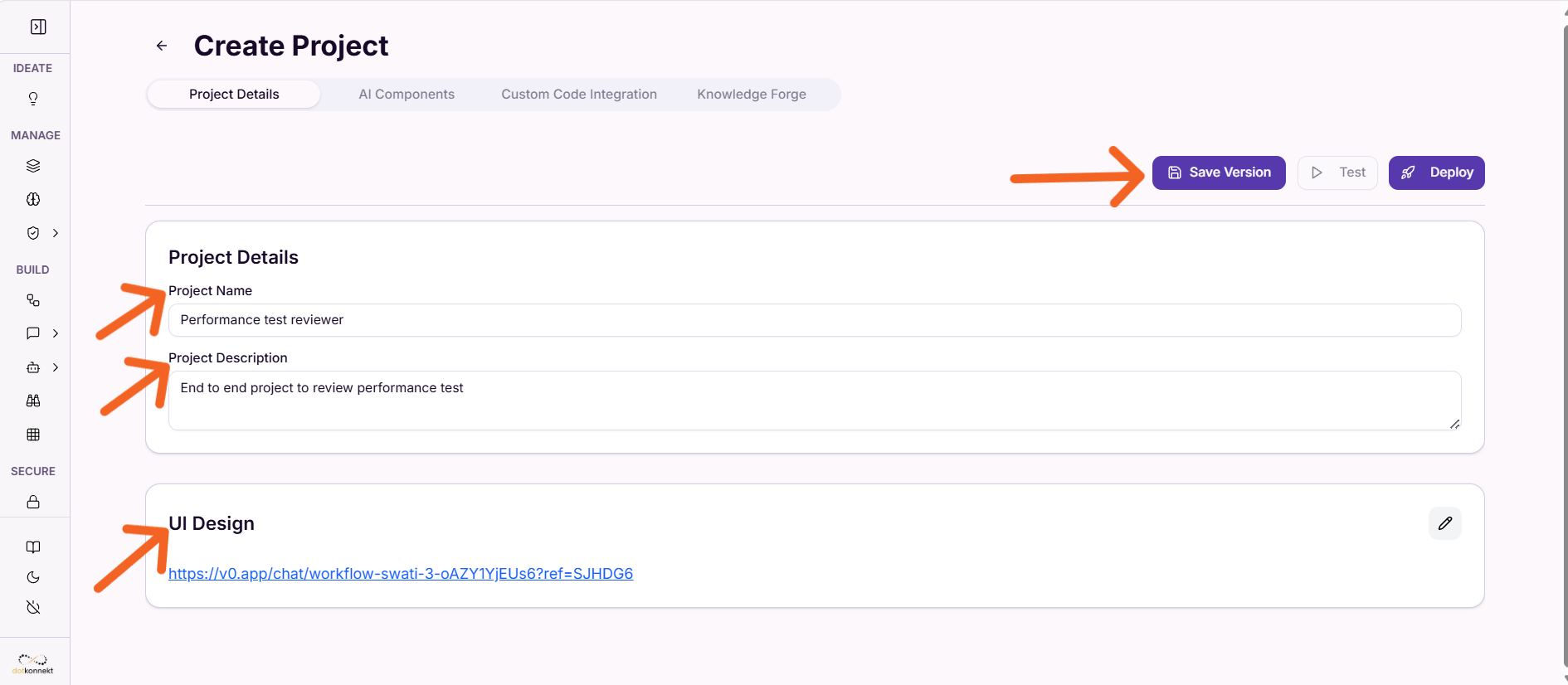
UI Design
The UI Design section contains a link to the interface used to interact with the AI application.
Example:
https://v0.app/chat/product-content-enhancer
This link represents the front-end interface for the AI solution.
Through this interface, users can:
-
submit inputs to the AI system
-
interact with the workflow
-
view generated outputs
For example, business users could open this UI to generate optimized product descriptions from raw product data.
This separation between backend AI logic (Kompass) and user-facing UI allows teams to build and test AI applications more efficiently.
Environment Details
The Environment Details section displays the current deployment environment of the project.
Example from the screen:
Environment: main
Status: Deployed
Domain: https://kompass-pdp-ui-staging.dotkonnekt.com
This section helps teams understand where the AI application is currently running.
Environment Name
The environment label (such as main) identifies the deployment branch or environment associated with the project.
Organizations may maintain multiple environments such as:
-
development
-
staging
-
production
Each environment can host different versions of the AI workflow for testing or live usage.
Deployment Status
The Deployed indicator confirms that the project is currently active and accessible.
This helps teams quickly verify whether the AI application is running successfully.
Domain
The Domain field shows the URL where the AI application is accessible.
This is typically the endpoint where the AI solution is integrated into a website or application.
For example, the domain shown may host the interface where users generate product content using the AI workflow.
Project Management Actions
At the top right of the screen, several actions are available for managing the project.
Update Version
The Update Version option allows teams to create a new version of the AI project after making updates to workflows, prompts, or agents.
Versioning ensures that changes are tracked and deployments remain stable.
Test
The Test option allows users to test the AI workflow before deploying updates.
This helps teams verify that prompts, agents, and workflows are functioning correctly.
Testing reduces the risk of errors in production environments.
Deploy
The Deploy option publishes the latest version of the project to the configured environment.
Once deployed, the updated AI solution becomes available to users through the associated domain or UI interface.
AI Components
The AI Components section is where all the core building blocks of an AI project are managed.
Within a project, users can create, configure, and manage the components that power the AI solution. These components include:
-
Workflows
-
Agents
-
Prompts
-
Knowledge Graph Visualizer
Each component plays a specific role in how the AI system processes inputs and generates outputs.
This section allows teams to build modular AI applications, where workflows orchestrate agents, agents execute tasks using prompts, and prompts communicate instructions to LLM models.
The left panel provides quick navigation between these components.
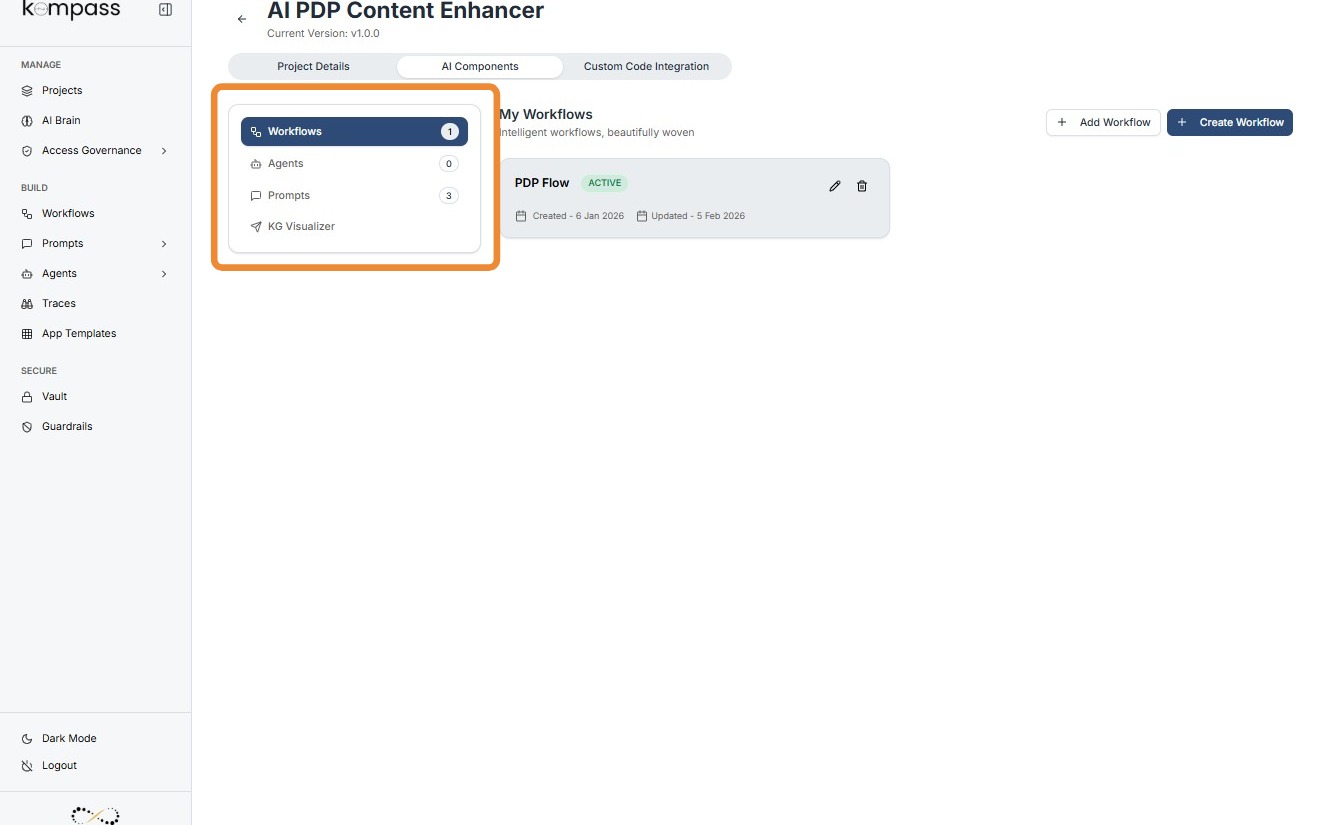
Workflows Screen
The Workflows page shows all workflows configured within the project.
A workflow represents the end-to-end AI process that defines how tasks are executed and how different agents interact.
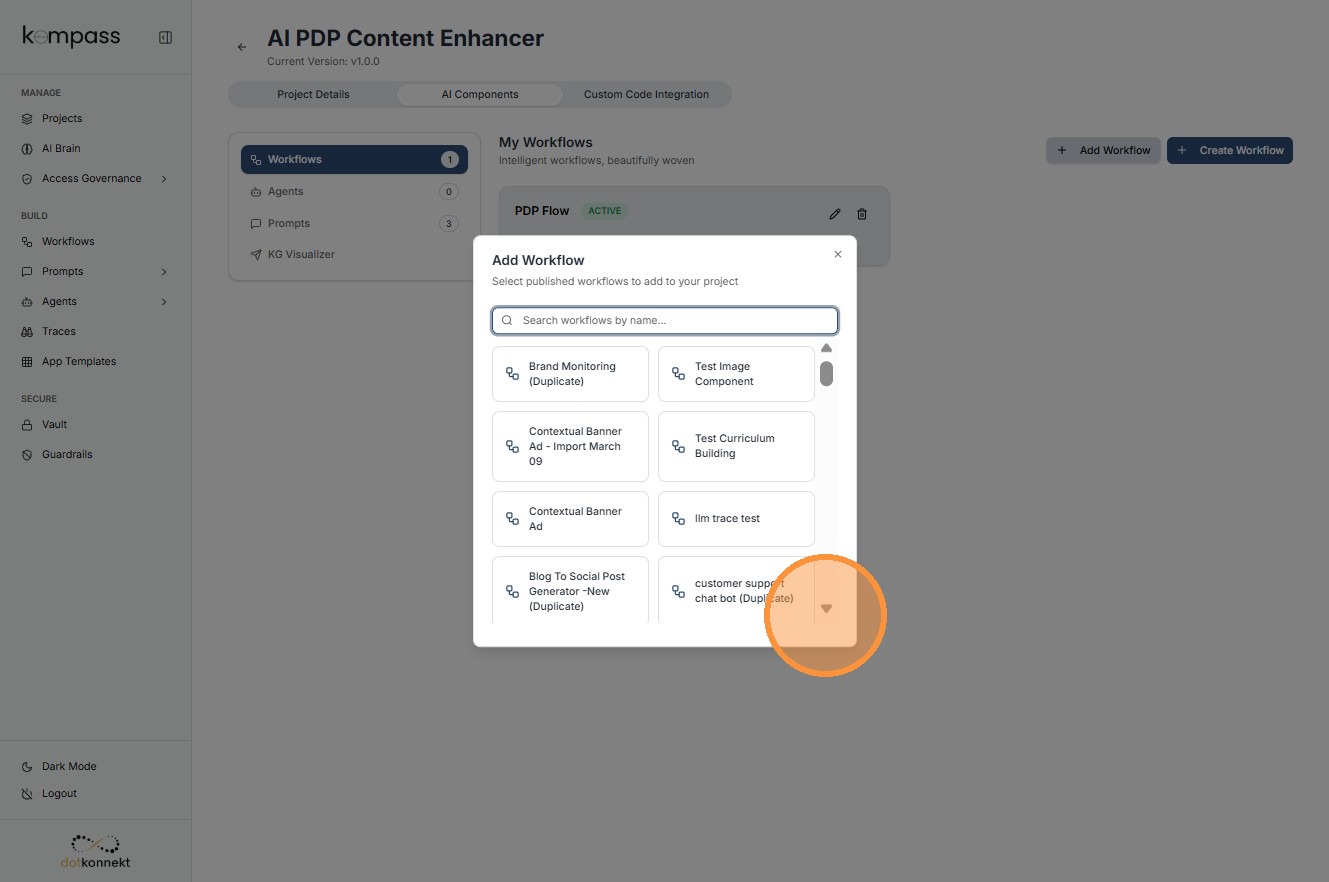
You can add a workflow (only with Active Status) here or create a new one by clicking "Create Workflow" button.
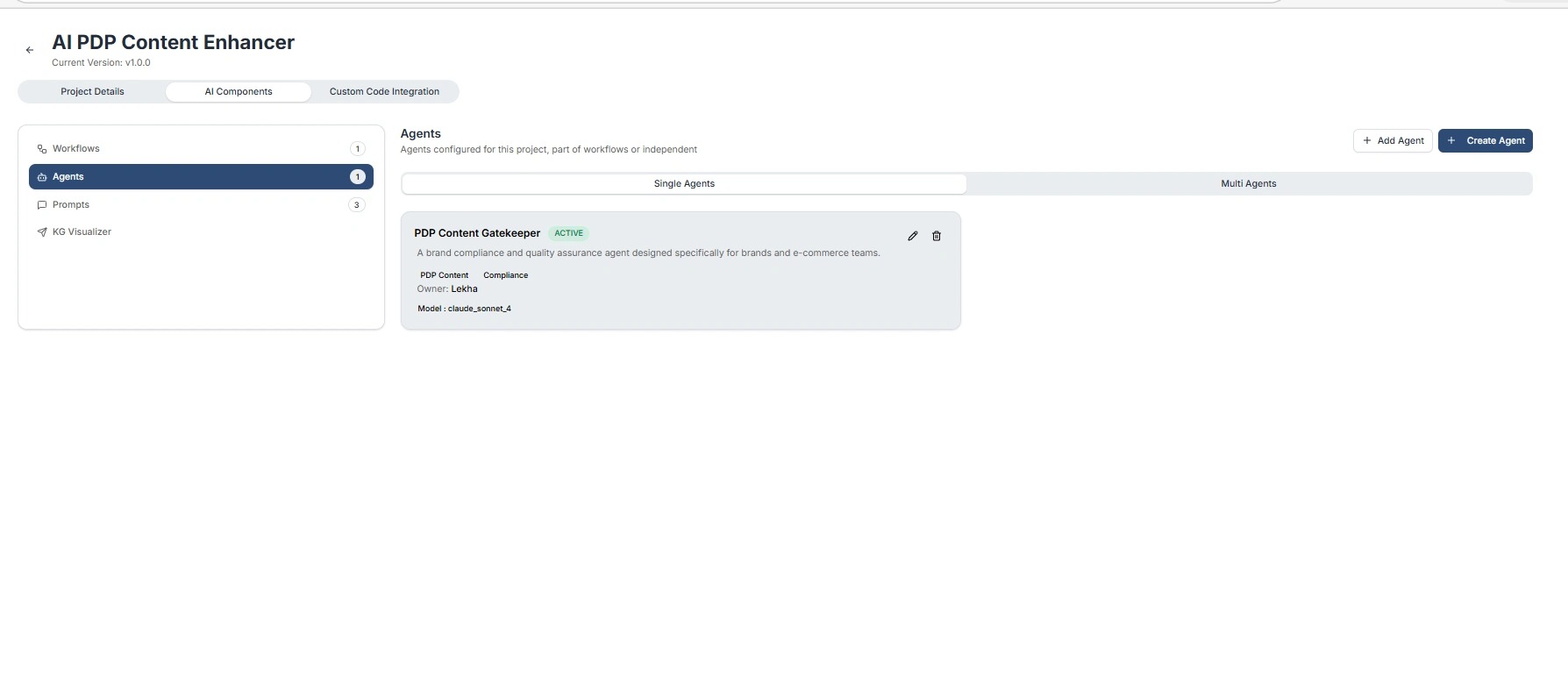
Agents Screen
The Agents page shows all AI agents configured within the project.
An AI Agent is an intelligent unit that performs a specific task using an LLM model and defined prompts.
Agents can operate:
-
Independently, or
-
As part of a workflow
You can add an active agent or agentic team from here or build a new one, "Create Agent" button will navigate you to Agent Configuration window.
Prompts Screen
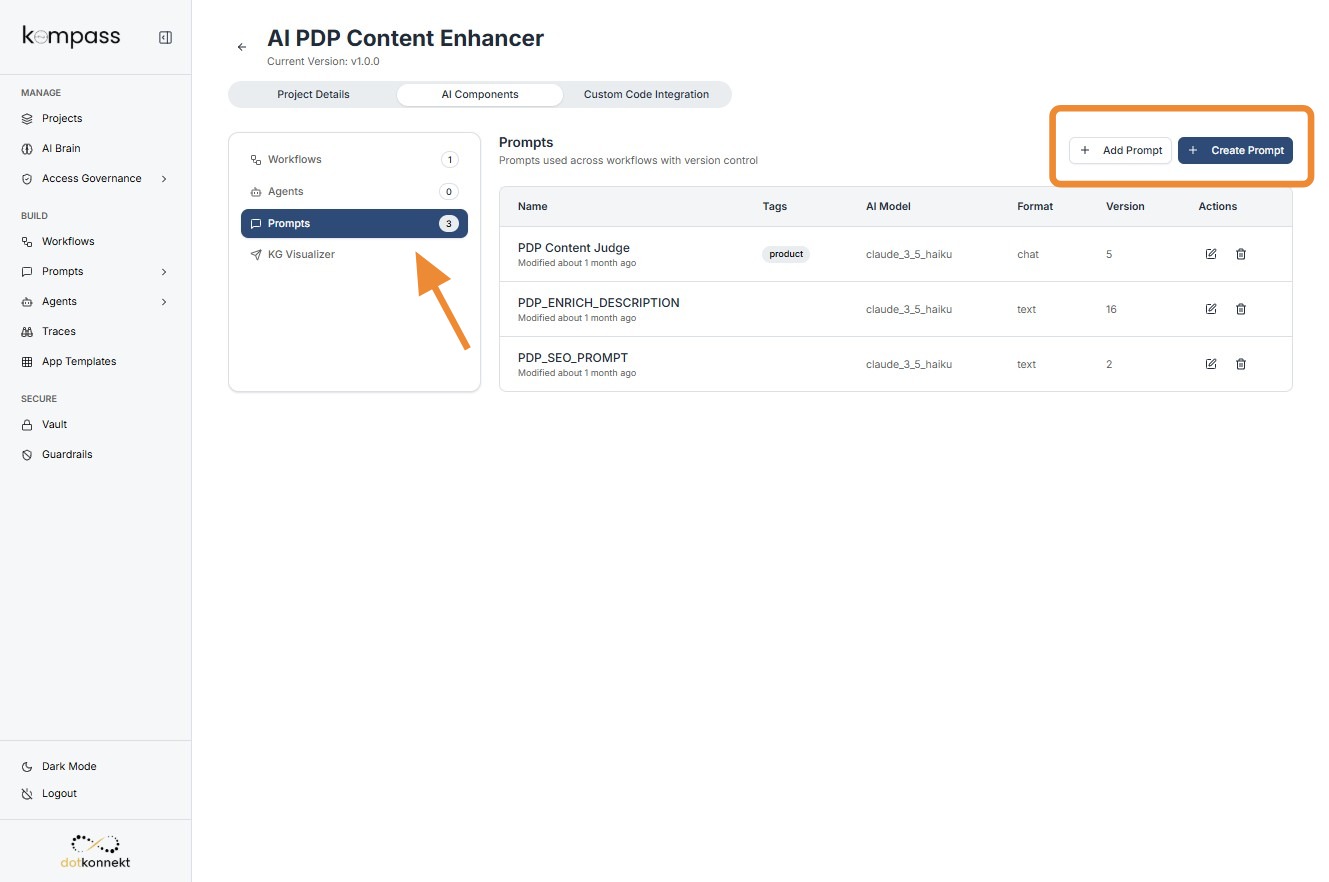
The Prompts page displays all prompts configured within the project.
A prompt defines the instructions given to the language model to generate a response.
Prompts are the core instruction layer that guides AI behavior.
You can add active prompts or create new prompt from here(it will navigate you to Prompt Builder)
AI Forge (Knowledge Graph Builder)
The AI Forge feature enables users to automatically generate a Knowledge Graph by uploading structured data files (CSV format). This simplifies the process of transforming raw data into meaningful entities and relationships.
Overview
AI Forge allows users to:
- Upload up to 5 CSV files
- Automatically analyze and extract:
- Entities (Nodes)
- Relationships (Edges)
- Generate a visual Knowledge Graph
- Preview and validate schema before extraction
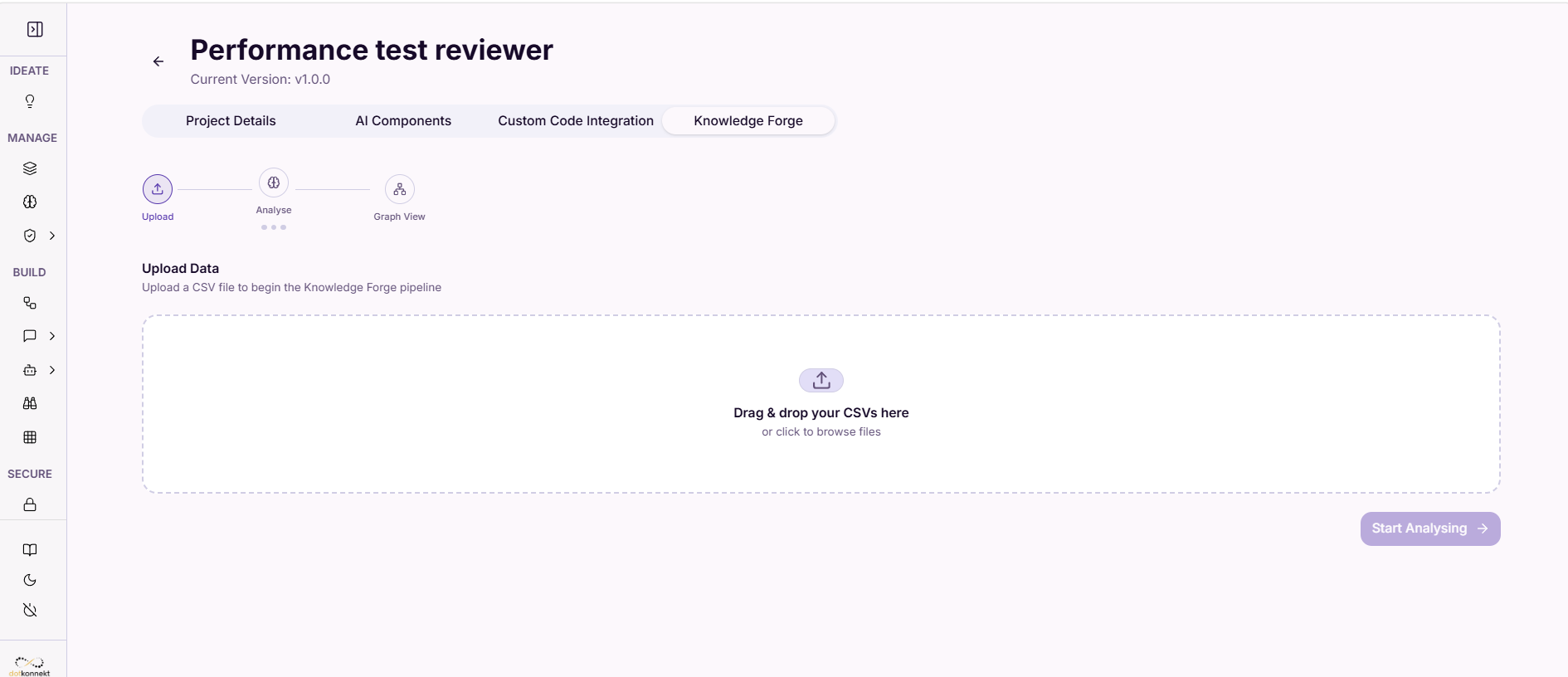
Step 1: Upload Data
Users can upload CSV files via drag-and-drop or file selection.
Key Points:
- Only .csv files are supported
- Maximum of 5 files
- System detects rows and structure automatically
Step 2: Analyze Data
Once uploaded, AI Forge analyzes the dataset and provides:
- File preview (first few rows)
- Suggested entity extraction
- Optional analysis context input for better accuracy
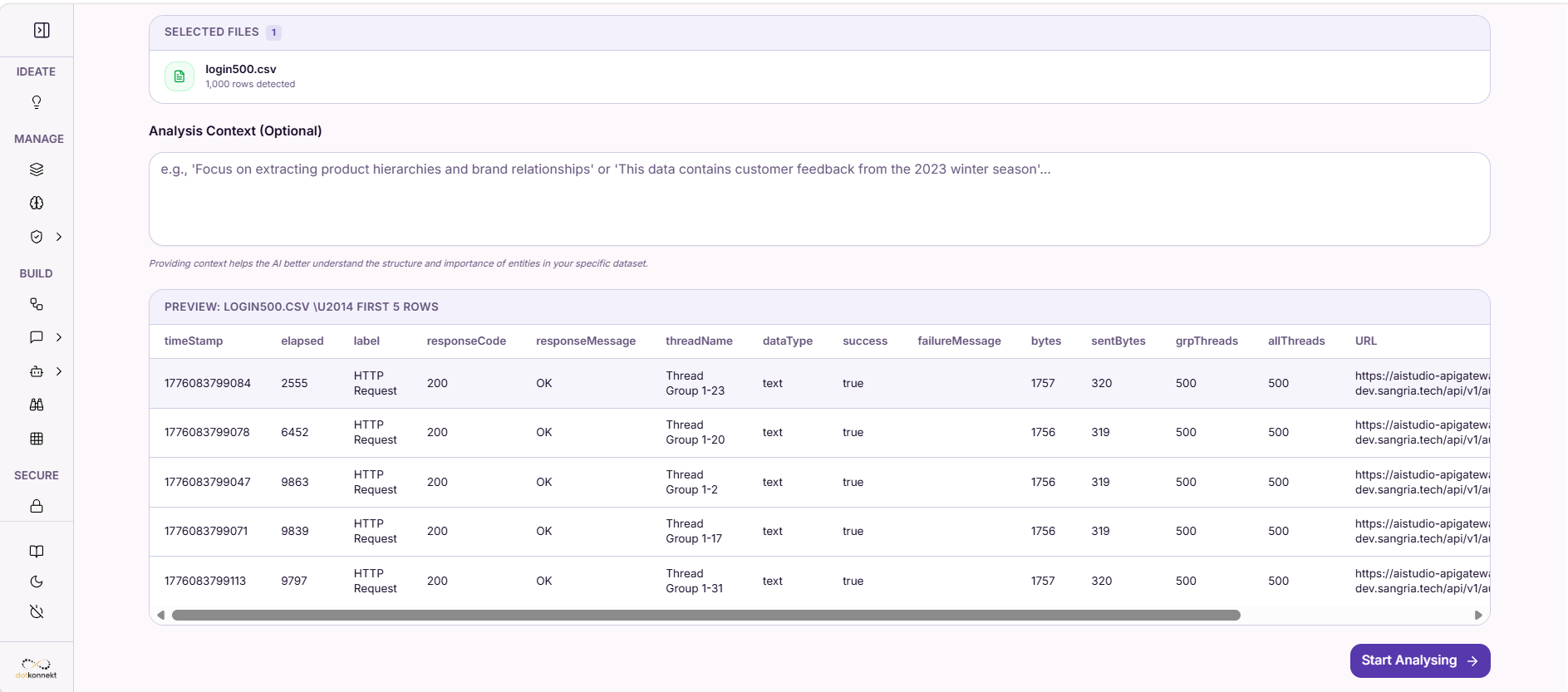
Optional Input: You can guide the AI with context like:
Focus on extracting product hierarchies and relationships
Step 3: Schema Preview & Mapping
AI Forge proposes a Knowledge Graph schema, including:
- Node types (Entities)
- Properties
- Relationships between entities
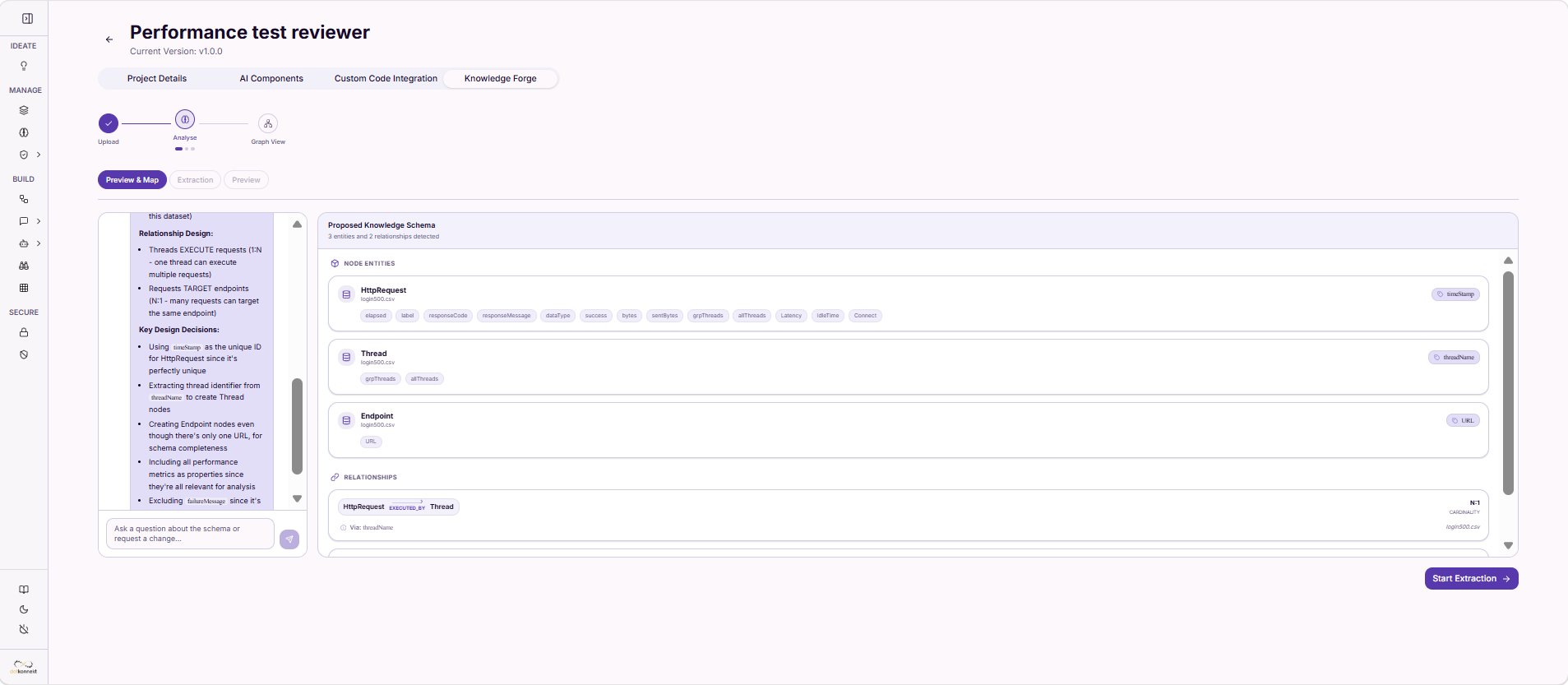
Example:
- HttpRequest → Node
- Thread → Node
- EXECUTED_BY → Relationship
Users can: - Review schema - Modify mappings (if needed) - Proceed to extraction
Step 4: Extraction Process
AI Forge processes the dataset to:
- Extract nodes and relationships
- Build the Knowledge Graph
System Behavior: - Shows real-time progress - Handles large datasets efficiently - Ensures structured graph creation
Step 5: Completion & Visualization
Once extraction is complete:
- Graph is fully built
- Entities and relationships are ready
- User can proceed to visualization
Click "View Graph" to explore the Knowledge Graph visually.
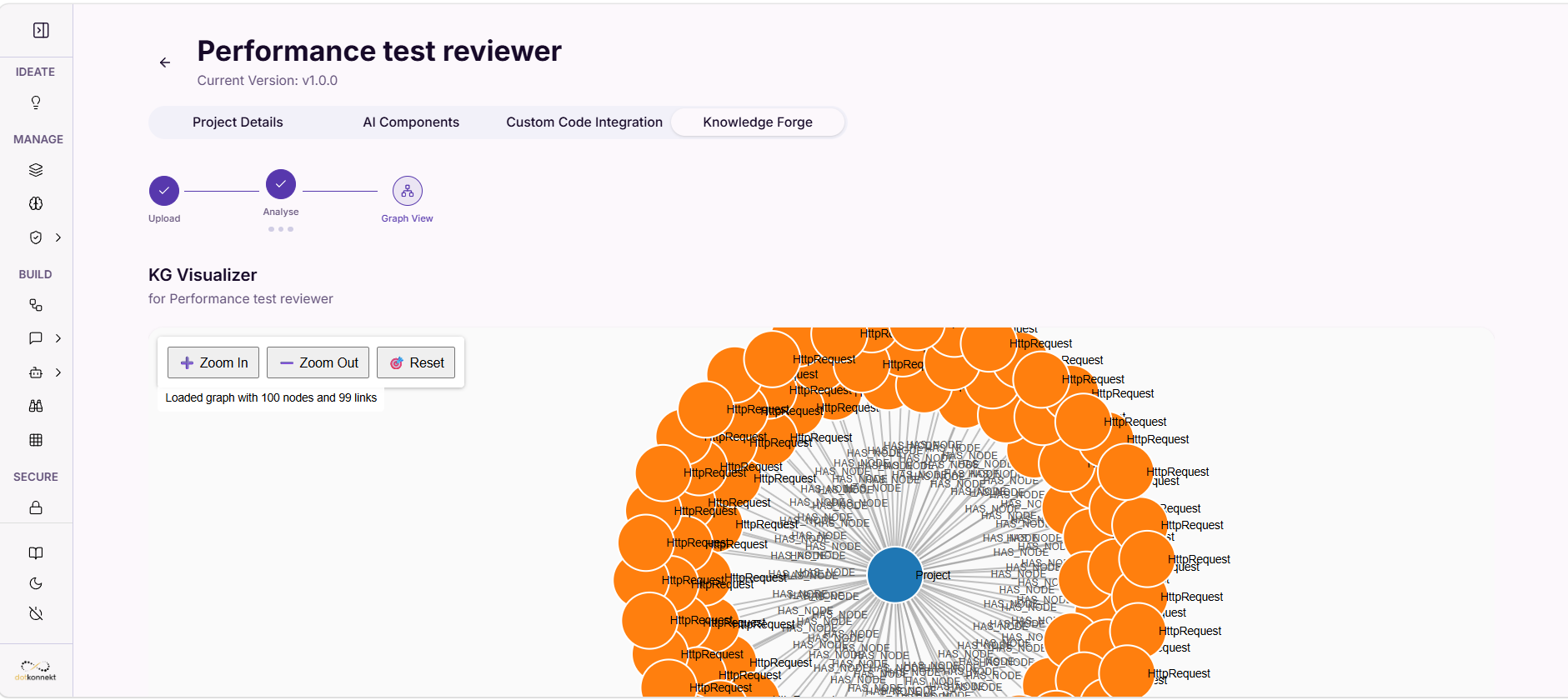
Step 6: Graph View
The generated Knowledge Graph provides:
- Interactive visualization
- Node relationship mapping
- Zoom and navigation controls
Constraints
- Only CSV format supported
- Maximum 5 files per upload
- Data quality affects graph accuracy
Best Practices
- Ensure clean, structured CSV data
- Avoid missing key identifiers
- Provide context for better schema inference
- Validate schema before extraction
Outcome
After completing all steps, users get:
- A fully structured Knowledge Graph
- Ready-to-query data via tools like Neo4j
- Foundation for building AI agents and workflows
Using Knowledge Graph in Agents via System Prompt
When integrating a Knowledge Graph (KG) with agents, always define clear system prompt instructions to ensure the agent strictly uses structured data.
Key Instructions to Include:
- Use only data available in the Knowledge Graph
- Follow entity relationships strictly
- Do not fabricate or assume missing data
- If no data is found, respond with: "No data found"
Example System Prompt Snippet:
You are a data-aware assistant with access to a structured Knowledge Graph.

- Use ONLY the data present in the Knowledge Graph
- Follow relationships between entities strictly
- Do NOT assume or fabricate missing information
- If data is not found, respond with: "No data found"

Always base your answers strictly on the Knowledge Graph.
Tool Usage (if Neo4j is connected):
- Use the query tool whenever data retrieval is required
- Pass the user question directly, not custom queries
- Do not repeat the same query multiple times
Avoid:
- Generating answers without querying the KG
- Ignoring relationships between entities
- Hallucinating missing data
Result:
Proper instructions ensure the agent is:
- Data-grounded
- Accurate
- Reliable